How To Install Avada Via FTP
Last Update: November 4, 2026
There are two ways you can install a WordPress theme. The focus in this guide is how to install Avada via FTP, or alternatively you can install it via WordPress.
Before you can install Avada, you will first need to download the necessary file from My Avada. Continue reading below for more information on this installation method.
How To Download Avada
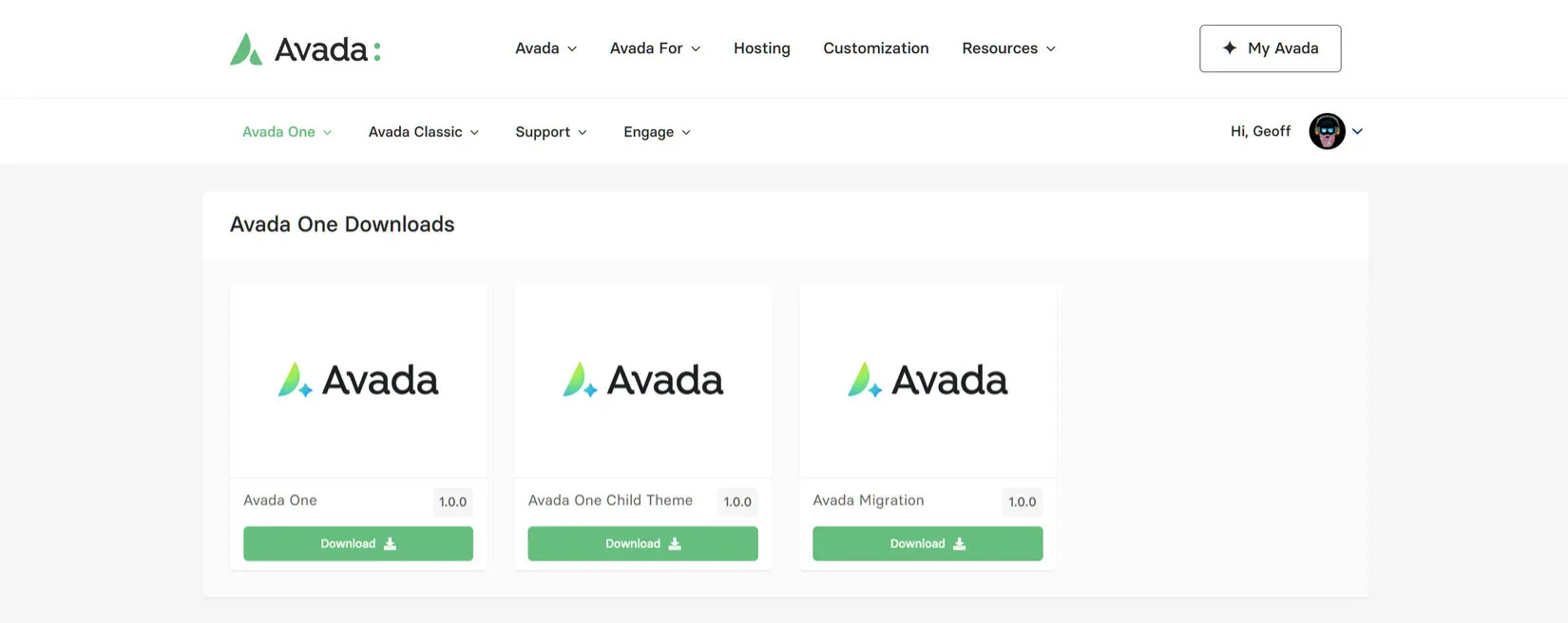
To install Avada, only the Installable WordPress file is required. If you want to install a Child Theme, you can also find that on the Downloads page. See How To Set Up A Child Theme With Avada doc.
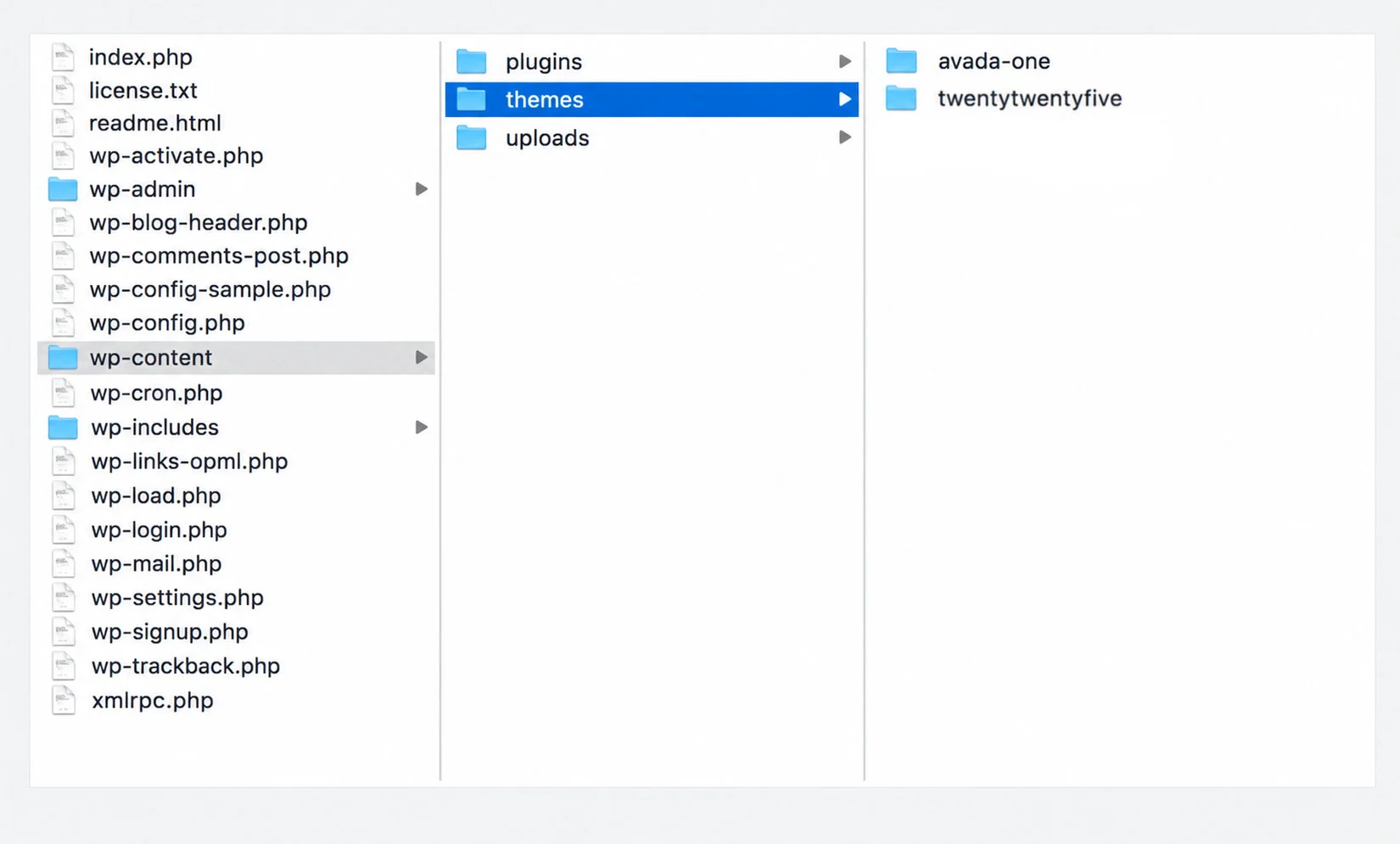
Installation Via FTP
How To Activate Avada
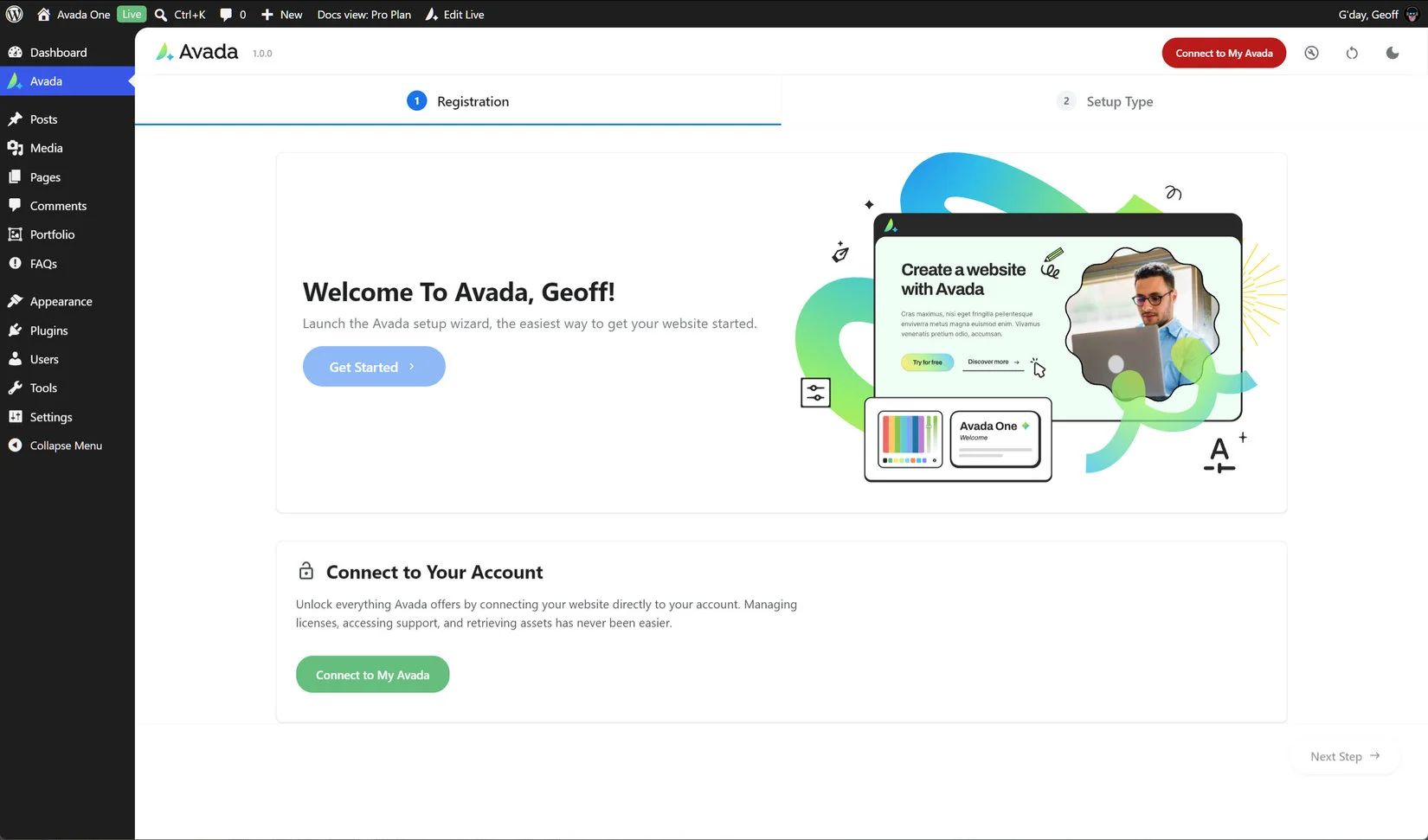
Once you have activated the theme in WordPress, you need to activate it with us. This connects your Avada theme with your My Avada account. On the initial sceeen you see after activation, you will see a Connect to My Avada Button. Clicking on this will bring up an oAuth connection screen, asking permission to connect to your My Avada account. This connects the site with your subscription, and then moves on to the Avada Setup Wizard. See the How To Purchase, Install & Activate Avada doc for more information on this.