Avada System Status
Last Update: January 29, 2026
The Avada System Status page is a built-in diagnostic overview that shows you key technical information about your WordPress site and how Avada is functioning on it. It gathers details about your server environment, WordPress configuration, database, PHP settings, installed plugins, theme version, memory limits, and other critical components that affect performance and compatibility.
Instead of searching through multiple places to troubleshoot an issue, the System Status page gives you one clear snapshot of everything that matters behind the scenes. It helps you identify whether something in your setup could be causing errors, slowdowns, or unexpected behavior — and it’s especially useful when you’re contacting support, because you can share this status with confidence, knowing it accurately reflects your current environment.
Whether you’re checking if your hosting plan meets Avada’s requirements, confirming PHP versions, or spotting conflicts with plugins, the Avada System Status page gives you valuable visibility into the technical side of your site without needing developer tools or server access. This page is divided into seven sections:
- 1System Status
- 2Avada Version History
- 3Avada Setup & Update Tools
- 4WordPress Environment
- 5Server Environment
- 6Avada Update Server Status
- 7Active Plugins
The System Status page is located at Avada > Status in your WordPress Admin Sidebar, or, from the Avada Dashboard, at Maintenance > System Status. Continue reading below for more information on each section, and watch the video below for a visual overview.
Avada Version History
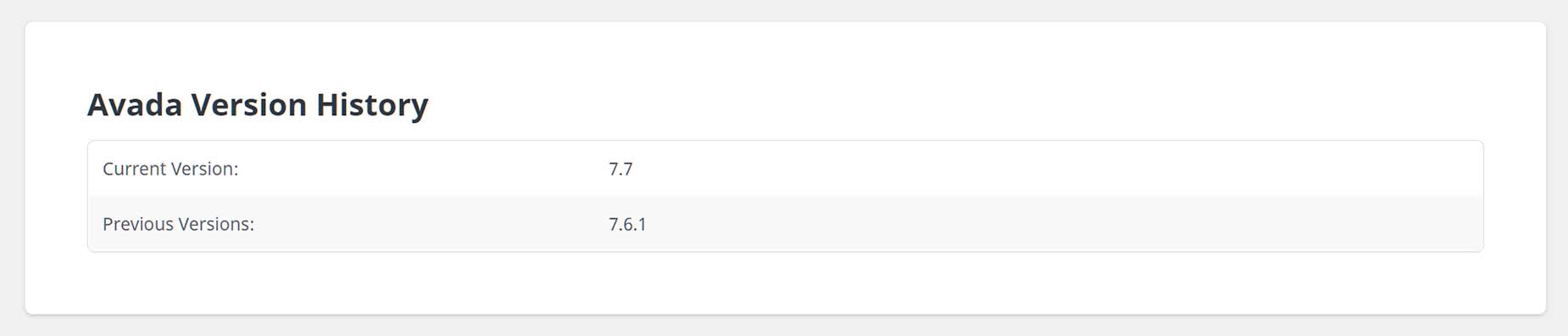
The Avada Version History section shows the current Avada version and any previous versions. The content you see in this section will vary depending on which versions you’ve used.
Avada Setup & Update Tools
In this section, you see conversion tools, as well as links to the Avada Setup Wizard, and an option to recreate the Avada Forms database tables. Depending on which version you are on, different conversion tools will be available.

The bottom part of the section offers a button to Re-create Avada Forms Database Tables. These database tables are auto-created on update to 7.1, but if they are not, users will see PHP notices, and Avada Forms will not work as expected. These buttons try to recreate the tables in such cases. If you continue to have troubles with this, consult your host, or submit a support ticket.
WordPress Environment
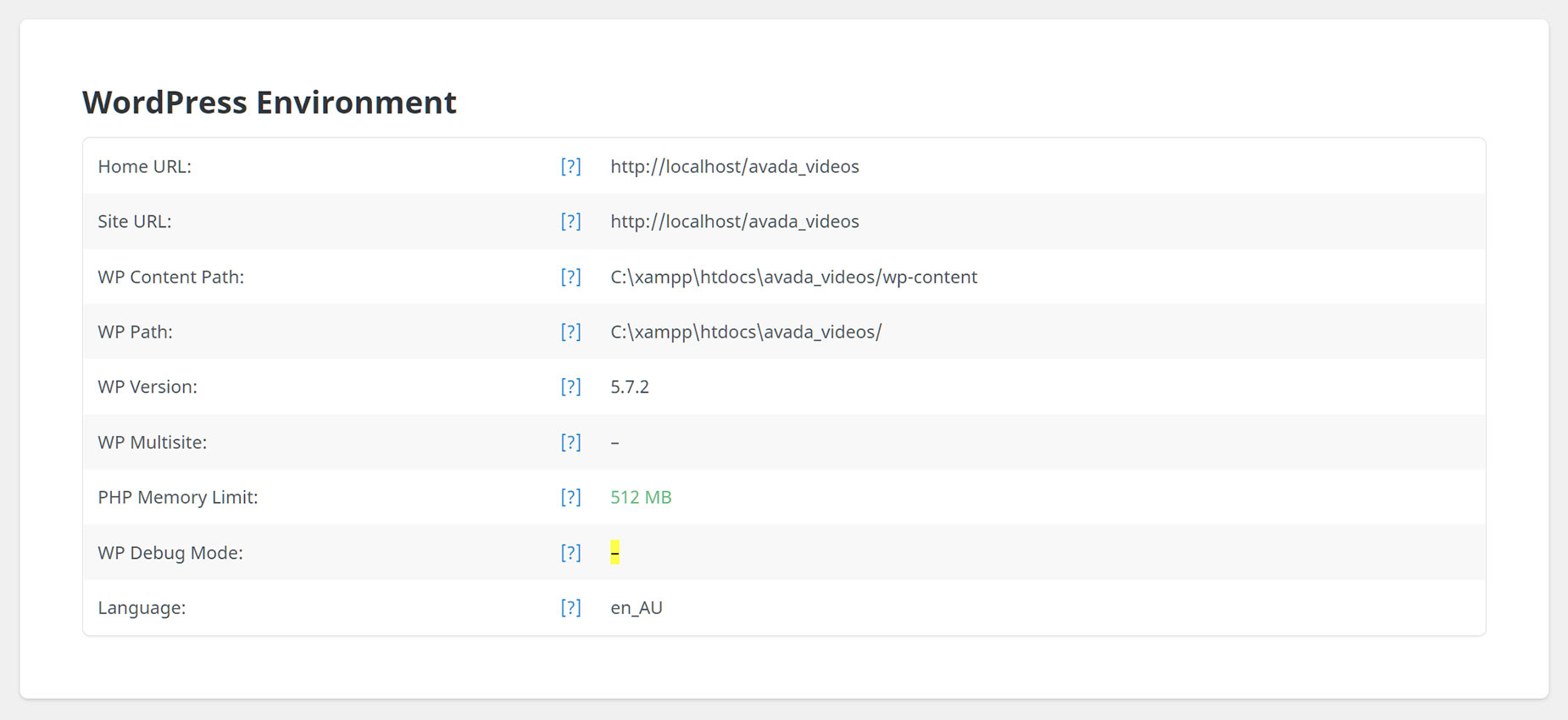
This section displays all the relevant data related to your WordPress environment.
Server Environment
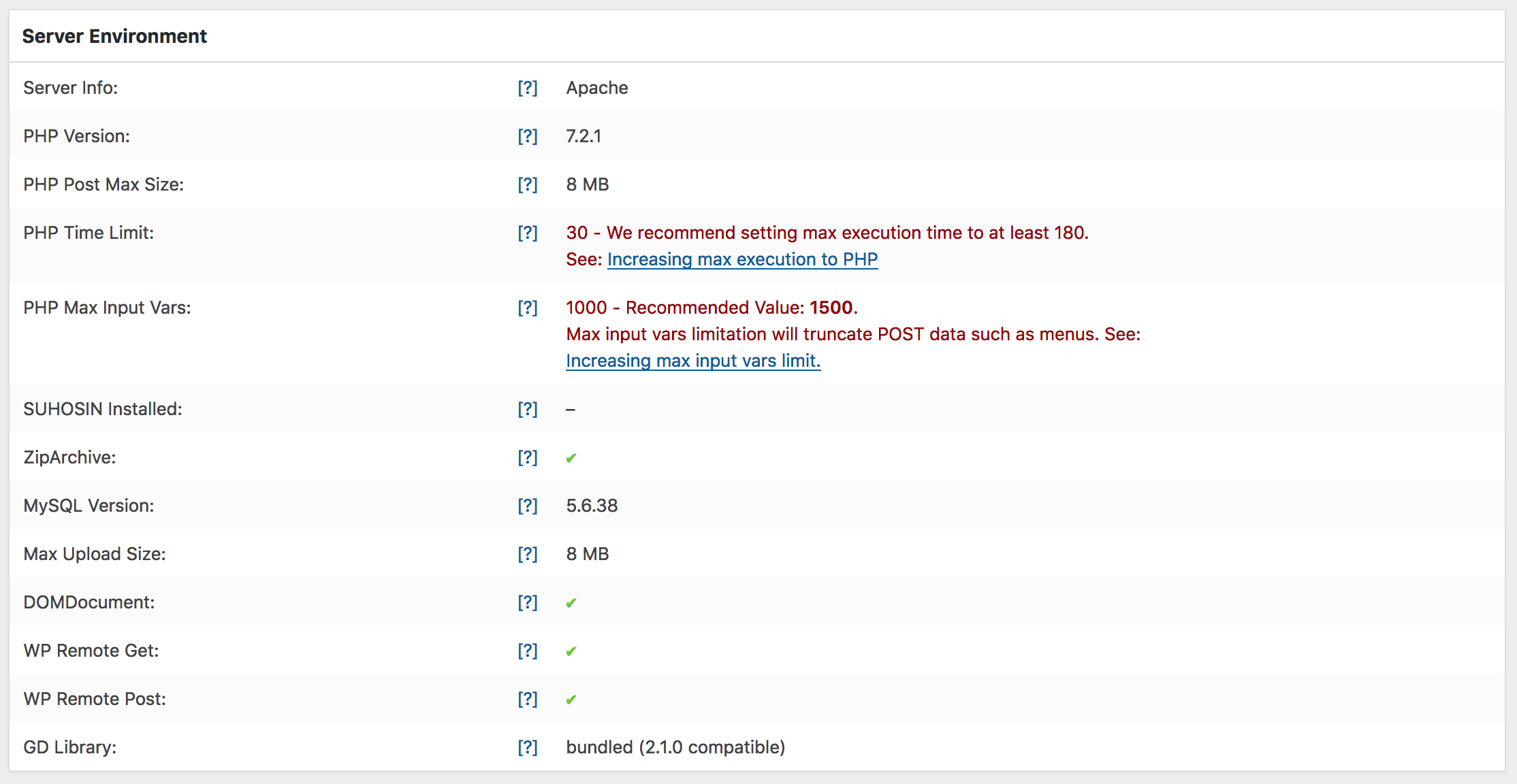
This section displays all relevant data related to your server environment.
Red and Green Values
In the System Status tab, some values may appear as green or red. If a value appears green, it meets the minimum requirements to run the theme. If a value appears in red, it means it is below the minimum requirements and needs to be adjusted. Please click the button below to read about how to increase these limits.
Avada Update Server Status
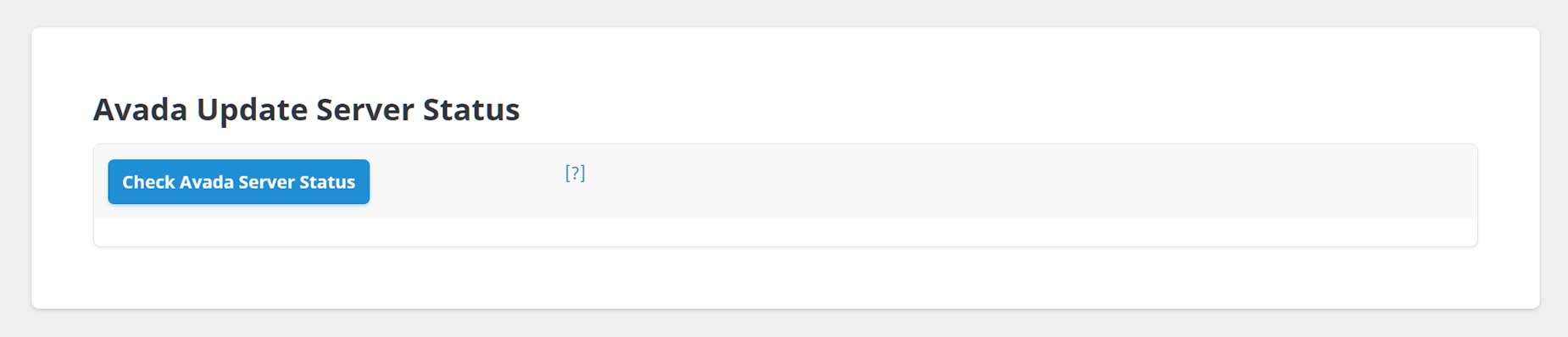
The top part of this next section, as shown in the screenshot below, allows you to check the Avada Server Status and displays advanced server response output for remote GET requests. If you get a green message saying “Tested API is working properly,” it means you should be good with the server and able to update Avada, supplied plugins, import prebuilt websites, or apply patches without a problem.
If you get a red message, something is wrong, and the messages and response codes can vary depending on your setup. A short error log will be displayed, providing the details you need for the response codes.
Active Plugins
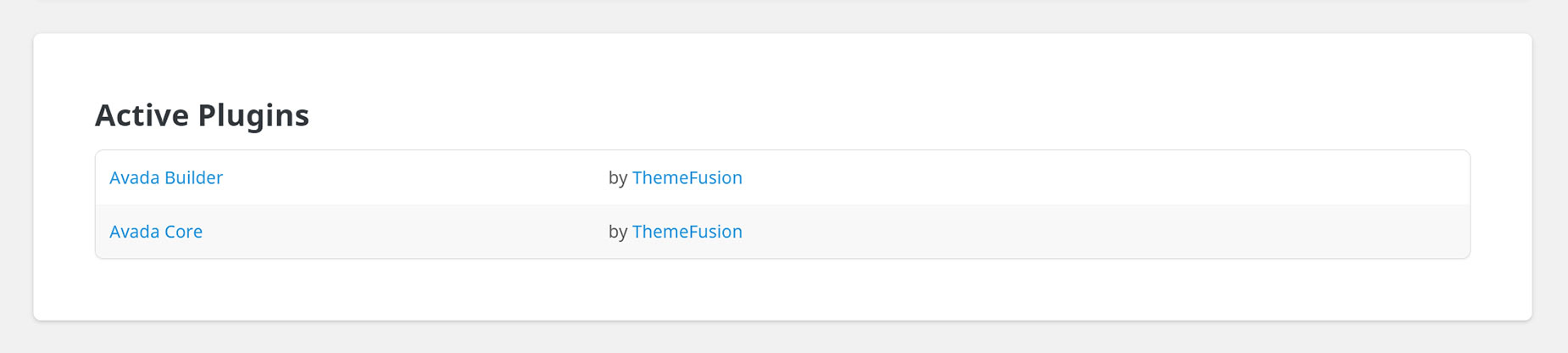
This section displays all active plugins. The Avada Core, Avada Builder, LayerSlider, Slider Revolution, Advanced Custom Fields PRO, Avada Custom Branding, and Convert Plus are premium plugins included with Avada. Please ensure that the Avada Core and Avada Builder plugins are always active and up to date.