
How To Purchase, Install and Activate Avada
Last Update: October 25, 2026
Avada One is the latest version of Avada and can only be purchased on avada.com. Be advised not to purchase it anywhere else, as unlicensed versions won’t be eligible for free updates and product support, and are likely hacked copies containing malicious code. Avada One is subscription software, that comes in two plans with four tiers. See the Avada Subscriptions doc for more detail.
Read on for more information, and watch the video below for a visual overview.
How To Purchase Avada
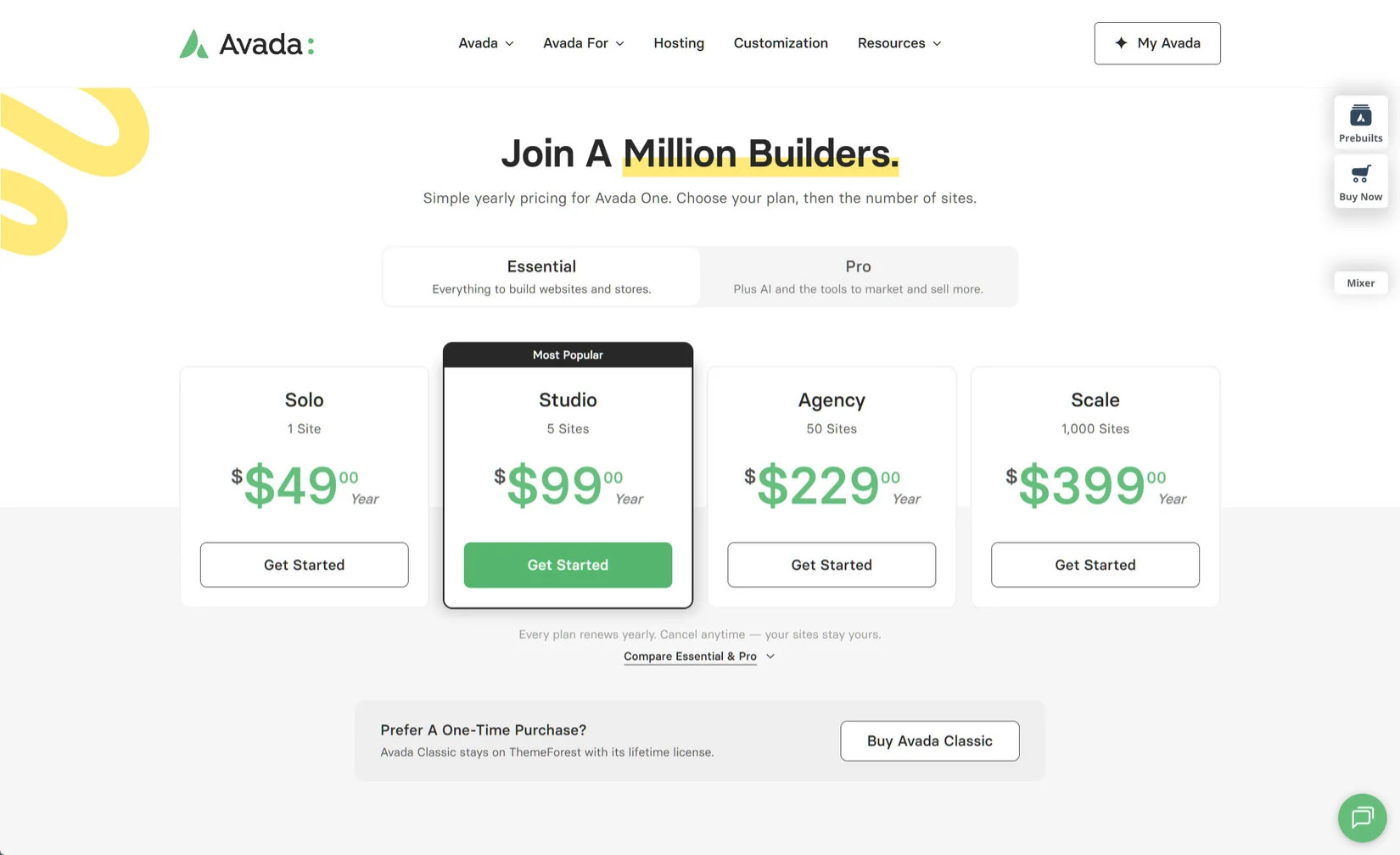
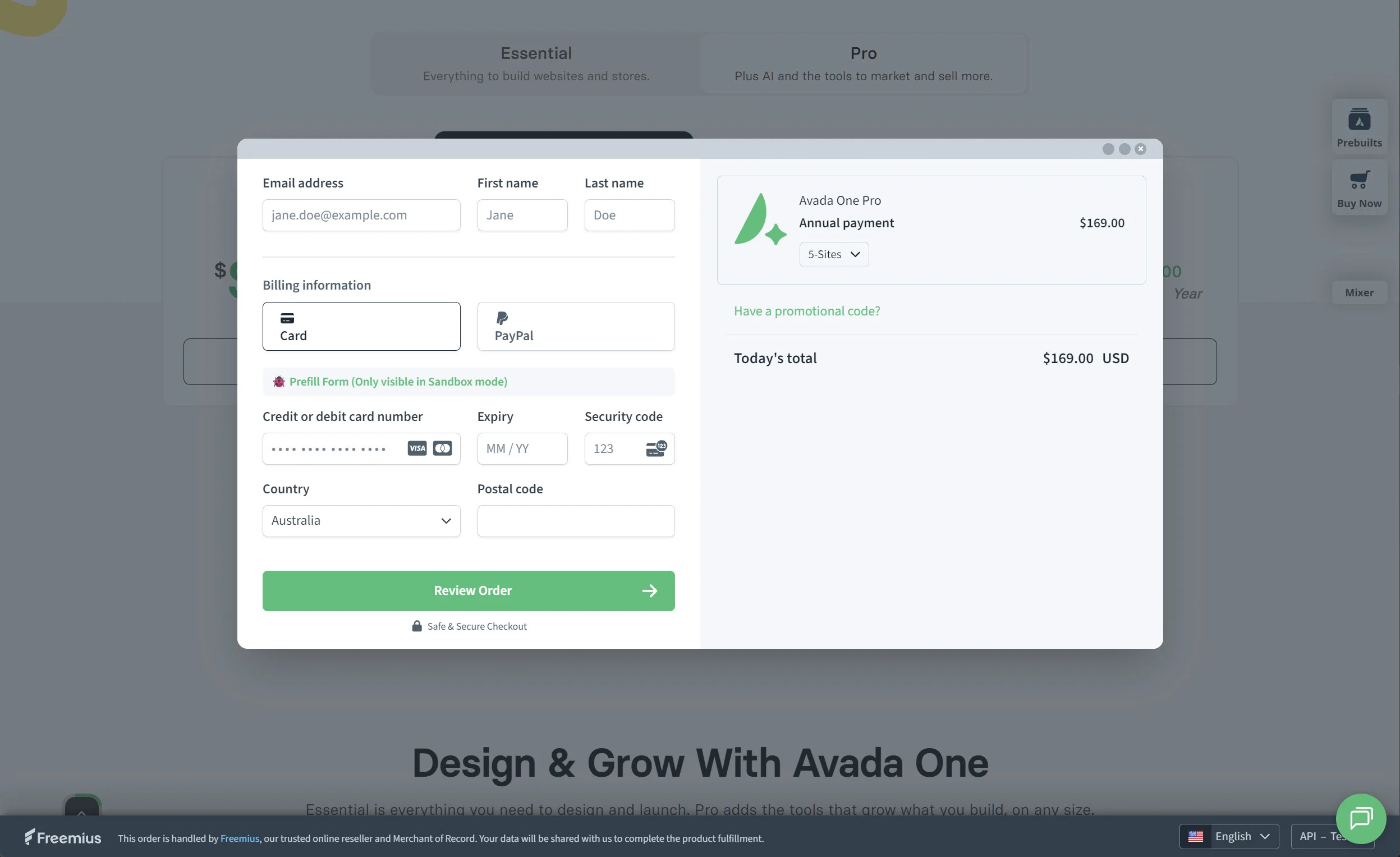
Just click on the See Plans button in the main menu to head to the Avada Pricing page, make your subcription selection and click on Get Started to purchase. A popup modal will appear, where you can enter your details and complete the purchase.
You then receive automatic emails from Freemius (the payment provider) and an email from us that we have created a My Avada account for you, with a link to complete the setup. Completing this confirms your My Avada account. Existing customers can just use the email address of their existing My Avada account at the checkout, and it will connect your accounts.
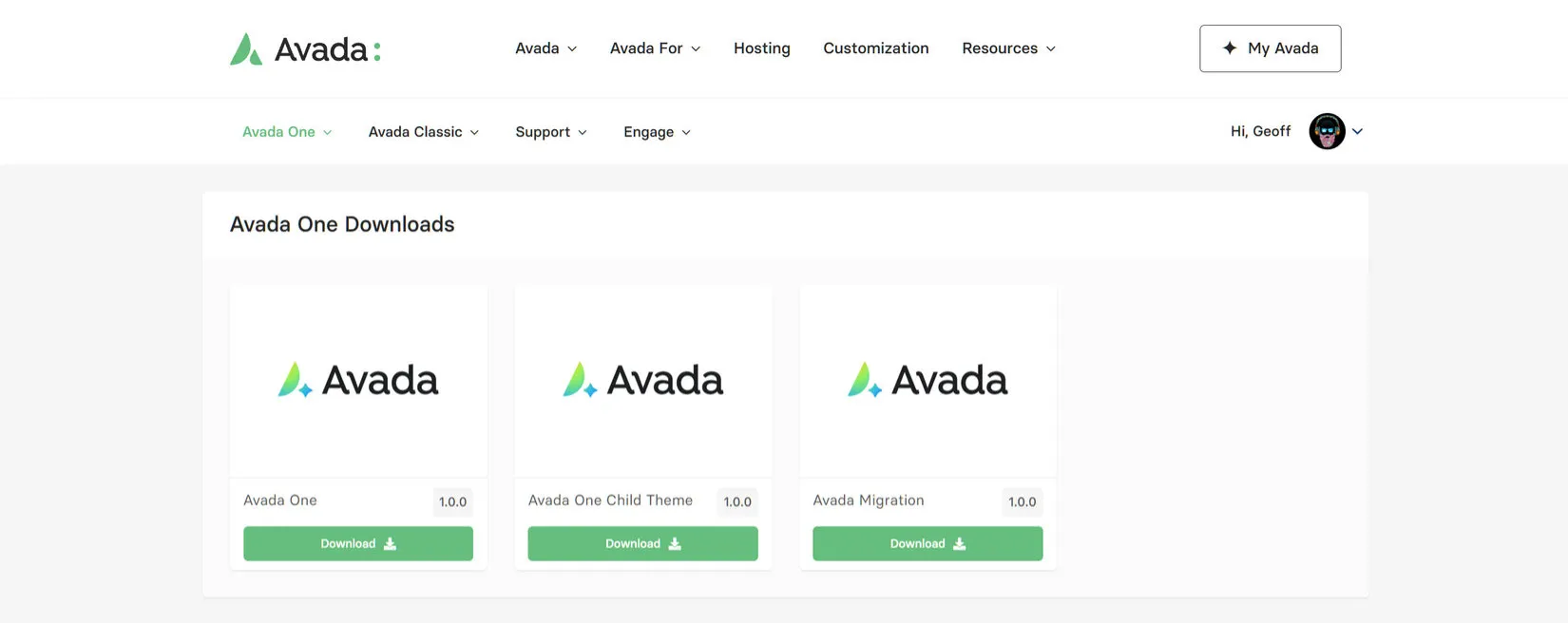
Once at My Avada, just head to the Avada One > Download page and download the Avada install file, ready to upload and install into WordPress.
More Information For Existing Customers
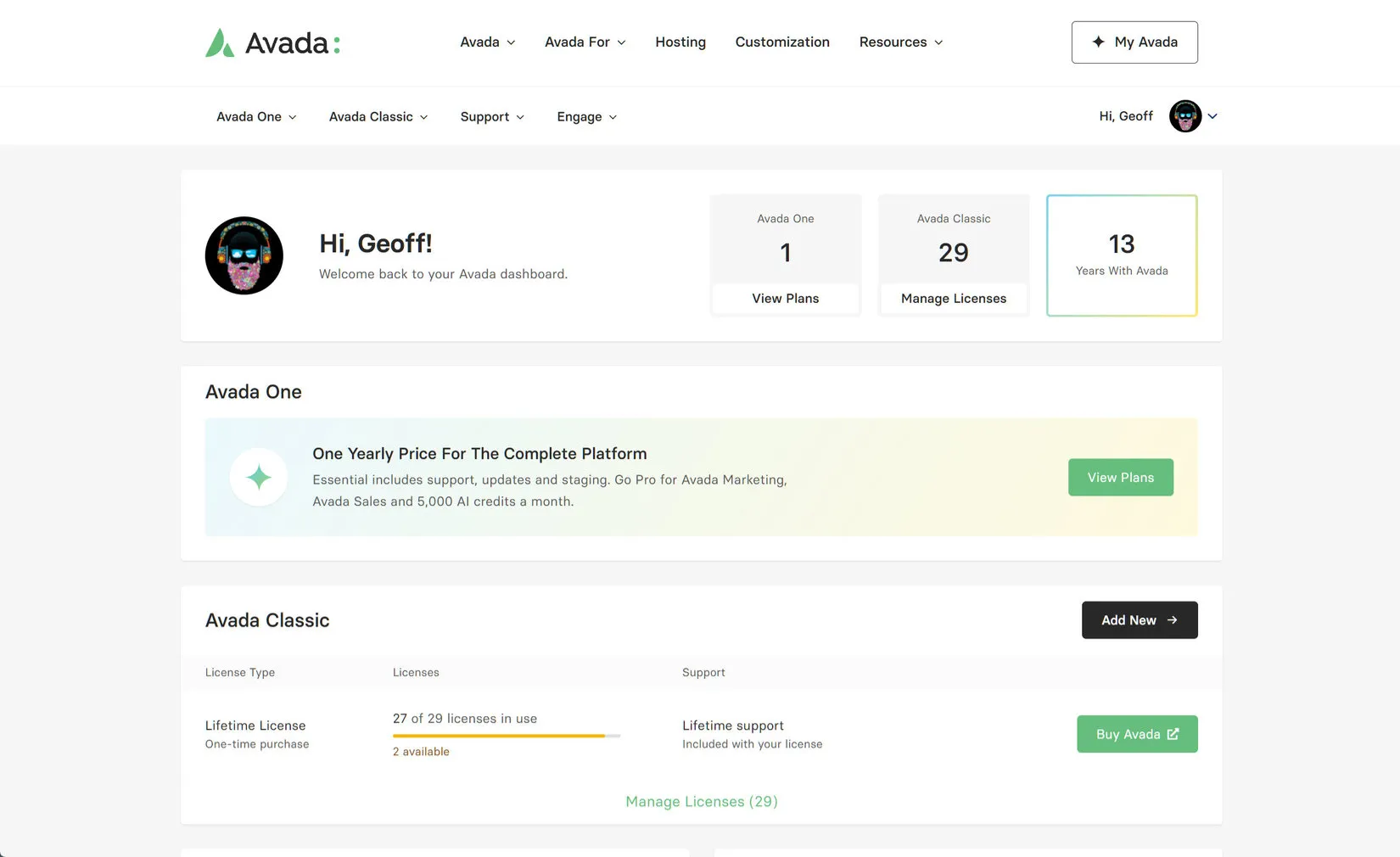
If you already own Avada Classic, you can also purchase an Avada subscription directly though your My Avada account. In the Avada One section, simply click on View Plans to go to the My Avada Plans page.
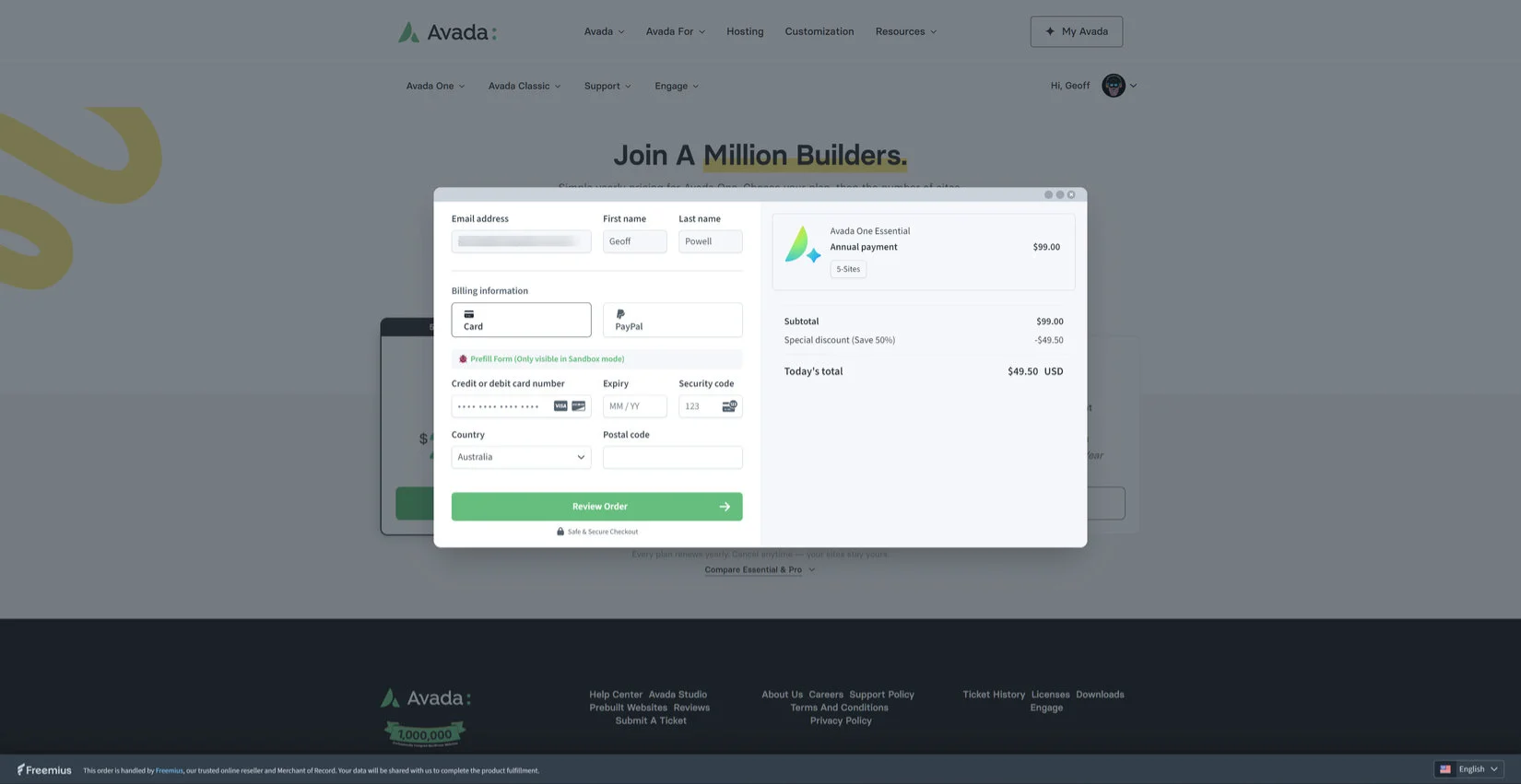
On the Plans page, simply select your plan, and then the number of sites you require. Also note that, as you are logged in to My Avada, the Loyalty discount is aready applied to the eligible plans. Clicking on Get Started will open a dialogue where you can enter your card details and purchase your Avada subscription. After a short time, your subscription will be applied to your account.
How To Install Avada
Once you have purchased Avada, you can simply log into my.avada.com, head to the Avada One > Downloads page and download the Avada One install file. You can also download the Avada One Child Theme if you want to install a Child Theme (see How To Set Up An Avada Child Theme for more info).
When you have the Avada WordPress install file (app. 13.8mb), you can then install it on a website in the same way you would install any theme. On your WordPress install, head to Appearance > Themes from the WordPress sidebar, upload the downloaded file and then choose Activate. For more information on how to install Avada, see the How To Install Avada Via WordPress doc.
How To Activate Avada
Once you have installed Avada, you need to activate it with us. This connects it with your My Avada account. When you first install Avada, you will see this screen, asking you to Connect to My Avada.

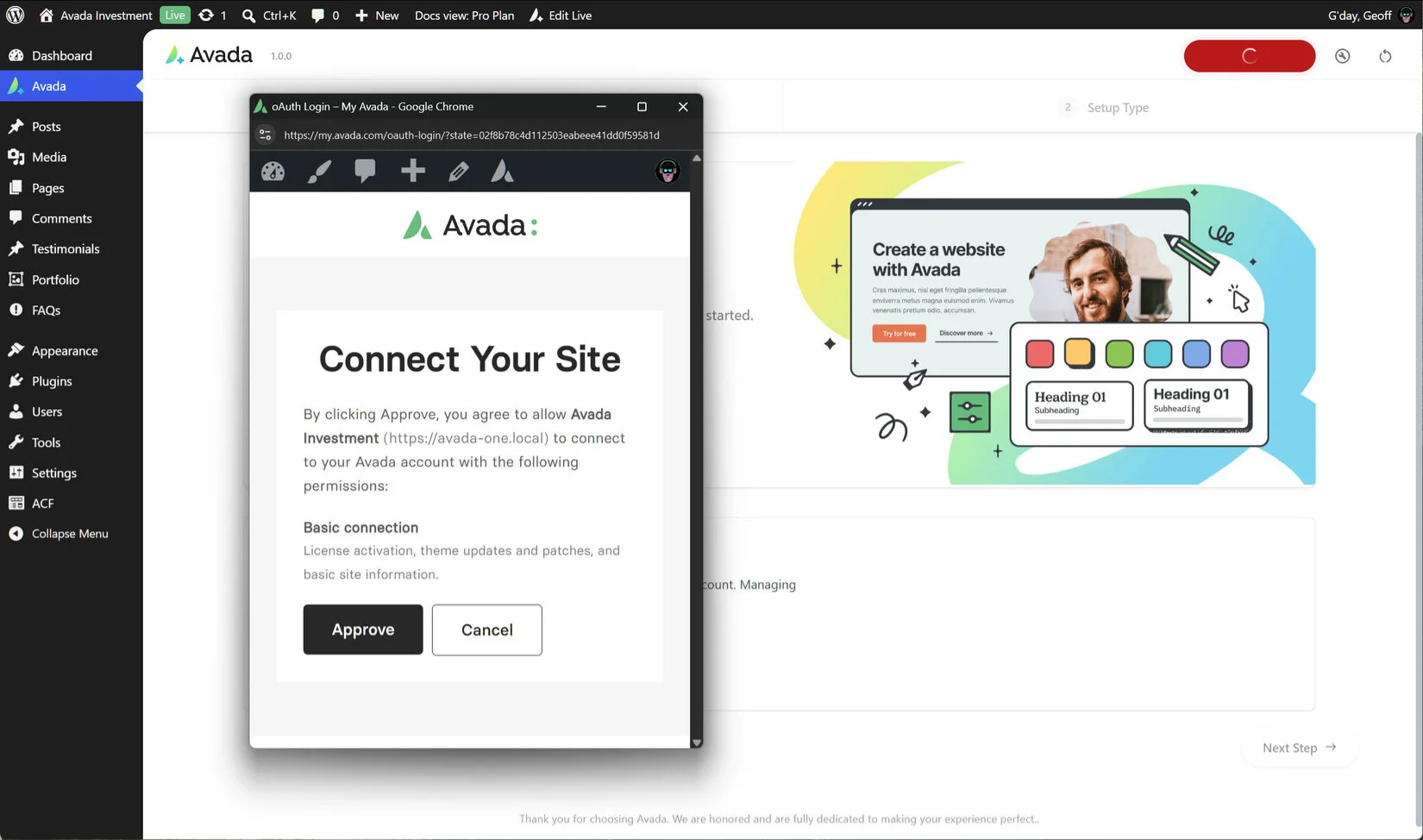
Clicking on this will bring up an oAuth connection screen, asking permission to connect to your My Avada account. This connects the site with your subscription, and then moves on to the Avada Setup Wizard.
See the How To Use The Avada Setup Wizard doc for full details on this amazing setup tool. At this point, you can import any of the the 113 Avada Prebuilt sites, you can build a new site from scratch with the Wizard, or you can simply exit out of the Wizard by clicking on Avada in the WordPress sidebar, which will take you to the Avada Dashboard.



















































































































