How To Update The Avada Website Builder

Last Update: January 30, 2026

Updating your WordPress website is essential for keeping it secure, stable, and performing at its best. Updates often include important security fixes that protect your site from vulnerabilities, as well as bug fixes that prevent errors or unexpected behavior. Staying up to date also ensures compatibility between WordPress, Avada, and plugins, reducing the risk of conflicts or broken features.

In addition to security and stability, updates bring performance improvements and new features that enhance how your site works and how easy it is to manage. For a feature-rich Avada setup, regular updates help ensure everything runs smoothly, giving you access to the latest tools while maintaining a reliable, professional website.

There are two ways to update a WordPress website. The first method is to auto-update via WordPress, which requires you to register your Avada website. The second is to manually update via FTP. Before you update, it’s best practice always to check the Important Update Information help file, which is updated with each new version.

To make a full site and database backup, please see this help file. This ensures you can revert to a working version if anything unexpected occurs. Read on to find out all there is to know about updating Avada, and watch the video below for a visual overview of the auto update method in WordPress.

For privacy reasons YouTube needs your permission to be loaded.

How To Update Your Website: Best Practices

  • Before processing any update, be sure to take a full site and database backup. That will ensure you’re able to revert to a working point in your site if anything unexpected happens.

  • Before doing an update, we also recommend you give your installation a health check and ensure that your server is configured to the minimum requirements for Avada. You can find details on what you need to check here.
  • It’s also very important that you ensure your server limits are at the required minimums for the update / install to complete. Click here for more details on server requirements and click here for information on checking and increasing those limits.

  • When updating from versions of Avada older than 5.0, there are some important points you should be aware of. This will be version specific, so please see our section covering updates from older Avada versions below for more details.

Avada Important Update Information

Before you update to a new version of the theme, it’s important to always check our Important Update Information article. This article is regularly updated and changes every time a new version is released.

Updating From Older Avada Versions

If you’re on an old version of Avada, it’s important that you update in a sequential process. Please see the linked article below for specific information for your old version.

The WordPress Auto Update Method

The easiest way to update Avada is to use our Automatic Update feature, which requires you to register your product. Once you have registered the product and an Avada update is released, you will receive an update notification in the WP Dashboard > Updates section of your installation and requires user acknowledgment to complete the update. NOTE: To ensure you receive the notification, make sure you have a second, backup theme installed, such as Twenty Twenty Three.

How To Update Via WordPress

  • Step 1​​​​​​ – Register your purchase.

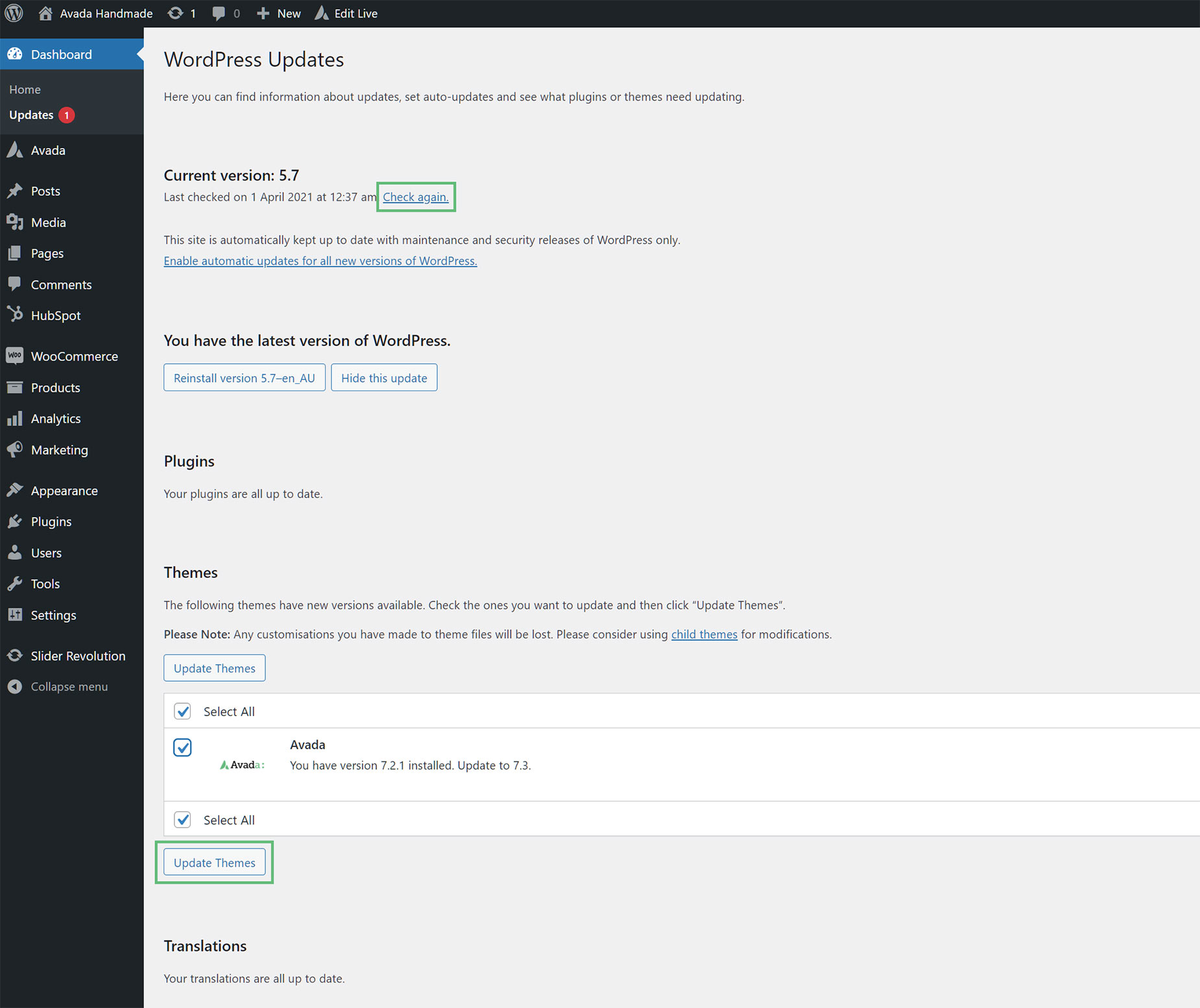
  • Step 2​​​​​​​​ – Navigate to the WP Dashboard > Updates section of your installation.

  • Step 3​​​​​​​ – Under the ‘Themes’ section, you’ll see the Avada update notification. If you don’t see the update and know one available, click the ‘Check Again’ button on top of the page to refresh the updates list. Make sure you also have a second, backup theme installed, such as Twenty Twenty Three.

  • Step 4​​​​​​​ – Check the checkbox beside the Avada update, then click the ‘Update Themes’ button to start the update.

  • Step 5​​​​​​​​ – Wait for the update to complete. A success notification will be displayed once the theme is updated successfully.
  • Step 6​​​​​​ – Don’t forget to update the required plugins.

Check for latest Avada updates

The Manual Update Methods

With the Manual Update Methods, you can either choose to upload the theme files manually via FTP or WordPress. Before you can update manually, you have to download the theme files from Themeforest. Continue reading below for instructions on how to download the theme files and how to upload them.

Download The Latest Avada Files From Themeforest
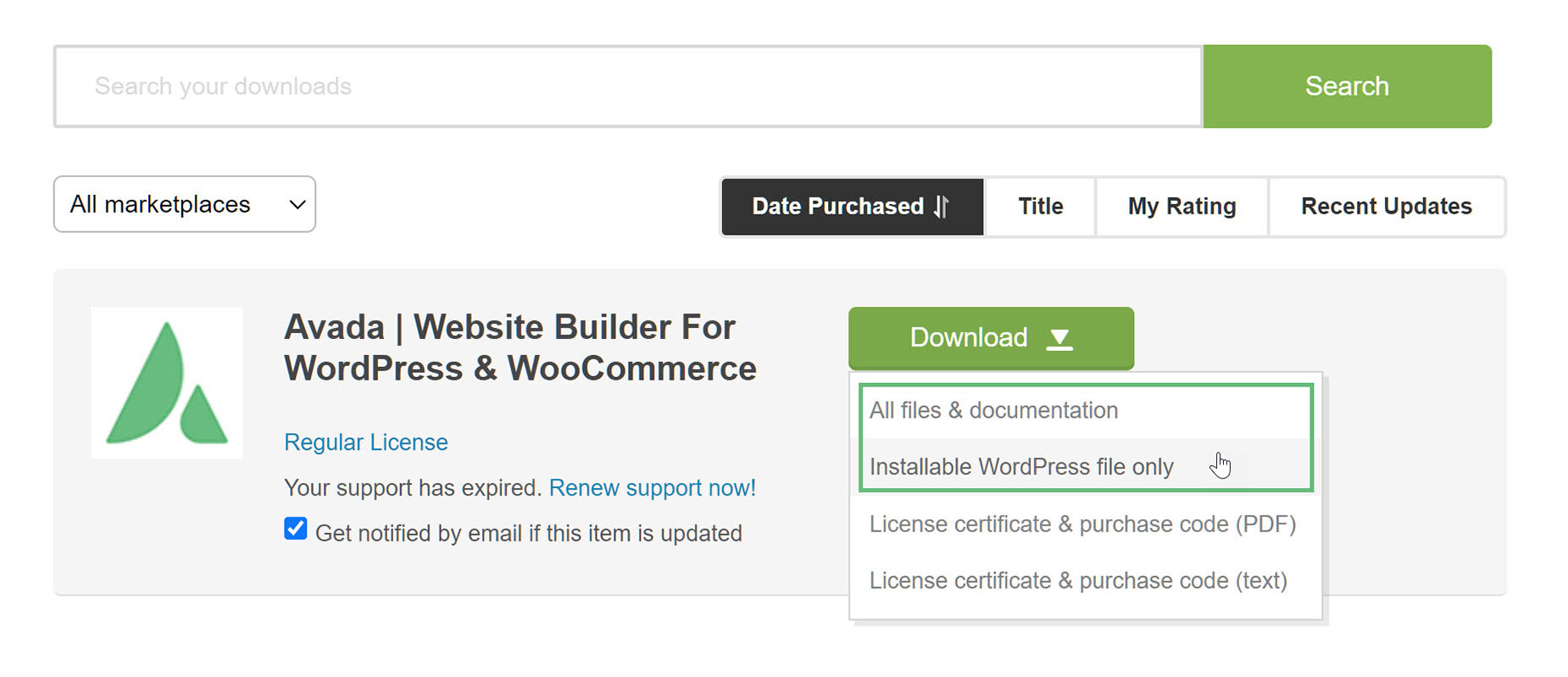
  • Step 1​​​​​​ – Login to your Themeforest account, navigate to your ‘Downloads’ tab and locate your Avada purchase.

  • Step 2​​​​​​​​ – Click the ‘Download’ button and choose to either download the ‘Installable WordPress file only’, which is just the Avada.zip file or choose to download ‘All Files & Documentation’ which is the full Avada package.

  • Step 3​​​​​​ – After downloading the files, you need to decide if you want to upload the theme files via FTP or WordPress. For instructions on both methods, please continue reading below.

Downloading Avada from Themeforest

1: How To Update Avada Manually Via FTP

If you update via FTP, it’s important that you delete (not replace or overwrite) the old Avada folder. If you only overwrite the folder, then any files that were removed in the new version will remain in your site’s theme files. This is because it only updates exactly matching file names. This will cause issues in the theme, including fatal errors. When you update via the WordPress admin, the folder is automatically deleted first in the installation process.

  • Step 1​​​​​​ – Log into your server using FTP and navigate to the wp-content > themes folder. Here you’ll find a folder called ‘Avada’.

  • Step 2​​​​​​​​ – Backup the ‘Avada’ theme folder by saving it to your computer. Once that’s completed, you can delete it from the server. Deleting the theme files won’t remove your content. Your content such as pages, options, images and posts will not be lost or erased by doing this. However, any customizations to the theme’s core files, such as PHP files, will be lost unless you’re using a child theme.

  • Step 3​​​​​​​ – Retrieve the theme files you’ve just downloaded. If you’ve downloaded the installable WordPress file, then you only need to extract it once to get to the ‘Avada’ folder. If you’ve downloaded the Full Theme Package you must extract it once to access the secondary ‘Avada.zip’ file, and then extract the secondary ‘Avada.zip’ file to get to the ‘Avada’ folder.

  • Step 4​​​​​​​ – Once extracted you can drag and drop the new Avada theme folder into the wp-content > themes directory. Make sure the Avada theme folder is named Avada and not Avada.zip.

  • Step 5​​​​​​​​ – Don’t forget to update the required plugins.
Adding/Updating Avada via FTP

2: How To Update Avada Manually Via WordPress

When you auto update via WordPress, your old theme folder will be deleted automatically, so you won’t need to do that yourself.

  • Step 1​​​​​​ – First you need to deactivate your current Avada theme located in the WordPress Dashboard > Appearance > Themes section. To deactivate, simply switch to a different theme. For example, the default WordPress Twenty Twenty-One theme.

  • Step 2​​​​​​​​ – After deactivating, you can go ahead and delete it. To do this, hover over the theme thumbnail then click ‘Theme Details’. In the bottom right corner of the window, click the ‘Delete’ button. Your content such as pages, options, images and posts will not be lost or erased by doing this. However, any customizations to the theme’s core files, such as PHP files will be lost unless you’re using a child theme.

  • Step 3​​​​​​​ – Retrieve the theme files you’ve just downloaded. If you’ve downloaded the installable WordPress file, then you do not need to extract it. If you’ve downloaded the Full Theme Package, you have to extract it once to access the secondary installable ‘Avada.zip’ file.

  • Step 4​​​​​​​ – To install, navigate to the WordPress Dashboard > Appearance > Themes section of your installation and click the ‘Add New’ button near the top of the page. Then click the ‘Upload Theme’ button.

  • Step 5​​​​​​​​ – Click on the ‘Choose File’ button and select the installable ‘Avada.zip’ file and upload. Once uploaded, click ‘Install Now’.
  • Step 6​​​​​​ – Don’t forget to update the required plugins.

Add New Theme in WordPress

Updating The Avada Required Plugins

Avada has two required plugins – Avada Core and Avada Builder. Without these plugins, Avada won’t work properly. With every update, there’s always an update for the required plugins. Make sure you update the required plugins after updating the theme to ensure that you don’t run into any compatibility issues. To learn how, please follow the link below.

Troubleshooting

‘Are You Sure You Want To Do This?’ Error Message

If you get the “Are You Sure You Want To Do This” message when installing the ‘Avada.zip’ file via WordPress, it means your server has an upload file size limit, which is set by your host. If this happens, install the theme via FTP, or contact your hosting company and ask them to increase the limit. We recommended an upload limit of 32M.

Theme Install Failed ‘Destination Folder Already Exists’

You may be getting this error because you have a duplicate ‘Avada’ folder. This error happens because WordPress only allows you to have one theme with the same name when uploading the theme via WordPress admin. We recommend updating the theme via the Auto Update method to get around this, or you can update the theme via FTP.

In this article