Share
If you are looking for ways to enhance the customer experience on your website, this tutorial is for you. An Avada Off-Canvas pop-up lets you show more details without sending users to another page. It’s a great way to keep things smooth, modern, and user-friendly—especially for beginners who want to add a bit of polish to their Avada sites.
In this beginner’s guide, we’ll walk through the idea behind dynamic Off-Canvas popups and how they can work together with Avada Post Cards, using a real-world example.
Overview
What Is Website Dynamic Content?

In WordPress, dynamic content is information pulled automatically from the database that changes based on context. Instead of static content being added to every page or post, dynamic content updates based on factors such as the post being viewed, custom fields, categories, or products.
This allows the same layout or design to display different titles, images, descriptions, and other details for each post, making it easier to manage content and keep the site consistent and up to date.
What is An Avada Post Card?

An Avada Post Card is an Layout Element that displays posts, pages, or custom post types in a clean, visual card format. It’s commonly used for things like blog posts, portfolio items, projects, or products, where each card represents a single piece of content.
A Post Card can show featured images, titles, excerpts, categories, and buttons, and it pulls this information dynamically from WordPress. The main goal of a Post Card is to give visitors a quick overview and an easy way to interact with multiple pieces of content at once.
What Is An Avada Off-Canvas Pop-Up?

An Avada Off-Canvas is a hidden panel (a pop-up or slide-out) that slides into view from the side, top, or bottom of the screen when triggered. It’s often used to display additional content without leaving the current page, such as menus, forms, or detailed information.
Because Off-Canvas Elements can also use dynamic data, they’re especially powerful when paired with Post Cards, revealing content on demand while keeping users on the same page and fully engaged.
Why use Avada Off-Canvas?
Avada Post Cards are perfect for displaying summaries: projects, blog posts, products, or portfolio items. But sometimes the information you want to show is simply too much to squeeze into a single card.
This is where an Off-Canvas pop-up (or slide-out) comes in handy. Instead of linking the Post Card to a separate page (the default method), you can open a panel that slides in to display additional details dynamically. The visitor stays on the same page, explores more content, and never loses their place.
A classic use case is a WooCommerce “Quick View” for products. Still, the same setup works just as well for projects, portfolios, team members, or any WordPress custom post type (CPT).
Example: The Basic Setup
In the video example, we use the Avada Programmer prebuilt website and create a layout that includes a Projects page with a Post Cards Element. By default, each card links to its own project page. The goal is to replace that behavior with an Off-Canvas pop-up that shows the project details instantly.
The first step is creating the off-canvas itself. This off-canvas is styled just like any other Avada Element and includes a mix of static headings and dynamic content. The dynamic parts pull information directly from the post being clicked, such as:
Your setup may look different, but the key idea is the same: the Off-Canvas must use dynamic data to determine which post content to display when it opens. If you were building a WooCommerce Quick View, for example, you’d pull in the product title, image, description, and price instead.
Example: Connecting The Off-Canvas To Post Card Content
Once the Off-Canvas setup is ready, it’s time to link it to the Post Cards Element. Inside the Post Cards settings, there’s an option for linking to an Off-Canvas. This is where you select the Off-Canvas you just created. That tells the website that these cards are allowed to trigger an Off-Canvas instead of a link to a single page.

Next, the individual Post Card needs a small adjustment. In this example, the card’s button serves as the trigger. The existing link is removed and replaced with dynamic data that opens the selected Off-Canvas. If the card’s Column Element has a permalink set, remove that link. This ensures the button is the only clickable Element and prevents visitors from being sent to the single post page by mistake.
The Final Result
After saving everything and viewing the page on the front end, the result is exactly as expected. The Post Cards display the projects as usual, but clicking the button now opens the Off-Canvas pop-up. Each time it opens, it automatically retrieves the correct project information.
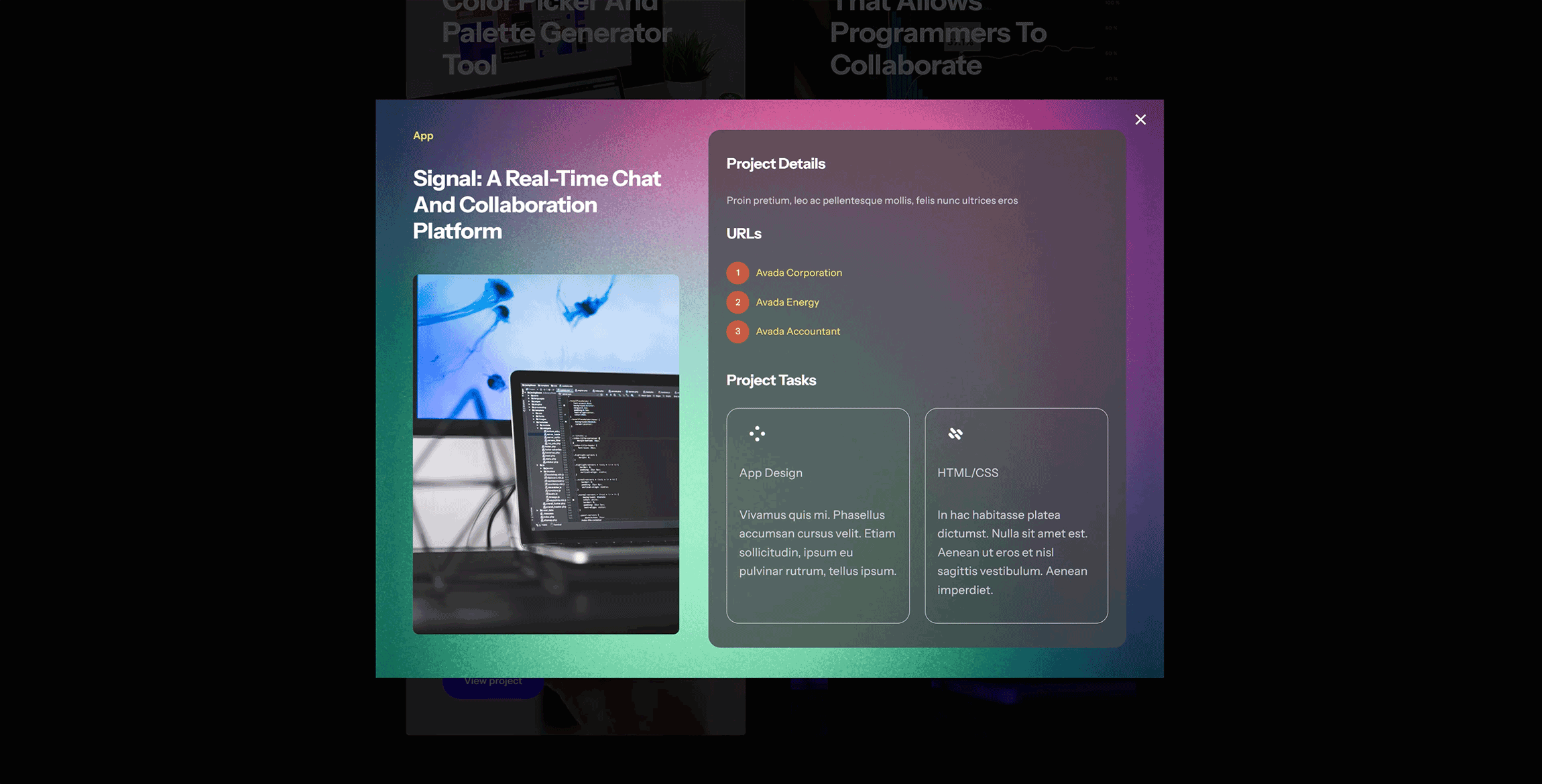
Visitors can browse through multiple projects, view details, and close the panel—all without leaving the page.
Summary
Dynamic Off-Canvas pop-ups (or slide-outs) are a powerful feature in Avada, especially when paired with Post Cards. They enhance the user experience, keep visitors engaged, and are well-suited for project previews or WooCommerce quick views.
For beginner Avada users, this setup may feel advanced at first, but once you understand the flow—dynamic content, off-canvas creation, and linking—you can apply it across your site. With a bit of experimentation, you’ll find plenty of creative ways to use this feature beyond just projects or products.