
How To Use The Off Canvas Builder

Last Update: November 29, 2025

The Avada Off-Canvas Builder allows you to create a wide range of popups, sliding bars, and even flyout and push menus for your Avada website. An Off-Canvas is positioned outside the viewport (not initially visible) and appears when activated.

To get started with an Off-Canvas, head to the WordPress Dashboard > Avada > Off-Canvas section. Here, you create your Off-Canvas items and configure how they work and the conditions under which they operate. Read on to find out more about this very versatile builder, and watch the video below for a visual overview.

For privacy reasons YouTube needs your permission to be loaded.

How To Create A New Avada Off-Canvas

The Avada Off-Canvas Builder is found in the WordPress Dashboard > Avada > Off Canvas, in the WordPress sidebar, or in the menu on the Avada Dashboard. This is where you create and manage all your Off-Canvas creations.

To get started, give your new Off-Canvas a name and click on “Create New Off-Canvas”. Depending on whether you have Avada Builder Auto Activation turned on or not in the Avada Builder Options (Avada Dashboard > Options > Builder Options), you will be taken directly to the Avada Builder or the WordPress editor. In that case, click on your choice of builder, either Avada Builder or Avada Live Visual Builder, to start building.

In either case, the first thing you see is a choice to either add a Container and start building from scratch, or to open Avada Studio and import a prebuilt Off-Canvas.
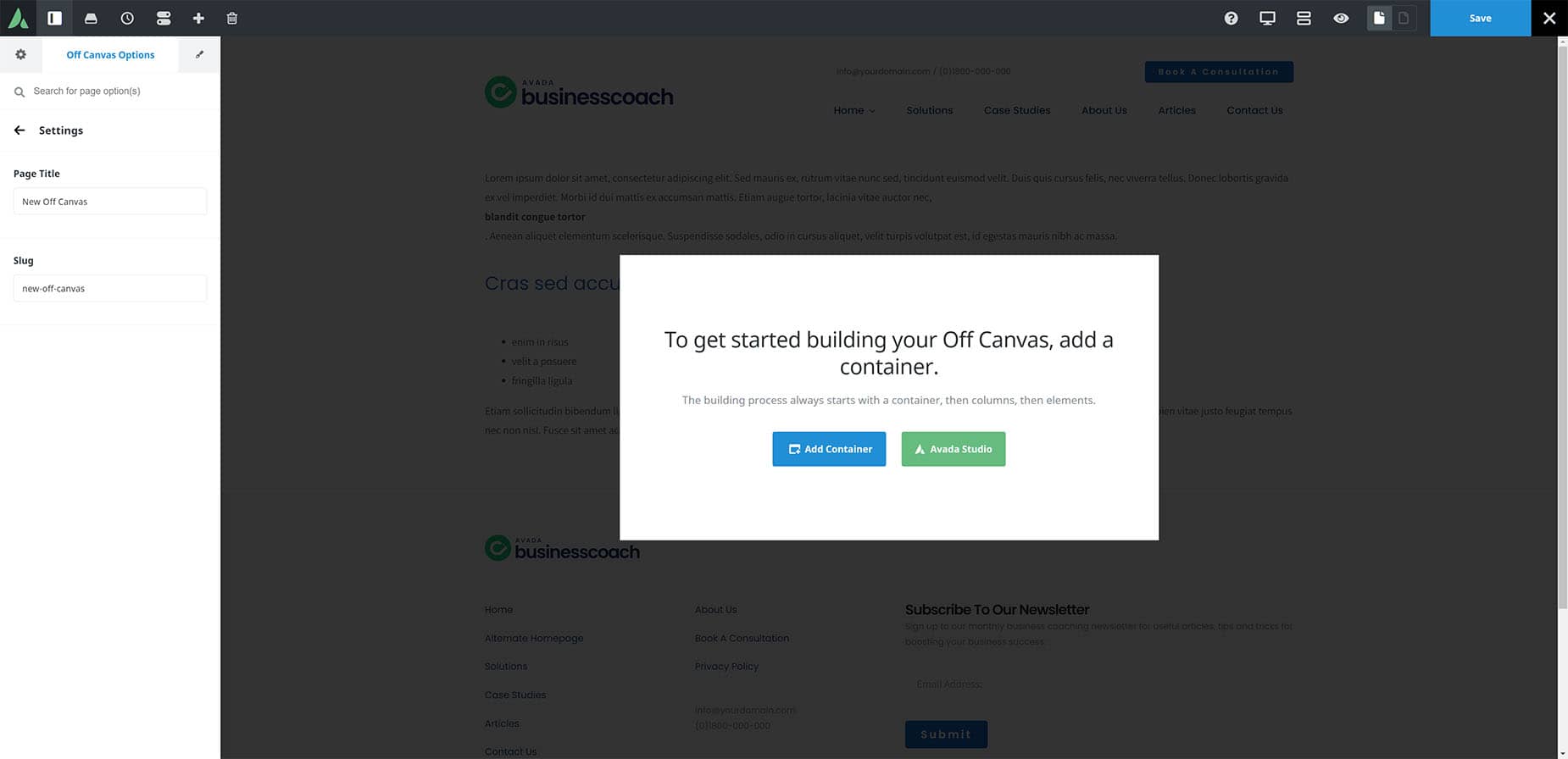
Off Canvas - Start Page

The Avada Studio is a great place to start. There is a range of prebuilt Off-Canvas items here you can use, all fully designed and ready for you to import and customize. This is an excellent way for you to familiarize yourself with the different types of popups, sliding bars, and even flyout and push menus that can be made, and also how to configure them.
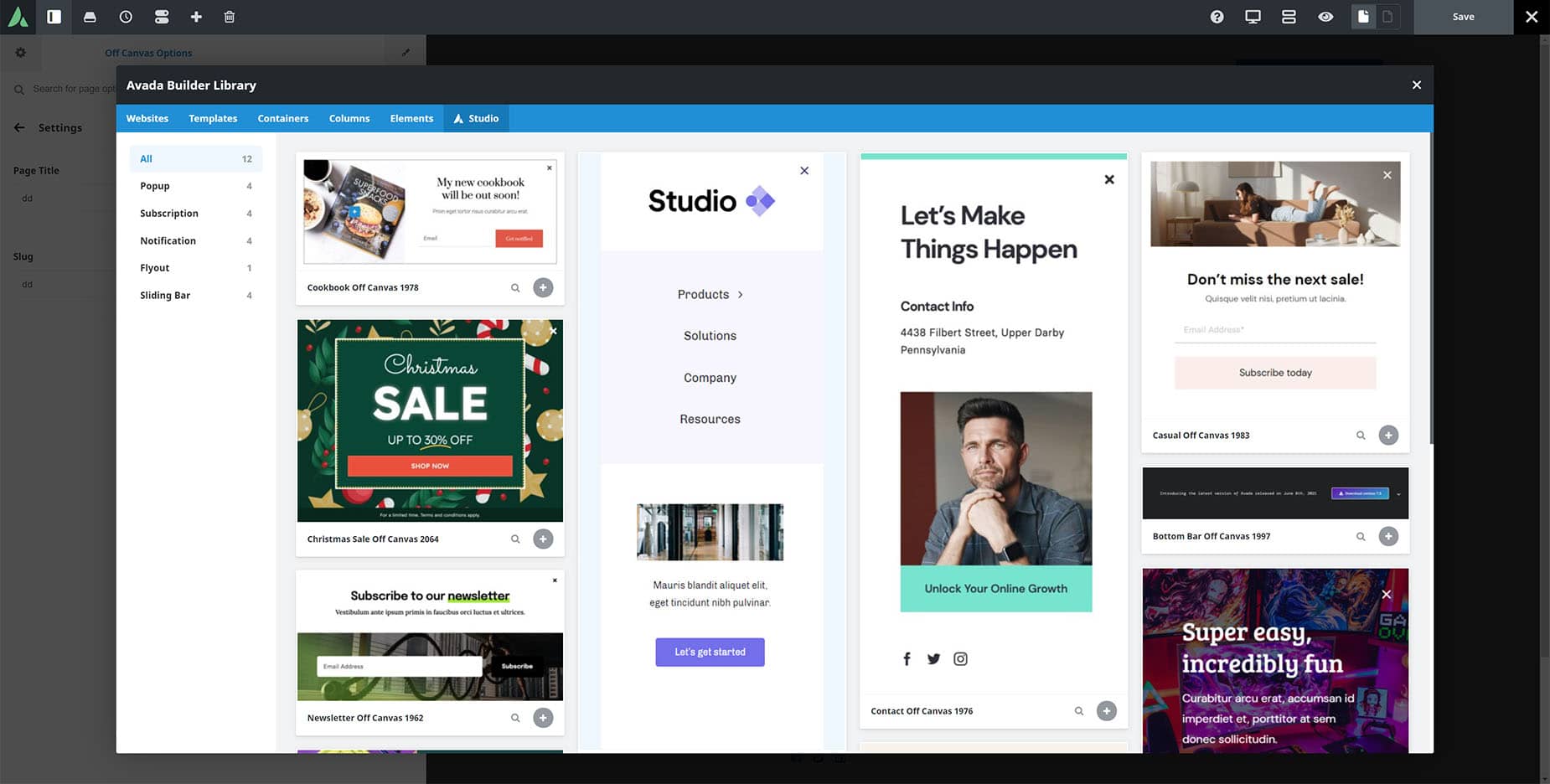
Off Canvas - Avada Studio

If you choose instead to build an Avada Off-Canvas from scratch, select your starting Container/Column combination and get building. You have the full range of Avada Design Elements to build with.

Building And Configuring An Off-Canvas

Creating an Off-Canvas comes in two concurrent stages: building and configuring. The content comes from the Builder, and you can add anything at all into your Off-Canvas using the Avada Builder. You have the full range of Design Elements at your disposal. The Off-Canvas Builder can be used to create Pop-ups and a range of Sliding Bars, flyout, and Push Menus, but the reality is that these are Off-Canvas panels, and you can add anything you want to them.

Configuration is done via the Off-Canvas Options, located in the Avada Page Options panel position. In the Avada Live Visual Builder, this is on the Sidebar and remains active while you are building; in Avada Builder, it’s at the bottom of the page. As mentioned, the configuration and build processes run concurrently, as some Off-Canvas Options will also affect the Off-Canvas’s appearance. Let’s go through all the configuration tabs.

The Off-Canvas Option Tabs

Settings Tab

The Settings Tab is where you name your Off-Canvas and set its slug; this is generated automatically when you create your Off-Canvas. Unless you want to rename your Off-Canvas, you won’t need to do anything here.

  • Page Title
  • Slug

Preview Tab

On this tab, you can configure Dynamic Content options for the dynamic preview.

  • View Dynamic Content As – Make a selection to view dynamic content as a specific item.
  • Select (Dynamic Content Type) – Choose to select specific content for dynamic preview. Leave Empty for random selection.
  • Preview – Click to render the dynamic preview.

General Tab

This is the main configuration tab for your Off-Canvas. Here, you control the type of Off-Canvas (Popup or Sliding Bar) and adjust its width, height, and various other alignment options. There are unique options for each Off-Canvas type, as shown below.

General Tab – Popups

  • Off-Canvas Type – Select Off-Canvas type. Choose from a Popup or a Sliding Bar.

  • Width – Set the width. Enter value including any valid CSS unit, ex: 800px.

  • Height – Select the height. Choose from Fit With Content, Full Height, or Custom Height.

  • Horizontal Position – Set the horizontal position, start and end depend on your website direction. Choose from Start, Center, or End.

  • Vertical Position – Set the vertical position, start and end depend on your website direction. Choose from Top, Center, or Bottom.

  • Content Layout – Defines how the content should be positioned. If a block is selected, it will not use flex positioning and will instead allow floated Elements. Choose from Column, Row, or Block.

  • Content Alignment – Defines how content containers should be aligned. Choose from Flex Start, Center, Flex End, Space Between, Space Around, or Space Evenly.

  • CSS Class – Allows you to add a class for the Column.
  • CSS ID – Add a unique ID to the wrapping HTML Element. This ID will used in Off-Canvas link.

General Tab – Sliding Bar

  • Off-Canvas Type – Select Off-Canvas type. Choose from Popup or Sliding Bar.
  • Default StateSet the default state. Choose from Closed or Open.

  • Transition – Set the transition of the sliding bar. Choose from Overlap or Push. (Only with Left or Right selected)
  • Positon – Set the position of the sliding bar. Choose from Top, Right, Bottom or Left.
  • Width – Set the width. Enter value including any valid CSS unit, ex: 800px.
  • Height – Set the height. Enter value including any valid CSS unit, ex: 300px (Only with Top or Bottom selected)
  • Content Layout – Defines how the content should be positioned. If block is selected it will not use flex positioning and will instead allow floated elements. Choose from Column, Row or Block.
  • Content Alignment – Defines how the content containers should align. Choose from Flex Start, Center, Flex End, Space Between, Space Around, or Space Evenly.
  • Content Vertical Alignment – Choose how to align Content containers vertically. (Only when Row is selected)
  • Wrap Content“Wrap” wraps Elements onto multiple rows, while “No Wrap” will force Elements onto one row. (Only when Row is selected)
  • CSS Class – Allows you to add a class for the Column.
  • CSS ID – Add a unique ID to the wrapping HTML element. This ID will used in Off-Canvas link.

Design Tab

The Design Tab allows you to configure your Off-Canvas, with background color or image, border options, as well as any margin, padding, and box shadow.

  • Background Color – Controls the background color of the Off-Canvas.
  • Background Image – Upload an image to display in the background.
  • Scrollbar – Hide or customize Off-Canvas scrollbar. Styling and support varies depending on the browser. Choose from Default, Custom, or Hidden.
  • Scrollbar Background – Controls the background color for the scrollbar (Only if Custom chosen above).
  • Scrollbar Color Handle – Controls the color for the scrollbar handle (Only if Custom chosen above).
  • Border Radius – Controls the border radius. Enter values including any valid CSS unit, ex: 10px.
  • Border Width – Enter values including any valid CSS unit, ex: 10px.
  • Border Color – Controls the border color. Leave empty for default value.
  • Margin – Enter values including any valid CSS unit, ex: 4%. Controls the margin around the Element.
  • Padding – Controls the padding for the button. Leave empty for default values.
  • Z-Index – Enter the value for z-index CSS property, can be both positive or negative.
  • Box Shadow – Set to “Yes” to enable box shadows.
  • Box Shadow Position – Set the vertical and horizontal position of the box shadow. Positive values put the shadow below and right of the box, negative values put it above and left of the box. In pixels.
  • Box Shadow Blur Radius – Set the blur radius of the box shadow. In pixels. From 0 – 100.
  • Box Shadow Spread Radius – Set the spread radius of the box shadow. A positive value increases the size of the shadow, a negative value decreases the size of the shadow. In pixels, from 0- 100.
  • Box Shadow Color – Controls the color of the box shadow.

Overlay Tab

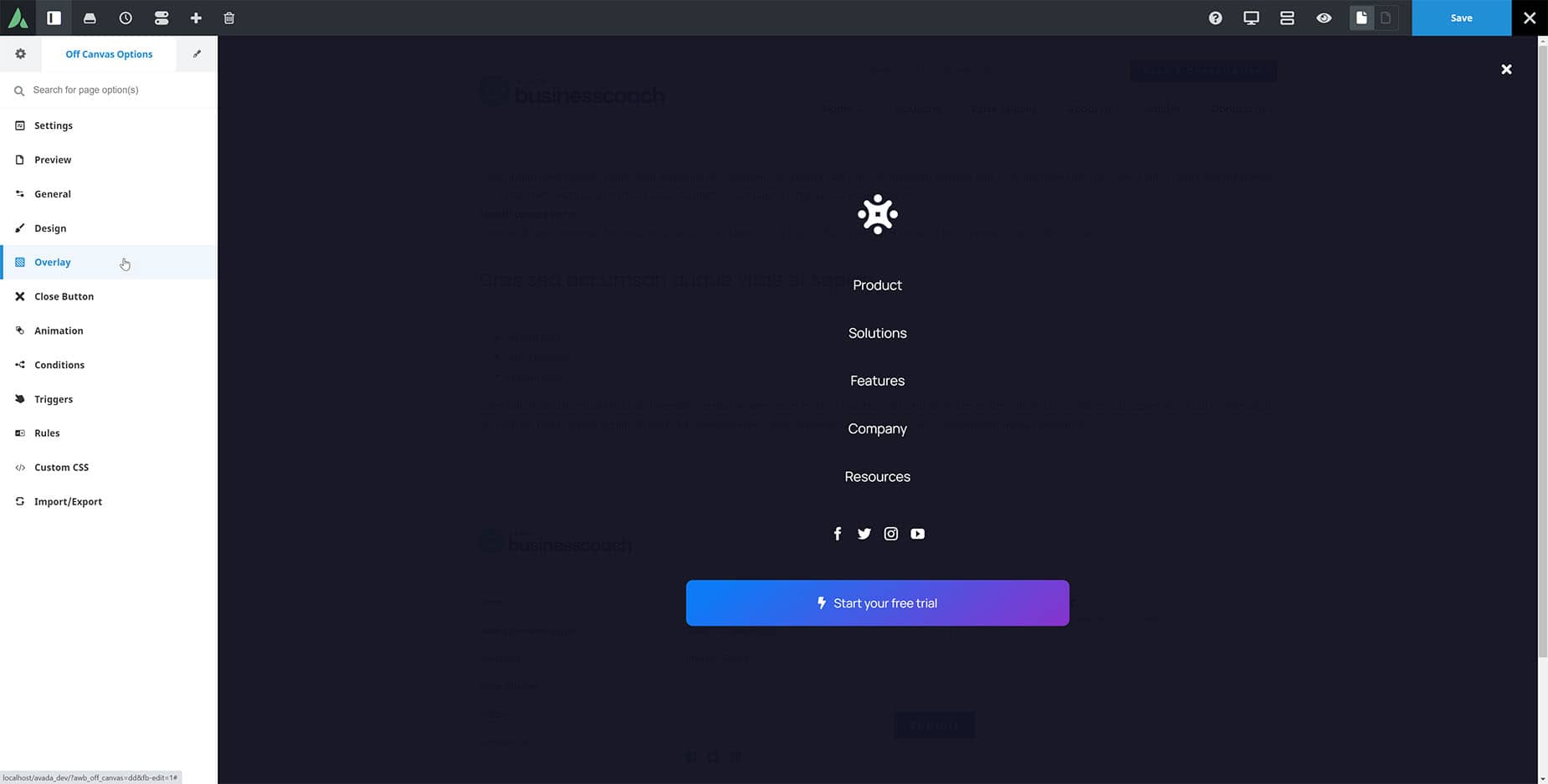
The overlay tab controls the styling of the background page content when the Off-Canvas is active. It can be disabled entirely or configured with color, scrollbars, and even background images.

  • Overlay – Choose Yes, or No, to enable, or disable, an overlay on the page content. The remaining options will only be visible is Yes is selected.

  • Z Index – Value for overlay’s z-index CSS property, can be both positive or negative.
  • Page ScrollbarEnable / Disable page scrollbar when Off Canvas is open.

  • Background Color – Controls the background color for overlay.
  • Background Image – Upload an image to display in the background.

CloseTab

The Close tab allows you to configure how your Off-Canvas will close, and you can adjust the close button’s icon, icon size, color, margins, and more.

  • Close On Overlay Click – Off-Canvas is closed by clicking on overlay.
  • Close On Anchor Click – Off-Canvas is closed when clicking on a scroll-to anchor link.
  • Close With ESC KeyEnable/Disable. When enabled, you can use the ESC button to close the Off-Canvas.

  • Automatically Close After Time – Set time in seconds to close Off-Canvas automatically after it has passed, Leave empty to remain open.
  • Close ButtonEnable/Disable close button.

  • Position – Set close button position. Choose from Right or Left.

  • Show Close Button After Time – Set time in seconds to show the close button, Leave empty to immediately show.
  • Close Button Margin – Set the margin of the close button. Default is 20px from the top and the selected position side. Enter values including any valid CSS unit. Negative values are accepted.
  • Close Icon Color – Set the color of the close icon.
  • Close Icon Hover Color – Set the hover color of the close icon.
  • Close Icon Size – Set the size of the close icon.
  • Custom Icon – Select a custom icon for the close button.

Animation Tab

The Animation tab allows you to configure both an Enter and Exit animation for your Off-Canvas, giving you a range of effects for the way it enters and leaves the page.

  • Entrance Animation – Set the enter Off-Canvas animation. Choose between Slide, Bounce, or Fade.

  • Entrance Animation Speed – Set the speed of animation. Choose between 0.1 to 5.

  • Timing Of Entrance Animation – Select the timing function of the entrance animation.
  • Exit Animation – Set the exit Off-Canvas animation. Choose between Slide, Bounce, or Fade.

  • Exit Animation Speed – Set the speed of animation. Choose between 0.1 to 5.

  • Timing Of Exit Animation – Select the timing function of the exit animation.

Conditions Tab

When an Off-Canvas is created, they are not active by default. They are essentially in a draft state, so you can decide when, where, and how to activate them. This is achieved on the Conditions tab. Simply setting the Enable Conditions option to Yes makes the Off-Canvas live and global, i.e., displayed on every page.

You can also click on Manage Conditions to open the Conditions dialog, where you can specify exactly what parts of your site you want your Off-Canvas to be active for. Using this method, you must select which pages and post types to both enable and disable with the Off-Canvas.

  • Enable Conditions – Set conditions for displaying Off-Canvas. NOTE: Off-Canvas won’t be displayed at all when this is turned off.
  • Conditions – Load Off-Canvas on these pages. Default is ‘Display on Entire Site’. Click Manage Conditions to open the Conditions dialog.

Triggers Tab

Triggers are managed on the Triggers Tab, where you can set a range of automatic triggers, such as On Page Load, Time On Page, On Scroll, etc. There is also an option to set an Element Selector for manual triggering of your Off-Canvas from a button or other trigger.

Outside of this tab, there are also a couple more ways to trigger an Off-Canvas. The first one of these is through the use of an Avada Special Menu Item. By adding the Off-Canvas Toggle Special menu Item to a menu, you can add a menu link to toggle a specified Off-Canvas. See the Avada Special Menu Items doc for more information on this method.

Another way to trigger an Off-Canvas is through Dynamic Content. For example, you could add a Button with dynamic content as the Button URL. There are three dynamic content options: Toggle Off-Canvas, Open Off-Canvas, and Close Off-Canvas.

You can also trigger an Off-Canvas from an Avada Form Submission. With these methods, you have a great deal of flexibility in how to trigger your Off-Canvas creations. See our video on How To Trigger an Avada Off-Canvas for a rundown of the options and some examples.

  • On Page Load – Display Off-Canvas on page load.
  • Time On Page – Display Off-Canvas after the visitor spends a specific amount of time on the page in seconds.
  • Time On Page Duration (Seconds) – Set the time in seconds to display the Off-Canvas ex: 5. (Only when the above option is set to Yes)

  • On Scroll – Display Off-Canvas if the visitor has scrolled up or down to a specific position or Element.
  • Scroll Direction Up or Down. (Only when On Scroll option is set to Yes)

  • Scroll To – Choose whether the scroll trigger should be relative to position or element on the page. (Only when On Scroll option is set to Yes and Scroll Direction is set to Down)

  • Scroll Position – Set the scroll position. Enter value including any valid CSS unit, ex: 300px. (Only when On Scroll option is set to Yes and Scroll Direction is set to Down)

  • Scroll Element – Insert element CSS selector like class or ID, ex: .element-class, #element-ID. (Only when On Scroll option is set to Yes)

  • On Click – Display Off-Canvas if visitor clicks on the Element.
  • Element Selector – Insert element CSS selector like class or ID ex: .element-class, #element-ID. (Only when above option is set to Yes)

  • Exit Intent – Display Off-Canvas when visitor intends to close or leave the page.
  • After Inactivity – Display Off-Canvas if visitor is inactive for a specific amount of time in seconds.
  • Inactivity Duration (Seconds) – Set the time in seconds to display the Off-Canvas ex: 30. (Only when above option is set to Yes)

  • After Product Is Added to Cart – Display Off-Canvas after WooCommerce product is added to the cart. (Only when WooCommerce is installed).

Rules Tab

The Rules Tab lets you configure rules for how your Off-Canvas is displayed. These include publish date options that show the Off-Canvas first after a specified number of page views, sessions, or minutes, or when your users are coming from a specific page or exiting to a particular page. Combined with the Conditions and the Triggers, this gives you a very powerful system for controlling the display of your Off-Canvas creations.

  • Published After – Controls when the Off-Canvas should be published. Use SQL time format: YYYY-MM-DD HH:MM:SS. E.g: 2016-05-10 12:30:00. The timezone of the site is used. Leave empty for no restriction.

  • Published Until – Controls when the Off-Canvas should be published until. Use SQL time format: YYYY-MM-DD HH:MM:SS. E.g: 2016-05-10 12:30:00. The timezone of the site is used. Leave empty for no restriction.

  • Frequency – Select display frequency for the Off-Canvas.
  • Number Of Days – Set the number of days to display the Off-Canvas. (Only when Show On Specific Day is selected in Frequency)
  • Number Of Times – Set the Off-Canvas display count ex: 3. (Only when Show up to x times is selected in Frequency)

  • Show After x Page views – Display Off-Canvas after visitor views a specific number of pages.
  • Number of Page Views – Set the number of page views to display the Off-Canvas ex: 3. (Only when the above option is set to Yes)

  • Show After x Sessions – Display Off-Canvas after a specific number of sessions.
  • Number of Sessions – Set the number of visiting sessions to display the Off-Canvas ex: 3. (Only when the above option is set to Yes)

  • Show Up To x Times – Display Off-Canvas for a specific number times.
  • Number of Times – Set the Off-Canvas display count ex: 3. (Only when the above option is set to Yes)

  • Show When Arriving From – Select or leave Blank for all.
  • Users – Display Off-Canvas for all users, logged in users, a specific users roles or logged out users.
  • User Roles – Display Off-Canvas for specific user roles. Leave blank for all. (Only when Logged in users selected above)
  • Device – Display Off-Canvas for all devices or a specific devices. Leave Blank for all.

Code Fields Tab

The Code Fields Tab has only one option that lets you add custom code to your Off-Canvas, such as structured data or JavaScript. This is for advanced users.

  • Custom Code – Only accepts JavaScript code, wrapped with script tags and valid HTML markup inside the body tag.

Custom CSS Tab

If you need even more control, there is a Custom CSS tab you can use to apply custom CSS to the specific Off-Canvas.

  • CSS Code – Enter your CSS code in the field below. Do not include any tags or HTML in the field. Custom CSS entered here will override the theme CSS. In some cases, the “!important” tag may be needed. Don’t URL-encode image or SVG paths. Contents of this field will be auto-encoded.

Import / Export Tab

Finally, as with any Page Option Set, you can import or export your Off-Canvas options for reuse on different Avada websites.
  • Import Page Options – Import Page Options. You can import via file or copy and paste from JSON data.
  • Export Page Options – Export your Page Options. You can either export as a file or copy the data.
Edit Off Canvas

The Avada Off-Canvas Builder negates the need for any pop-up builder plugin, as well as allowing you to add a wide range of sliding bars. The flexibility this tool affords means that it is limited only by your imagination.


In this article














































































































