How To Make A Multi-Step Form With Avada Forms
Last Update: January 22, 2026
With the Avada Form Builder, you can make anything from simple contact or subscription forms to conditional and even multi-step WordPress forms. Setting up your form this way for longer forms can make the information required to complete it appear more organized and less overwhelming.
Avada Multi-Step Forms can drive more leads and conversions than single-step forms. Read on to discover how easy it is to make multi-step forms with Avada, and watch the video below for a visual overview.
Step 1 – The Initial Form Content
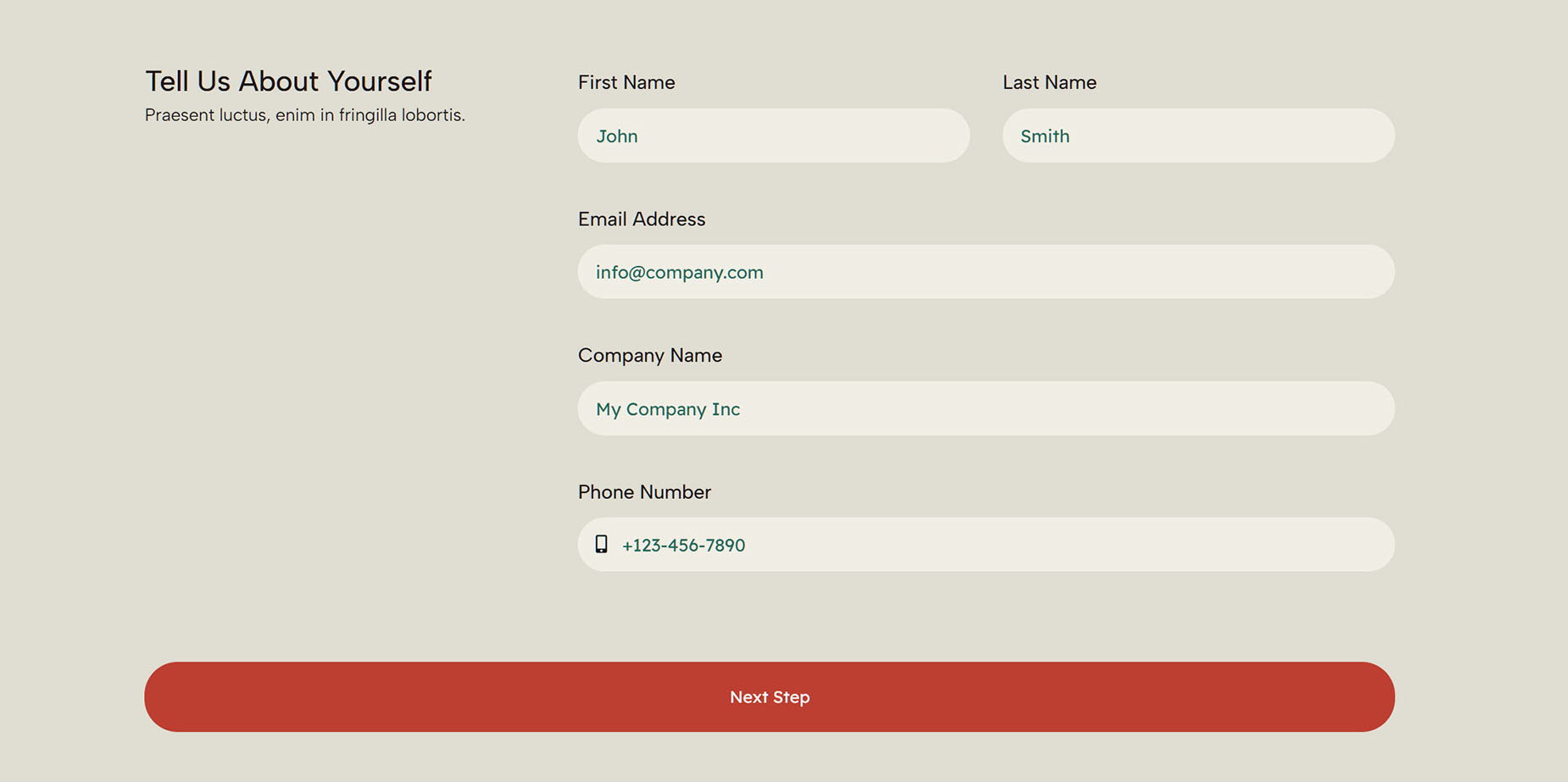
When creating an Avada Multi-Step Form, the initial process is the same as for a standard form. To get started in the WordPress Dashboard, navigate to Avada > Forms and create your first form, and begin editing it in the Avada Builder. Add your initial Avada Form Field Elements as with any other Avada Design & Layout Element. You should add a Submit Button Element at the end of every form section. This will be the trigger that guides you through the form’s steps.
As shown below, we have the initial content and a Submit Button Element named “Next Step”. Now, it’s time to create the actual step in the form. In this example, we have split a form into two parts, but you can create as many steps as you like.
Step 2 – Add A Form Step
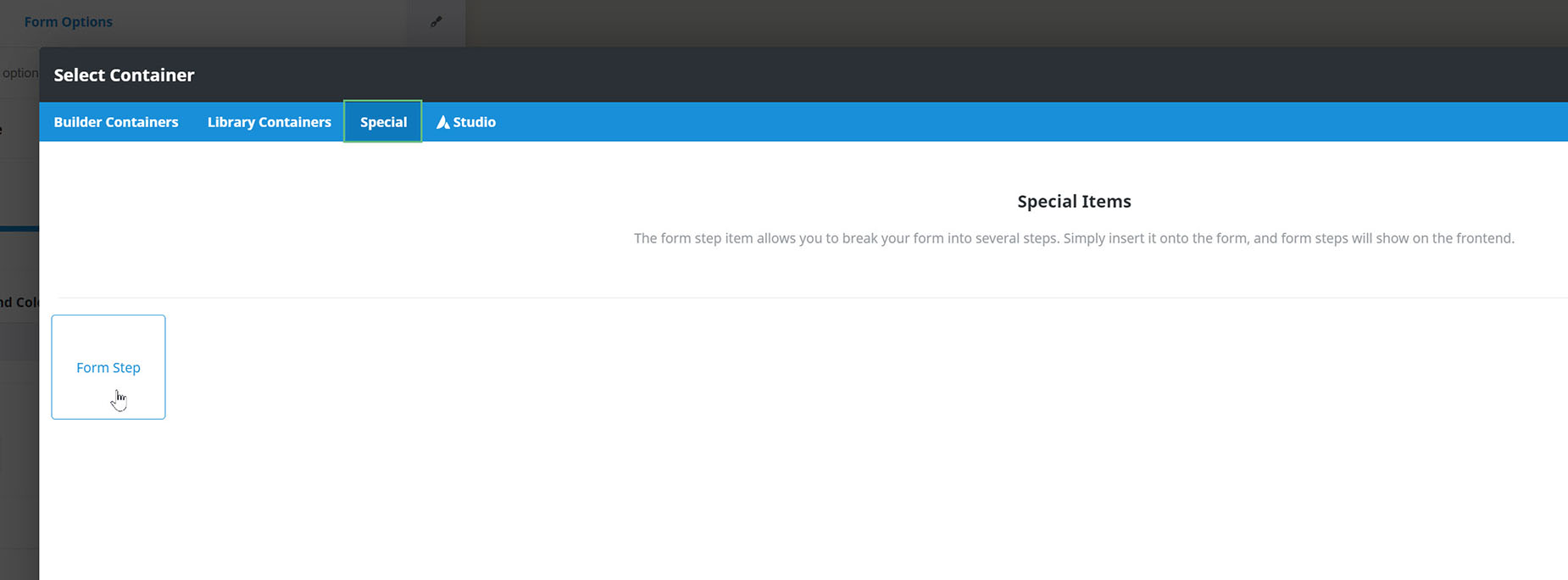
To add a form step, add another Container Layout Element to the Builder directly below the first Container with your initial content, and navigate to the “Special” tab. Here, you see the Form Step Element. This adds the step to your Form. There is nothing to configure with this Special Item; just give it a title and an icon if you wish. This is then used in the navigation (yes, there can be navigation).
Step 3 – Add Additional Form Content
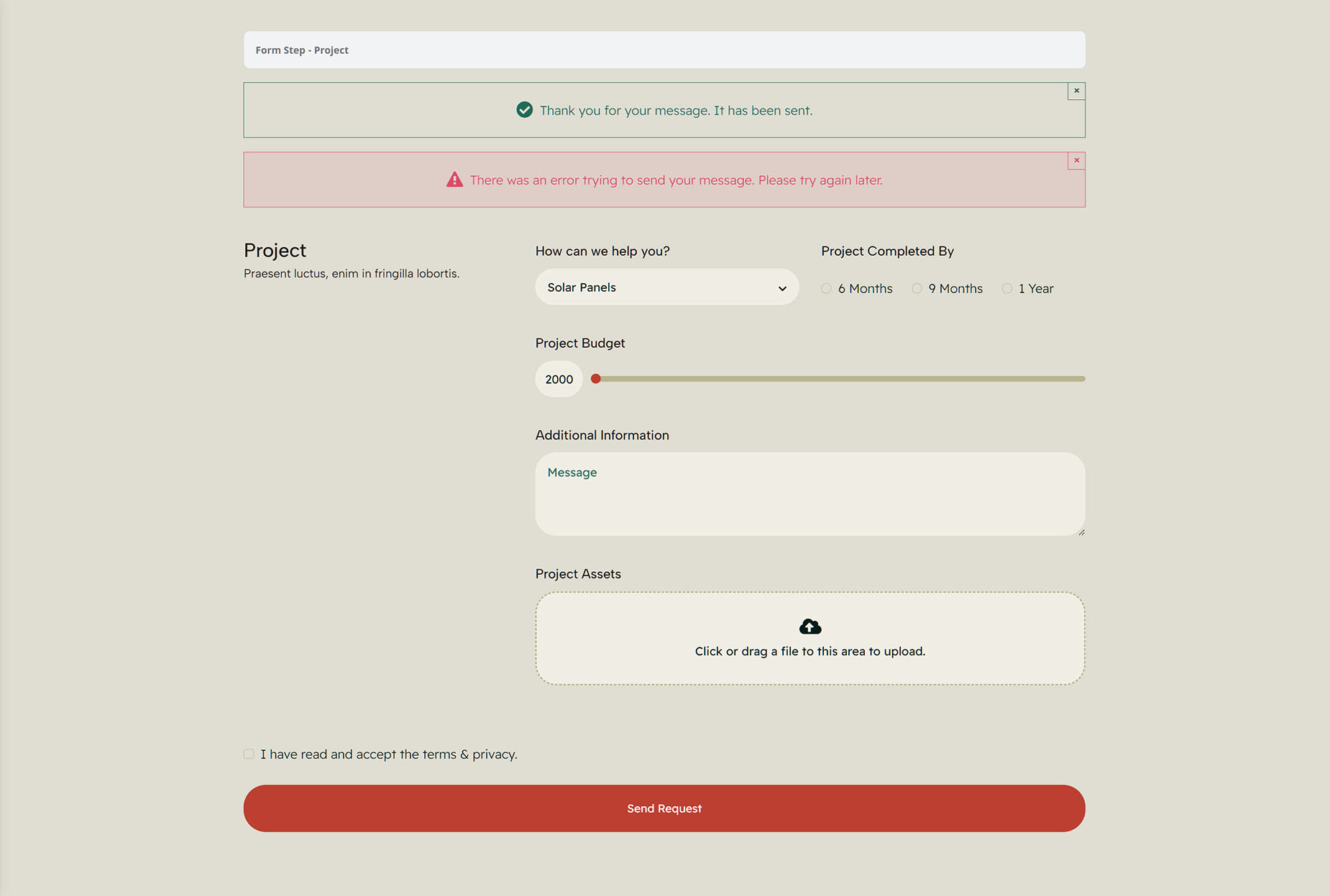
In this step, the focus is on adding additional form content. You can add as many form sections as you need, with whatever content you wish, and an additional Form Step between each one. In the screenshot below, you can see the Form Step Element at the very top. You can then place a Submit Button Element at the bottom of each form section to enable the user to continue to the next step.
In a Multi-Step Form, the Submit Button Element only behaves like a normal Submit button on the last step. Alternatively, you can add buttons, icons, or text labels, and add dynamic content to them to act as Forward/Previous buttons. See the following section for more details on that option. Your final form section should have a normal Submit button, and this is also where you would place the Avada Notice Element.
Step 4 – Dynamic Navigation Options
If your form has many steps, you may wish to add further navigation. This might be in the form of Forward and Back arrows. This is possible with the addition of some dynamic content options.
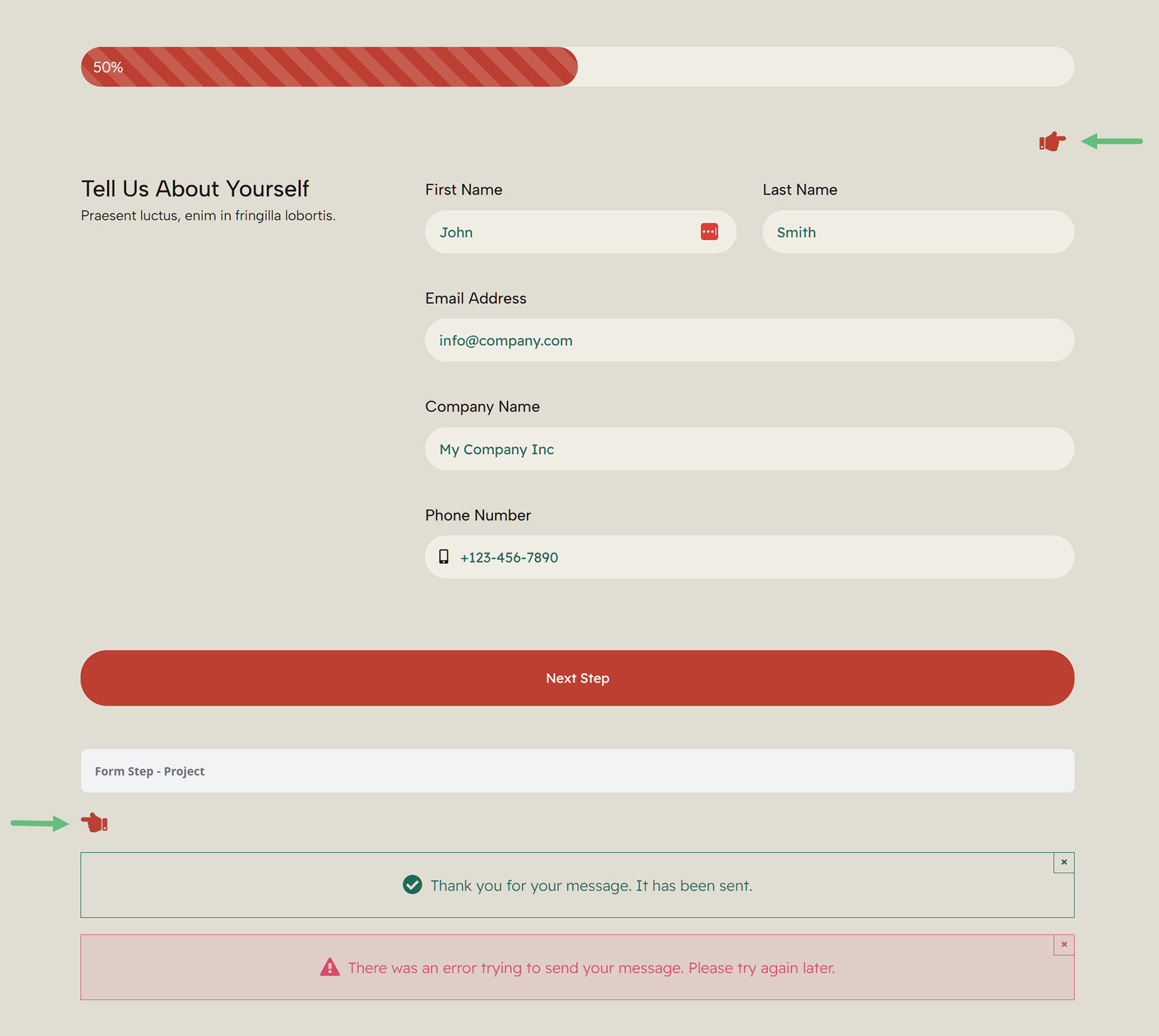
In the example below, since this is a two-step form, I have added a Next Step icon in the first section and a Previous Step icon in the second section, above the content on each step. Obviously, in a form with more steps, you could include both icons in any section between the first and the last.
These icons link to the previous and next steps of the form. This is achieved by setting the icons’ links to Dynamic Content and selecting Previous Step or Next Step. You can add this dynamic content to any element that accepts a link, such as buttons, icons, text, or images.
Step 5 – Configure the Step Progress
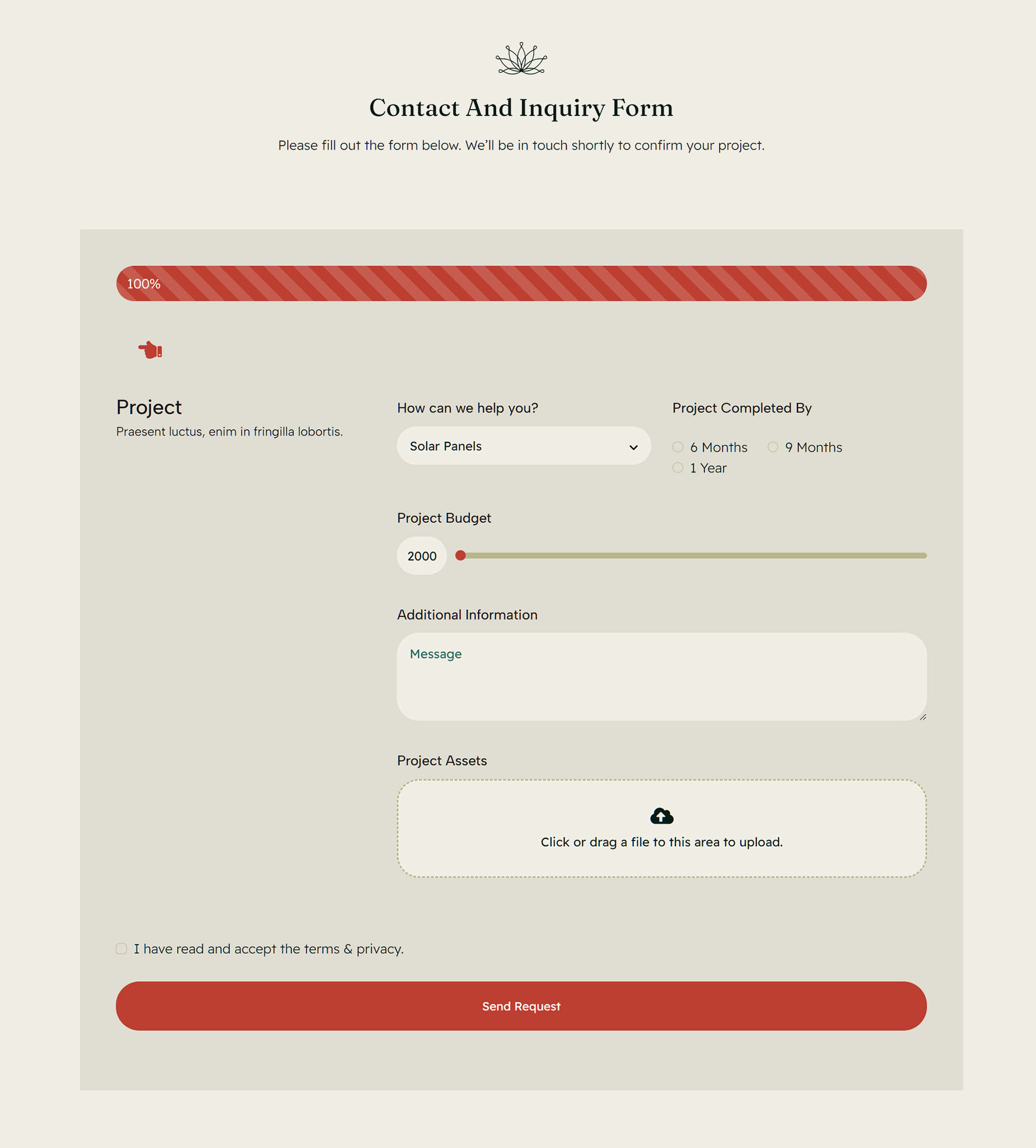
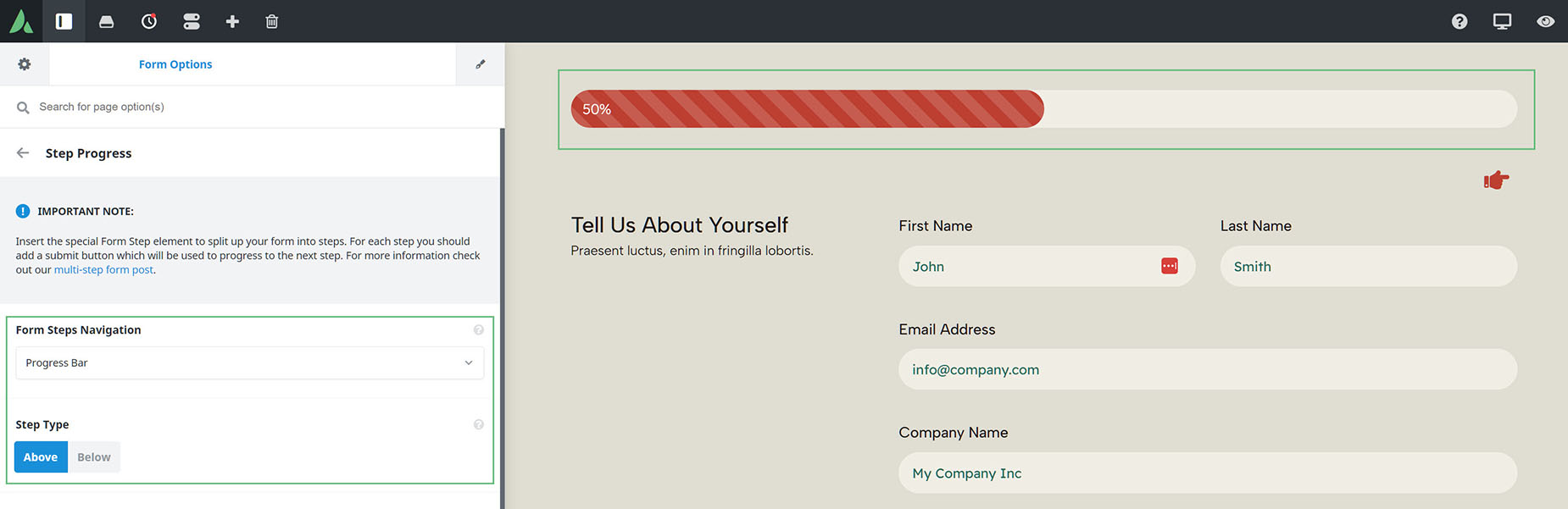
Once you have completed the form contents, you can configure the form as you would normally, including the Step Progress. This is found under the “Form Options” tab. This configures a section above or below the form that shows the form’s progress as the user moves through it.
If required, this can be configured as a Timeline or a Progress Bar, with many styling options available. Below is an example of a Progress Bar in a two-step form. Click on the buttons below to see the initial options for both styles.
Step 6 – Add The Form To The Website
Once you have completed building the multi-step form, it’s simply a matter of adding it to your page via the Avada Form Element, as with any Avada Form. Except here, only the first part of the form will be displayed, with your navigational link, allowing users to go to the next step in the form.
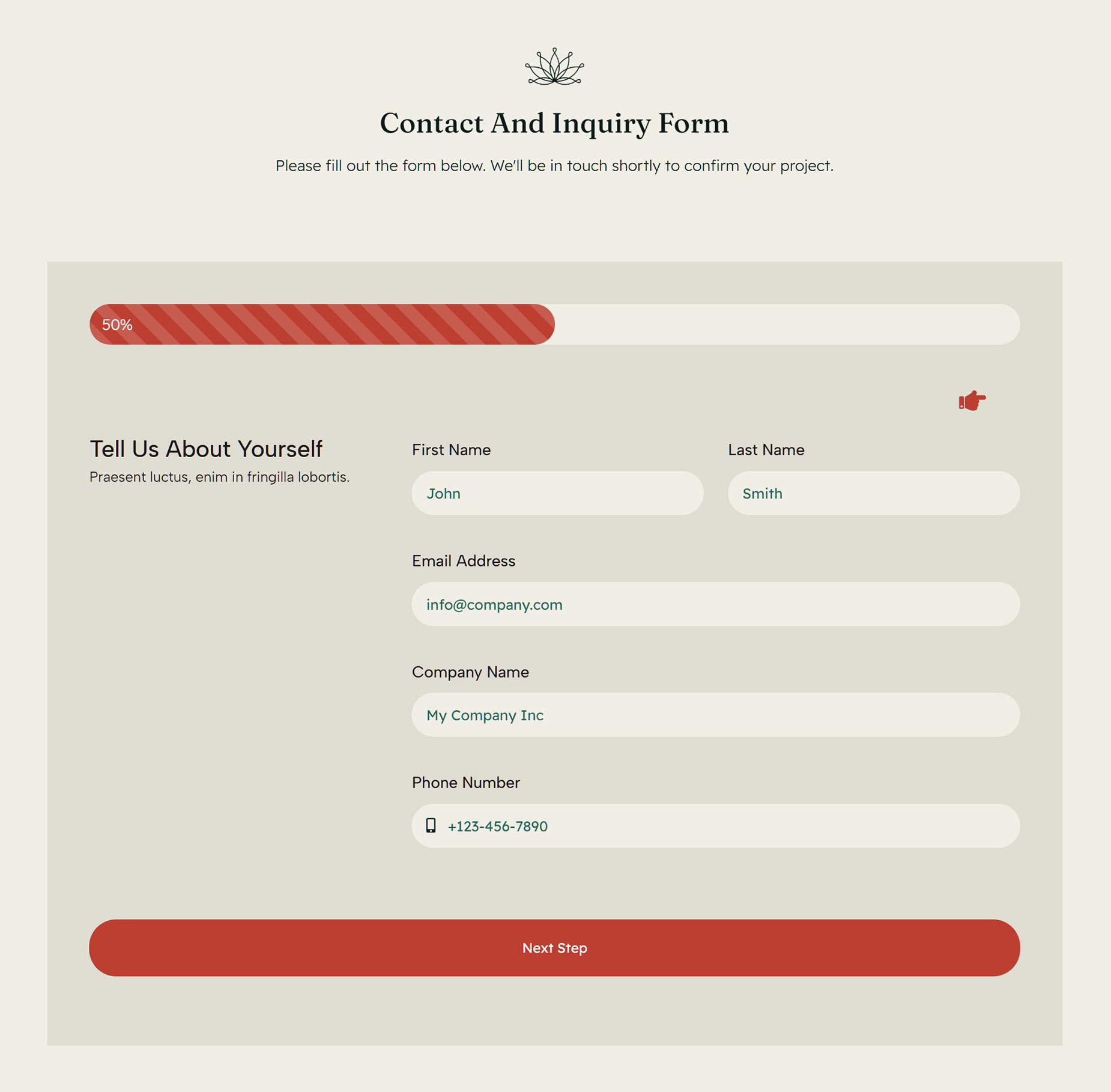
On the final step in the form, the Submit button Element acts as a normal submit button, and the form is then completed and dealt with in the way it has been configured in the Submission, Notifications, and Confirmation tabs of the Form Options. For more help on configuring Avada Forms, see the How To Use Avada Forms document.