Share
Keeping a website organized becomes increasingly important as pages grow in complexity and length. Whether building landing pages, sales funnels, or a full website with detailed content layouts, quickly finding and managing the various content and layout Elements can make a huge difference to both speed and efficiency.
Renaming Avada Containers, Columns, and Design Elements provides clarity to the builder experience, helping users stay organized and work more intuitively—especially on larger projects.
Overview
Streamline Your Workflow
In earlier versions of Avada, Containers could be named, but Columns and Design Elements were limited to displaying their default labels. This meant that as layouts became more complex, the Navigator could quickly fill with repeated, generic names like “Text Block,” “Button,” or “1/2 Column.”
Being able to easily identify content Elements in the Avada Live Visual Builder is particularly useful when working on long pages or layouts that include multiple instances of the same Element type. Instead of guessing which “Button” or “Image” is which, users can assign clear, descriptive names that reflect their purpose.
How Renaming Elements Works
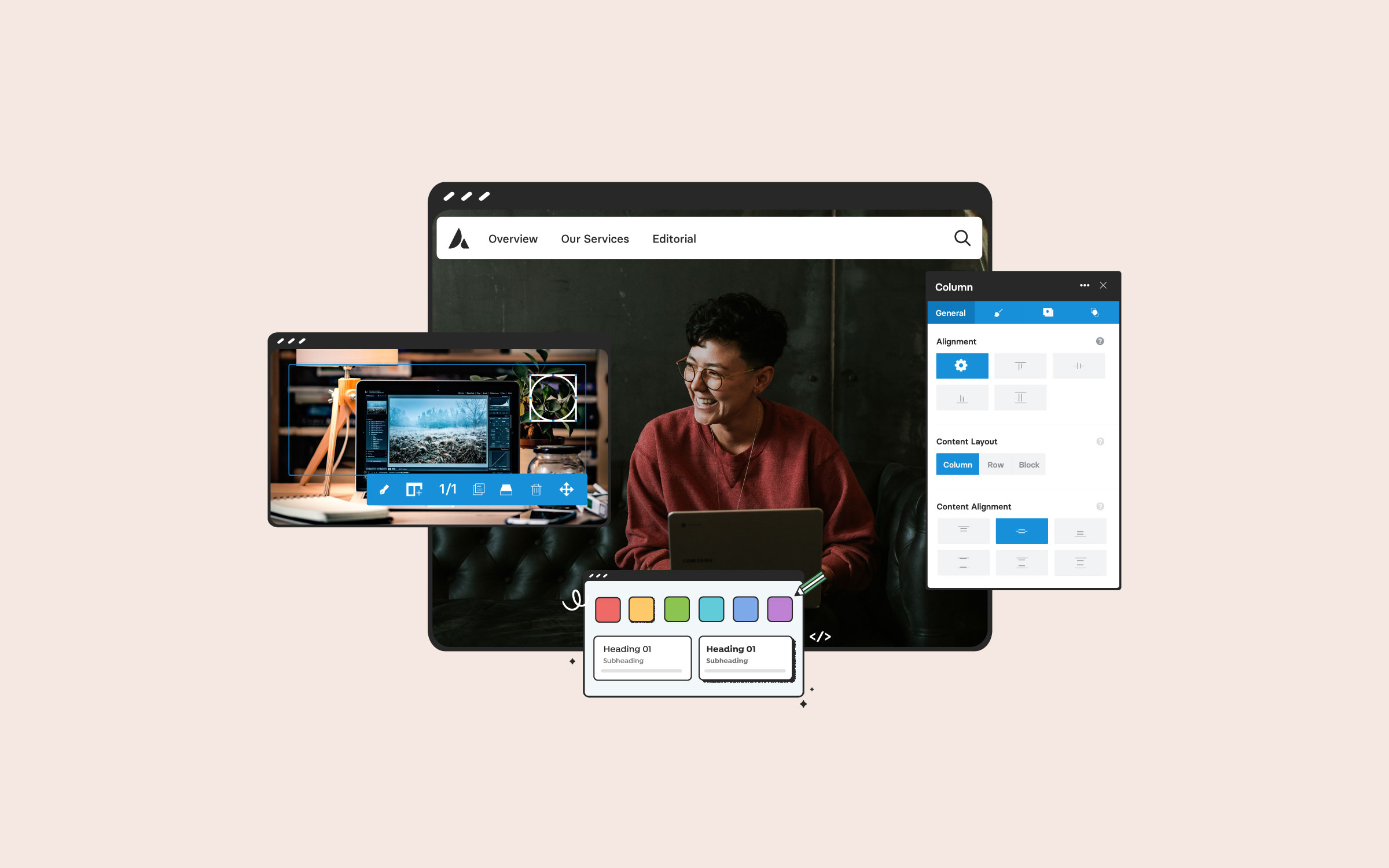
After selecting any Container, Column, or Element, the name field appears at the very top of its settings panel. From there, users can type a custom name that reflects the item’s content or function.
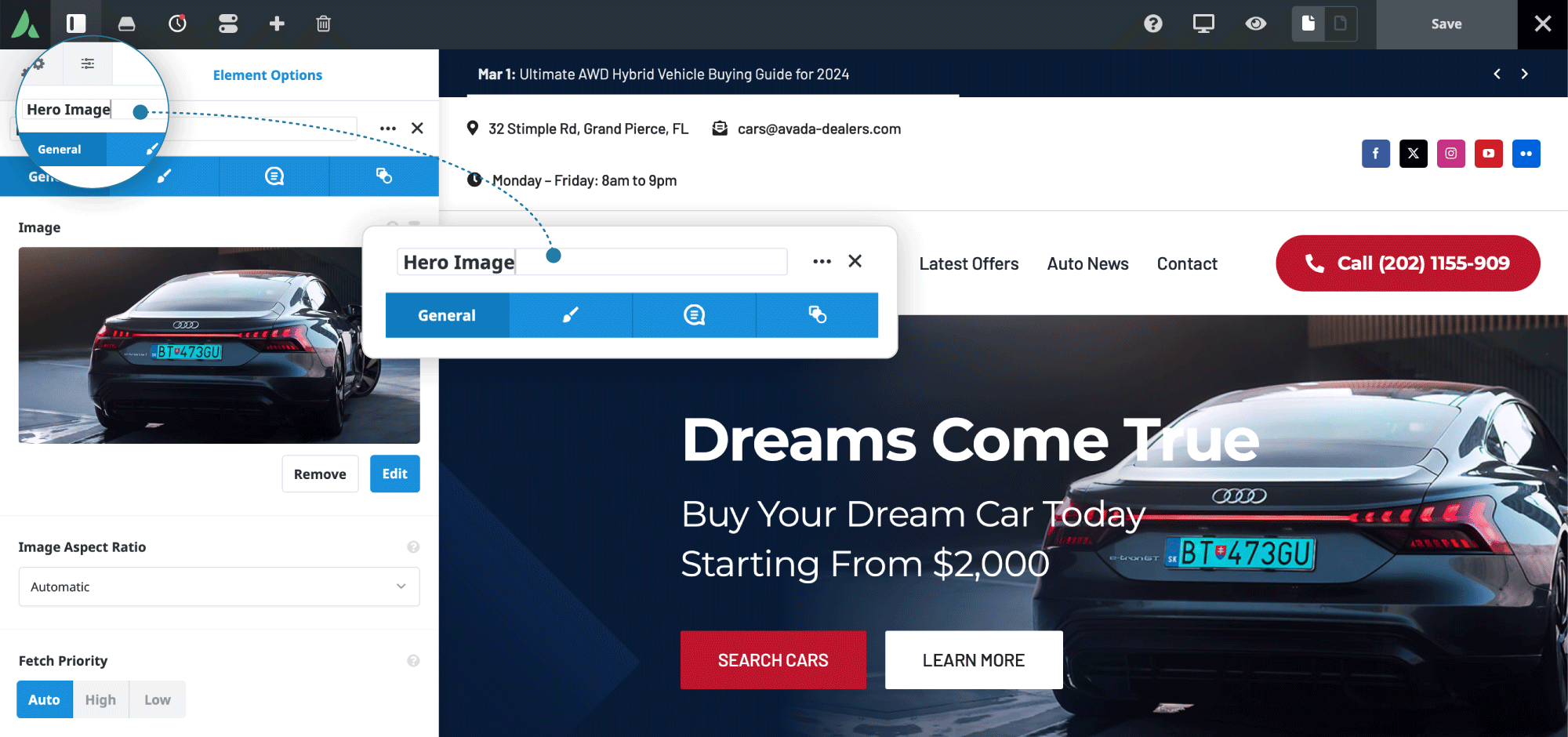
As soon as the custom text/label is entered and the panel is closed, the updated custom text/label appears instantly in the Avada Live Visual Builder Navigator. This seamless workflow makes it easy to rename items as you build, without interrupting your design process.
A Productive Live Visual Builder Navigator
Once Elements and Columns are renamed, the Navigator transforms into a far more useful tool. Instead of scanning a list of generic labels, users can quickly identify sections by meaningful names. This becomes especially valuable when revisiting a page after some time, collaborating with others, or troubleshooting layout issues. A well-labeled structure removes guesswork and helps maintain a clear overview of the page hierarchy.
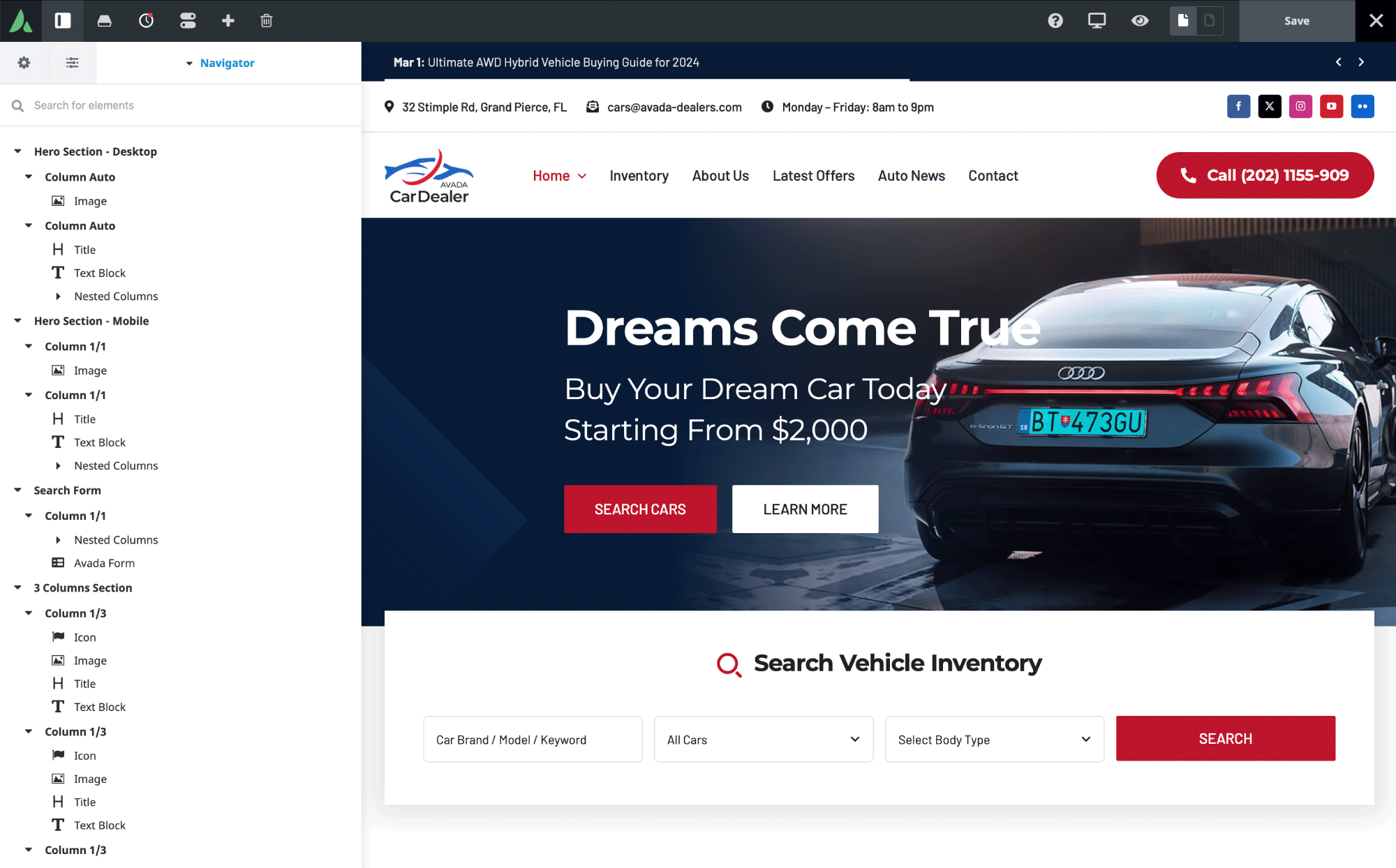
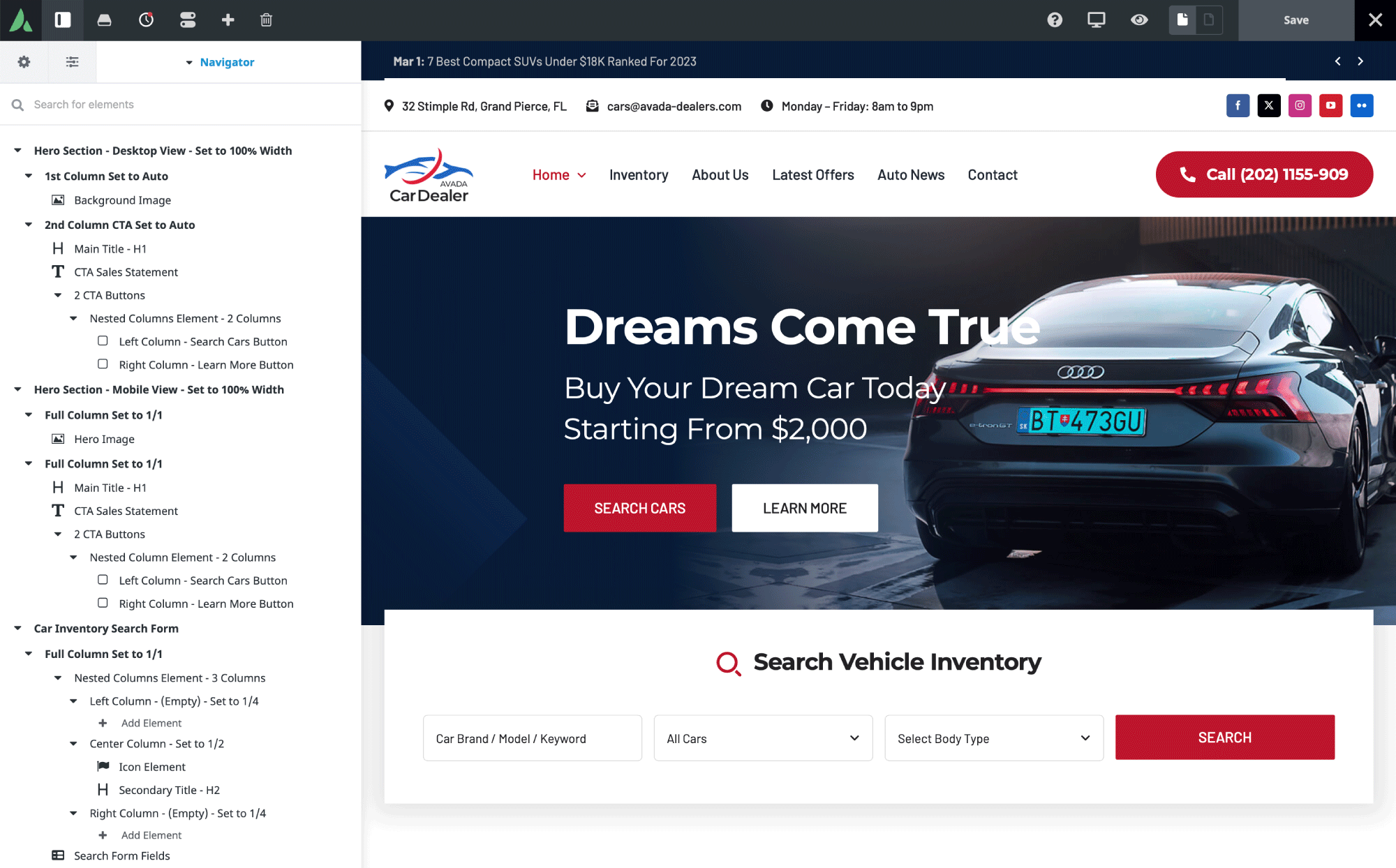
In addition to renaming Elements in the Navigator, it includes a comprehensive search feature that further improves usability by allowing users to locate specific Elements by name quickly.
At the top of the Navigator panel, a search field lets users filter items by name. For example, searching for “CTA Buttons” will display only the Avada Button Elements on the page whose titles contain “CTA Buttons”.
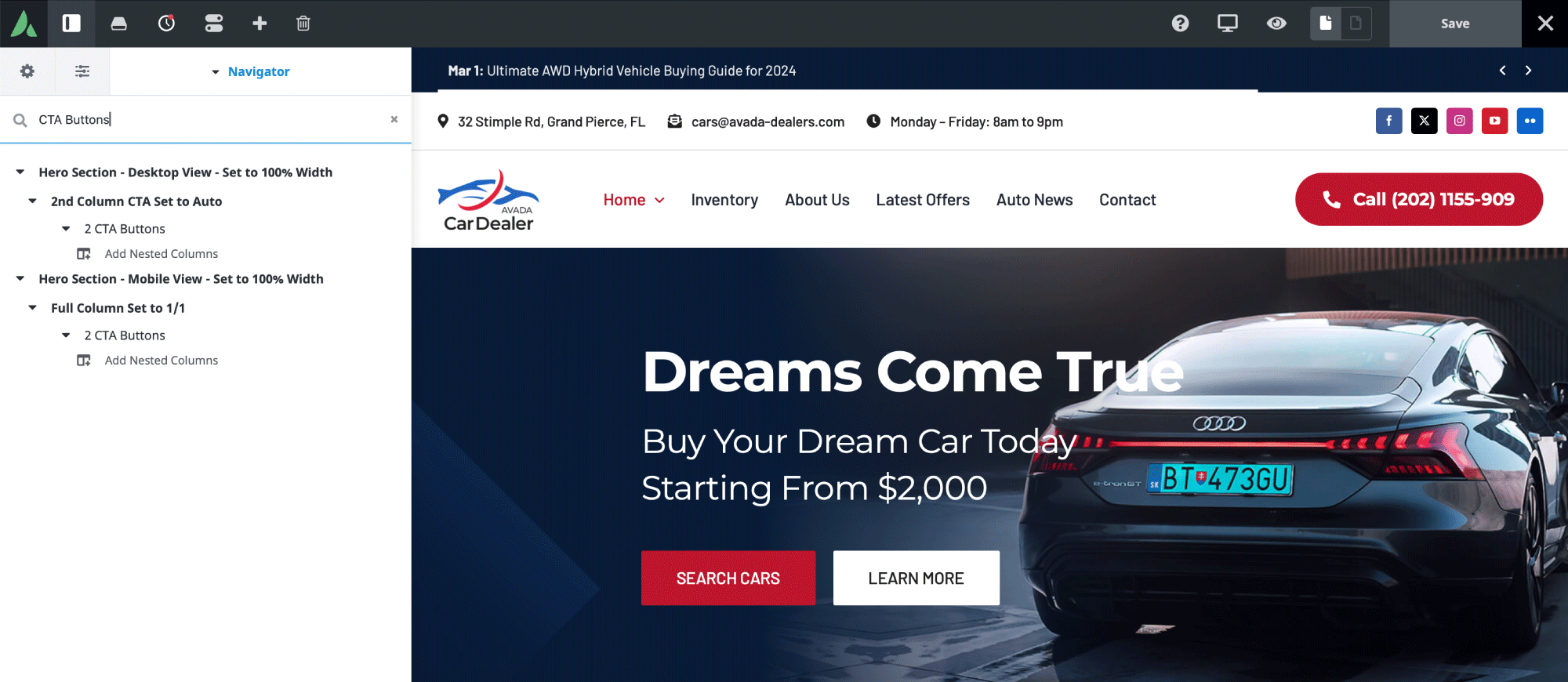
When combined with custom naming, this feature becomes even more powerful, enabling a more streamlined, faster approach to managing your page and post content.
Summary
The ability to rename Avada Elements has a meaningful impact on everyday usability. By clearly labeling every piece of content, Avada empowers users to work faster, stay organized, and manage even the most complex layouts with confidence. The same naming functionality can also apply to the backend builder, ensuring a consistent experience regardless of which editor you use.
Combined with the new Navigator search feature, this update reinforces Avada’s focus on improving real-world workflows—making it easier than ever to build, edit, and maintain professional WordPress websites.