
The Avada Options Network
Last Update: May 5, 2026
The Advanced Options Network is the backbone of Avada. These options give you full control over your website and allow you to customize your design without touching a single line of code. There are three major groups of options you can utilize within Avada: Avada Global Options, Avada Page Options, and Avada Design & Layout Element Options.
Avada’s Advanced Options Network (3 Tiers)
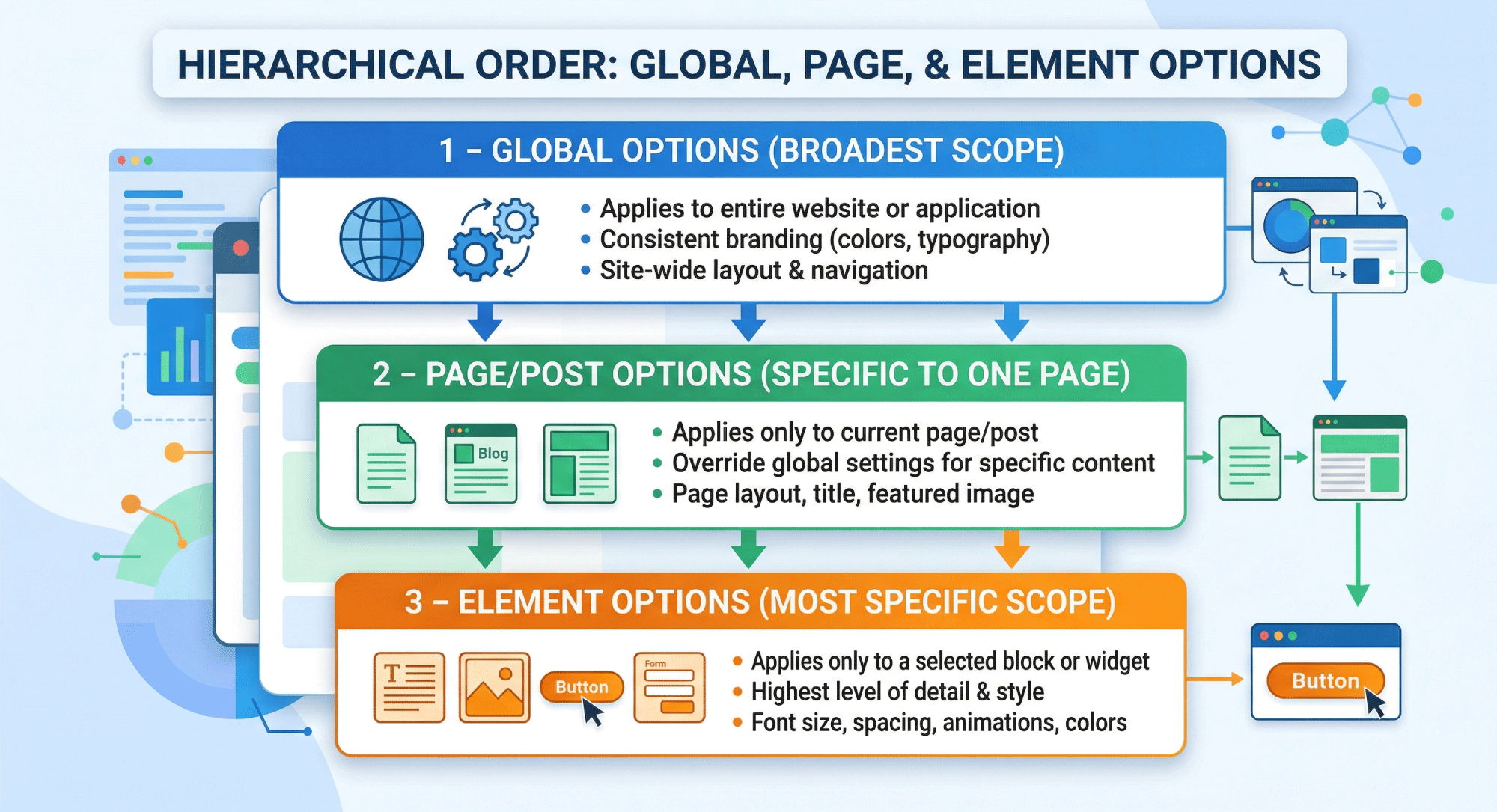
Avada is a Website Builder for WordPress that includes a well-established, highly flexible, and advanced network of options that gives you maximum design freedom without the need to write any code. The Avada Options Network comprises three tiers that work together hierarchically: global settings apply site-wide unless overridden by page-specific settings, and page settings, in turn, can be overridden by individual Element options added to a page or post.
(Tier 1) – Avada Global Options
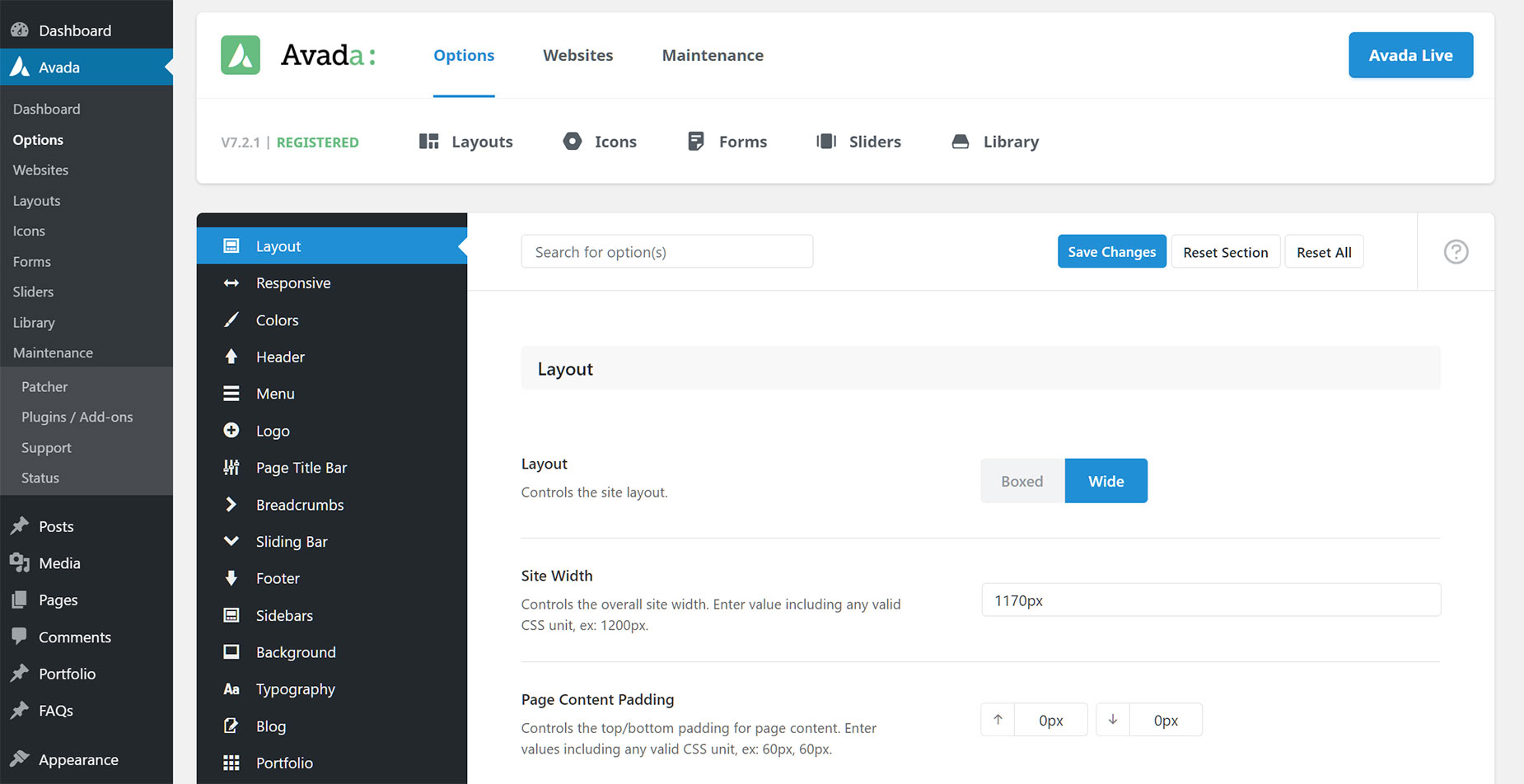
The Avada Global Options are the main site-wide settings in Avada. They control the default design, layout, and behavior of your entire website, including the header, footer, menu, sidebars, forms, performance, styling, and many other core settings. These options are available under WordPress Dashboard > Avada > Options > Global Options, and they form the foundation of how your site looks and works.
A simple way to think about it is that Global Options set the default rules for your whole site. If you choose a layout width, header style, or typography setting in Global Options, that choice applies everywhere unless you override it in a more specific setting (such as the Page/Post Options or Element Options). This is what makes Avada so flexible for beginners and advanced users alike.
You can configure the overall website in Global Options, then make page-level or element-level changes only where needed. Below is a screenshot of the back-end version of the Avada Global Options.
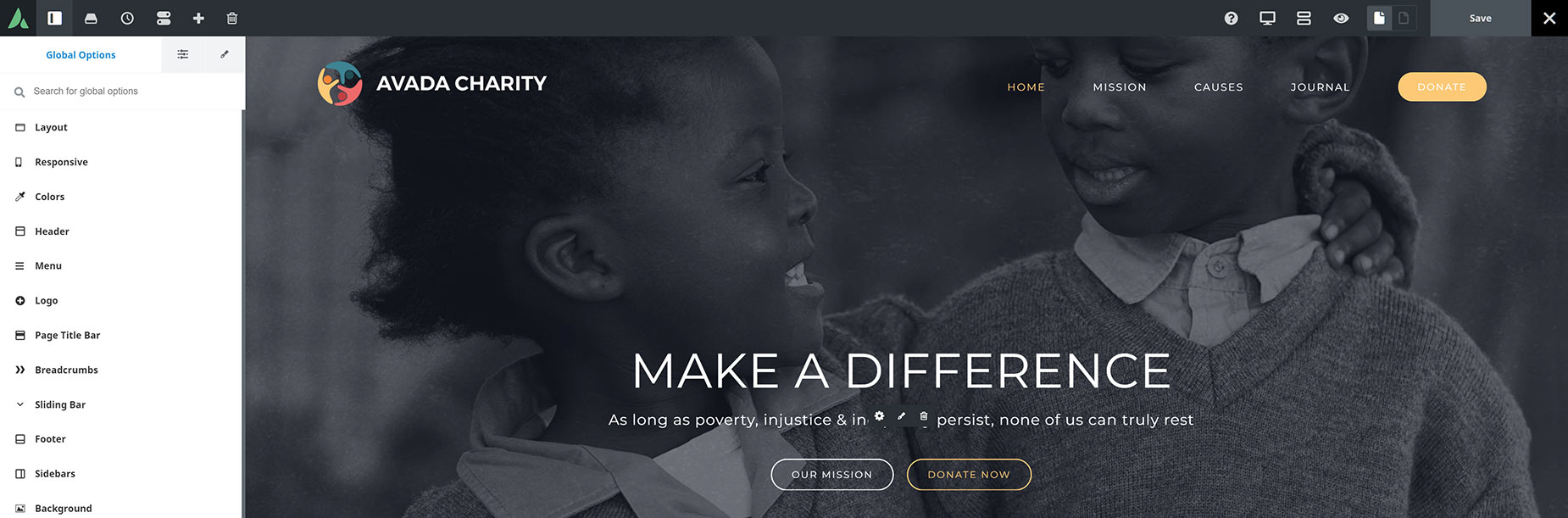
In the Avada Live Visual Builder, you have access to the Avada Global Options panel without even leaving the page you are editing. Below is a screenshot of the Avada Global Options in Avada Live, accessed via the Toggle Sidebar Icon in the main Toolbar.
(Tier 2) – Avada Page Options
The Avada Page/Post Options are the local settings for an individual page or post. They let you control how that specific piece of content behaves and appears without changing the rest of your website. These options are available at the bottom of the page or post editor in the backend, and also in the sidebar when using Avada Live Visual Builder.
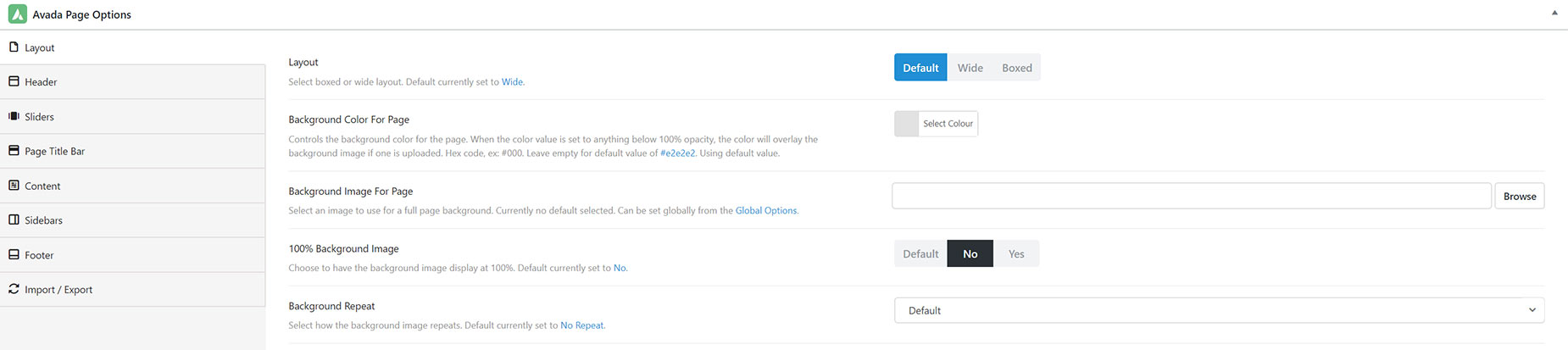
These options are organized into tabs for different parts of the page, such as general settings, layout, header, footer, page title bar, sliders, menu, sidebars, and more, depending on the content type. This means you can fine-tune a single page’s layout, background, visibility settings, or other local features without affecting global defaults across the site.
The key thing to understand is that Avada Page/Post Options are part of Avada’s broader Options Network. Global Options control the site by default, but Page/Post Options can override those settings for a specific page or post. If a Page/Post Option is left at its default setting, it simply inherits the global value. Below is a screenshot of the back-end version of the Avada Global Options.
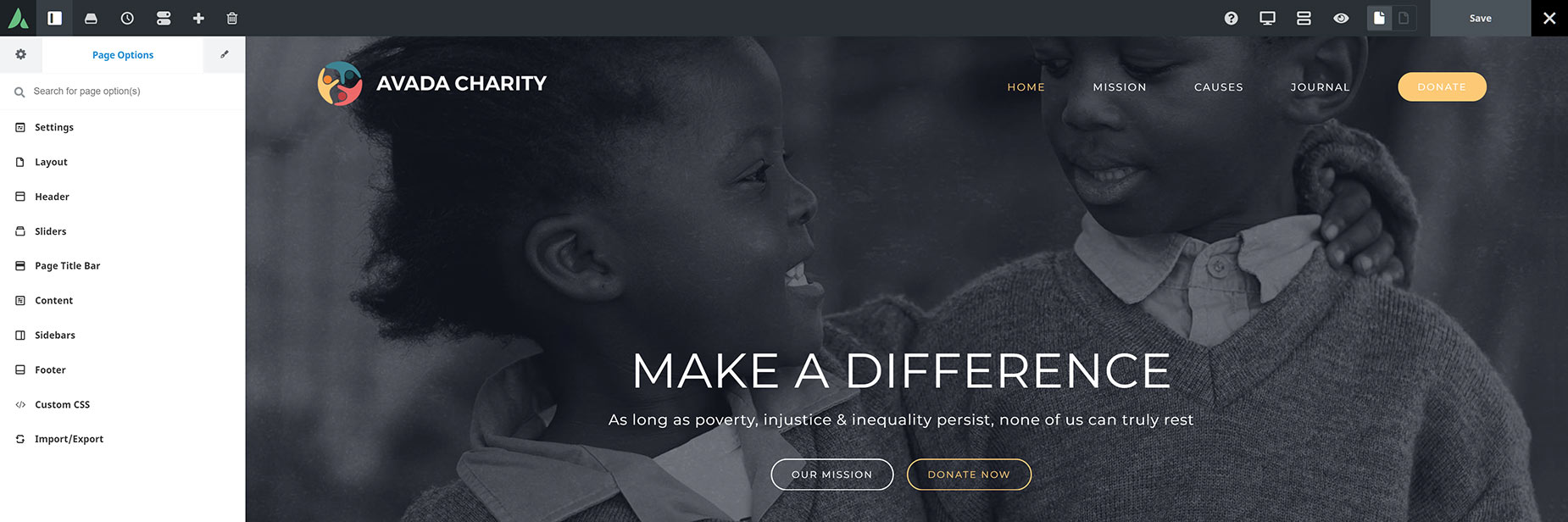
In Avada Live Visual Builder, the Avada Page Options are found in the Sidebar, along with the Avada Global Options. Below is a screenshot of the Avada Page Options in the Live Editor.
(Tier 3) – Avada Element Options
The Avada Element Options are the settings panel inside each individual Avada Design & Layout Element. They control how that specific Element looks and behaves, including its content, layout, spacing, colors, animations, visibility, and other design settings. Element Options are the third tier of the Avada Options Network, meaning they only affect the individual Element instance you are editing.
You might have global defaults for buttons, titles, or images across your site, but Element Options lets you override those defaults for a single item when needed. For example, one button can have a different size, one title can use a special animation, or one image can have unique spacing without changing every similar Element across the whole site. These Element Options work hierarchically with Global Options and Page Options, so an Element setting will override both if you choose a specific value.

Global Options vs Page Options
Avada Global Options
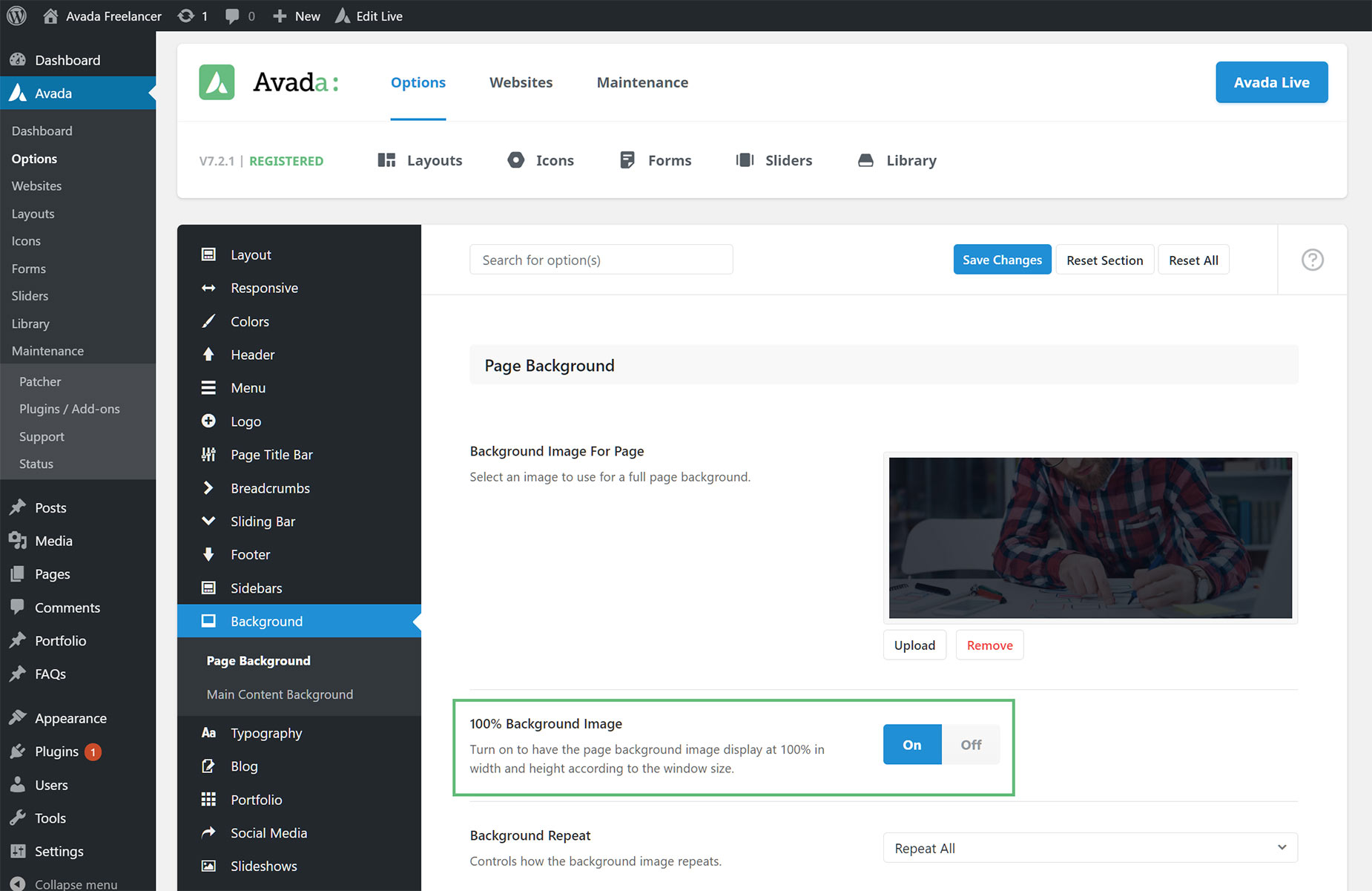
Below is a screenshot of the Page Background panel in the Avada Global Options. This is a scenario where a background image has been set, and the ‘100% Background Image’ option is set to On, which means the background image will cover 100% of the width on all pages throughout the site, unless otherwise specified in Page Options.
Avada Page Options
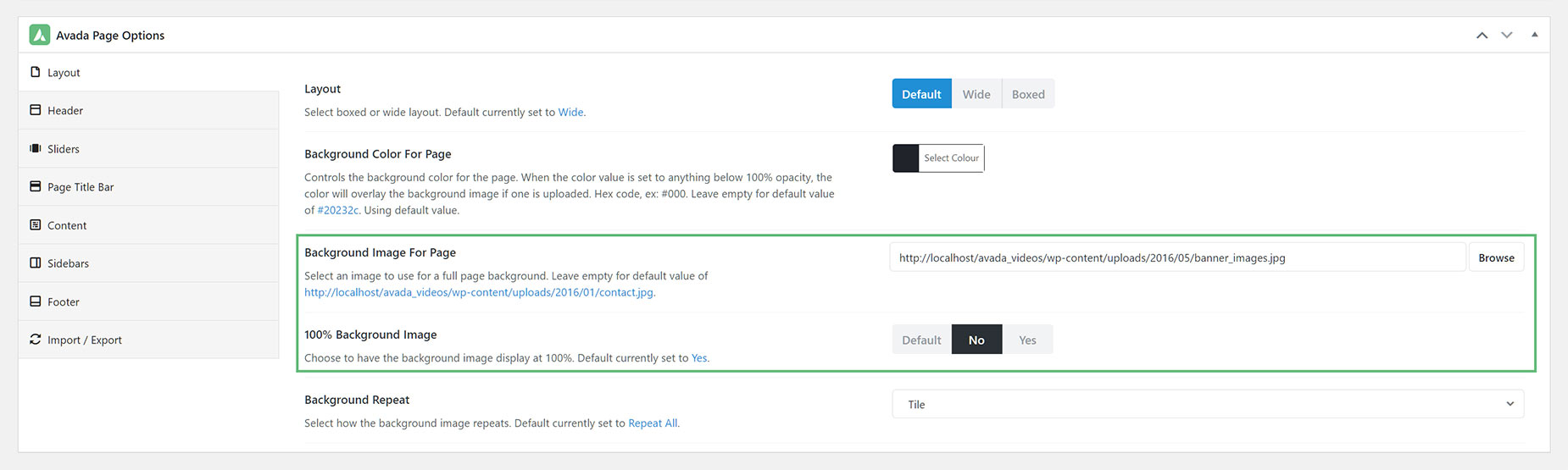
Below is a screenshot of the Background panel in the Avada Page Options. Here, a different image has been added for the Background Image For Page options, and the 100% Background Image option is set to No. So, on this page, a different background image will display, but it will not be at 100% width: global options, local overrides.
Global Options vs Element Options
Avada Global Options
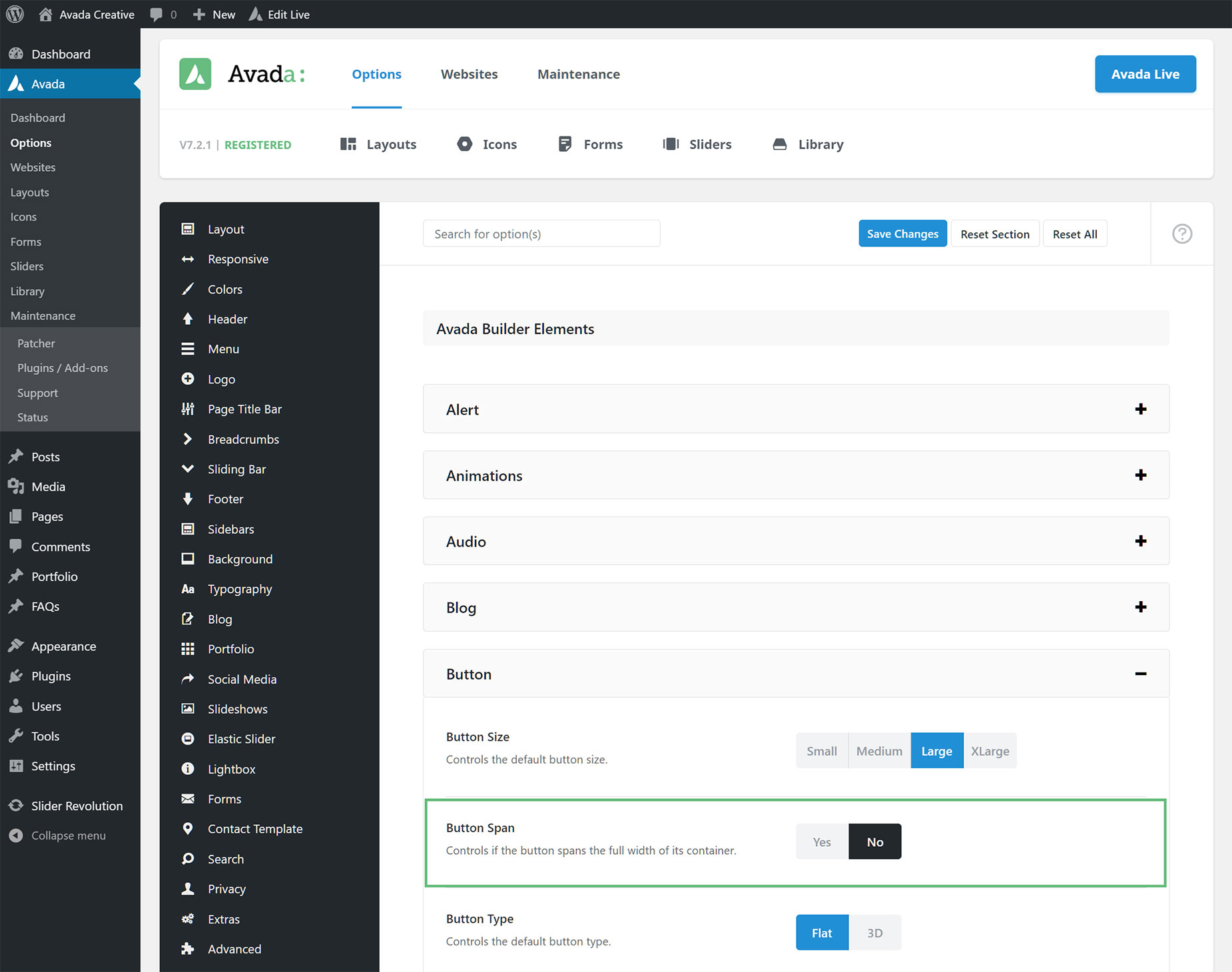
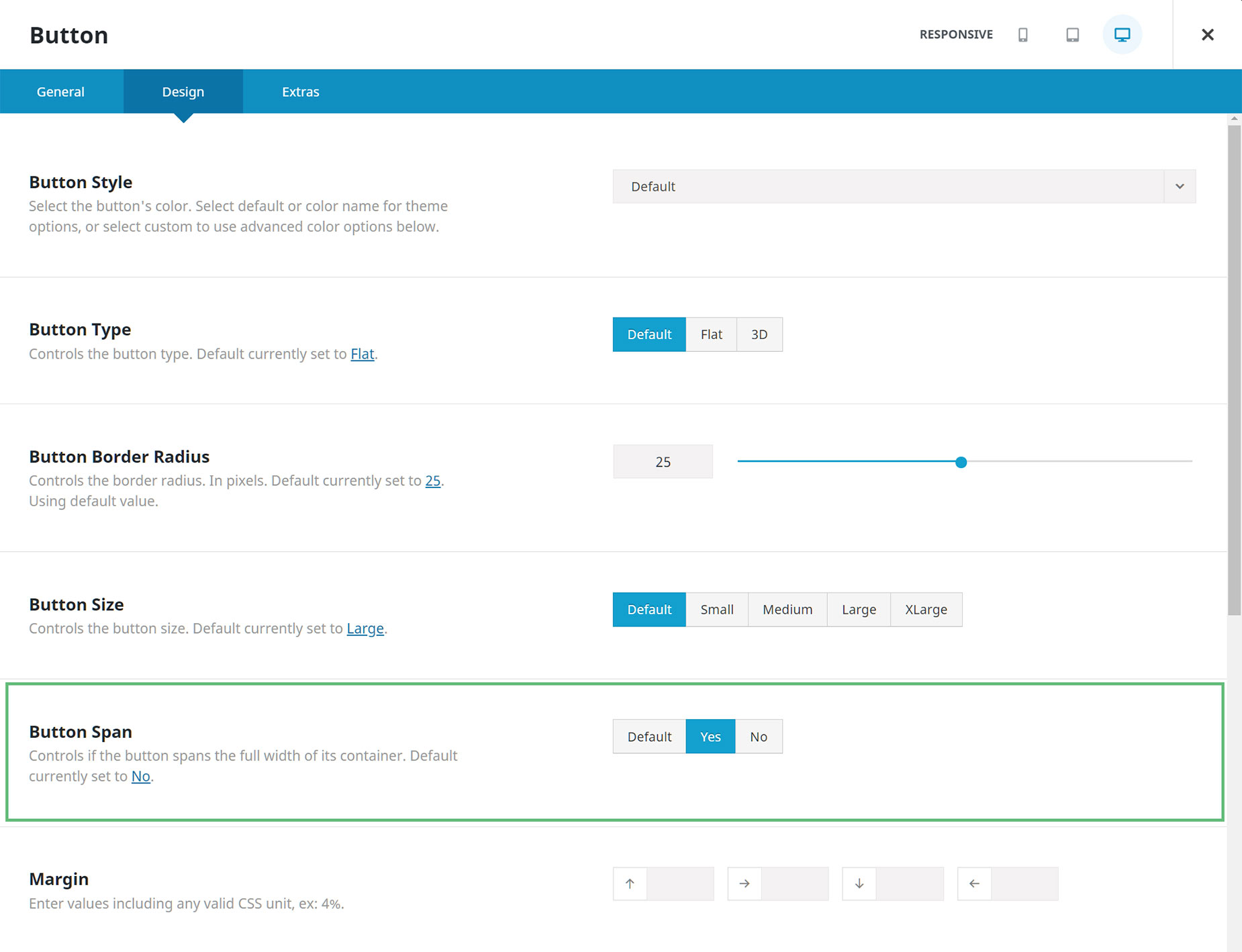
Below is a screenshot of the ‘Avada Builder Elements’ tab in the Avada Global Options. The ‘Button Span’ option is set to No, and so all buttons on your website will be displayed as such, unless the corresponding button element option is overridden.
Avada Element Options
Below is a screenshot of the Button Element Options Panel in the Avada Live Visual Builder. In this instance of the Button Element, the Button Span option has been set to “Yes”. This Element option will override the corresponding option in the Avada Global Options. You can also see the default value in the description under the option title, as explained below in the Advanced Option Network Correlation section.
The Advanced Option Network: Correlation
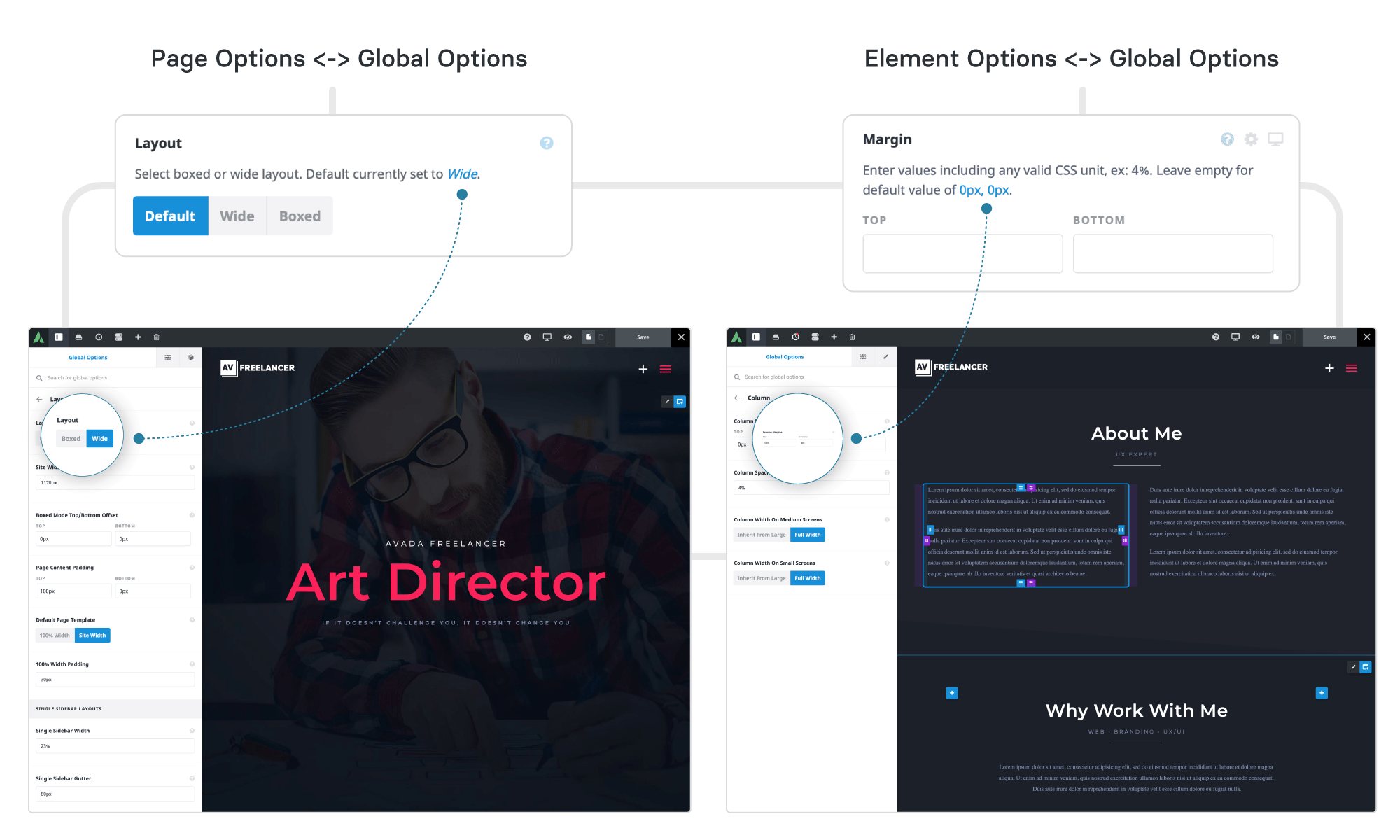
When building your pages, we understand that a seamless experience is important for your workflow. This is where the Advanced Option Network Correlation comes in. This feature allows you to view what default option you’ve set in the Avada Global Options for specific Avada Page and Element options. If you would like to change it, you can click on the link to be automatically redirected to that Global Option.
In the Avada Live Visual Builder, the Global Default values can be viewed by clicking the Question Mark Icon to the right of each Option title. This toggles the option description. Any default values will be indicated in the description, and you can click on them to be taken to the related Global Option.
The Advanced Option Network: Dependencies
Avada’s Option Network consists of the Avada Global Options, Avada Page Options, and the Avada Element Options, and each of them have dependent options turned ON by default. This means the only options you see are the only ones currently available for your selection.
These dependencies are intended to keep options as streamlined as possible and to avoid visual clutter. The dependent options are hidden/visible according to your current site’s configuration. For example, if you have a side header active, then all options that aren’t relevant to side headers like top header options, will be hidden from view. This allows you to concentrate only on the options that will affect your current set up.
This feature can be disabled in Avada Options > Advanced > Features > Avada’s Option Network Dependencies.


















































































































