Built into the core of Avada are the Avada Global Options. These advanced options allow you to configure virtually every section of your website. The options are organized into logical tabbed sections, and each option has a description of what it will do.
There is a vast array of options to explore, which gives you an incredible amount of choice for customizing your website. Read on for videos, screenshots, and descriptions of each Option tab.
How To Access the Avada Global Options
Via The WordPress Dashboard
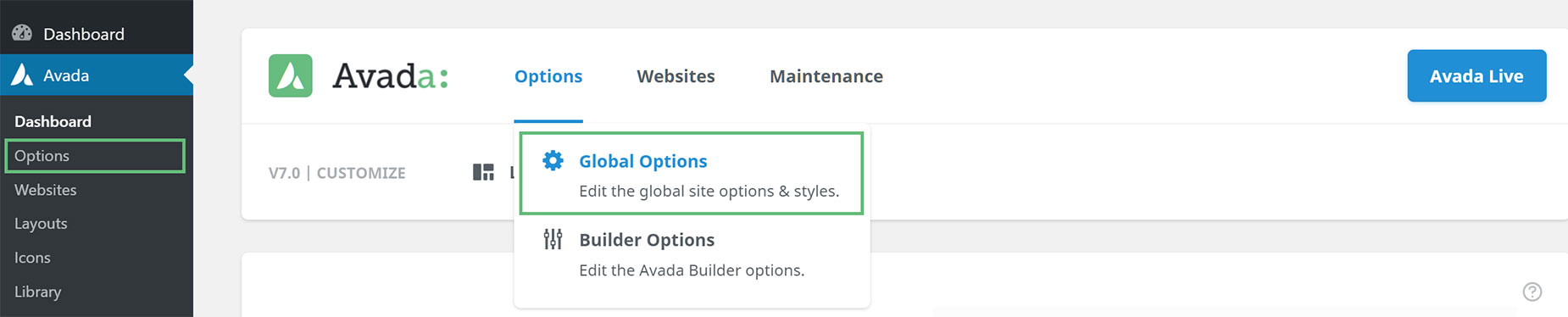
In the WordPress Dashboard navigate to Avada > Options > Global Options, or Options > Global Options, from the Avada Dashboard, to access the Avada Global Options panel.
Via The Avada Live Visual Builder Toolbar
If you are using the Avada Live Visual Builder, then there is no need to return to the back-end to access the Avada Options. Click the Toggle Sidebar Icon in the Avada Live Toolbar, and the entire Avada Options panel is accessible to you while you build.
The Avada Page Options are also available on this sidebar, in their own tab. To save any options you change, click the large Save Icon in the top right of the toolbar.
See the videos below for an introduction to the Avada Global Options in both the back end and front end interface.
For privacy reasons YouTube needs your permission to be loaded.
For privacy reasons YouTube needs your permission to be loaded.
Avada Options Overview
Expert Tip – Avada Global Options use the Avada Option Network Dependencies, and when this is enabled, only the options valid for your current configuration are shown. All screenshots here are showing the DEFAULT Global Options on a default install, so depending on your settings, you will see different options. Also, 3rd-party plugin options are only available when the corresponding plugin is activated. This eliminates irrelevant options from your current setup if they are not in use.
Layout
Manage the site layout, site width, and various padding options.
Responsive
Enable responsive design on your site, set responsive breakpoints, enable mobile device zoom and responsive heading typography, set typography sensitivity, and set minimum size factor.
Colors
Edit your Global Color Palette, and set the Primary Color.
Header
These are mostly legacy settings. Please see the documentation on Avada Layouts to see how to create your own custom header.
Manage the header and sticky header. Choose the position, size, layout, appearance, padding, styling, slider position, and header content.
Header Background Image – Header background image, 100% and parallax background image, and background repeat options.
Header Styling – Header padding, shadow, width, background color, border color, tagline font size and font color options.
Sticky Header – Visibility options for desktop, tables, and mobiles, and other styling options.
Slider Position – Controls if the slider displays below or above the header.
Menu
These are legacy settings. Please see the documentation on Avada Layouts to see how to create your own custom header and the Avada Menu Element for how to assign a menu to a custom header.
If you are not using Avada Layouts, you will see the following options to manage various aspects of your main menu, flyout menu, secondary top menu, mobile menu, mega menu, and main menu icons.
Main Menu – Main menu height, styling, padding, layout, dropdown styling, search icon, and typography options.
Flyout Menu – Styling, font size, and menu direction options.
Secondary Top Menu – Styling, layout, and typography options.
Mobile Menu – Menu design, styling, and typography options.
Mega Menu – Layout options.
Main Menu Icons – Main menu icon position, and styling options.
Logo
Manage a regular, sticky header, mobile logo, retina, logo custom link URL, and a favicon.
Logo – Alignment, margins, custom link URL, default, sticky header, mobile, and retina logo options.
Favicon – Regular, Apple iPhone and iPad, and retina favicon options.
Page Title Bar
These are legacy settings. Please see the documentation on Avada Layouts to see how to create your own custom Page Title Bar section.
If you are not using Avada Layouts, you will see the following options to manage the layout, visibility, styling, font size, alignment, a background image, and animation. These options are applied globally to pages and posts, but can be overridden by individual page or post Avada options.
Page Title Bar – Visibility, styling, background image, parallax, and animation options.
Breadcrumbs
Manage breadcrumb prefix, separator, color, categories etc.
Sliding Bar
IMPORTANT NOTE: For more flexibility and a more modern, performant sliding bar setup, we recommend using the Avada Off-Canvas Builder.
Footer
Manage widgets, columns, content alignment, special effects, copyright text, background image, and styling. These options are applied globally to pages and posts, but can be overridden by individual page or post Avada options.
Footer Content – Footer Content – Widget visibility, number of footer columns, content alignment, special effects, copyright bar, and copyright text.
Footer Background Image – Background image for footer widget area, 100% background image, background repeat, and background position.
Footer Styling – 100% width, padding, typography, border, copyright, background color, footer widgets area styling, and other footer styling options.
Sidebar
Notice – These are legacy settings and are turned off by default. To re-enable them, enable Legacy Widget Areas under Advanced > Features.
Sidebar Options – Manage the mobile position of the sidebar on mobile devices and sidebar styling, sidebars for pages, portfolio, blog, search page, WooCommerce, Events Calendar, and bbPress. Here, you can activate the sidebars globally, overriding the Avada options.
Sidebar Styling – Sidebar Responsive Order, Sticky sidebar, padding, background color, widget heading background color and font size, and widget headings color.
Pages – Activate global sidebar for pages, choose a sidebar or no sidebar for sidebars 1 and 2, and the sidebar position.
Portfolio Posts – Activate global sidebar for portfolio posts, choose a sidebar or no sidebar for sidebars 1 and 2, and the sidebar position.
Portfolio Archive – Choose a sidebar or no sidebar for sidebars 1 and 2.
Blog Posts – Activate global sidebar for blog posts, choose a sidebar or no sidebar for sidebars 1 and 2, and the sidebar position.
Blog Archive – Choose a sidebar or no sidebar for sidebars 1 and 2.
Search Page – Choose a sidebar or no sidebar for sidebars 1 and 2, and the sidebar position.
WooCommerce Products – Activate global sidebar for WooCommerce products, choose a sidebar or no sidebar for sidebars 1 and 2, and the sidebar position.
WooCommerce Archive – Choose a sidebar or no sidebar for sidebars 1 and 2.
Events Calendar – Activate global sidebar for Events Calendar posts, choose a sidebar or no sidebar for sidebars 1 and 2, and the sidebar position.
bbPress/BuddyPress – Activate global sidebar for bbPress/BuddyPress, choose a sidebar or no sidebar for sidebars 1 and 2, and the sidebar position.
Background
Background Options – Manage the page and main content background image, background color, background pattern, and other styling options.
Page Background – Background image for page, 100% background image, background repeat, background color, and background pattern.
Main Content Background – Background color, background image, 100% background image, and background repeat.
Typography
Manage font family, weight, style, size, line height, letter spacing, font color, link color, and header margins for body, headers, and post titles. Choose either standard fonts, Google fonts, or add your own custom fonts.
Global Typography – On this tab, you can create and edit global typography sets.
Body Typography – Font family, weight, style, subsets, size, line height, letter spacing, font color, and link color.
Heading Typography – Font family, weight, style, subsets, size, line height, letter spacing, header margins, and font color options for headers H1-H6, post titles, and post title extras.
Custom Fonts – Upload as many custom fonts as you wish. Required font files -> .woff, .woff2, .ttf, .svg, .eot.
Blog
Manage the layout, pagination type, excerpts, featured image, date, single post, and the blog meta.
General Blog – Title bar, layout for WordPress default or archive, pagination type, excerpt, blog archive featured image/video visibility, and the date layout options.
*The general blog options only control the assigned blog page in settings > reading, or the blog archives, not the blog element.
Blog Single Post – 100% width page, single blog post featured image/video visibility, pagination, post title, meta data position, author, social sharing, related posts, and comments.
Blog Meta – Post meta visibility, meta data font size, date format, and various meta options.
*The on/off meta options in this section only control the assigned blog page in settings > reading, or the blog archives, not the blog element.
Portfolio
Manage the layout, pagination type, column spacing, excerpts, text layout, slug, featured images size, and various portfolio single post options.
General Portfolio – Items per archive page, archive page layout, featured image size, excerpt, pagination type, text layout, slug, and other general portfolio options.
*The options in this section only control the portfolio archives, not the portfolio element.
Portfolio Single Post – Pagination, single post featured image/video visibility, first featured image, featured image column size, 100% width page, project description title and details, comments, author, social sharing, and related posts.
Social Media
Manage your social media options for the header, footer, social sharing box, and upload as many custom social media links as you wish.
Social Media Icons – Default and custom social media links.
*The default and custom social link added here will only display in the header and footer, they will not display in the Avada social widget, social link element, or person element.
Header Social Icons – Social icon font size, tooltip position, color type, color, and boxed options.
Footer Social Icons – Icon visibility, social icon font size, tooltip position, color type, color, and boxed options.
Social Sharing – Sharing box tagline, text color, background color, sharing box icon size, tooltip position, color type, boxed, boxed radius, boxed padding, and sharing box links.
Slideshows
Manage the number of post slideshow images, autoplay, smooth height, speed, pagination, and navigation options.
Elastic Slider
(This is a leagacy slider) – Manage the slider dimensions, animation, autoplay, interval, speed, width, and typography styling options.
Lightbox
Manage the lightbox visibility, general lightbox behavior, skin, navigation visibility, gallery start/stop button, and other lightbox options.
Forms
Manage the Forms Styling, Google reCAPTCHA and HubSpot options.
FormStyling – Height, border and color options for Avada Forms.
Cloudflare Turnstile – Configuration options for your Cloudflare account.
Google reCAPTCHA – Configuration options for your Google reCAPTCHA account.
HubSpot – Connect your Avada Forms to your HubSpot account.
Mailchimp – Connect your Avada Forms to your Mailchimp account.
Contact Template
Manage the email address, comment area position, data privacy confirmation box, ReCaptcha, Google map options, and Google map styling.
Contact Template – Email address, comment area position, data privacy confirmation box, and data privacy checkbox label settings.
* The options on this tab are only for the contact form that displays on the ‘Contact’ page template.
Google Map – Google Maps API Key, map address, type, dimensions, top margin, zoom level, pin visibility, pin animation, popup, scrollwheel, scale, and zoom and pan control icons.
* The options on this tab are only for the google map that displays on the ‘Contact’ page template, they do not control the google map element except for the Google Maps API Key option.
Google Map Styling – Map styling type, overlay color, info box styling, info box content, background color, text color, and custom marker icon.
* The options on this tab are only for the google map that displays on the ‘Contact’ page template, they do not control the google map element.
Search
Manage the Search form, live search, and the Search page configuration options.
Search Form – Search Results Content, Search Form Design & Live Search Options.
Search Page – Search Results Layout, Number of Search Results Per Page, Pagination Type, Search Content Display, Excerpt Length etc.
Privacy
Manage the Google fonts mode, privacy consent, and privacy bar.
Extras
Manage miscellaneous options for your site including options for related posts/projects, featured image rollovers, pagination, forms styling and grid/masonry styling.
Miscellaneous – Side navigation behavior, image placeholders, excerpt type, excerpt link method, comments visibility on pages, feature image visibility on pages, add “nofollow” to social links, and open social icons in a new window.
Related Posts / Projects – Layout, number of related posts/projects, maximum columns, column spacing, image size, autoplay, speed, navigation, mouse scroll, and scroll items.
Featured Image Rollover – Image rollover visibility, direction, icon font size, link behaviour, and rollover styling options.
Pagination – Padding, previous/next text visibility, and font size.
* The options on this tab apply to all pagination throughout the site, including the 3rd party plugins that Avada has design integration with.
Grid / Masonry – Grid box and element color, grid separator style and color, and masonry ratio level and 2×2 width.
* The options on this tab apply to grid boxes throughout the site; blog grid and timeline, portfolio boxed layout and WooCommerce boxes and under masonry section, the options apply to the Blog / Portfolio / Gallery elements in addition to Blog and Portfolio archives.
ToTop – Control the options for the ToTop script.
Advanced
Manage tracking code, Javascript and HTML added before </head> or before </body>, plus various theme features.
Features – Avada’s option network dependencies, WordPress jpeg quality, smooth scrolling, code block encoding, enable/disable Avada’s mega menu, various scripts, sliders, rich snippets, and much more.
Code Fields – Tracking code (ie. Google Analytics), Javascript code wrapped in Script tags, and HTML markup.
Post Types – Enable or disable various post types in Avada – Avada Slider, Avada Forms, Avada Portfolio, and Avada FAQ.
Maintenance Mode
Set your site to Maintenance Mode to take it offline temporarily (status code 503), or to Coming Soon mode (status code 200), taking it offline until it is ready to be launched.
Performance
General performance options, Dynamic CSS & JS, and the new Progressive Web App options.
bbPress
Manage the forum base font size, header background color, header font color, and border color.
WooCommerce
Manage general WooCommerce configuration options and styling.
General WooCommerce – Products per page, columns, one page checkout, order notes, my account menu link, cart icon, social icons, product grid/list view, and account area messages.
WooCommerce Styling – Product box design, 100% width page, equal heights, tab design, various color options, and icon font size.
Events Calendar
Manage general calendar styling and single calendar post options.
General Events Calendar – General styling options, feature image hover type, and image background size for list view.
Events Single Posts – Social sharing box visibility, single and dual sidebar layout, sidebar background color, padding, widget sidebar styling, font sizes, and color options.
Custom CSS
Add custom CSS which will override the theme CSS. In some cases the !important tag may be needed.
Avada Builder Elements
These options control the default settings of many of the Avada Builder Elements.
Import / Export
Backup, restore, or transfer Avada Global Options data when you migrate your installation. For Export, you can simply copy the data to store in a file, download the data file (in the form of a json file) or copy the Export URL.
For import, you can import the contents from File (pasting in the contents of your data or json file) or you can Import from URL by pasting the Export URL (this might be from another installation).





























































































Social Media