
Managing Your Avada Subscription
Last Update: October 12, 2026
There are a range of tools on My Avada for managing your Avada Subscriptions. On the My Avada Dashboard, just head to Avada One > Subscriptions. To see general infomation about Avada subscriptions, visit https://my.avada.com/subscriptions or see the Avada Subscriptions FAQ.
Change Your Plan
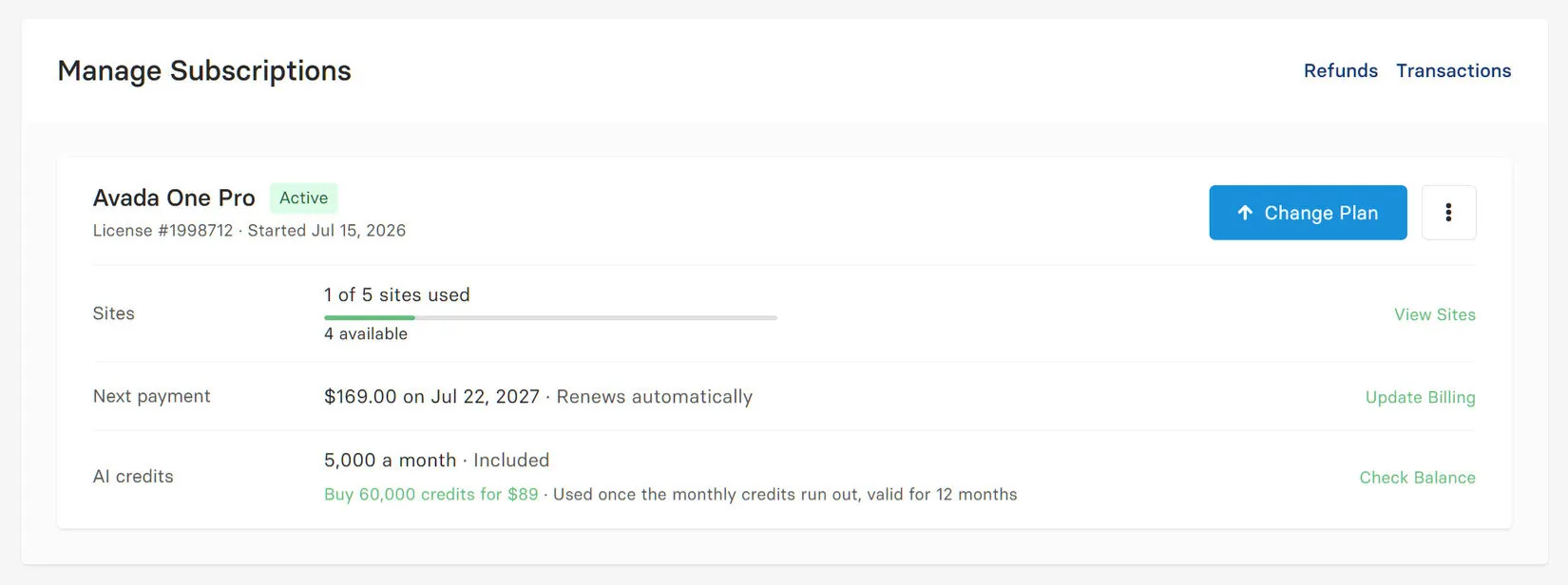
You can change your Avada plan at any time, and the charges will be applied on a Pro Rata basis. There is a big blue Change Plan button at the top right of your subscription.
View Sites
You can change your Avada plan at any time, and the charges will be applied on a Pro Rata basis. There is a Change Plan button at the top right of your subscription.
Update Billing
You can change your Avada plan at any time, and the charges will be applied on a Pro Rata basis. There is a Change Plan button at the top right of your subscription.

AI Credit balance
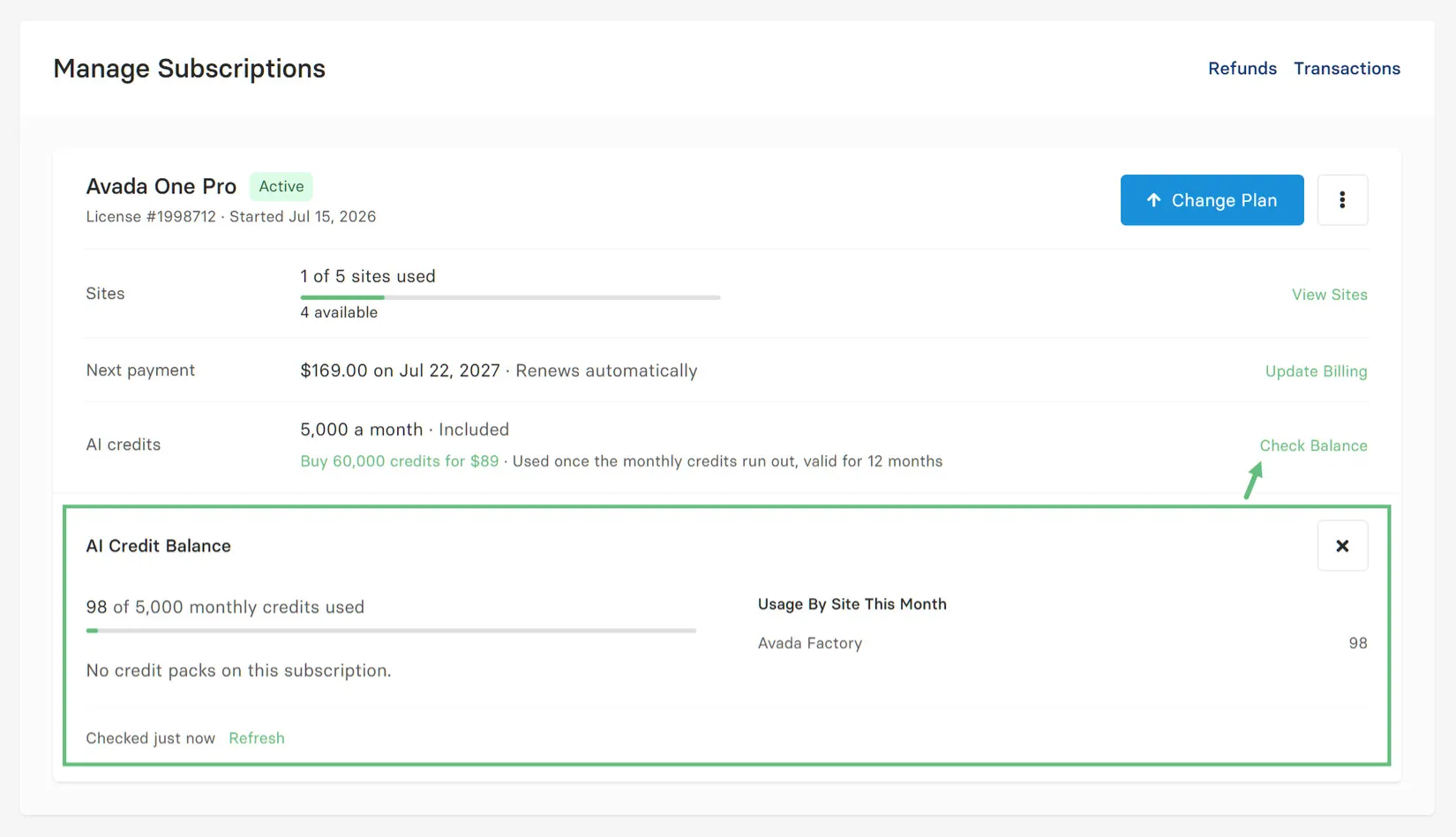
If you have an Avada Pro subscription, it includes 5,000 AI credits per month, across the subscription. You will see the AI Credits section at the bottom of the dialog, and here, you can check your Credit Balance at any time.

Booster Pack
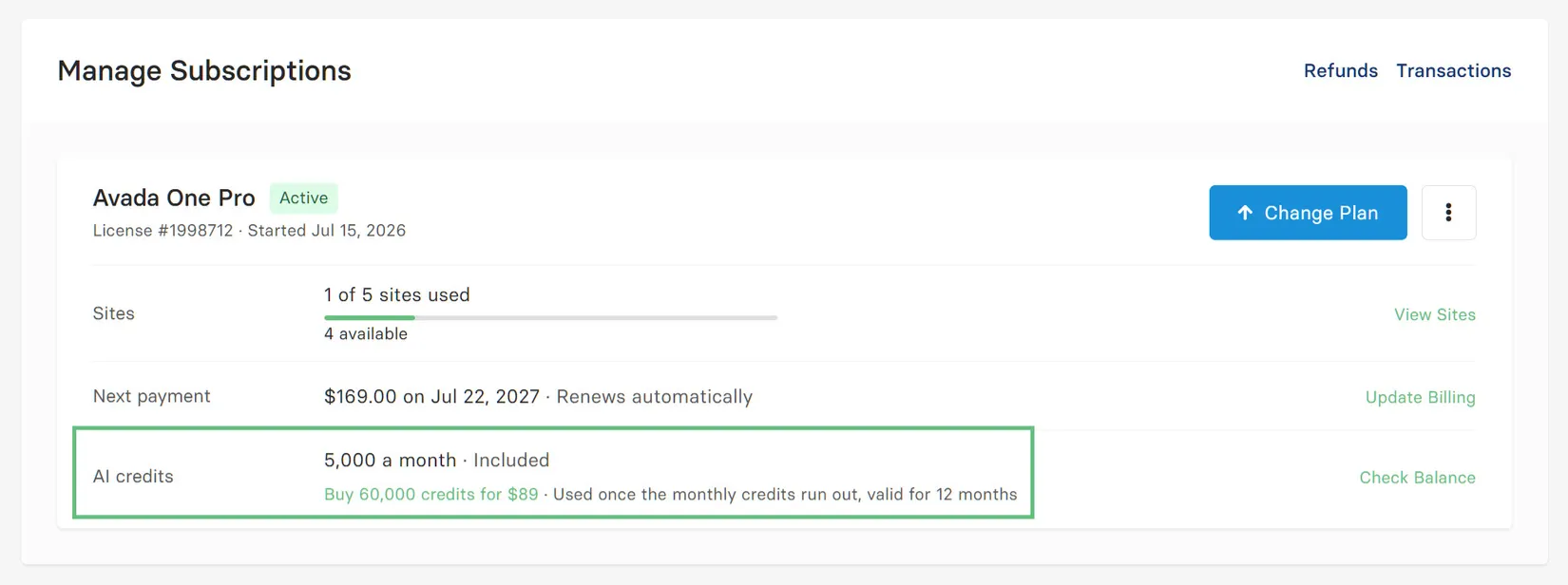
If you require extra credits, you can also purchase the AI Booster Package. For a one off purchase of $89, you recieve 60,000 extra credits added to your subscription, which expire after a year.

View transactions
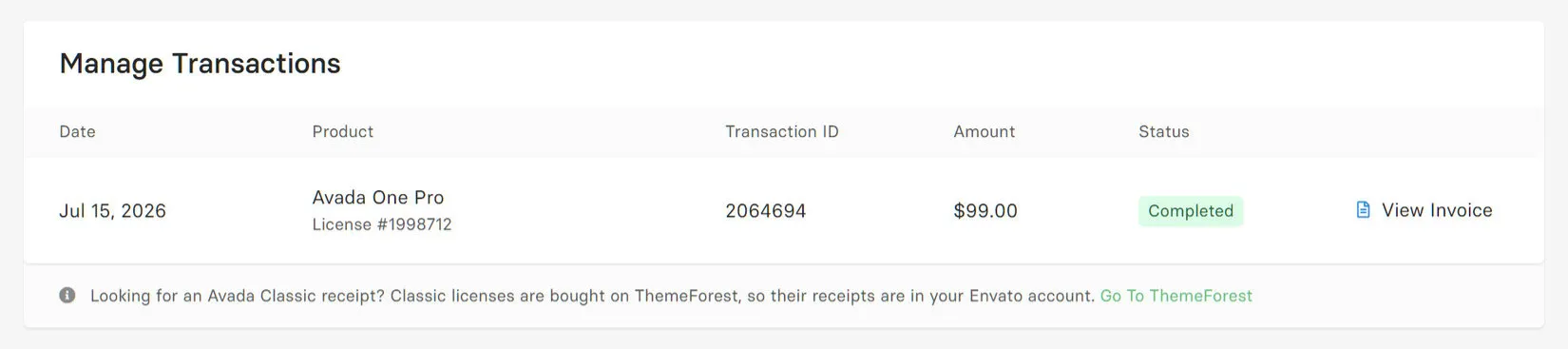
To see any of your transactions with Avada, you can just click on Transactions at the top right
Cancel Subscription
You can change your Avada plan at any time, and the charges will be applied on a Pro Rata basis. There is a Change Plan button at the top right of your subscription.
Request Refund
You can change your Avada plan at any time, and the charges will be applied on a Pro Rata basis. There is a Change Plan button at the top right of your subscription.


















































































































