How to Use the ACF Options Page Feature
Last Update: September 18, 2026
The ACF Pro (Advanced Custom Fields Pro) plugin is one of several bundled premium plugins included with Avada Classic. If however, you have a Classic license attached to your my.avada.com account, you will still have access to these premium plugins, including ACF, in Avada One.
Here, we will focus on the ACF Options page, a dedicated area in the WordPress Dashboard that lets users manage global, site-wide settings from a single, centralized location, rather than editing them on individual pages.
When you create an ACF Options Page, it gets added to the WordPress Dashboard sidebar, and when you visit the page, you see options that have been added to the area. There are many use cases for this feature, but it’s ideal for allowing users to edit or add data on the website without direct access to the builder.
To learn more about ACF Pro, check out the How To Use ACF Pro With Avada documentation. Read on to learn more about the ACF Options Page feature, and watch the video below for a visual overview.
Step 1: Create The Options Page
Regardless of your intended use, the first step is to create an ACF Options Page. This is done in ACF > Options Page after you have added the ACF plugin to your site via Avada > Plugins.
To create an options page, you click on Add Options Page and give it a title. For this example, call it “Live Appearances”. If you tab away from the field, the menu slug is automatically created, and you can also select a parent page if you want. Under Advanced Settings, there are additional options for Visibility, Labels, and Permissions.
You can choose an icon, set menu positions, and change the label on the update button. For this example, select an icon. There is a link here to learn about menu positions, but in this example, the menu has a value of 6, so it will appear just under Posts. With Permissions, you can easily limit access to the options page to any WordPress capability and, therefore, any user role you like.

Step 2: Add Your Field Groups, Fields & Set Location Rules
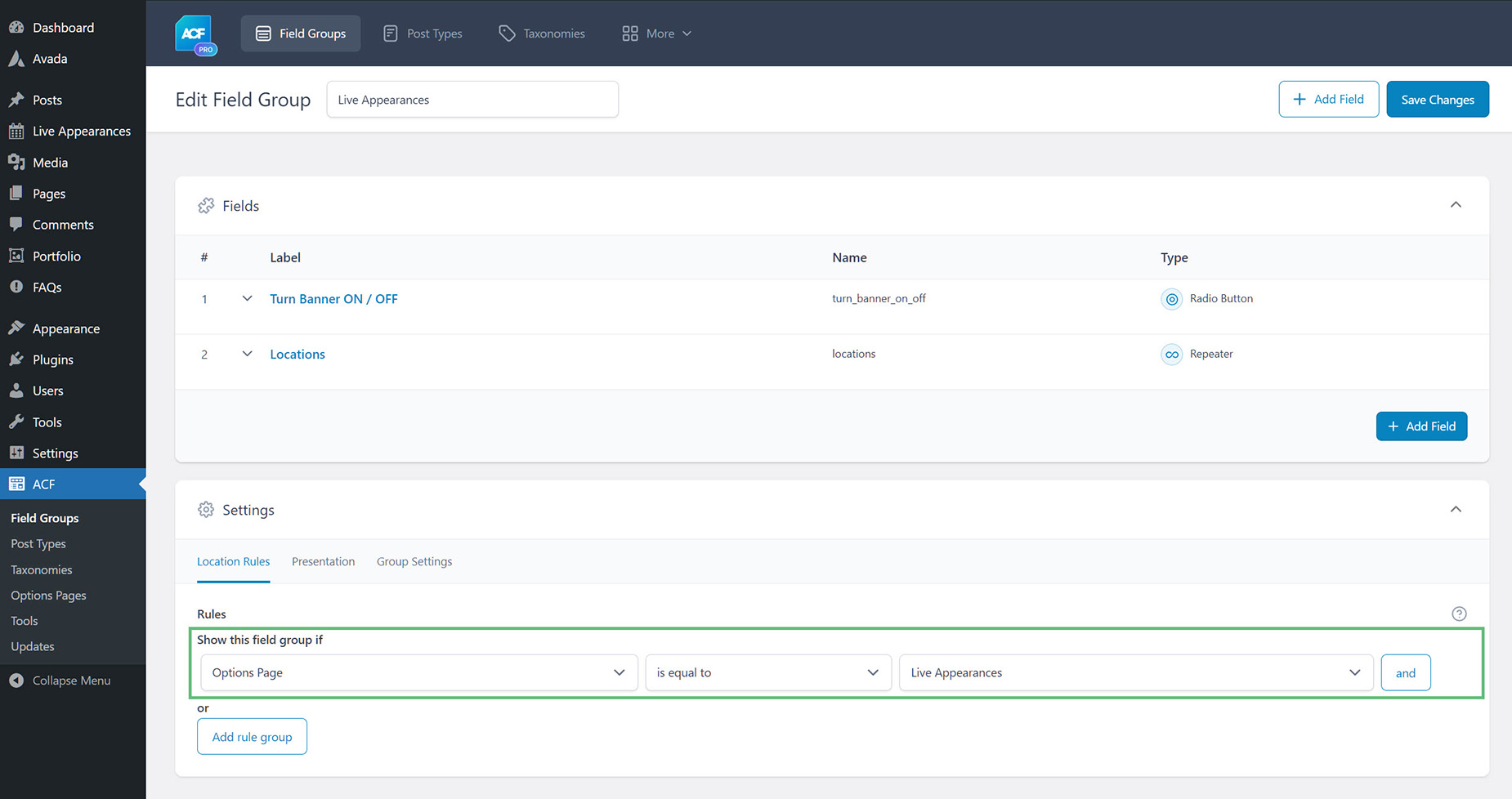
The Field Groups, Fields, and Sub-Fields you create to add to your Options Page are entirely up to your intended usage. For this example, we made a Field Group called “Live Appearances”, then added a Radio Button field to toggle a banner on or off and a Repeater field with a sub-field to add location data to the banner.
Regardless of which fields and subfields you add, the final step is to configure Location Rules so the fields appear on the Options Page you created. This is done in “Settings” at the bottom of the page using simple conditional logic.
Step 3: Add Data to the Options Page
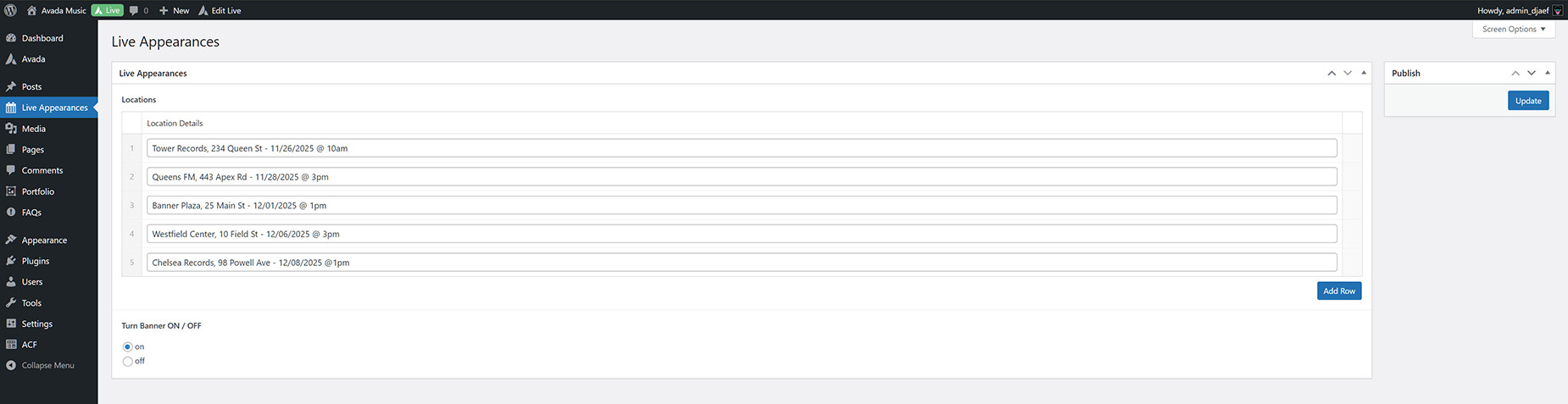
That’s pretty much all the setup required. What else you might need to do depends entirely on what fields you have added to the Options page and where they might be displaying on the site. In this example, we want a team member, probably the publicist in this case, to enter locations for the band’s upcoming appearances, such as at radio stations and shopping centers. These will then display on a banner in the header.
So there are two things we want the user to be able to do here. The first is to enter the details of the live appearances. And the second is to be able to turn the banner off if there aren’t any. The user navigates to the “Live Appearances” tab in the WordPress sidebar, enters location data, and toggles the banner “On” or “Off”.
Step 4: Display the data
Where the data display is up to you, as mentioned at the start, this feature is ideal for allowing users to change or add data on the website without direct access to the builder.
In this example, the data will be displayed in a banner in the header, in an Avada Title Element set to Marquee, and will be pulled from all entered locations. The banner will display ONLY if the “On” option is selected on the Options Page, implemented by adding conditional logic to the banner container.
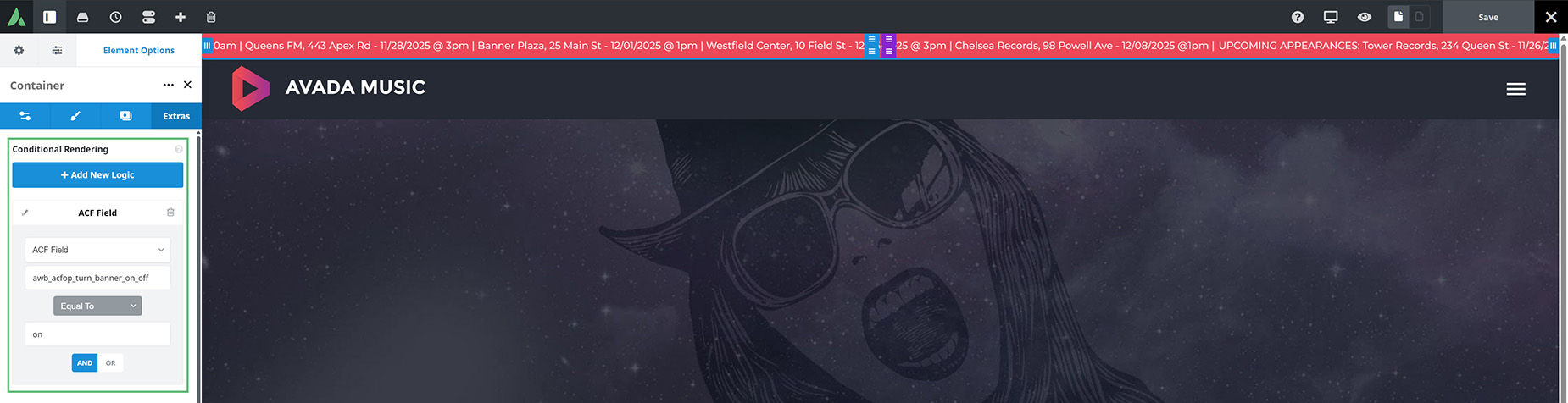
Then there’s the Title Element. This is added using Dynamic Data and the ACF Repeater Single Value endpoint, configured to pull all indices from the location_details sub-fields.

The End Result
In this example, when the Banner is set to On on the Options Page, and data is entered in the Location Details field, the data is displayed as a Marquee Title on the banner in the Global Header. If the Banner is set to Off, then it will not display on the front end.
There are many possible use cases for the ACF Option Page feature, but this should show you how they are configured, regardless of how you might use them.