How To Use ACF Pro With Avada
Last Update: June 28, 2026
ACF Pro (Advanced Custom Fields Pro) plugin is one of several bundled premium plugins included with your purchase of Avada. This plugin allows you to add extra content fields to your website edit screens. These extra Custom Fields include repeatable blocks, intuitive galleries, custom settings pages, and reusable fields, enabling you to build websites faster and educate your clients more quickly.
As the plugin name suggests, it is a pro tool that can be a massive aid in customizing the Avada website experience, enabling you to achieve anything you envision. As just one example of what you can do with the plugin, see the video below.
ACF Pro Documentation
ACF Pro is a third-party plugin fully maintained by WPEngine. The vendor’s website has all the ACF Pro documentation. Please click the button to access the complete online documentation.
Plugin Updates
ACF Prof plugin updates are facilitated and released by WP Engine. As soon as an update is released the Avada team evaluates and tests it for compatibility with Avada making it available to Avada users via the Avada > Plugins page.
supported ACF field types
Dynamic Data
The following ACF field types are supported via Dynamic Data Options in Avada.
How to Create ACF Field Groups and Fields
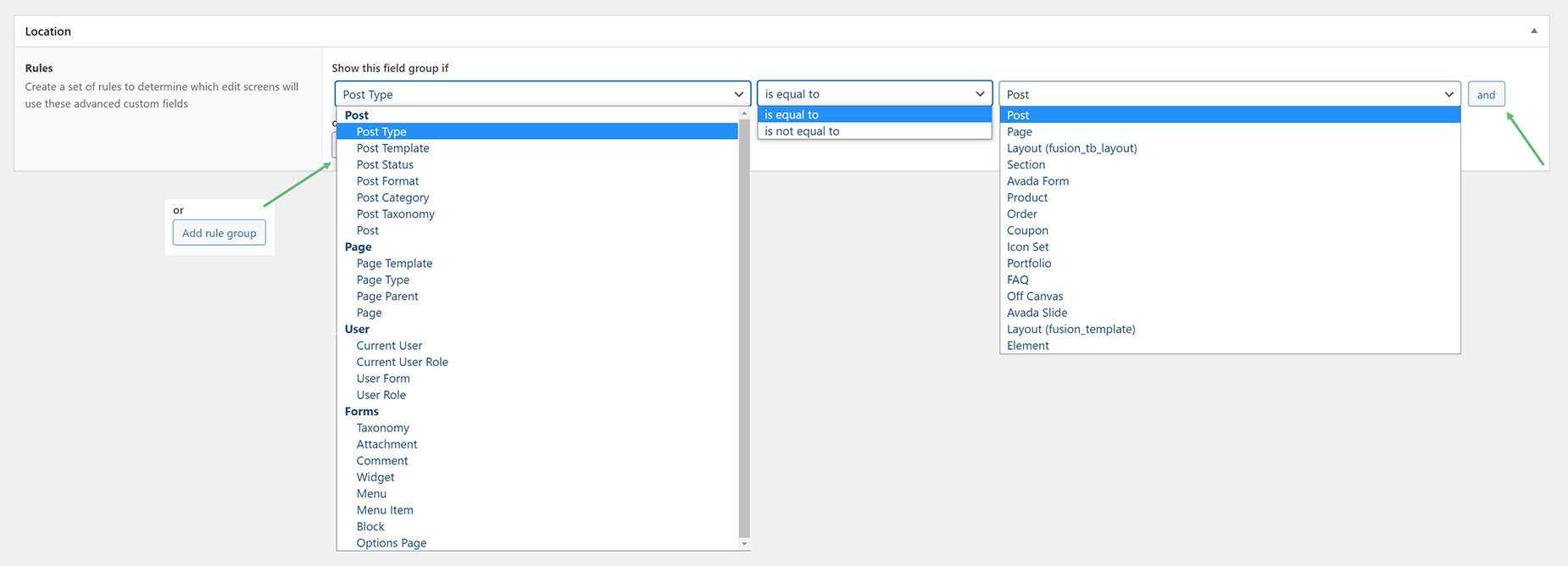
When creating ACF Field Groups in ACF Pro, you have a LOT of options as to the rules that determine which edit screens will use these advanced custom fields. As you can see in the screenshot below, you can choose from a vast number of Post, Page, User, and Form parameters, and you can combine these with an equality operator, and then another huge range of relevant entity values. The example below shows the Post Type parameter, with the equality operator set to “is equal to” and the entity type set to Post. Here, this Custom field would be displayed and usable on all posts.
As well as this, you can make more complex rules with the use of the ‘and’ button and the ‘Add Rule Group’ button. The ‘and’ button adds another rule directly below the first, so both conditions must be met. The ‘Add Rule Group’ button is placed below an ‘or’ value and means the system will check if one of the rules is met, and if so, display the custom fields.
ACF Field Integration With Avada Dynamic Content
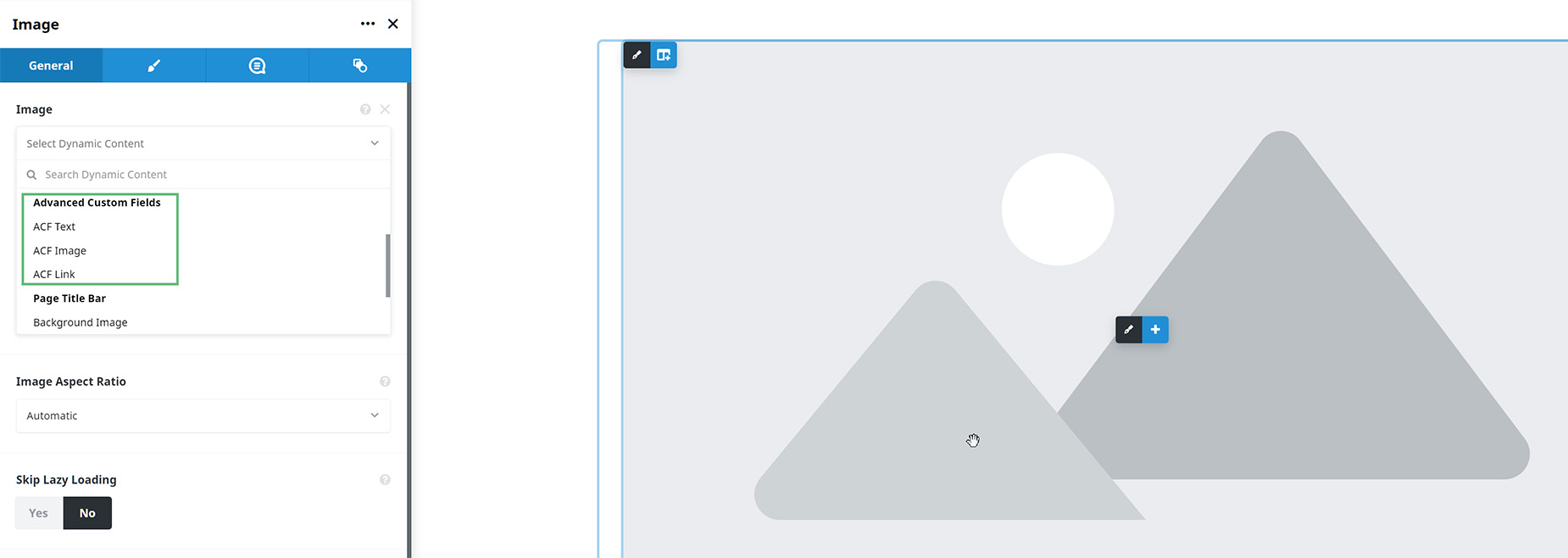
With Avada, it’s easy to integrate ACF fields into your content. Users can see which ACF options are available/supported on which builder option by clicking the dynamic data icon and looking for the “Advanced Custom Fields” category.
Just remember what will depend on the builder option type selected, as well as being on a post type that has the relevant ACF field added to it. These include ACF Text, ACF Select, ACF Link, ACF File, ACF Image, and ACF Gallery.
As you can see in this example, ACF Text, ACF Image, and ACF Link are available on a post where image, URL, and text custom fields have been added to the post type.
Using Avada Global Colors in ACF Color
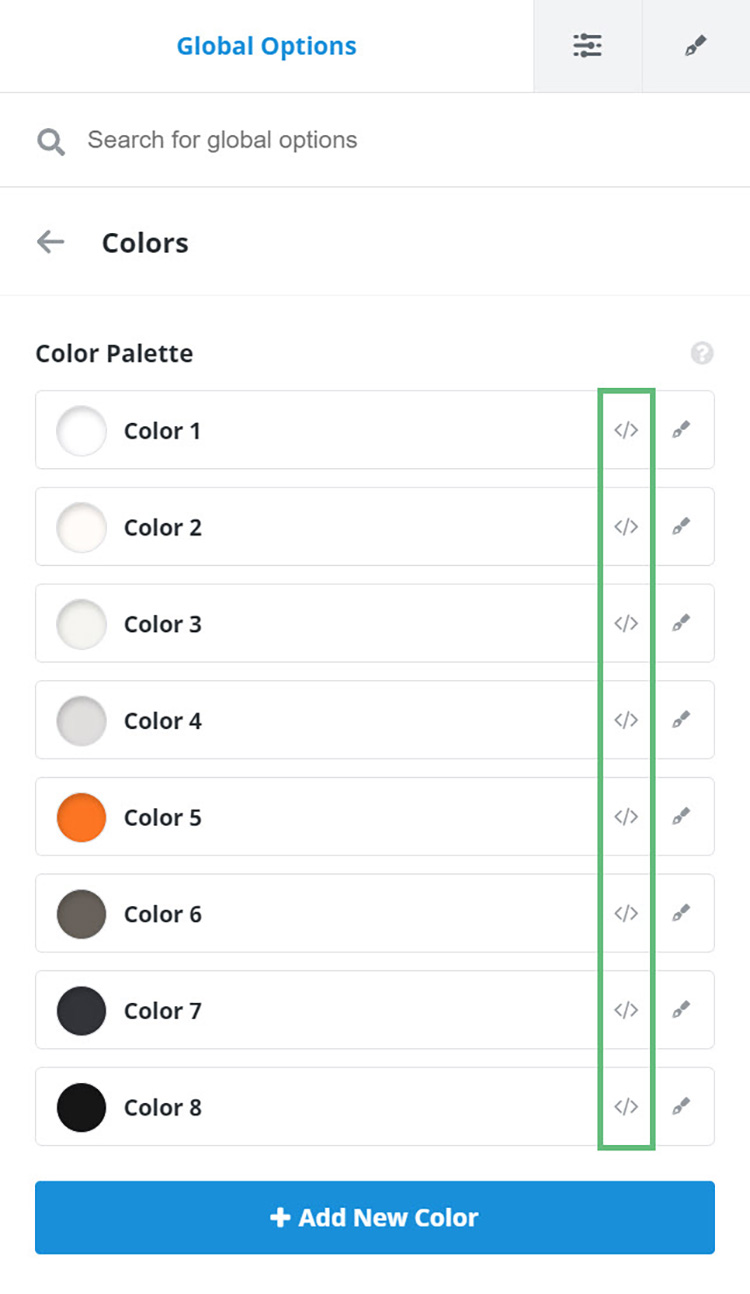
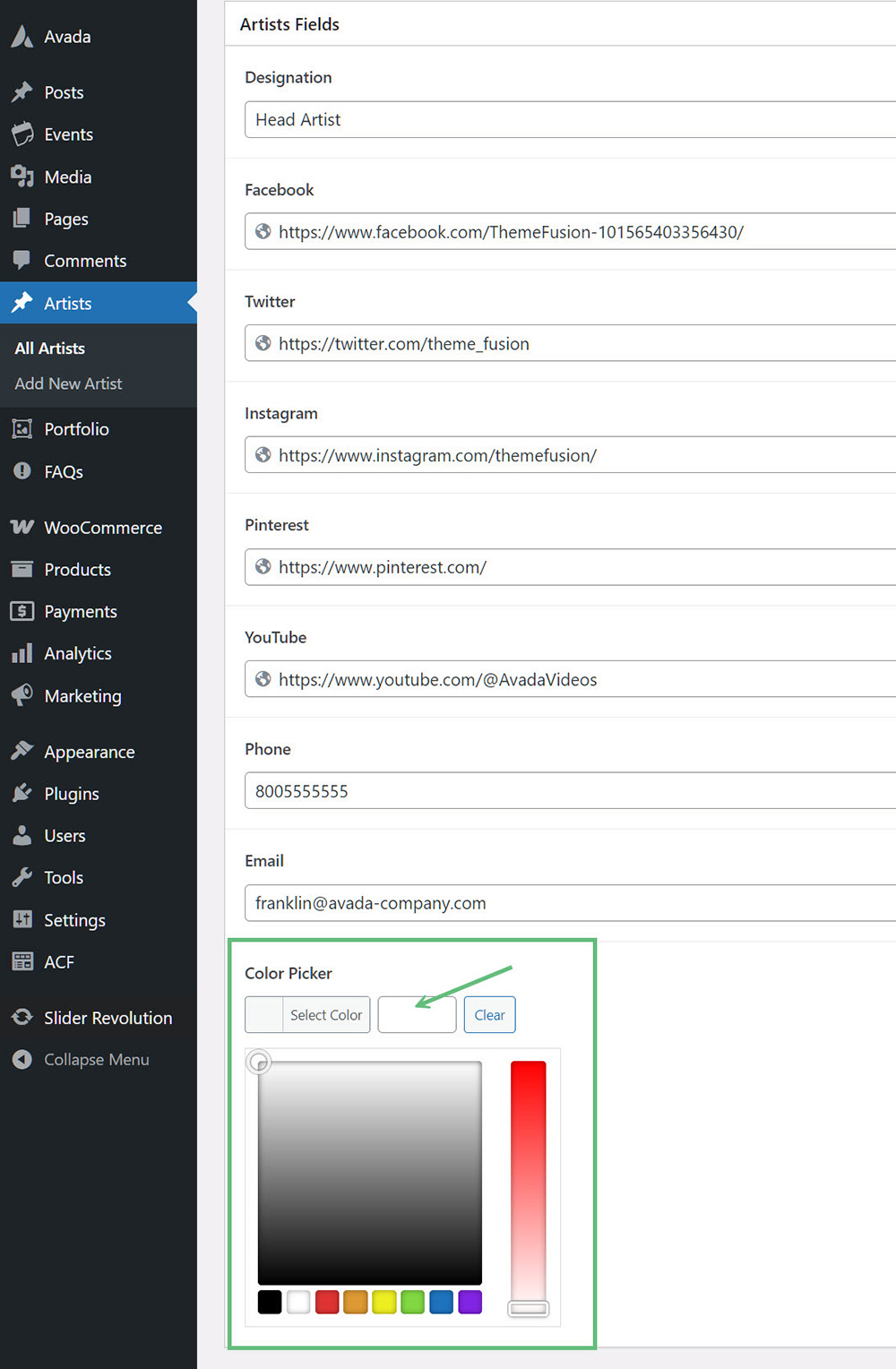
As shown below, go to the Color Palette in Avada Global Options (WP Dashboard > Avada > Options > Global Options > Colors) and copy the color variable by clicking the code icon. Then open the ACF Color Picker and paste the global color variable into the provided field.
How To Use ACF Fields In Conjunction With Conditional Rendering & Dynamic Data
There are many ways to use ACF fields alongside Avada Conditional Rendering and Avada Dynamic Data. It’s best to illustrate with an example.
Imagine a website owner with a portfolio; for some portfolio posts, the owner wants to provide a downloadable project summary as a PDF via a button. Let’s walk through the steps they would take with ACF Pro and Avada to accomplish this.
Step 1
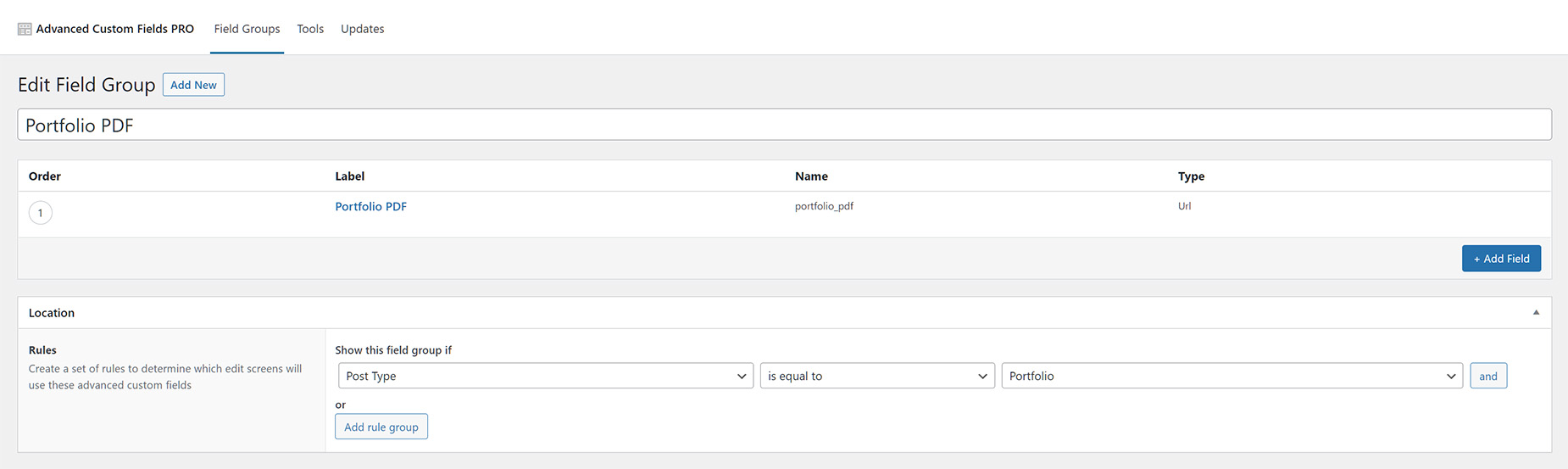
The website owner first creates a new Field Group in ACF Pro, then gives it the label “Portfolio PDF” and the name → “portfolio_pdf”. The field type is “URL”.
In the Rule field, under Location, the owner chooses “Post Type is equal to Portfolio”, which will set the rule that the Field Group will display on Portfolio posts. This means this Custom Field Group will display on Portfolio posts, and nowhere else.
Step 2
In the portfolio posts, the PDF link needs to be displayed in the button. To set this up, open each post and locate the ACF Pro Portfolio PDF field. Enter the path to the uploaded PDF for the specific project. For portfolio posts that don’t require a PDF, leave this field empty.

Step 3
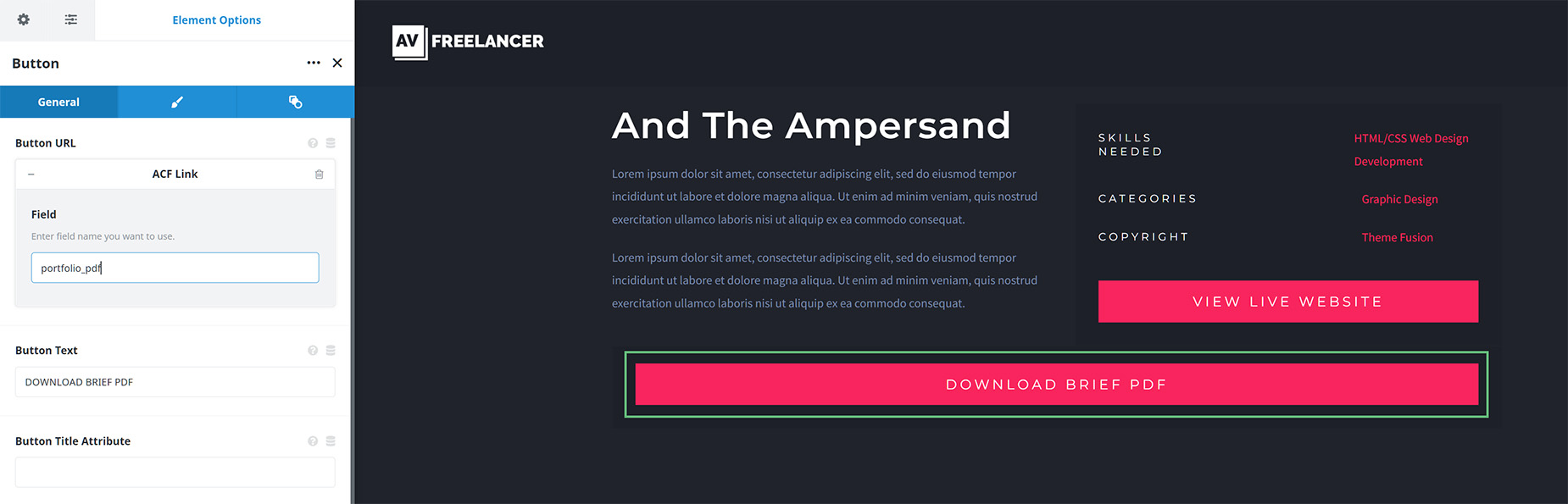
For the Portfolio Content Layout, add a new 100% Avada Column containing an Avada Button Element. In the Button URL field, click on the Dynamic Content icon and add Advanced Custom Fields > ACF Link. In the Field name, add the ACF field name, in this case portfolio_pdf, and for the Button Text, add Download Brief PDF.
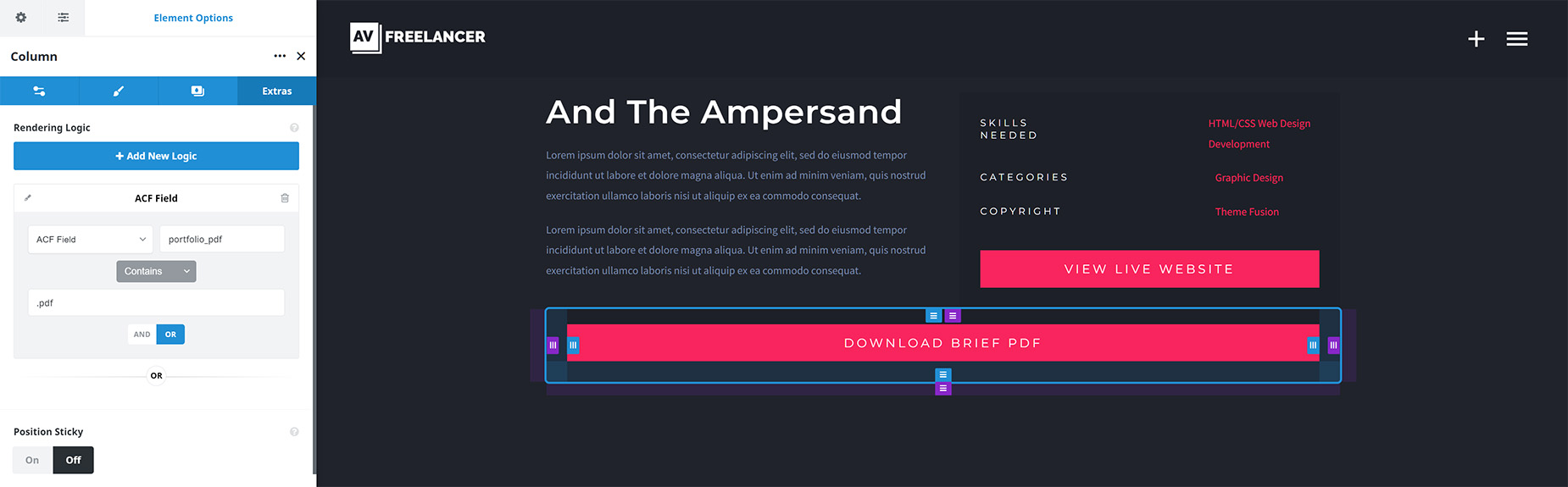
Then, on the Column, go to the Extras tab and add some Avada Conditional Rendering Logic. This determines whether the button displays. For the Condition Type, choose ACF Field, add the field name → “portfolio_pdf”, and specify that for this Column to render, the ACF Field called “portfolio_pdf” must contain the text .pdf (this will always be in the file path).
The Result
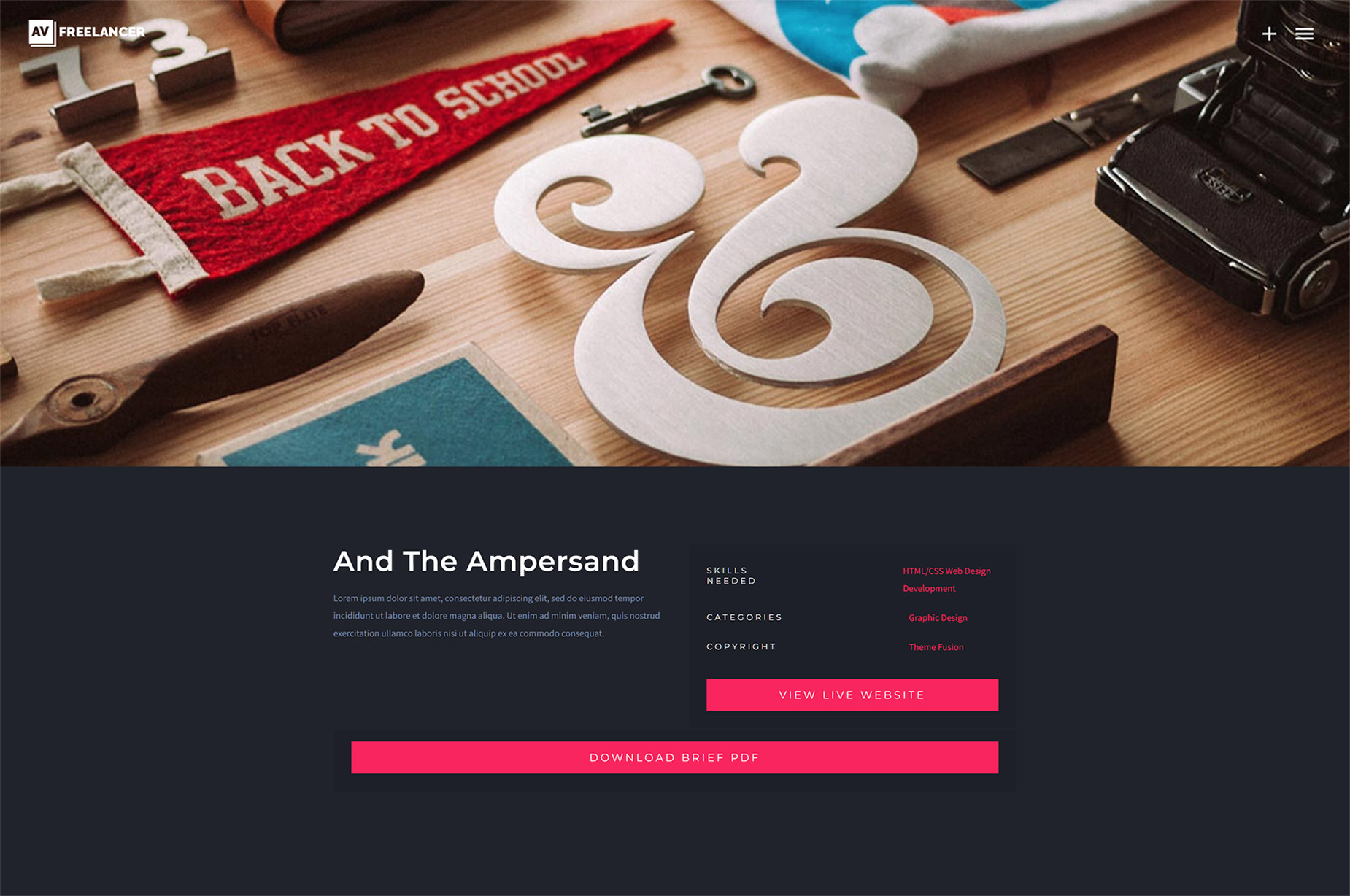
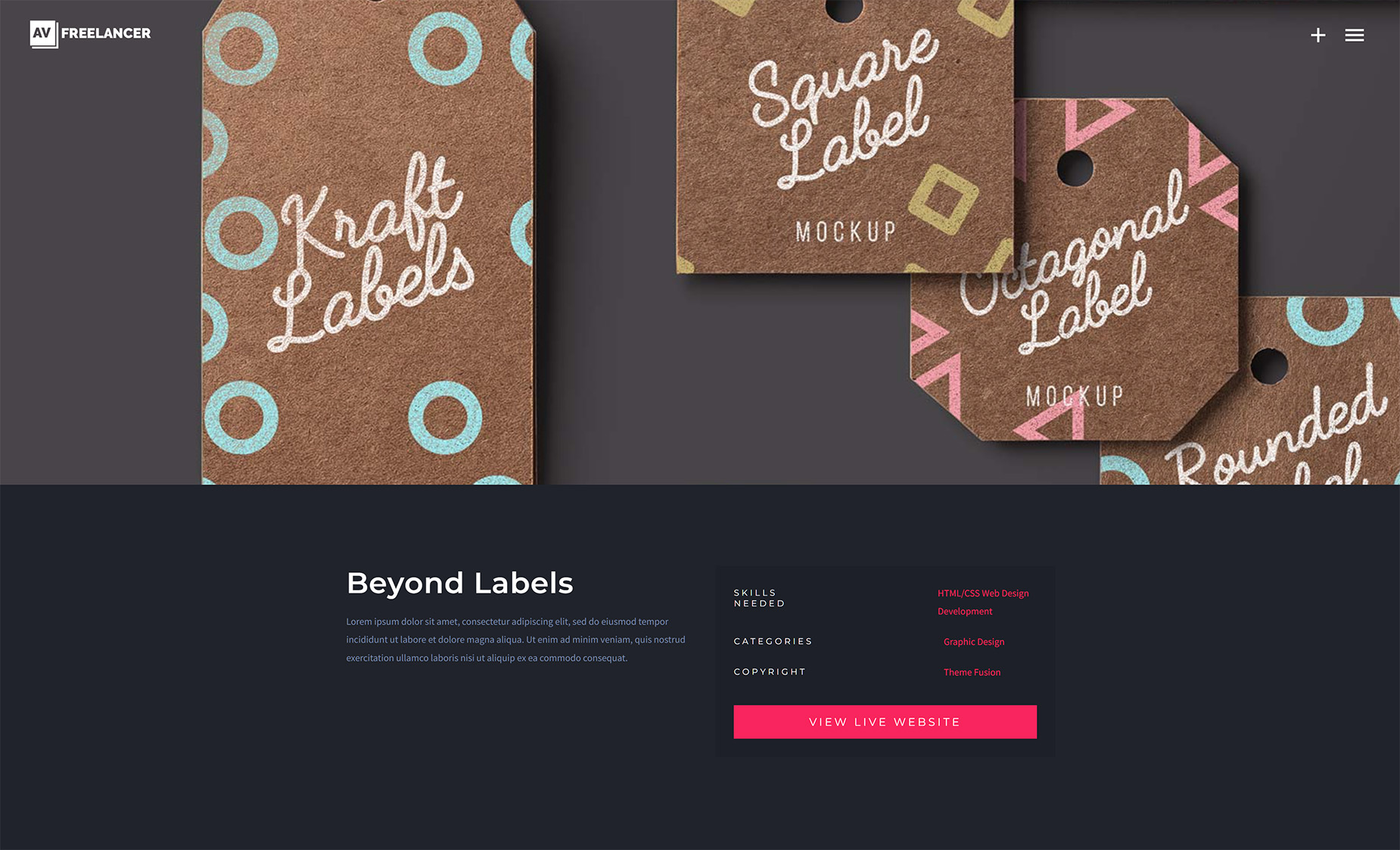
The button will appear on the Portfolio posts, linked to the PDF specified in the Portfolio PDF field in ACF Pro. For posts where that field is empty, the Avada Container Conditional Rendering Logic will prevent the Container from being displayed. See below for the portfolio post that displays the button, and below that for one that does not.