How To Use The Avada Migration Plugin
Last Update: October 30, 2026
What Is the Avada Migration Plugin?
The Avada Migration Plugin is used to update Avada Classic websites to Avada One. It helps prepare an existing Avada Classic website for the Avada One experience and is intended specifically for this transition.
Read on to find out everything you need to know about migrating a Classic site to Avada One, and watch the video below for a visual overview.
When Do You Need It?
Use the plugin when you have an existing Avada Classic website and want to transition it to Avada One. You do not need it for a new Avada One website or for moving a website between hosting providers.
Basic Steps
How to Access the Plugin
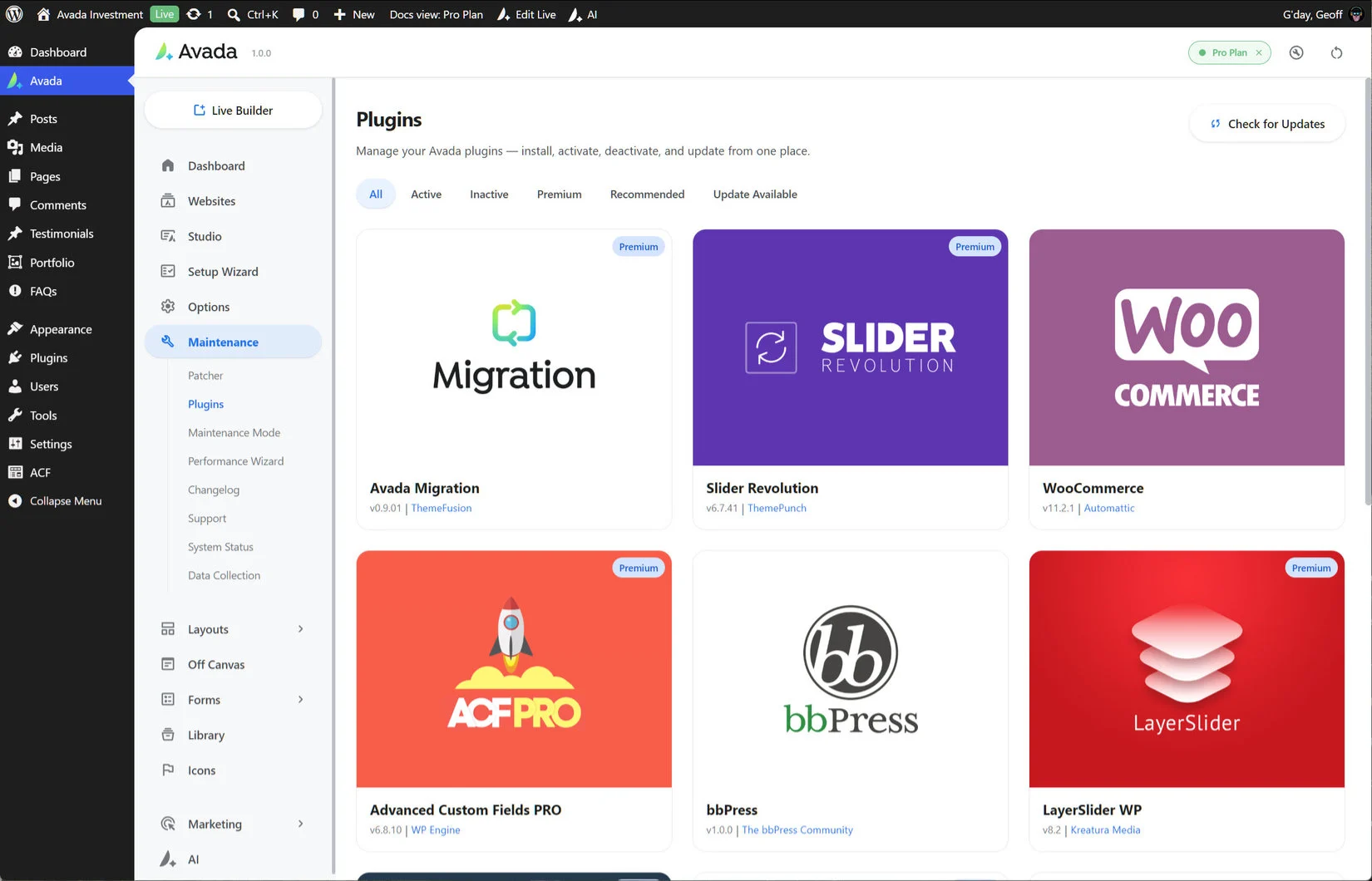
The plugin is available at Avada > Plugins when a legacy Avada license is connected to your My Avada account. If it is not listed, check that a legacy license is connected and that you are signed in with the corresponding My Avada account. Just install the plugin as usual, and run it.
Starting the Migration
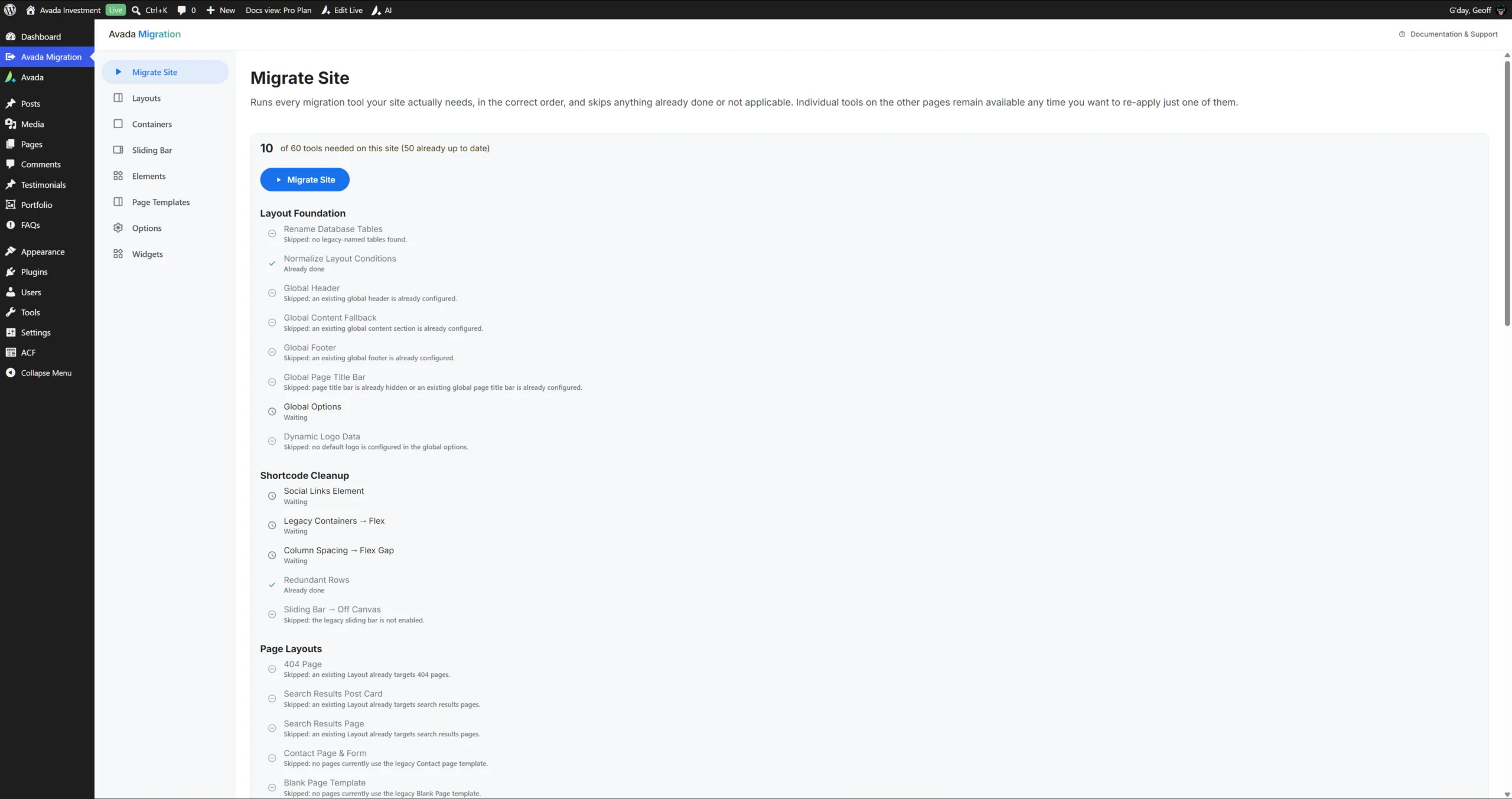
Once the plugin in installed, you will find it on the main WordPress sidebar, above Avada. Opening this brings you to the main screen, which explains what migration tools your site needs, and it skips anything done or not aplicable. When you click on the Migrate Site button, you get a confirmation dialog, as the process is not reversible.
From there, the tools are employed, and within a minute or so, the migration process is complete.
The tabs along the side explain every step that the migration tool does, and you can run these manually, but it’s typically not required.