How To Use Avada Layouts
Last Update: March 25, 2026
Avada Layouts is a templating system that allows you to control the design of various parts of your website – such as headers, footers, page title bars, and content – and apply those designs anywhere on your site using conditions. Instead of editing pages one by one, you can create a Layout once and apply it to multiple pages, posts, archives, or custom post types, such as blog posts, archive pages, or WooCommerce products.
The main advantages of using Avada Layouts are twofold. Not only does it allow you to have Custom Layouts, both Global and Conditional, on various sections of your website, but it also allows the Layouts themselves to be created using the full design power of the Avada Builder. The flexibility this bestows is unparalleled and allows you to unleash your full creativity on all sections of your website. Read on to discover more about the awesome Avada Layouts, and watch the video for a visual overview.
Video Tutorial
How Do Avada Layouts Work?
A Layout is basically a container that holds one or more Layout Sections, such as a:
There is a Global Layout by default, and you can create any number of Conditional Layouts. If you add a Layout section to the Global Layout, it will be used across the entire website (unless more specific conditions in another Layout override it).
Each layout section is then designed using the Avada Builder and generally includes dynamic content (as it’s used in a template). Once created, the Layout is assigned to specific parts of your website using conditions.
When Should Layouts be used?
Use Layouts when you want different designs to appear automatically in specific parts of your site, such as blog posts, archive pages, or WooCommerce products. Use a Layout if you want to:
You do not need a Layout if you are:
How To Create A Conditional Layout
Creating a Layout always follows the same process:
Step 1: Create A Layout
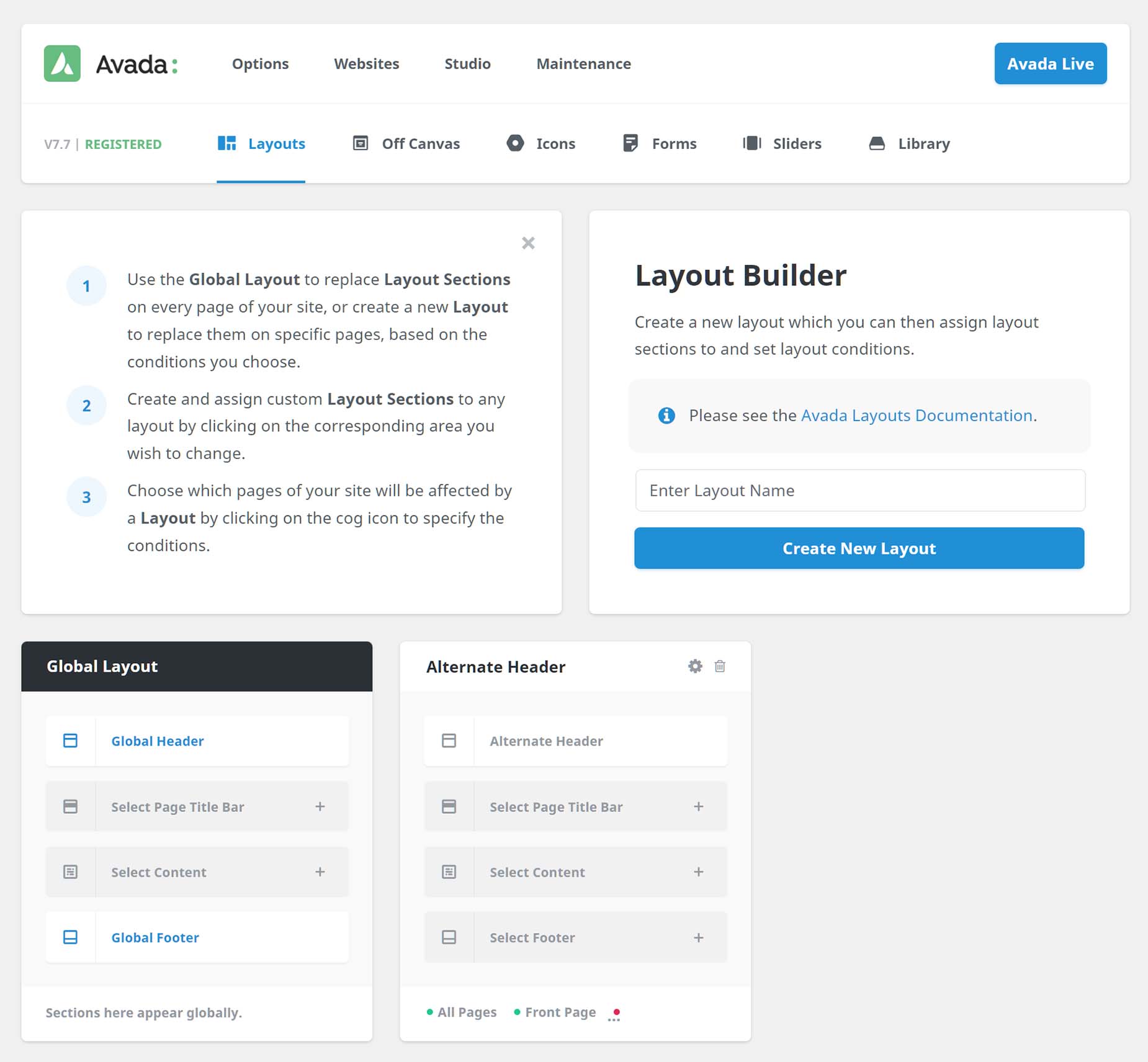
Go to Avada > Layouts, enter a Layout Name and click “Create New Layout”
Step 2: Add Layout Sections
Add the sections you need, such as:
Edit each section with Avada Builder and design it as required. You can use dynamic content to display post titles, images, metadata, and more.
Step 3: Set Conditions (Where the Layout Applies)
Conditions control where the Layout is used. Some common examples are:
Understanding the Website Layout Structure
A good place to get started is to understand Layouts and Layout Sections and how they work together. It is perhaps easiest to think of a Layout as simply a box that holds the various sections of the page. A page layout consists of content coming from four sections: a header section, a page title bar section, a content section, and a footer section.
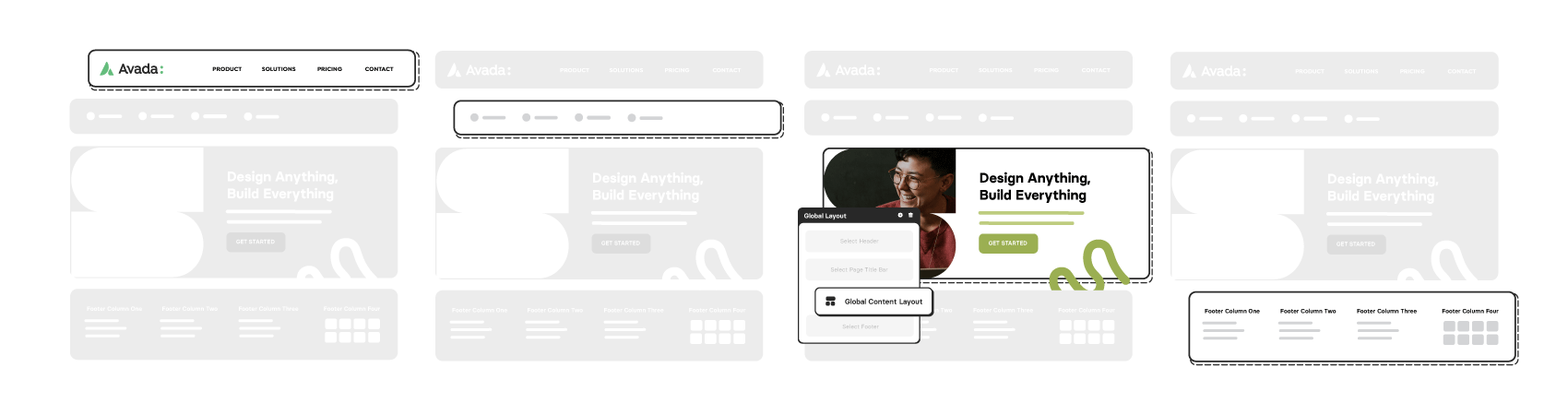
The Layout Sections are templates for those specific areas of the page. So what Avada Layouts allows you to do is to create and assign your own custom layout sections to layouts throughout your website. This can be done globally by assigning Layout Sections to the Global Layout, or you can create your own conditional Layouts for specific pages or post types and populate them with various Layout Sections. Together, you can consider them a template for the page layout.
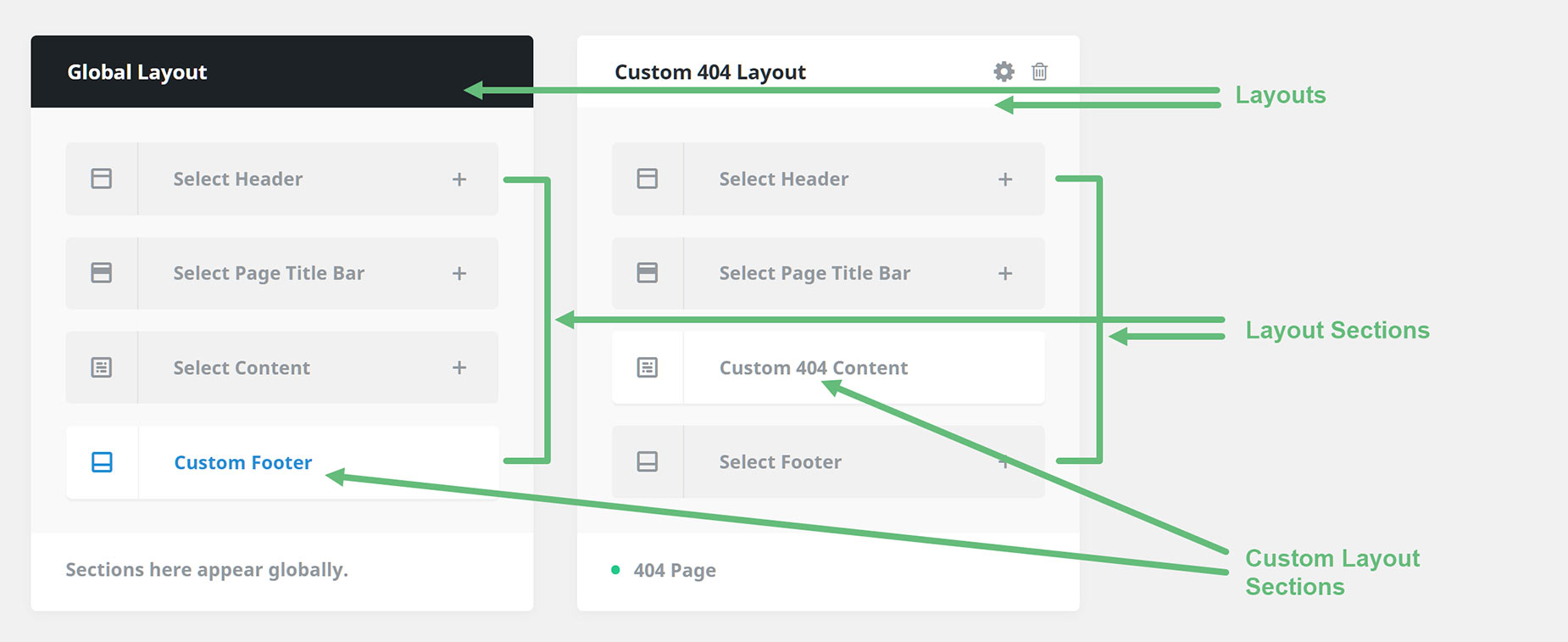
Understanding Avada Conditional Layouts
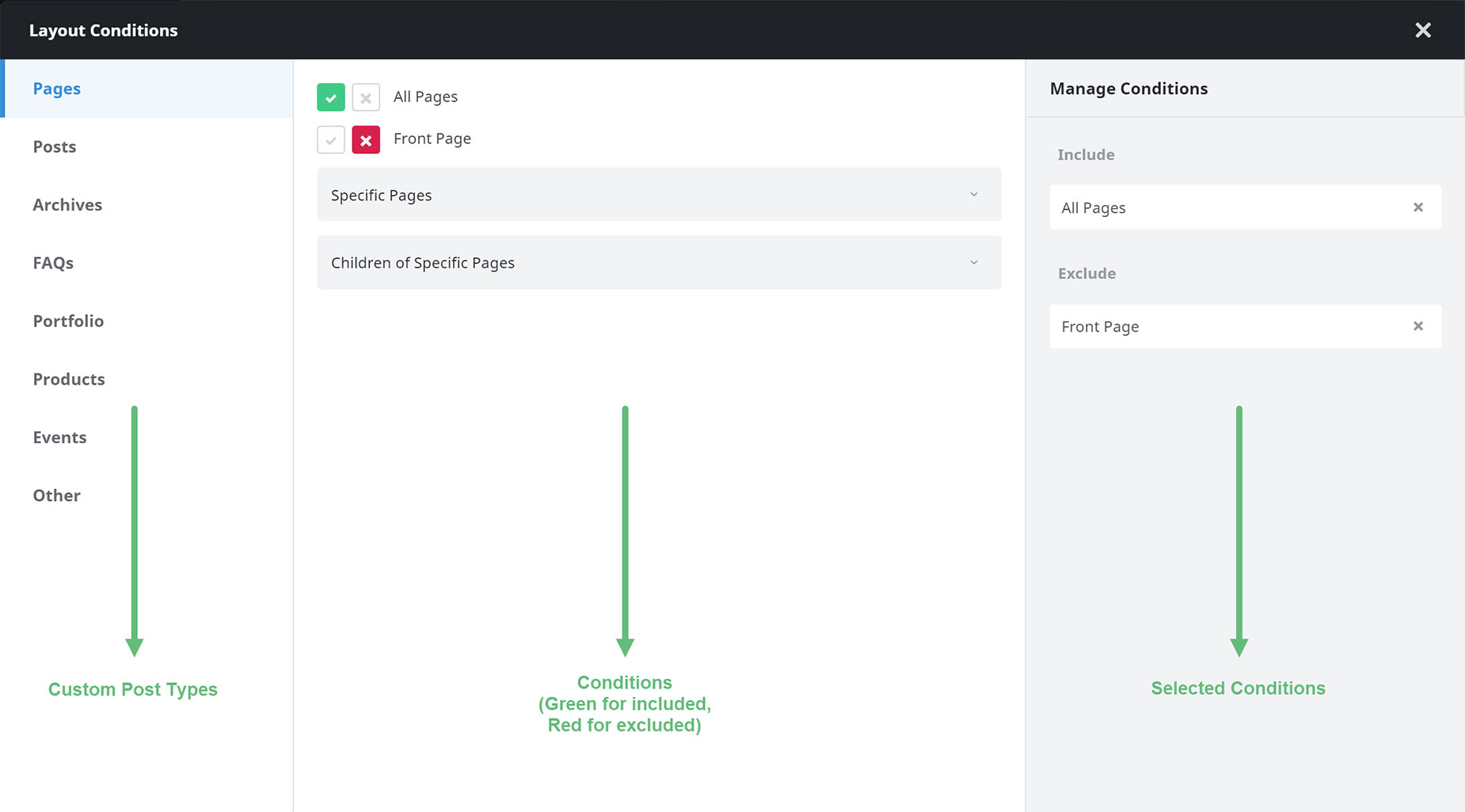
Apart from the Global Layout, you can also create your own Layouts, and these are displayed based on conditions you set for them. At the top and bottom of each Layout is a link to the Layout Conditions, where you can specify the situations in which the Layout should display.
It can be as simple as a particular page or all single posts, or as complex as multiple conditions and exclusions across all custom post types. Layout Conditions are as simple or as complex as you need them to be, with a well-designed interface that lets you quickly and intuitively decide when the Layouts should appear. For more information on Conditional Layouts, please see Understanding Conditional Layouts.
Understanding Layout Priority
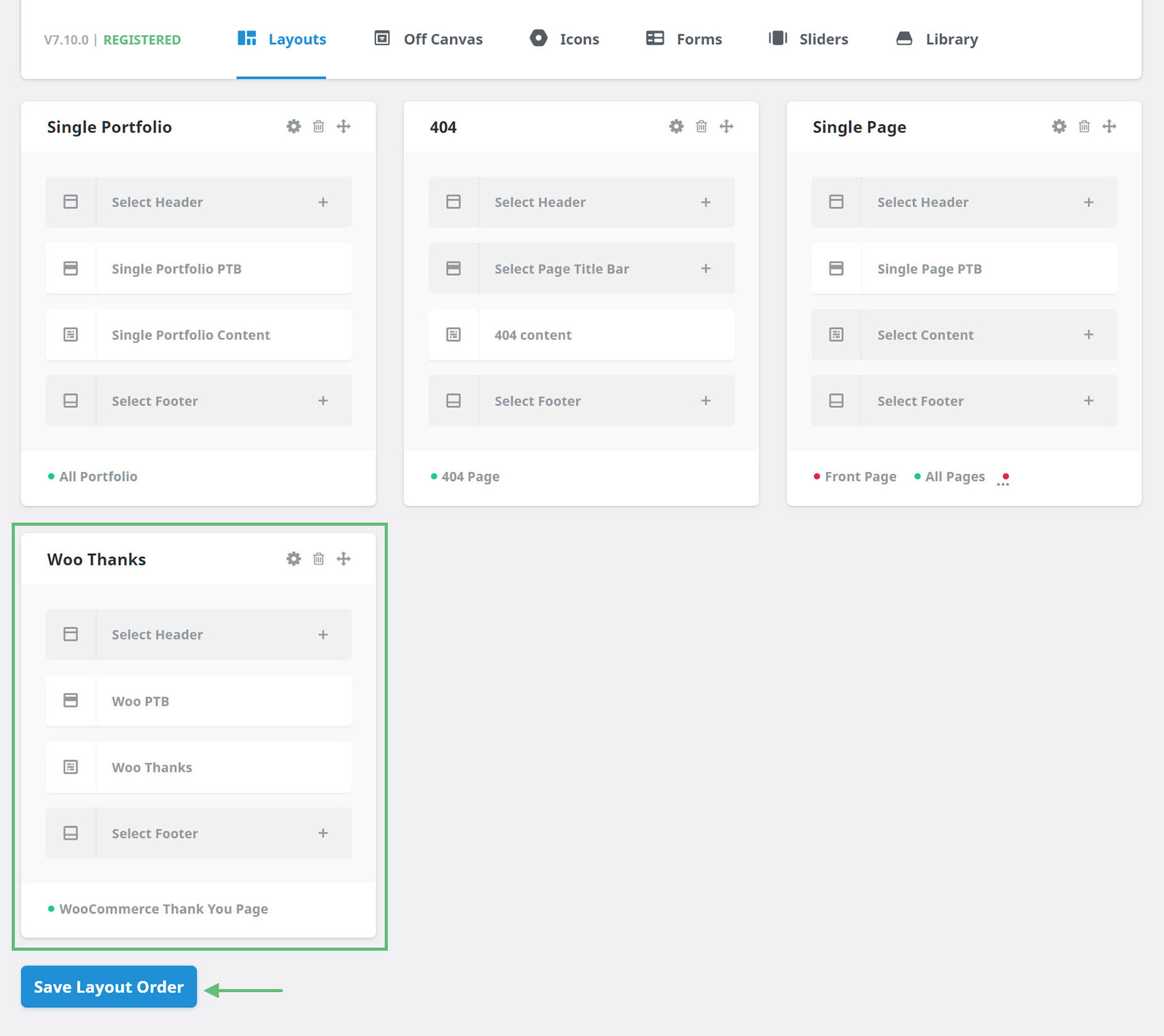
The order of the Layouts on the Layouts page affects the Layouts: those further down the page (apart from the Global Layout) take precedence over those higher up. So in that way, layouts with conflicting conditions can be easily organised.
Just move a layout around in the Layouts with the drag icon, then click the Save Layout Order. Below is an example of a WooCommerce Thank You page at the bottom of the Layouts, as there is one higher up using the Checkout condition, which would interfere with this Layout.
Creating Layout Section Content
Once you have created a Layout and set conditions for when it will be used, you can create new ones or add any existing Layout Sections to your Layout. To assign a Layout Section to a Layout, you simply click on the + symbol on the relevant default Layout section and add one from there. For more details on creating Layout Sections, see the Layout Sections area of the Understanding Layouts and Layout Sections doc.
Once the Layout Section has been created, it’s time to populate it with content. This is done in the Avada Builder (back-end or front-end interface, your choice entirely) using the full range of Avada Design & Layout Elements. You can use multiple Containers, Columns, and Elements – in fact, anything you can build in Avada Builder can be a Layout Section.
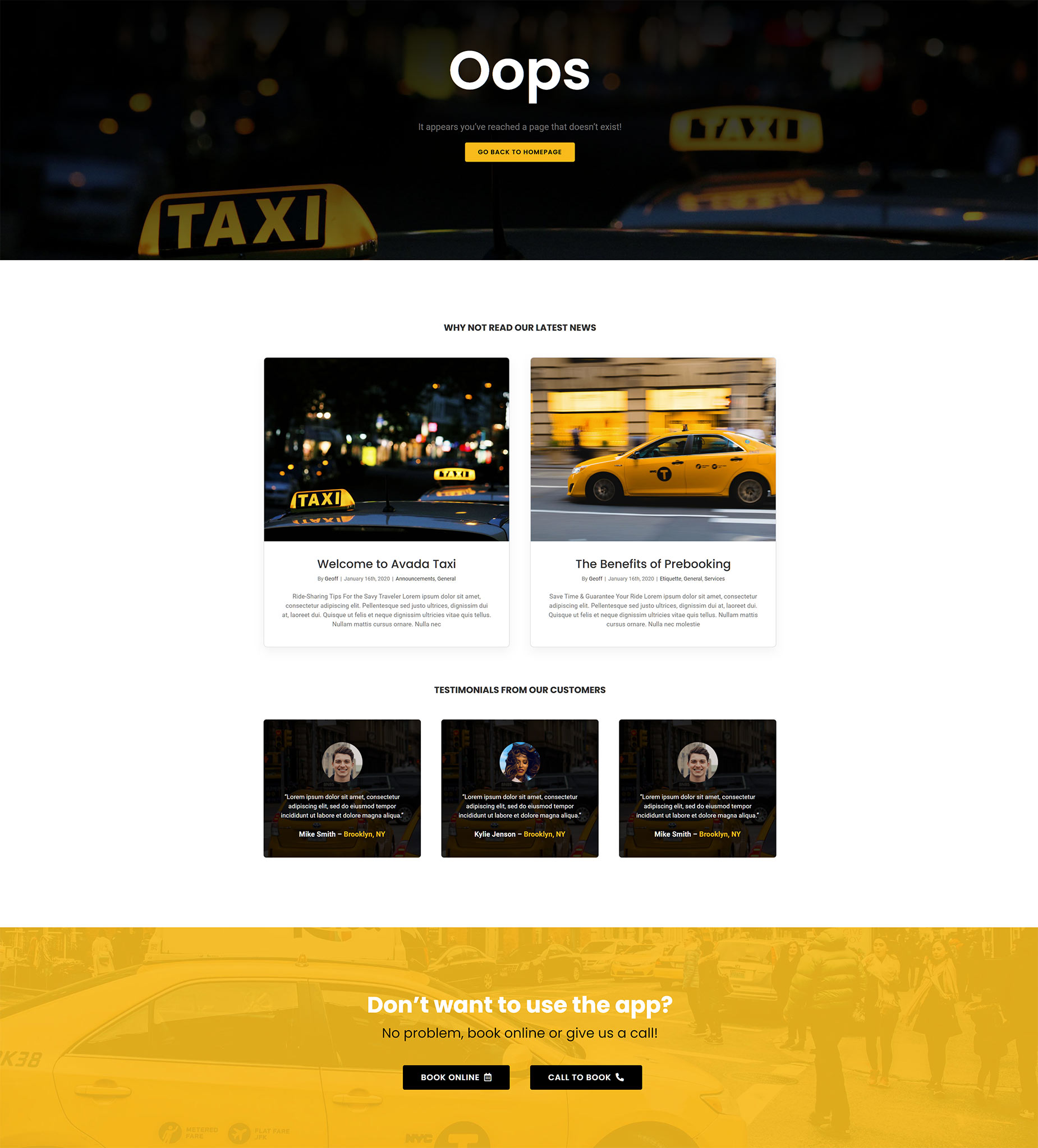
Below is an example of a Custom 404 layout that uses a Custom Page Title Bar Layout Section and a Custom Content Layout Section.
Design Elements vs Layout Elements
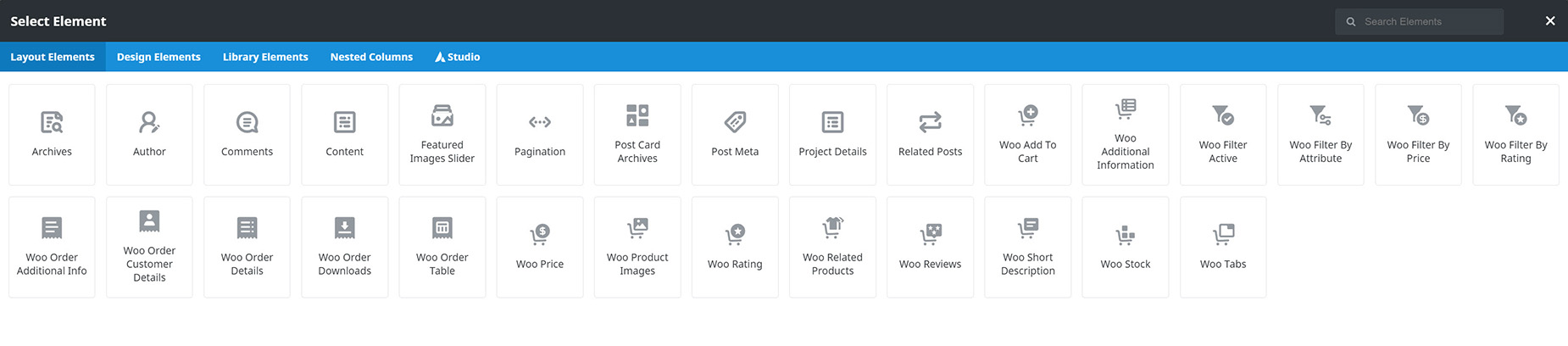
With Footer and Page Title Bar Layout Sections, you will find the full range of Avada Design Elements with which to design your content. But with Content Layout Sections, you will find a range of new Elements, in their own tab, called Layout Section Elements. For full details on this please see Avada Design Elements vs. Layout Elements, but in short, these Elements allow you to add dynamic content in the Content Layout Section, such as blog posts, portfolio items, author information, related posts, and more.
You can also use the normal Design Elements when designing your Content Layout Sections, and as mentioned, these Layout Elements are only found in the Content Layout Section, where you need to display content from blog posts, archives, portfolio posts, etc.
Summary
Avada Layouts is a real game-changer when it comes to design flexibility. Now you can create fully custom Layouts for any area of your website using the full design power of Avada Builder, and, with conditional layouts, use them wherever you want. This gives you unparalleled power to create exactly the website you want.