10.3 min read | Published On: August 28th, 2026 | Last Updated: August 28th, 2026 | Categories: Plugins |
Share
Freelancers, agencies, and web professionals know that a strong, consistent brand leaves a lasting impression on clients. WordPress and Avada already look professional, but swapping the default branding for your own makes the experience feel more personal.
Avada Custom Branding is a white-label plugin that lets you personalize both the WordPress Dashboard and Avada. You can swap out logos, change menu icons, and customize the login screen and dashboard, all without changing how the website works.
In this post, we’ll look at the main features of this white-label plugin and show how simple it is to personalize your WordPress Dashboard.
For anyone using Avada professionally for client work, branding goes beyond looks. A custom Dashboard looks more professional and reassures clients they’re working with a top-quality service. Here are five prominent benefits in using a white-label plugin:
1
Seamlessly deliver a fully white-labeled, on-brand WordPress experience.
2
Ensure that your branding remains consistent across every client website.
3
Simplify the Dashboard by removing unnecessary clutter.
4
Easily create custom welcome panels for an improved customer experience.
5
Reuse branding settings across multiple websites with import and export tools.
Installing Avada Custom Branding
It’s easy to get started. Just install the plugin from the Avada Plugins page in the WordPress Dashboard or from the Maintenance > Plugins section in the Avada Dashboard.
For privacy reasons YouTube needs your permission to be loaded.
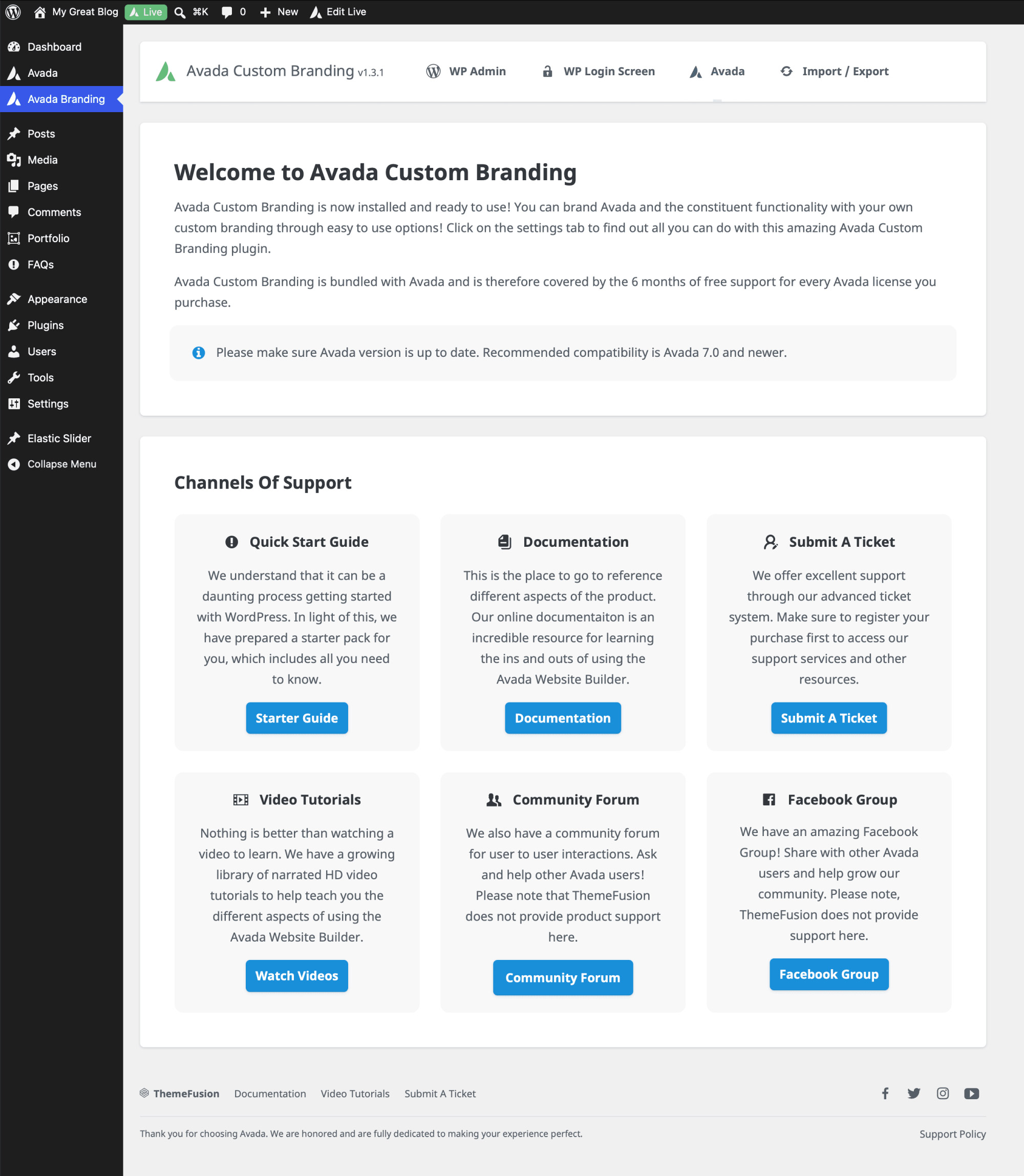
Once you’ve installed the plugin, you’ll see a new Avada Branding menu in the WordPress admin area. This is where you manage all your branding settings. The plugin is divided into four primary tabs:
WordPress Admin
WordPress Login Screen
Avada
Import & Export
Each section covers a different part of the WordPress experience, so you can easily customize what you need.
4 Tabs: What Each Tab Controls
The Avada Custom Branding plugin organizes the settings into four main tabs: WP Admin, WP Login Screen, Avada, and Import/Export. Each of the first three tabs ends with three buttons. “Save Settings” applies the changes made on that particular tab.
“Reset Section” clears only that tab, while “Reset All” clears every branding setting on the website. Both resets are permanent and ask for confirmation before running. Here is an overview of the four tabs:
WP Admin
This tab covers the WordPress Admin area.
Remove WordPress Logo — removes the WordPress logo from the admin bar.
Remove Screen Options — hides the Screen Options tab.
Remove Help Tab — hides the Help tab.
Hide Admin Menus — removes any of the ten core menus: Dashboard, Posts, Media, Pages, Comments, Appearance, Plugins, Users, Tools, and Settings.
Rename Admin Menus — assigns custom labels to those same ten menus.
Admin Footer Text — replaces the admin footer text and the version number text beside it.
Hide Dashboard Widgets — removes Quick Draft, At a Glance, Activity, WordPress Events and News, or Avada News.
Custom Welcome Panel — adds a custom dashboard welcome panel with its own title and rich-text content.
User Role Visibility — grants selected user roles access to the branding options. Administrators always have access and are excluded from the list.
Custom CSS for Admin Pages — applies custom CSS across admin pages, entered in a syntax-highlighted editor.
Apply Changes to Administrators — determines whether the branding changes apply to the administrator role. Enabled by default.
WP Login Screen
This tab restyles the WordPress login page.
Background Color and Background Image — set the page background. The color supports transparency and overlays the image, so lowering its opacity to 0% lets the image show on its own.
Logo Image, Logo Link URL, and Logo Link Title — replace the WordPress logo, redirect it, and set the link title that screen readers announce.
Login Box Background Color and Login Box Text Color — style the login form panel and its labels.
Login Screen Link Color and Link Hover Color — style the links below the form.
Colors — style the login button in both states.
Remove Lost Password Link — hides the password reset link.
Custom CSS — applies custom CSS to the login screen.
Avada
This tab rebrands the Avada admin screens and menus.
Avada Label — replaces every visible instance of the word “Avada” with a custom name.
Remove Avada Admin Bar Menu — removes the Avada item from the front-end admin bar.
Remove Dashboard Main Menu Items — hides any of: Dashboard, Options, Websites, Studio, Patcher, Plugins, Maintenance Mode, Performance Wizard, Critical CSS, Changelog, Support, and Status.
Remove Dashboard Sticky Menu Items — hides any of: Layouts, Layout Sections, Icons, Library, Forms, Form Entries, Sliders, Slides, and Export / Import.
Rename Avada Post Type Menus — relabels FAQs, Portfolio, Skills, and Tags.
Remove Post Type Menus — hides the Portfolio, FAQ, and Elastic Slider post types. This option and the one above appear only when Avada Core is active.
Avada Dashboard Logo Image — replaces the wide logo in the Dashboard, Setup Wizard, and Performance Wizard headers. Recommended size: 115 × 25px.
Version Number Text — replaces the version number shown beneath the logo.
Avada Icon Image — replaces the square Avada mark in the admin menu, toolbar, builder buttons, live editor toolbar, meta box headings, and dashboard footer. Recommended size: 40 × 40px.
Dashicon Name for Avada Menu Icon — uses a WordPress Dashicon in place of an uploaded image.
Avada Dashboard Welcome Section — sets a custom heading, sub-heading, and rich-text content.
Remove Avada Dashboard Registration Box — removes the product registration box. A site should be registered before this is enabled, since the same box handles unregistering; registration remains available through the Setup Wizard.
Remove Avada Admin Dashboard Footer — removes the footer entirely.
Remove Avada Admin Dashboard Footer Links — removes only the documentation, video tutorial, support ticket, and support policy links, leaving the rest of the footer intact.
Change Social Media Links — redirects the Facebook, X, Instagram, and YouTube links in the Avada and Avada Builder footers. Entering # removes a network; leaving it empty keeps the default.
Avada Admin Dashboard Footer Text — replaces the “Thank you for choosing Avada” line. Plain text only.
Avada Custom Branding Menu Icon Image — replaces the logo on the plugin’s own admin menu. Recommended size: 20 × 20px.
Dashicon Name for Avada Custom Branding Menu Icon — uses a Dashicon there instead.
Import/Export
This tab moves a completed branding setup between sites to reuse.
Export Settings — downloads the settings as a JSON file, either for one section (WordPress Admin, WordPress Login Screen, or Avada) or for all sections at once.
Import Settings — uploads a previously exported JSON file and applies those settings.
Workflow
As soon as you import a branding profile, you’ll see the changes right away. The login screen updates with your custom colors and logo, the dashboard shows your welcome content, and custom icons appear throughout the admin area. Even Avada’s menus, buttons, and dashboard elements match your new branding, creating a smooth experience from login to site management.
Whether you tweak a few settings or customize everything, the plugin helps you build a dashboard that matches your business identity.
Summary
The Avada Custom Branding plugin makes it easy to personalize both WordPress and Avada without touching core files or writing custom code. You can redesign the login page, swap out logos and menu icons, and update dashboard content, giving professionals a complete white-label solution for client sites.
Whether you’re building one client site or managing hundreds, Avada Custom Branding helps you create a polished, professional look that shows off your brand and keeps all the features of Avada.
Subscribe To Our Newsletter
Receive all of the latest news and updates fresh from ThemeFusion!