Share
The Avada Command Palette is one of those features that quietly transforms the way you work. Once you know it’s there and understand what it can do, it becomes hard to imagine building websites without it. In this guide, we’ll walk through how to access the command palette in Avada and how to use it to speed up your workflow in the Avada Live Visual Builder.
Overview
What Is the Avada Command Palette?
The Avada Command Palette is an efficiency tool that lets you search for commands, options, and Avada Elements, and act on them instantly, without hunting through menus.
How to Access the Avada Command Palette
When you’re working in the Live Builder, you can open the command palette with a keyboard shortcut: Ctrl + K on Windows, or Cmd + K on a Mac. If you prefer, you can also bring it up with the F1 key.
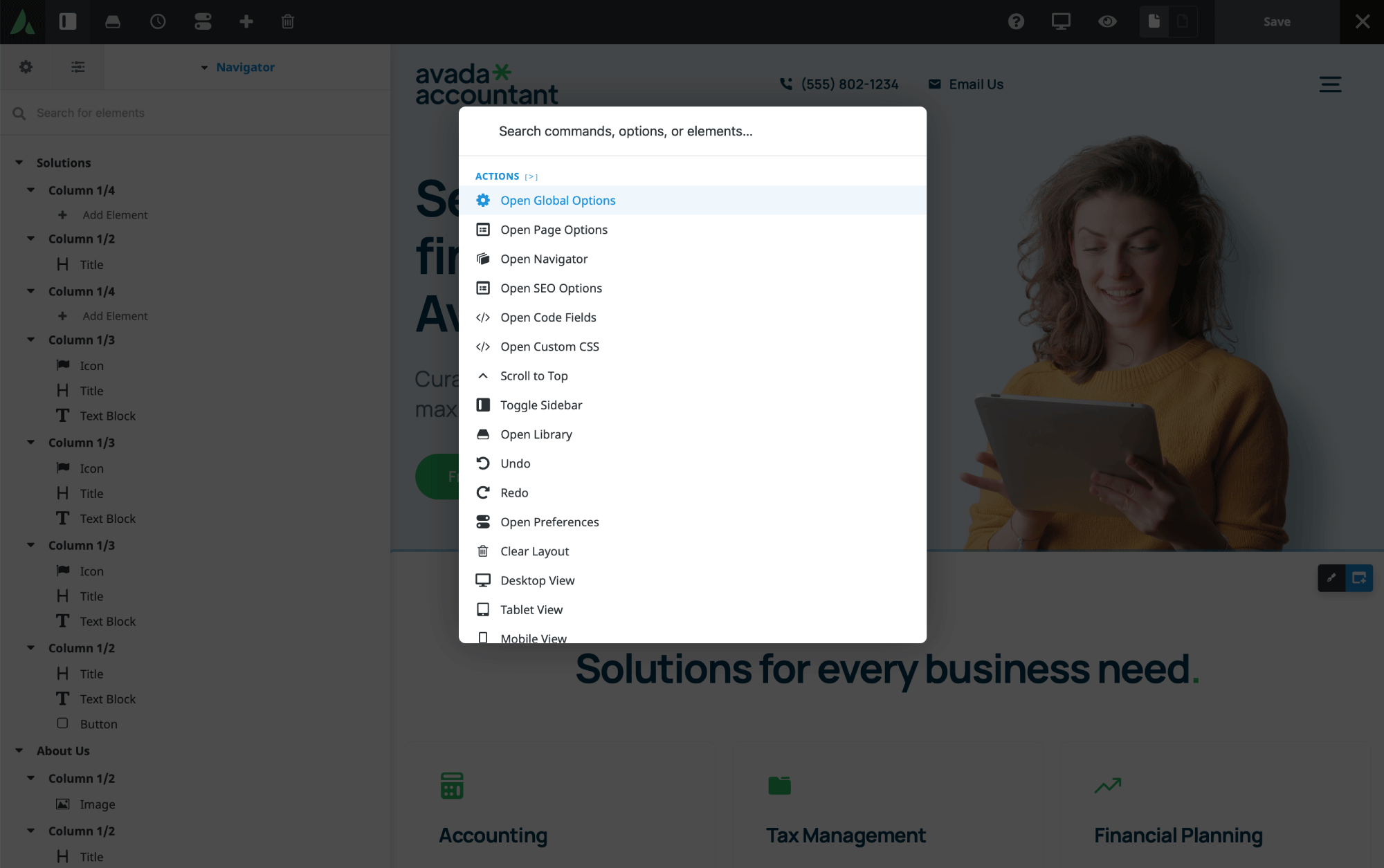
The Search Bar
At the very top of the Command Palette is the search and input bar, which is active by default the moment the palette opens. There’s a lot you can do from here. The simplest approach is to just start typing. Search for a command, an option, or an Element, and results appear immediately.
For example, type the word “image,” and a whole range of results show up: image-related elements under the Insert Element heading, a result under Find on Page, and a collection of page options and global option results.
Using Prefixes to Refine Your Search
If you want to limit your search to a particular area of interest, you can use prefixes. To see the full list of palette prefixes and keyboard shortcuts at any time, simply type a question mark ? — Here’s a rundown of the available prefixes.
Insert an Element — + or /
The plus symbol or the forward slash displays all available Elements. Click on one to insert it into the page. If you have something selected when you open the Command Palette, the new Element is inserted directly beneath it. If nothing is selected, the Element is added to the bottom of the page.
Insert a Library Element — #
The hashtag prefix lets you insert any of your saved Avada Library Elements, pulling from whatever you’ve stored in the library.
Find on Page — @
The at symbol is the prefix for Find on Page, which searches the Navigator. Type @ followed by a letter or two, and matching elements on the page appear instantly. For instance, typing @p might immediately surface an Avada Post Cards Element (for example).
Actions — >
The forward arrow is the prefix for actions. It filters the list down to available actions, which you can then refine further. Start typing “open,” for example, and the results narrow to all the open-related actions.
Page Options — PO: and Global Options — GO:
Type PO: followed by some letters, and all the page options containing those letters are displayed. Switch to GO: and the list filters to the matching global options instead.
The Recent Section
Every time you open the Command Palette, you’ll see a Recent section at the top. This shows the five most recent actions you’ve taken, making it quick to repeat something you just did.
Don’t Forget Keyboard Shortcuts
On top of everything the Command Palette offers, the Avada Live Visual Builder also has a set of keyboard shortcuts already available to you. These are listed in the top bar under the question mark icon and can be used at any time. For more on those, check out the How to Use the Avada Live Builder Shortcuts help file and video.
Summary
That’s the Avada Command Palette. As you can see, it can yield significant efficiency gains once you take the time to familiarize yourself with it. Spend a little while getting comfortable with the prefixes and shortcuts, and you’ll soon be building pages and posts faster than ever.