Black Friday

Up to 30% off Avada One

Ends in

0
0
0
0
Days
0
0
Hrs
0
0
Min
0
0
Sec

See the deal →

How to Use Rendering Logic in Avada

Share

Avada Rendering Logic (not to be confused with the Avada Responsive Options Sets feature) is a powerful feature for WordPress web design, enhancing control over how user content is displayed based on specific conditions. Unlike the Avada Element Visibility options, which hide Avada Elements from users but still load it in the code, Rendering Logic ensures that specified content isn’t rendered in the code, creating a cleaner, faster-loading page. Below is an in-depth guide on using Rendering Logic effectively within Avada, with practical examples illustrating its versatility.

Overview

Where Is Avada Rendering Logic Used?

Avada Rendering Logic is located on the “Extras” tab of the Avada Column and Avada Containers Elements.
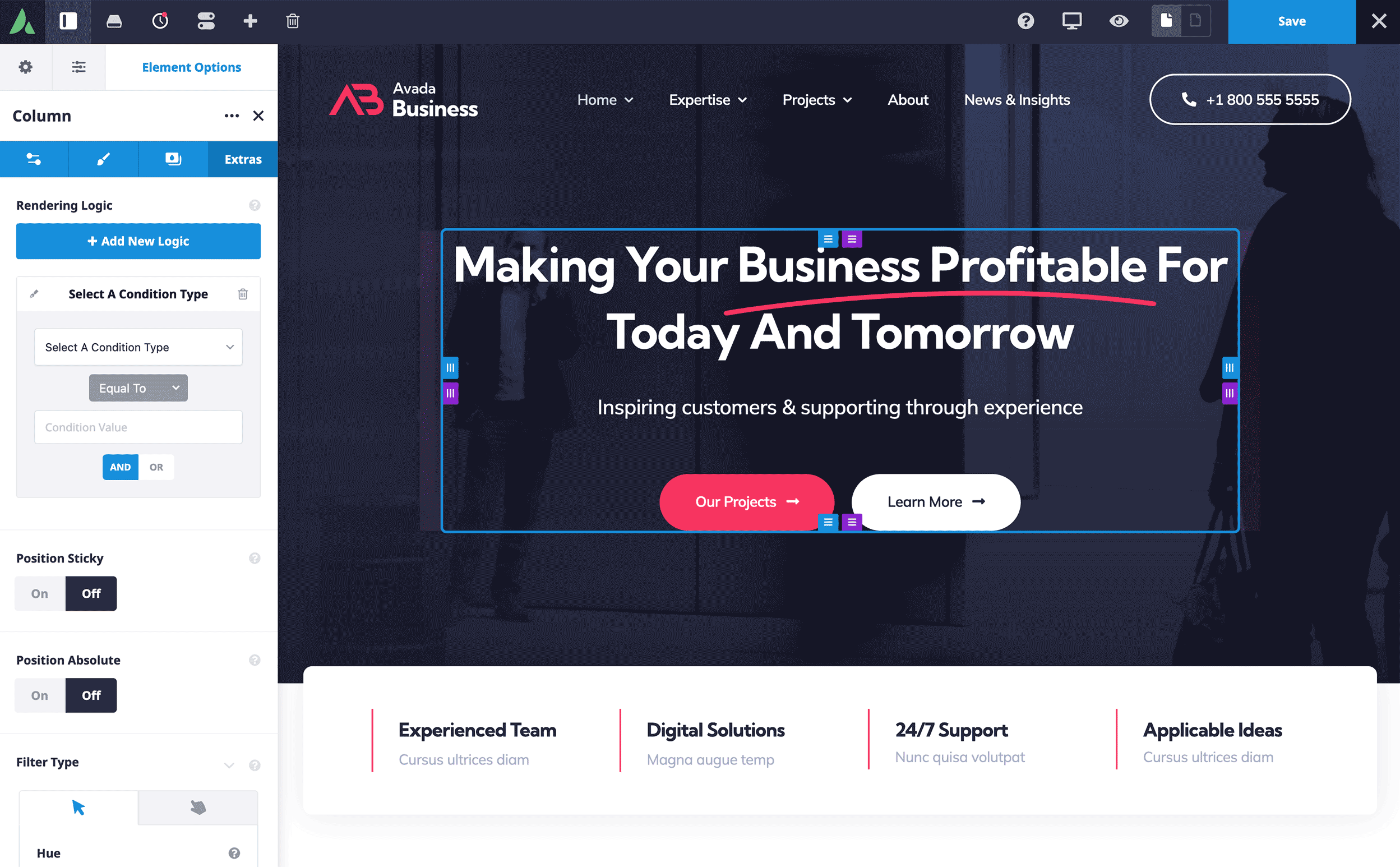
Avada Column Element Rendering Logic

Although currently limited to these two Layout Elements, this functionality can be applied creatively across various layouts, enabling almost any usage imaginable.

Benefits of Using Avada Rendering Logic

The examples explained in this beginner’s guide showcase just a few ways Rendering Logic can improve site functionality by controlling the visibility of Containers or Column Layout Elements based on specific user conditions or device types.

For privacy reasons YouTube needs your permission to be loaded.

This capability can significantly enhance user experience, streamline content management, and reduce unnecessary page load times.

Example 1: Rendering Logic Based on Device Type

To illustrate how Avada Rendering Logic works, consider a Header Layout Section with three Container Elements, each set to display under different conditions based on device type.

Setting Up Device-Based Rendering Logic:

  • In the header section of the layout, the first container is set to render only when the device is a desktop. This setting is configured by navigating to the “Extras” tab of the container, where Rendering Logic is applied with the condition “Device = Desktop.”
  • The second container is adjusted to display only on mobile or tablet devices, with a similar logic setup: “Device = Mobile or Tablet.”
  • The third container is also configured to display exclusively on desktop devices.

Testing Device-Based Rendering:

  • The first and third containers appear in the header when viewed on a desktop PC.
  • Switching to a mobile or tablet view renders only the second container. This setup is a practical application for creating unique user experiences across different screen sizes.

Example 2: Rendering Logic Based on User State & Role

Beyond device type, Avada Rendering Logic can customize content based on the user’s login status and role. Here’s how to create content that varies depending on whether users are logged in, logged out, or have made a previous purchase.

Setting Up User State-Based Rendering Logic:

First, create three containers on a homepage layout, each designated for different user states:

  • Container 1: This container will only display if the user is not logged in. Under the “Extras” tab, apply Rendering Logic with the condition “User State = Logged Out.”
  • Container 2: Displays if the user is logged in but not a customer. For this setup, two conditions are required: “User State = Logged In” and “User Role ≠ Customer.”
  • Container 3: Displays for users who are logged in and have a purchase history. Set the Rendering Logic to “User Role = Customer.”

Testing User State-Based Rendering:

  • Only the first container appears when a user visits the page while logged out, providing an introductory or promotional message for unregistered users.
  • The second container becomes visible upon logging in as a non-customer user, welcoming them with a unique message or incentive.
  • Logging in as a customer with a purchase history triggers the third container to display, perhaps offering a personalized discount or exclusive content.

Summary

With thoughtful configuration, Rendering Logic in Avada allows for a more responsive and adaptive site design, delivering content tailored to different devices and user states. Whether aiming for a seamless cross-device experience or personalized content for different user roles, Rendering Logic makes it easy to fine-tune site visibility precisely.

Subscribe To Our Newsletter

Receive all of the latest news and updates fresh from ThemeFusion!

Leave a comment

  1. Irin January 24, 2025 at 5:48 pm - Reply

    These rendering logic examples are self-explanatory. What I would like to see is a blog post addressing more confusing rendering logic conditions and their use cases, such as: Get Variable, Session Variable, User Agent, Referrer, Custom Field, Term ID, Number of Titles.


Prebuilts
Buy Now
Buy Avada Now!
We use essential cookies to run our site, and optional ones for analytics, advertising, and personalization. You can manage your choices at any time. See our Privacy Policy.

  • Embeds from this vendor are blocked and replaced with a placeholder until consent is given.

  • Embeds from this vendor are blocked and replaced with a placeholder until consent is given.

  • Embeds from this vendor are blocked and replaced with a placeholder until consent is given.

  • Embeds from this vendor are blocked and replaced with a placeholder until consent is given.

  • Enables Google Analytics to store data about your visit, such as pages viewed, time spent, and interactions, to help us understand and improve website performance.

  • Enables HubSpot to track your activity on this site, power the live chat widget, and manage marketing interactions, such as form submissions.

  • Used to store your authentication details.

  • Used to store your authentication details.

  • Used to check if your browser has cookies enabled.

  • Used to persist your user configuration in the admin dashboard.

  • The time at which wp-settings-[user_id] was set.

  • Remembers the state of Switch elements you have toggled.

  • Stores your privacy and consent choices so they are respected on future visits.

  • Set by Cloudflare to tell real visitors apart from bots and protect our Websites from automated attacks. It does not track you across websites and is not used for analytics or advertising.

  • Set by Cloudflare after you pass a security check, so you are not asked to complete it again on every page.

Go to Top