Share
One of the best ways to improve the shopping experience on a WordPress website is by making it possible for visitors to see more detailed product information without forcing them to leave the page they’re already on. This not only mitigates bounce rate, but it can also improve sales conversions. Because WooCommerce does not have a built-in product quick view option, that’s exactly where the Avada Off-Canvas Builder really shines without the need for third-party plugins or Woo extensions.
In this overview, we’ll walk through how a Woo Product Quick View can be built using a dynamic Avada Off-Canvas popup and the Avada Post Cards Element. This setup is ideal for beginners because once it’s in place, it works automatically for every product — no duplicate layouts and no manual linking.
Overview
Key Benefits Of Woo Product Quick Views
When a customer is browsing products, momentum matters. Every extra page load, every unnecessary click, and every interruption increases the chance they’ll lose interest. A Product Quick View helps reduce friction while still providing shoppers with the information they need to make a decision. Here are some key benefits:
Why a Woo Product Quick View Makes Sense
In an online store, products are usually displayed in a grid layout, allowing multiple products to be shown on a page (let’s call them product cards for the purposes of this article). Product cards are ideal for browsing, but they’re intentionally compact. Trying to squeeze too much information into them usually makes things feel cluttered.
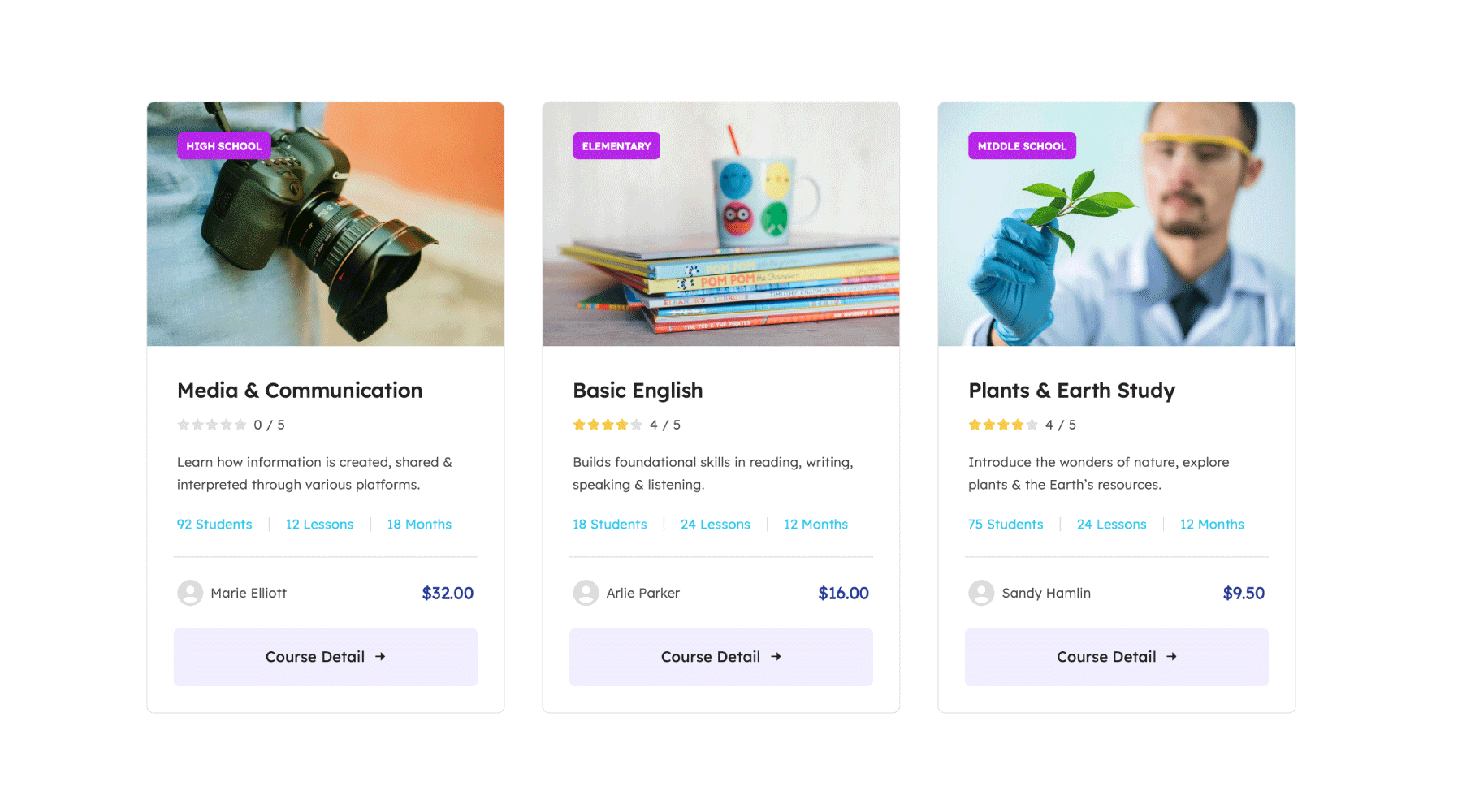
At the same time, sending users to a full product page every time they want a little more detail can slow things down and break their flow.
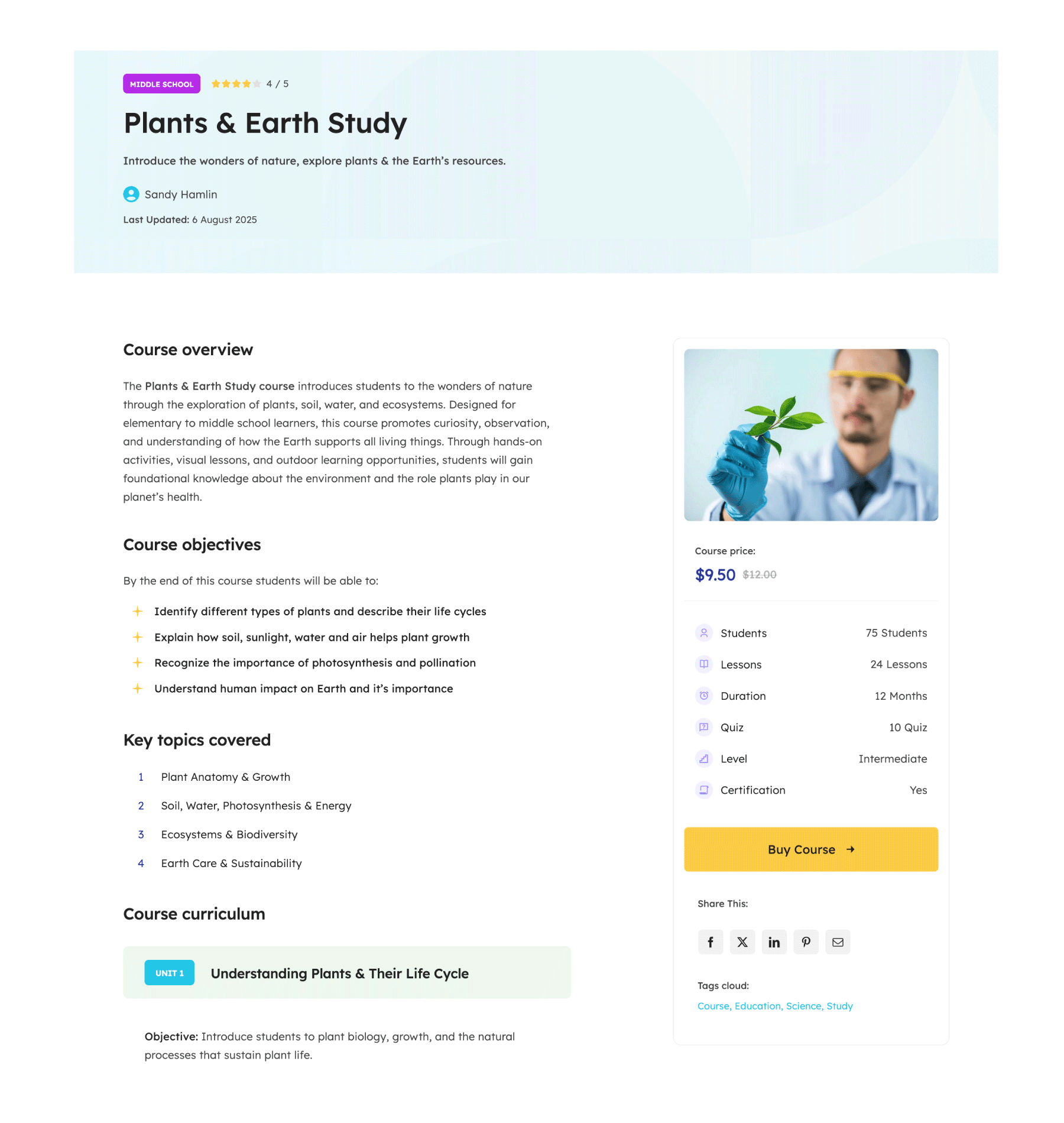
A Product Quick View solves both problems. It gives shoppers just enough information to decide whether they’re interested, while keeping them right where they are. Using an Avada Off-Canvas popup (for example) means the same Quick View layout can be reused as a template for every product.
The Example Setup
For this example, we will use the Avada Online School site as the test case. More specifically, the online courses product page. As you will see, the products are courses displayed on a page using the Avada Post Cards Element for the layout. Each Post Card links to a full product page with detailed course information.
Rather than replacing that link, a second option is added: a Quick View button. This gives users a choice. They can either dive into the full product page or quickly preview the most important details in an Off-Canvas pop-up.
Creating the Off-Canvas Popup Layout
Everything starts with the Avada Off-Canvas Builder. This is where the Product Quick View content lives, and the key thing to remember is that nothing inside it should be specific to a single product. Instead, all product details are pulled in dynamically.
The Off-Canvas is set up as a pop-up rather than a slide-in panel, with a width that feels comfortable for reading without overwhelming the screen. During the build process, Avada allows a specific product to be selected so the layout can be styled properly before it goes live.
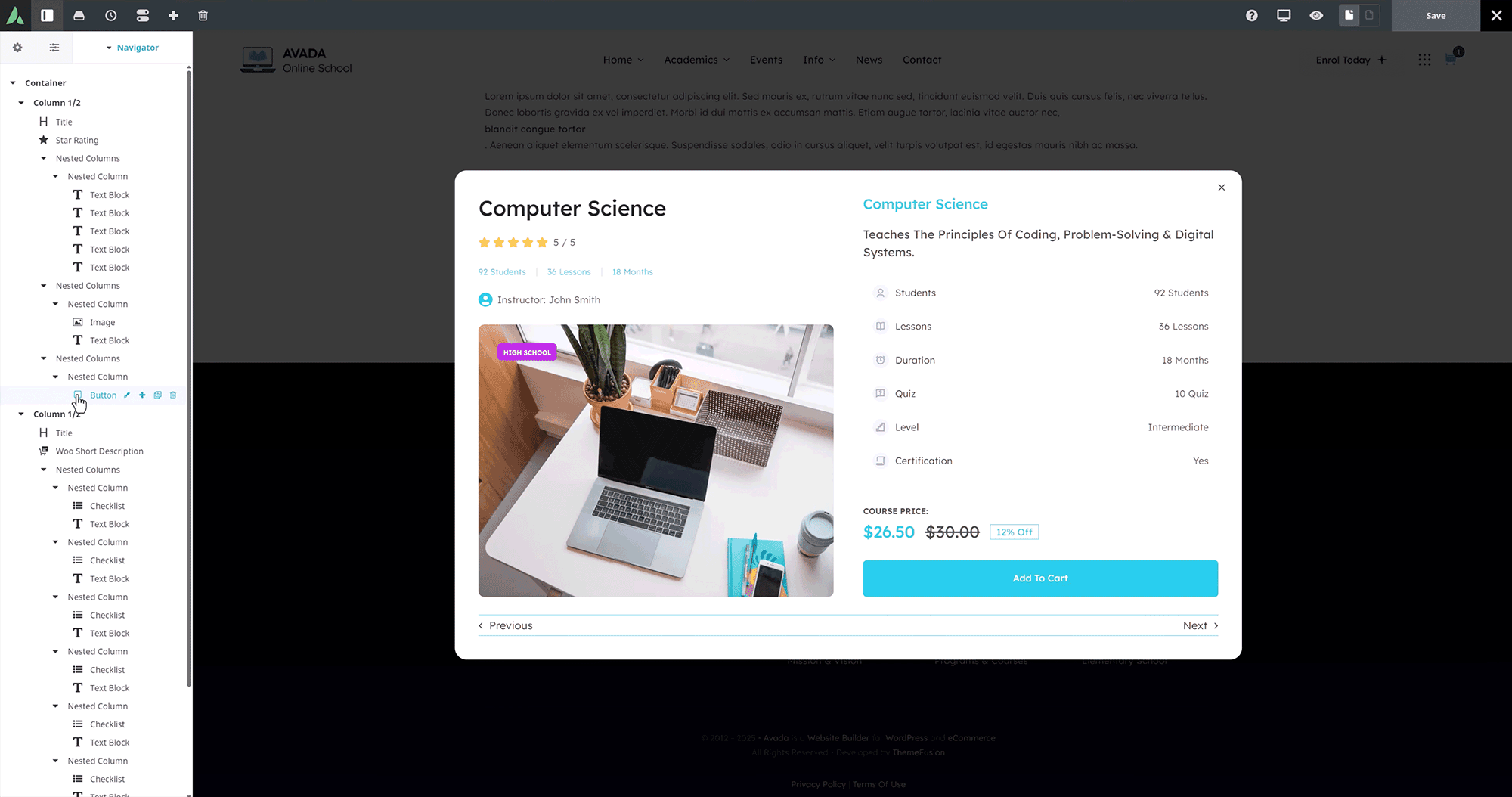
Inside the Off-Canvas, the content is structured to show only the most useful information. The product title and star rating are displayed at the top, followed by selected product attributes such as course details and instructor information. A short description gives context without going into the full sales page, and the price and add-to-cart option are placed toward the bottom, where they’re easy to find.
Because everything is dynamic, the same layout works no matter which course is opened. In newer versions of Avada, pagination can be added, allowing users to navigate products directly in the Quick View. For more information no how to build an Avada Off-Canvas popup see this help file.
Connecting the Off-Canvas to the Products
Once the Off-Canvas layout is ready, it must be linked to the products displayed. This is done at the Postcards level, not within individual products.
By linking the Off-Canvas in the Post Cards settings, Avada knows that whenever a card triggers the Off-Canvas, it should pass through the data from that specific product. This is the step that makes the entire setup dynamic and reusable.
Adding the Quick View Button
The final piece is the trigger itself. Instead of sending users to a product page, the Quick View button opens the Off-Canvas using dynamic data. From a visitor’s perspective, this feels instant and intuitive — click the button and the product preview appears.
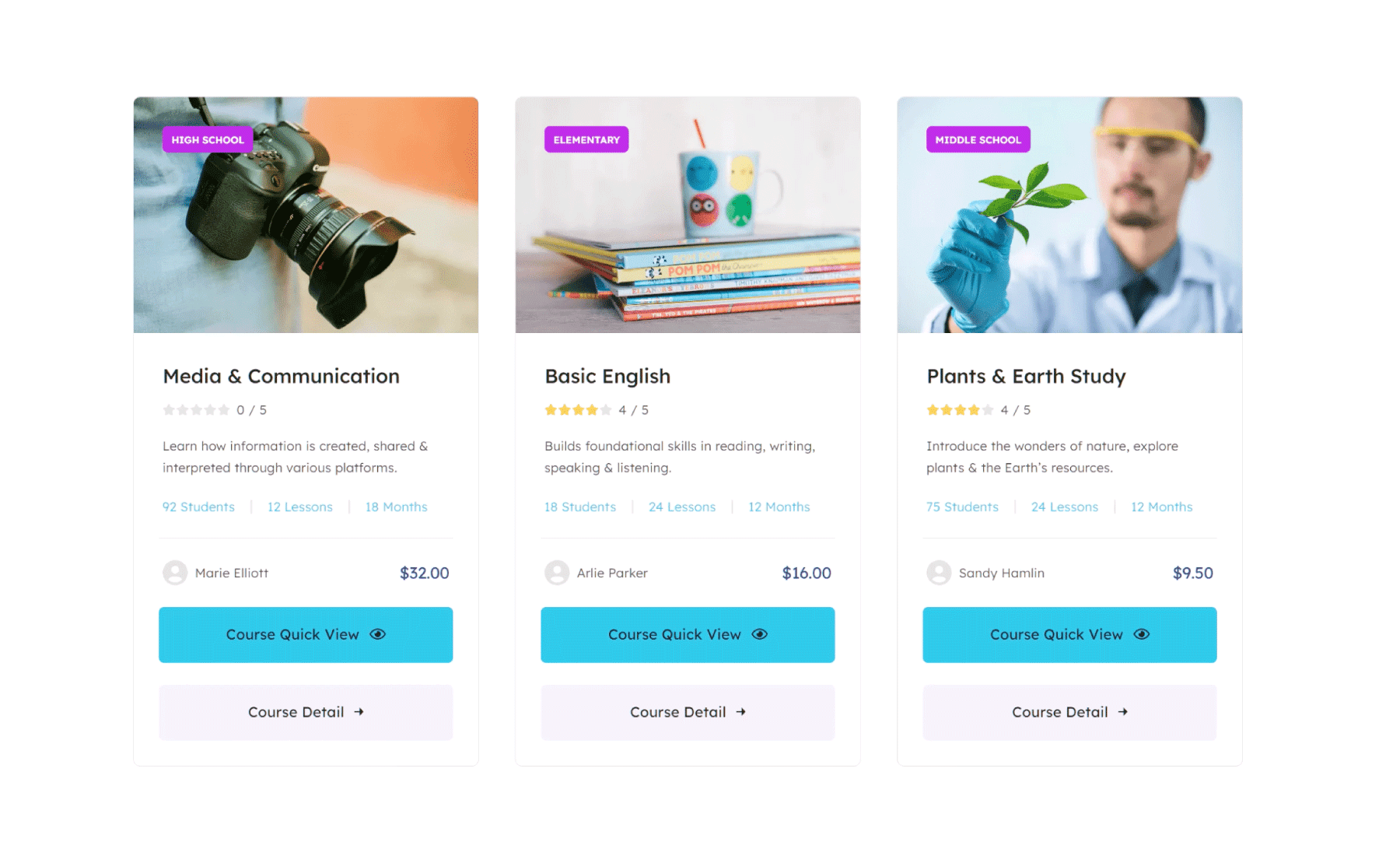
The button can be styled however you like, so it stands out visually from the standard product link. In this example, it’s positioned above the main button to make the Quick View option obvious without being intrusive.
The Final Result
On the live site, each course card now offers two clear actions. One button opens the full product page for users who want all the details. The other opens the Product Quick View, showing a concise summary of the course, its price, and an add-to-cart option — all without leaving the page.
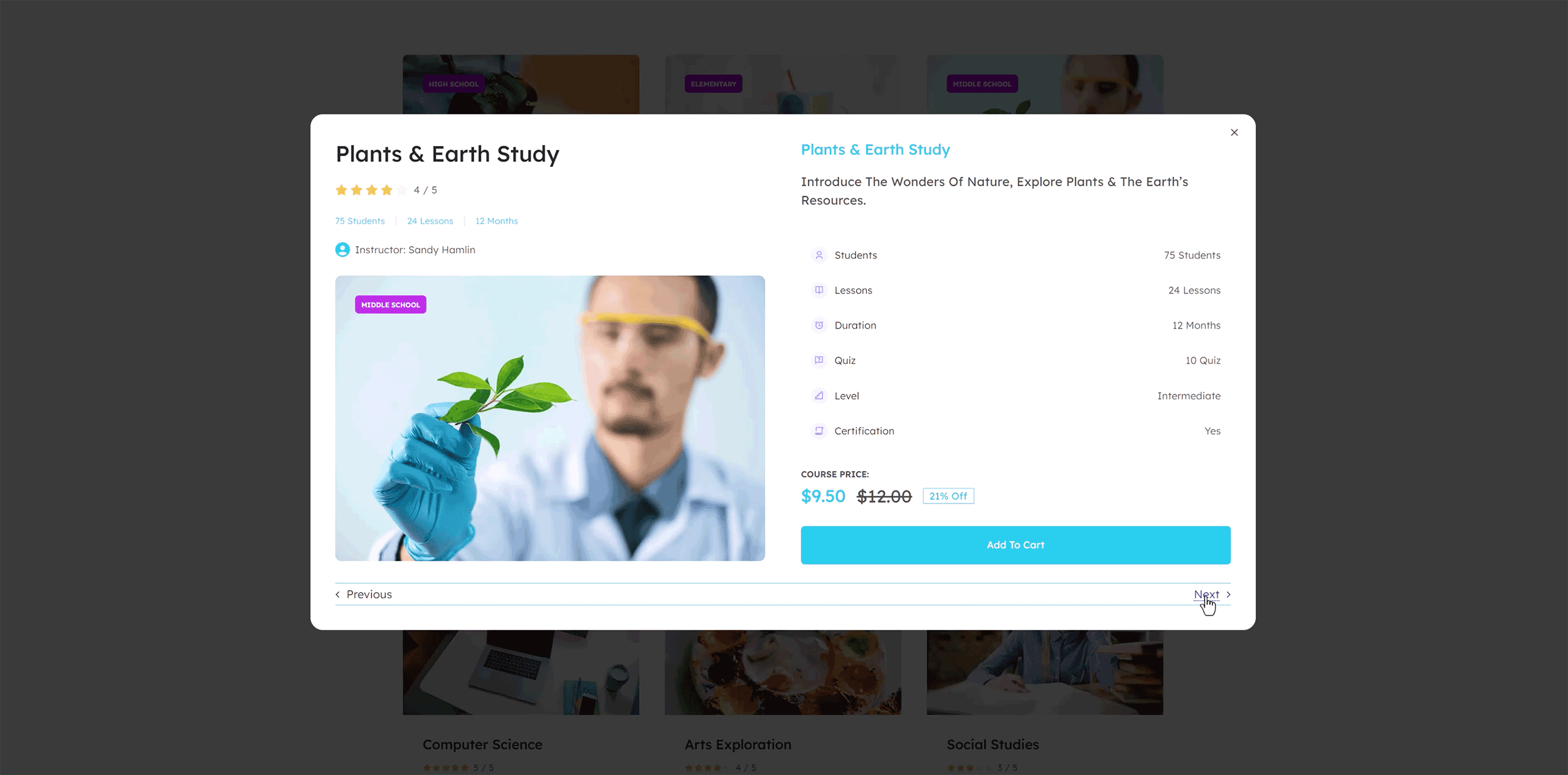
Clicking Quick View on a different course automatically updates the Off-Canvas with the new product’s information. There’s nothing extra to configure per product, which is what makes this approach so powerful.
Summary
While this example focuses on WooCommerce courses, the same approach applies to almost any WordPress post type (CPT) in Avada. Products, portfolios, blog posts, and custom content can all benefit from dynamic Off-Canvas layouts.
Once you understand the basic flow—create the Off-Canvas, link it to Post Cards, and add a trigger—you’ll find countless ways to use this feature to improve usability and keep visitors engaged.
If you’re just getting started with Avada, this feature is well worth learning early. It looks impressive, feels modern, and once it’s set up, Avada does most of the heavy lifting for you.