
Website Privacy & Consent in Avada
Last Update: July 20, 2026
Avada takes website privacy and consent seriously and provides a range of tools to help you inform your users about third-party embeds and cookies, and give them control over their consent choices. So, whether you have a simple website with only the necessary WordPress cookies, or you use many third-party services and need to comply with regulatory frameworks such as the GDPR or the CCPA, we have you covered.
Read on to understand the layers of privacy control Avada offers, and watch the video below for a full visual runthrough of the options available.
Avada Privacy & Consent Global Options
Privacy in Avada starts with the Global Options > Privacy & Consent tab. Here, you configure your privacy and consent options based on your specific needs. So, basically, how it works, is that you configure your Privacy Consent Tools options in the Global Options > Privacy Consent Tools sections, and then you can use the Privacy & Consent Bar, and/or the Privacy & Consent Element to display the privacy options to the site visitor.
By default, privacy and consent options are turned off in Avada, and you will only see an Important Note, and three options: Google & Font Awesome Fonts Mode, Privacy Consent Tools & Privacy & Consent Bar, as you can see below.

The first of these options is the Google & Font Awesome Mode. When set to “Local”, the Google and Font Awesome fonts set in Global Options will be downloaded to your server, which complies with GDPR guidelines. Alternatively, you can set the options to “CDN” to use the Google and Font Awesome CDNs.
So, depending on your website, location, and users’ locations, you may be required to comply with a legal privacy framework, such as the GDPR or the CCPA. Please consult a lawyer to determine your specific legal requirements. Once you understand your obligations, you can then enable the Privacy Consent Tools, and/or the Privacy & Consent Bar, and the Privacy & Consent Element to implement your website privacy policy.
See the Privacy Consent Tools document and the Privacy & Consent Bar document for a full rundown on each of these Global Option > Privacy & Consent sections, but in this overview doc, let’s start with why consent may be needed.
User Control Over Third-Party Embeds
Avada offers a variety of Elements that help you utilize third-party content, such as YouTube and Vimeo videos, Google Maps, Facebook and X (formerly Twitter) timelines, Flickr images, SoundCloud files, etc. While all of these third-party services enrich your websites, they also collect data about your users. IP addresses, location data, or user activity tracking, to name a few.
Under the GDPR, for example, it is necessary to obtain visitors’ explicit consent if data is to be shared with third parties. While it is generally not possible to achieve this directly with embeds, similar to Google Fonts, you don’t want to lose these services on your site. Enter the Privacy Consent Tools, which can help with this.
Third-Party Embeds
One example of the Consent Tools is to prevent embeds from loading until user consent is granted, ensuring GDPR compliance. For any third-party services deselected by the visitor, the embeds will not load on page load. Instead, they will see a placeholder graphic with custom text on it and a button to accept the third-party service. The background color and text color for that placeholder can be set in Avada Global Options.
Below is an example of the YouTube Element on a page, requiring consent:
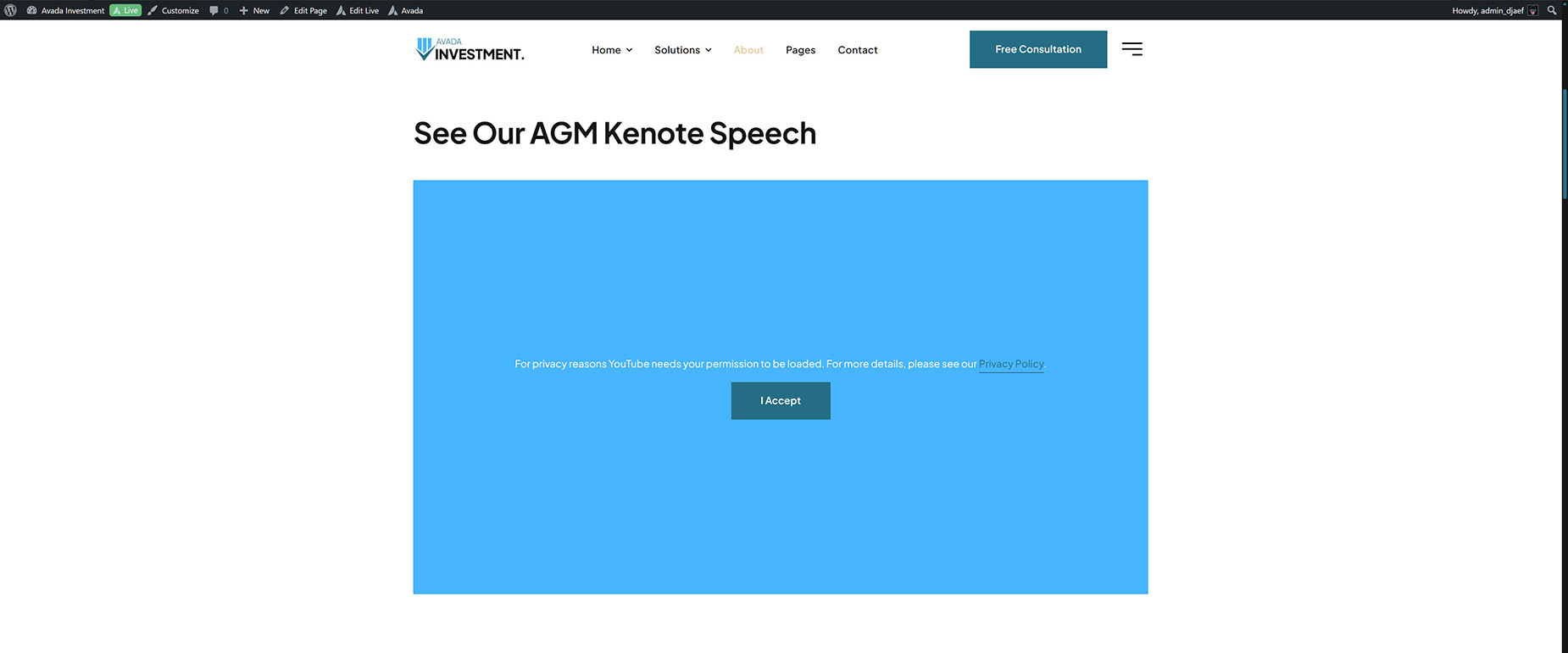
In the above example you will see the following text:
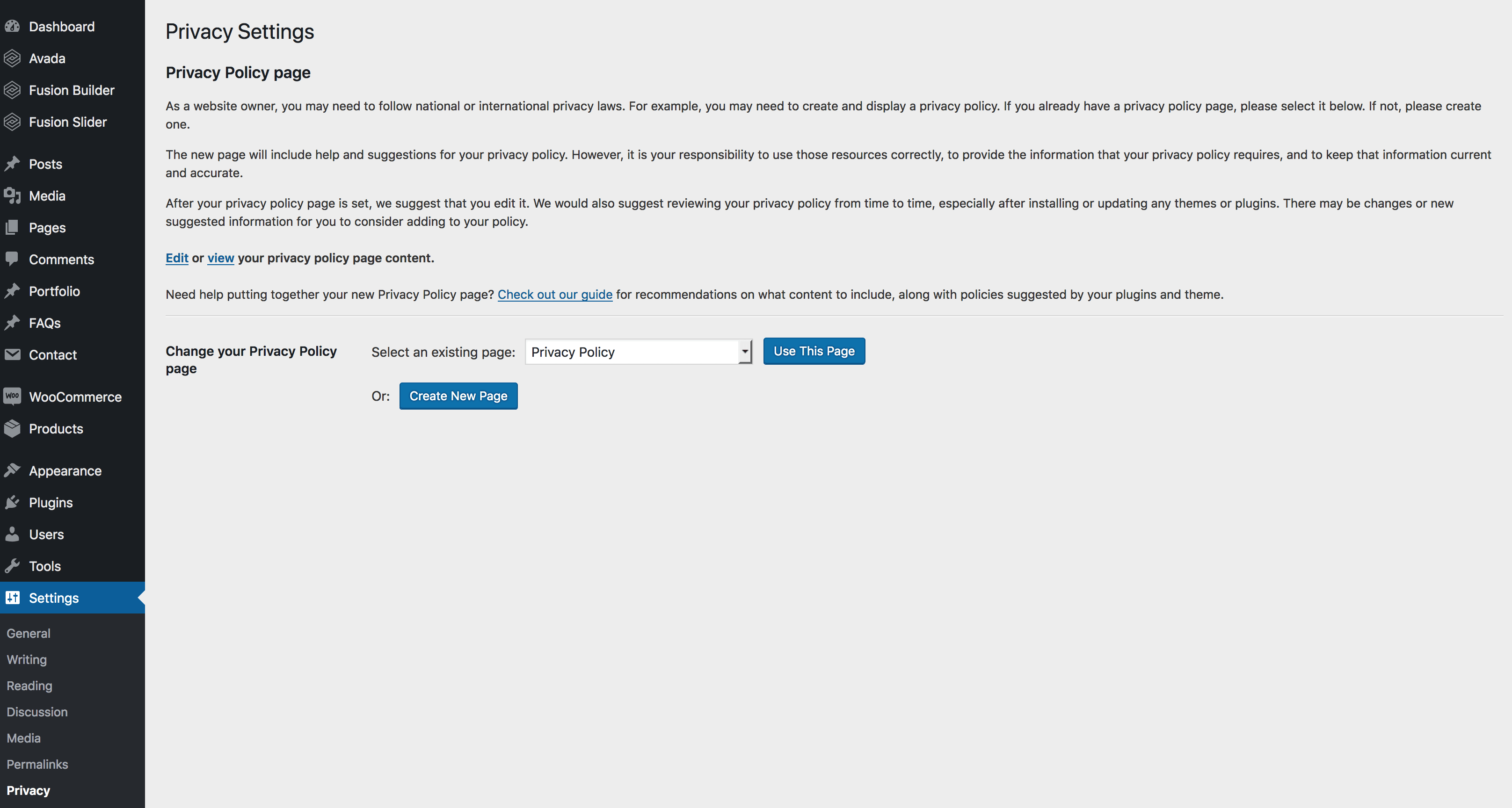
WordPress includes a series of Privacy Options to manage customer data and designate a dedicated privacy policy page for your website. For the Avada embedded overlay text to include this dedicated page, you need to enable this in the WordPress Dashboard > Settings > Privacy section
What is the GDPR?

The General Data Protection Regulation (GDPR) is Europe’s framework for data protection laws, replacing the 1995 data protection directive. It is designed to enable website owners to be more transparent about how they collect, use, and share personal data. Likewise, it provides individuals with access and choice over how their personal data is collected, used, and shared. The GDPR came into effect in May, 2018.
There is no single, comprehensive federal privacy law in the U.S. equivalent to the EU’s GDPR. Instead, the U.S. relies on a patchwork of state-level laws, with the California Consumer Privacy Act (CCPA/CPRA) serving as the closest equivalent.
Is Avada GDPR Compliant?
What needs to be compliant is the end-user website, not the software or framework it’s built on. Avada, as an entity, does not violate GDPR requirements because it does not collect any data. As a team, we have given our Avada user base the necessary tools to ensure their websites are GDPR-compliant. These new privacy tools and options were introduced in Avada 5.5.2, released on May 22nd, 2018.
Is WordPress GDPR compliant?
An article about GDPR Compliance Tools in WordPress was posted on WordPress.org, shedding light on the new privacy features that WordPress added to its 4.9.6 release, which shipped on May 17, 2018.
The main features were new areas for handling data export and erasure requests, a new privacy policy page, and also a consent checkbox for the comments form.
Who Is Affected By GDPR?
In short, every company, organization, and individual that processes or controls datasets of their customers or website visitors will be subject to the GDPR. It affects any business that has customers who reside in the EU.
Additional GDPR Compliance Options in Avada
Consent Field Element for Forms
Using the Avada Form Builder, you can find the flexible and useful Consent Field Element to add to your website forms any time you need to gather consent from your users.
Contact Form Consent Checkbox
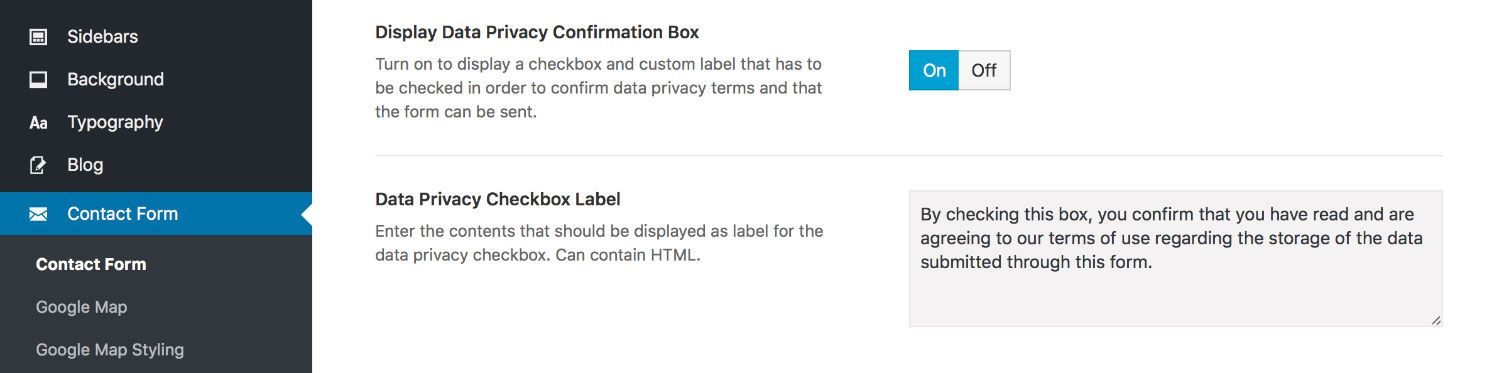
If you are using a Legacy Contact Form, there are two options at Global Options > Contact Form: Display Data Privacy Confirmation Box and Data Privacy Checkbox Label, which display a consent checkbox on the contact form page. The label can be easily customized in the Avada Global Options to reflect your needs.
User Register Element Registration Notice
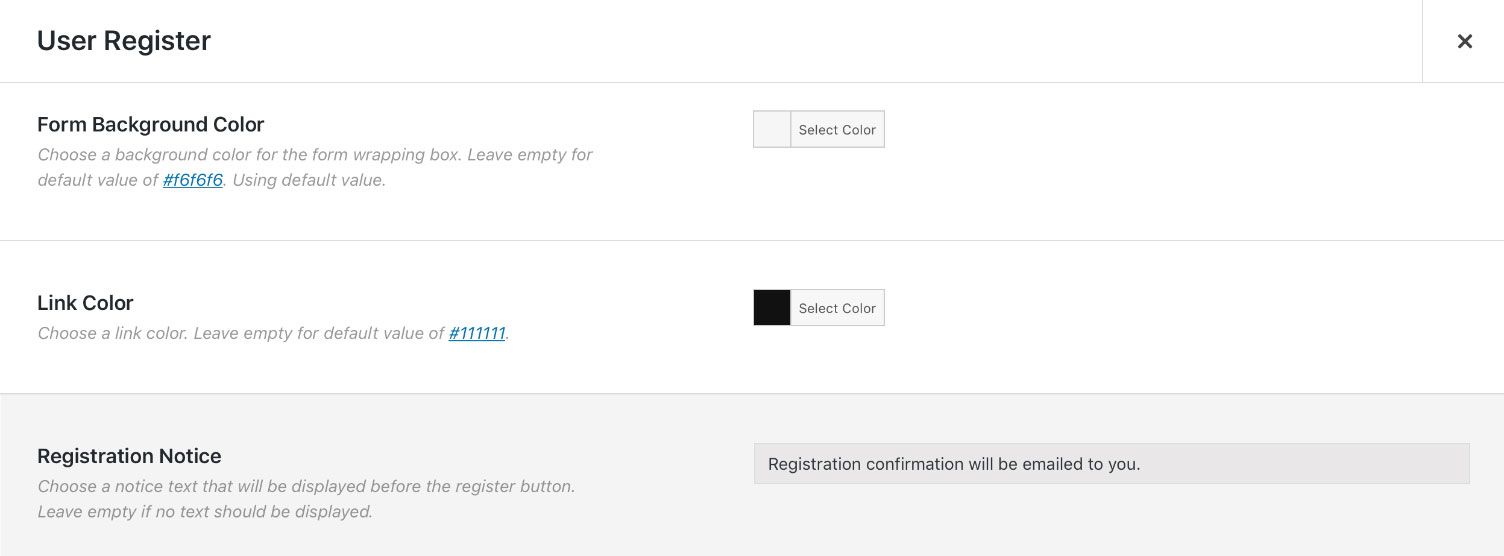
In the Avada User Register Element, there is a setting to show custom text before the submit button if you want to inform a new user about GDPR compliance. View the custom registration notice message field for the User Registration Element below.
Next Step: Configure Privacy Consent Tools Options
As mentioned at the start, if you have a really simple website, you might just want to enable the Privacy & Consent Bar and display it to your visitors to inform them about your cookie usage.
Alternatively, if you enable the Privacy Consent Tools, you can fully configure your Privacy & Consent options and then use any combination of the Privacy & Consent Bar or the Privacy & Consent Element on a page or in an Avada Off-Canvas to display your cookie information to your visitors and allow them to select their individual privacy preferences.


















































































































