Share
When building a website with Avada and WordPress, speed and flexibility matter. You want to see your changes instantly, tweak content without jumping between panels, and style specific words for emphasis and clarity. That’s exactly where the Avada Live Visual Builder truly shines.
Inline editing lets users click directly on their content in the Avada Live Builder and make changes visually, in real time. For beginners, this feature feels intuitive and natural. For experienced users, it unlocks precise styling control, enabling the creation of engaging, professional styling with minimal effort. Let’s explore how it works and how to use it effectively.
Overview
What Is Avada Inline Text Editing?
Inline editing is the ability to modify text directly on the page inside the Live Builder. Instead of opening settings panels to update content, you simply click into the text and start typing. It works with all text-based Avada Design Elements, for example:
And any other Design Element that contains editable text. There are two main ways in which inline editing works in Avada.
First, you can directly change the content itself. Click into a title or paragraph and type new text, delete words, or replace phrases. It’s immediate and visual.
Second, you can select specific words or phrases and apply styling using the Inline Editing Toolbar that appears automatically. This is where the real creative control lies.
How the Inline Editing Toolbar Works
The Avada Inline Editing Toolbar appears automatically whenever text is selected inside a supported element in the Live Builder. It is designed to give users immediate control over styling without opening the Element’s settings panel. The moment a word, phrase, or paragraph is highlighted, the toolbar floats above the selection and presents formatting and styling options that apply specifically to that selected portion of text.
At its core, the toolbar allows users to modify typography directly on the page. You can change font size, adjust line height or letter spacing, switch font families or variants, and even alter the HTML tag of the selected text. These adjustments are applied inline, meaning they affect only the highlighted section rather than the entire Element. This makes it ideal for emphasizing specific words or phrases without disrupting the overall design settings.
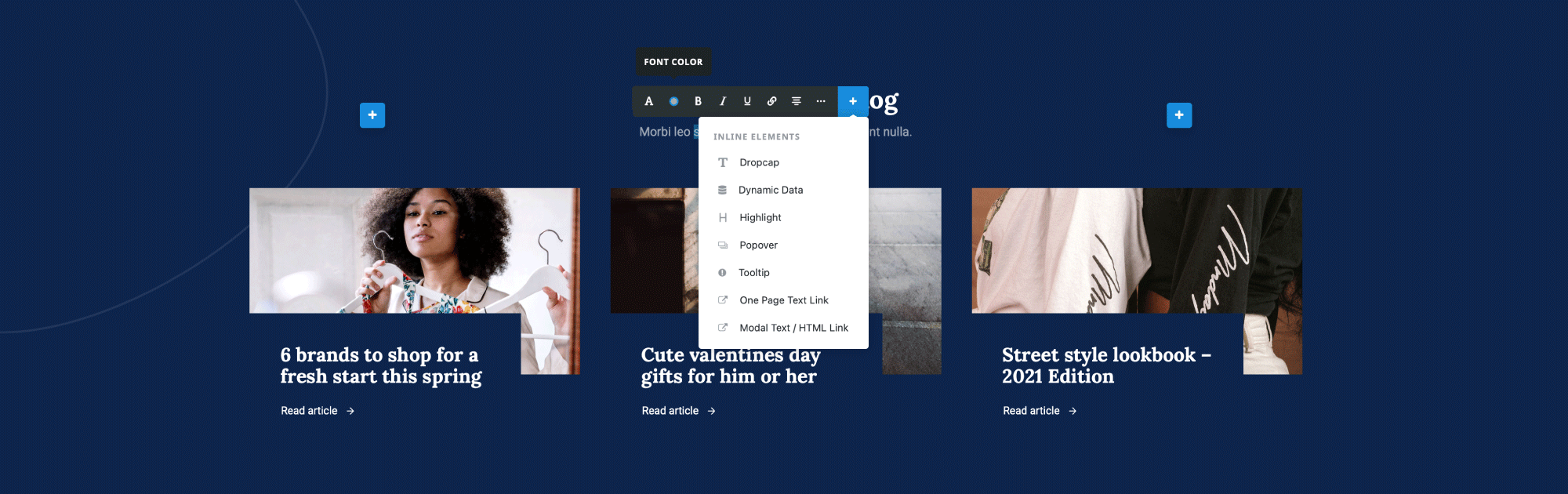
Color adjustments are equally straightforward. The toolbar provides access to the color picker, where users can manually select a color, paste a hexadecimal value, or choose from the site’s global color palette. Selecting a global color is particularly useful because it keeps styling aligned with brand guidelines while still allowing for visual emphasis within a sentence or heading.
In addition to typography and color, the toolbar includes familiar formatting controls such as bold, italic, and underline. These options function exactly as expected and apply instantly to the selected text. There is also a link tool that allows users to attach URLs directly to highlighted words, making it easy to create contextual links without leaving the page view.
Some options, such as alignment or blockquote styling, affect the entire paragraph rather than just the highlighted word. Even if only a single word is selected, these paragraph-level changes will apply to the full text block. The toolbar also includes extended formatting features such as lists, indentation controls, and the ability to remove previously applied formatting.
One of the more advanced capabilities of the Inline Editing Toolbar is the ability to insert Avada Inline Elements into page and post content. These are special enhancements embedded in text rather than as standalone Elements. Examples include highlights, tooltips, drop caps, dynamic data, and popovers. When applied, these Elements become part of the text structure and can be edited or removed directly within the Live Builder.
Behind the scenes, the toolbar applies inline HTML styling to the selected content. As a result, inline edits override element-level styling. This layered system allows for precise customization while still maintaining broader design consistency through global and Element settings.
Using Avada Inline Elements for Advanced Effects
There are seven Avada Inline Elements to choose from. These are special Elements that can only be added to and function within text.
For example, you might highlight a specific word to make it visually pop. Once added, inline elements can be right-clicked to edit, reset, or remove them. This is especially useful when you want to add subtle visual accents without restructuring your layout or adding extra Design Elements.
Best Practices for Inline Editing
Inline editing is powerful, but it works best when used thoughtfully. Keep these principles in mind:
Because inline styles override Element styles, overusing them can create inconsistencies if you’re not careful. The goal is to enhance design, not complicate it. When used sensibly, inline editing gives you maximum visual impact with minimal changes.
Summary
Avada Inline Text Editing combines speed, flexibility, and precision. Whether you’re simply updating text or adding custom styling to specific words, the Live Builder makes it intuitive.
By understanding when to use global styles, Element options, and inline formatting, you can create visually engaging content that is stylish and engaging.