Using Dynamic Data in Avada
Last Update: February 9, 2026
Having the ability to utilize dynamic data site-wide takes flexibility to a new level. Denoted by the database icon in the Avada Builder, you can add a variety of dynamic content endpoints to your posts, pages, and other custom post types. Also, with the new Dynamic Data inline Element, and Dynamic Data Syntax, this gives Avada a plethora of possibilities when it comes to adding dynamic data into your web content.
What Is Avada Dynamic Data?
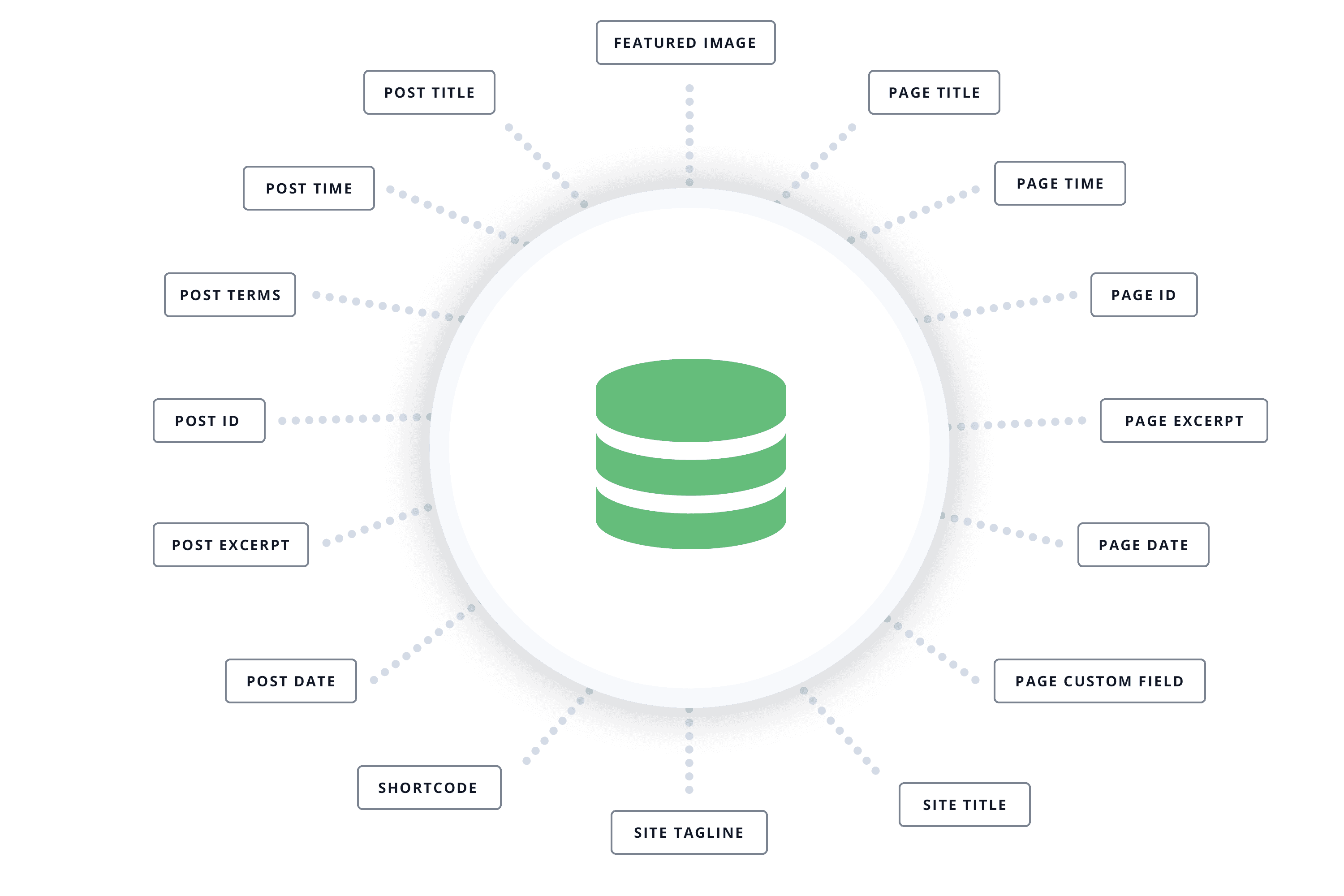
Dynamic Data is content that is stored in your website’s database, which is then dynamically generated and displayed on a post or page. Possible examples of dynamic content include the website title, tagline, and logo, page names, post titles, featured images, trigger Avada Off-Canvas, post IDs, timestamps, post excerpts, and so much more. Dynamic content can also come from custom content created using custom fields.
The whole point of using dynamic content is that if the content is then updated in the back-end, the content on the front-end is automatically updated to reflect those changes. You can also use a post or page with dynamic content as a template for other posts or pages, as the dynamic content is not specific to that page, but rather is pulling certain items from the database, and so on, a different post or page will show different items.
Adding Avada Dynamic Data
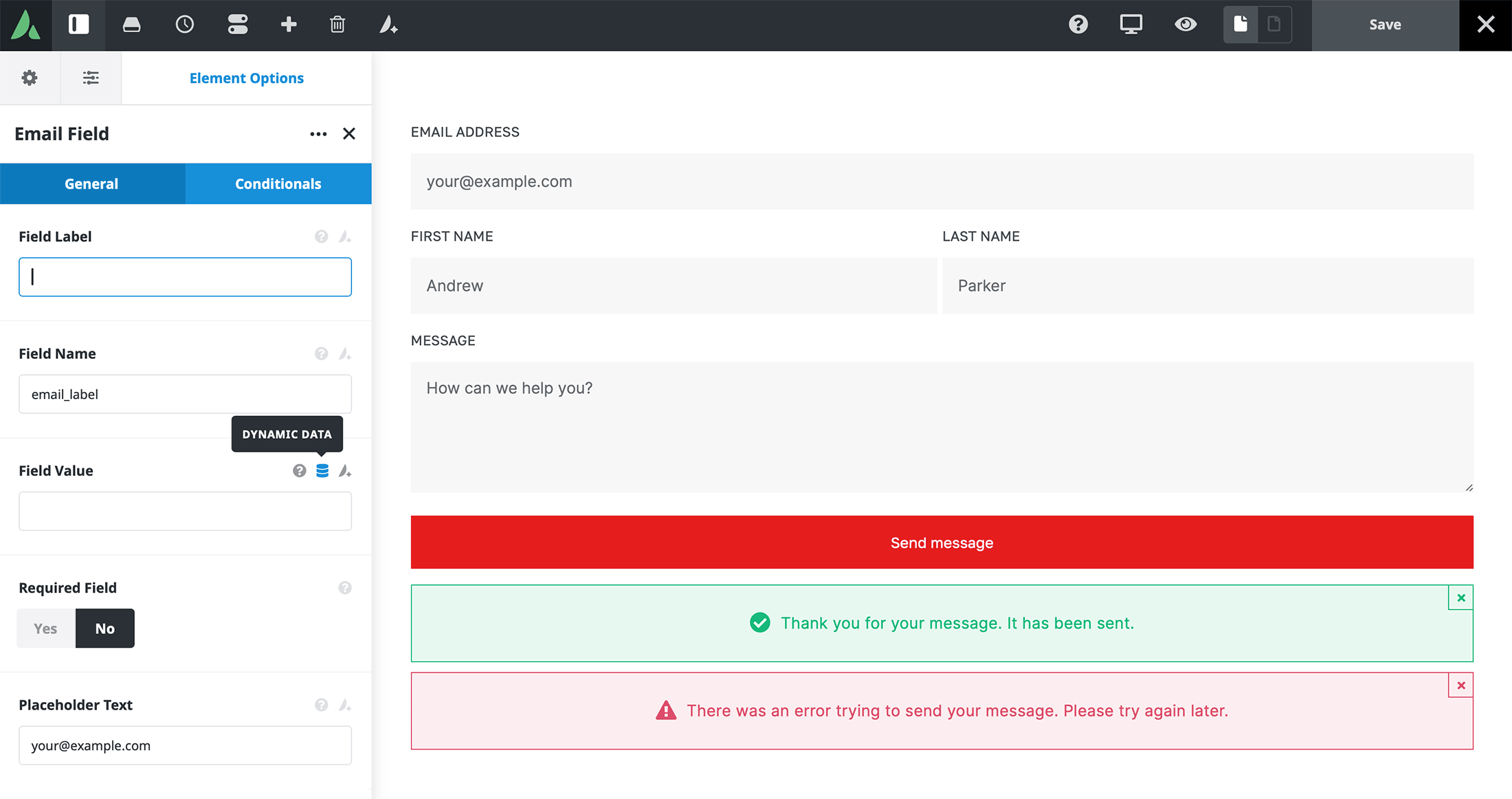
You can add dynamic data inside the Avada Builder anywhere you see the database icon:
This is found in options where you can add content. Titles, text blocks, images, content areas in content boxes, etc. It’s all about replacing static content with dynamic content. The whole point of dynamic content is that it can pull data directly from your database. For example, if you assign a dynamic title to a post and later update its name, the page title will update automatically.
The dynamic data options are contextual: on a blog post, portfolio item, or WooCommerce product, you will see options relevant to those specific custom post types, while on an image, you will only have options relevant to images. The dynamic content can also come from custom fields, which opens a world of possibilities. So, if you had an ACF plugin installed and had set image inputs, they would also be shown as an option for an image.
Use Case Example 1
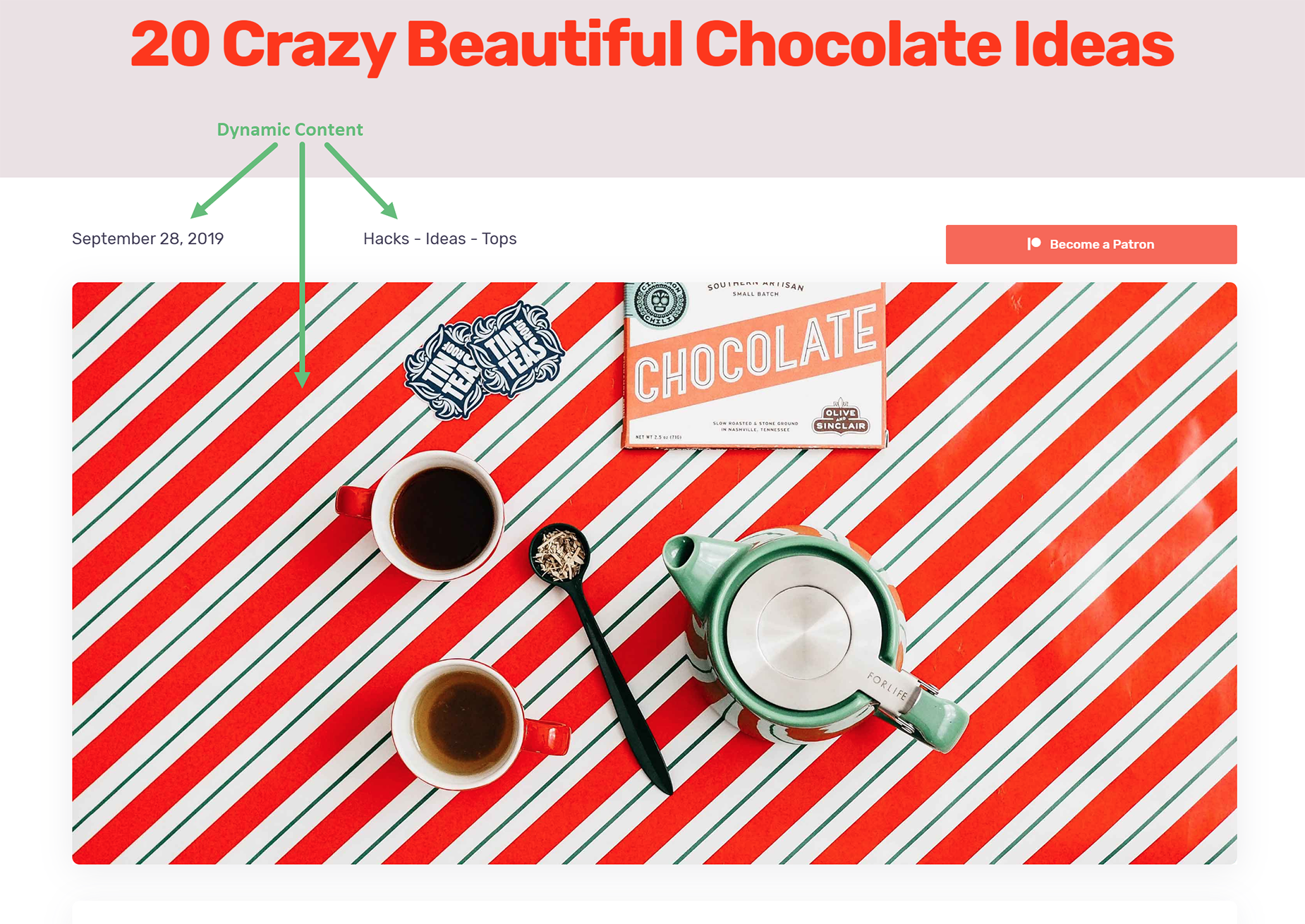
The first example we will look at is this single post layout for the Avada Influencer prebuilt website. As shown in the image, the top of the blog post contains three areas with dynamic data. The top row is an Avada Nested Column Element with a 1/4-1/2-1/4 layout.
In the first Column, where we see the “Date”, there is an Avada Text Block Element that dynamically pulls in the “Post Date”. The Column next to that is also a Text Block Element that pulls from the “Post Terms Dynamic Content Type” and displays the blog post “Categories”. And finally, the large image is the blog post’s featured image, inserted as dynamic data. Let’s take a look at how this has been implemented.
The Post Date
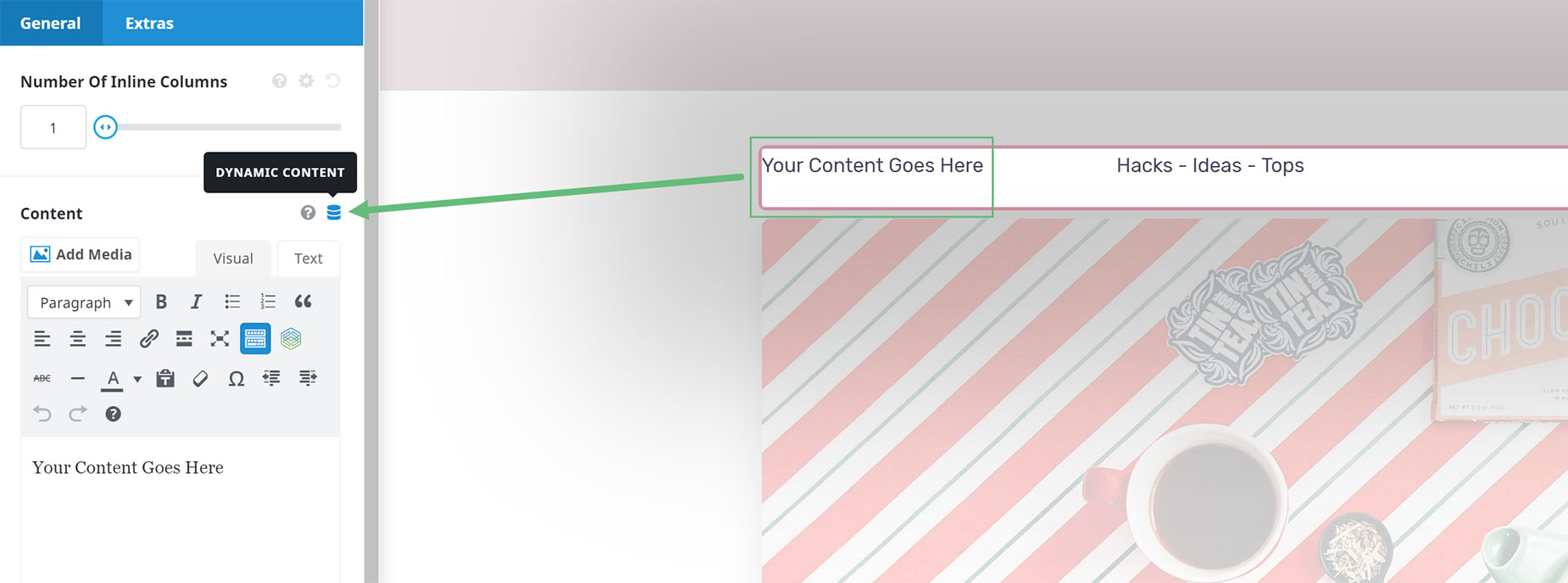
To add the first Dynamic Content area, an Avada Text Block Element was used. See below: the Content Area of the Text Block Element has a Database Icon, indicating that Dynamic Content can be used for that option.
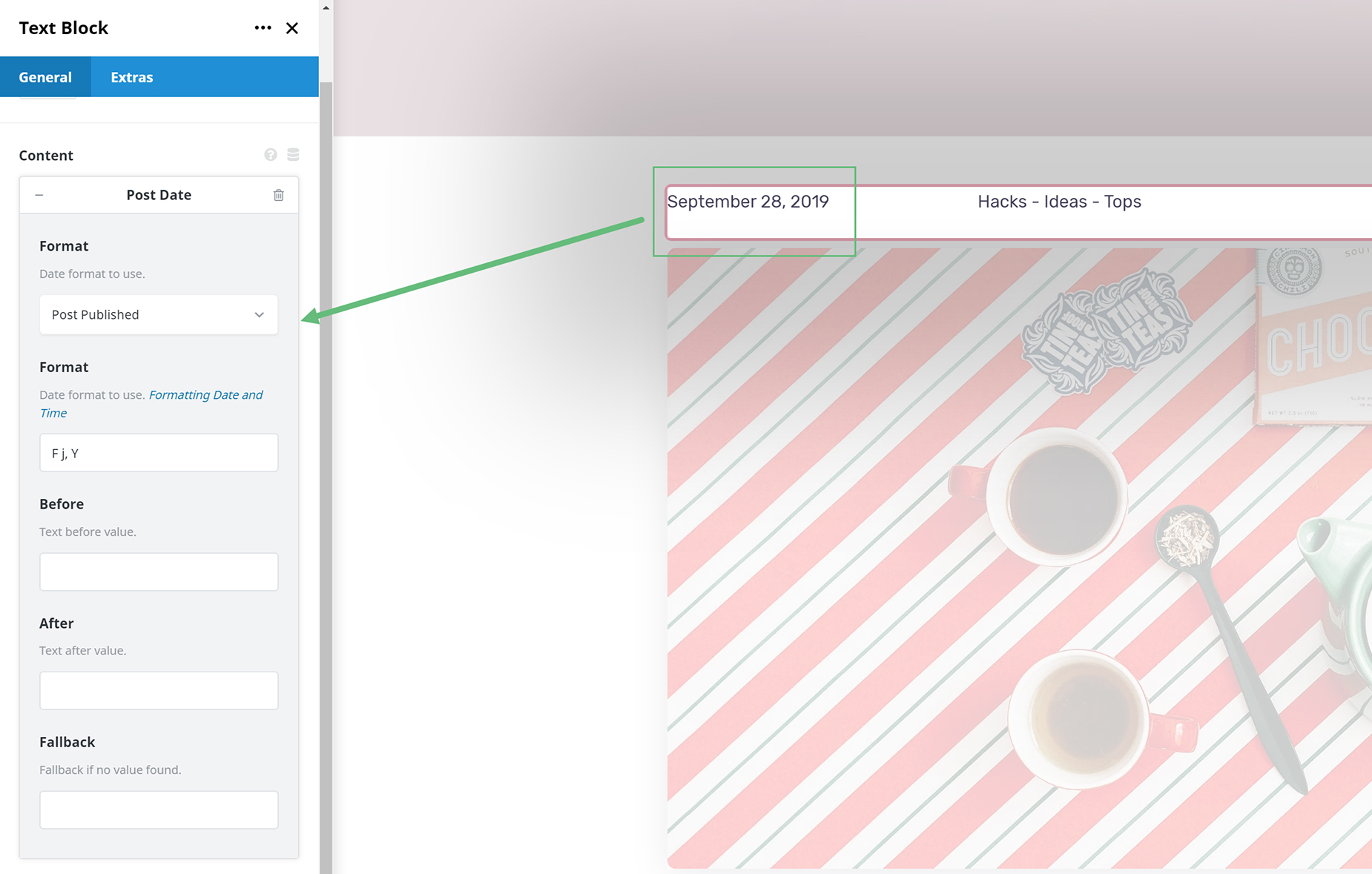
As shown in the screenshot below, the “Post Date Dynamic Content Type” was selected, and the “Post Published” date format was set to display. The “Format” option also controls how the date displays on the post.
The Post Categories
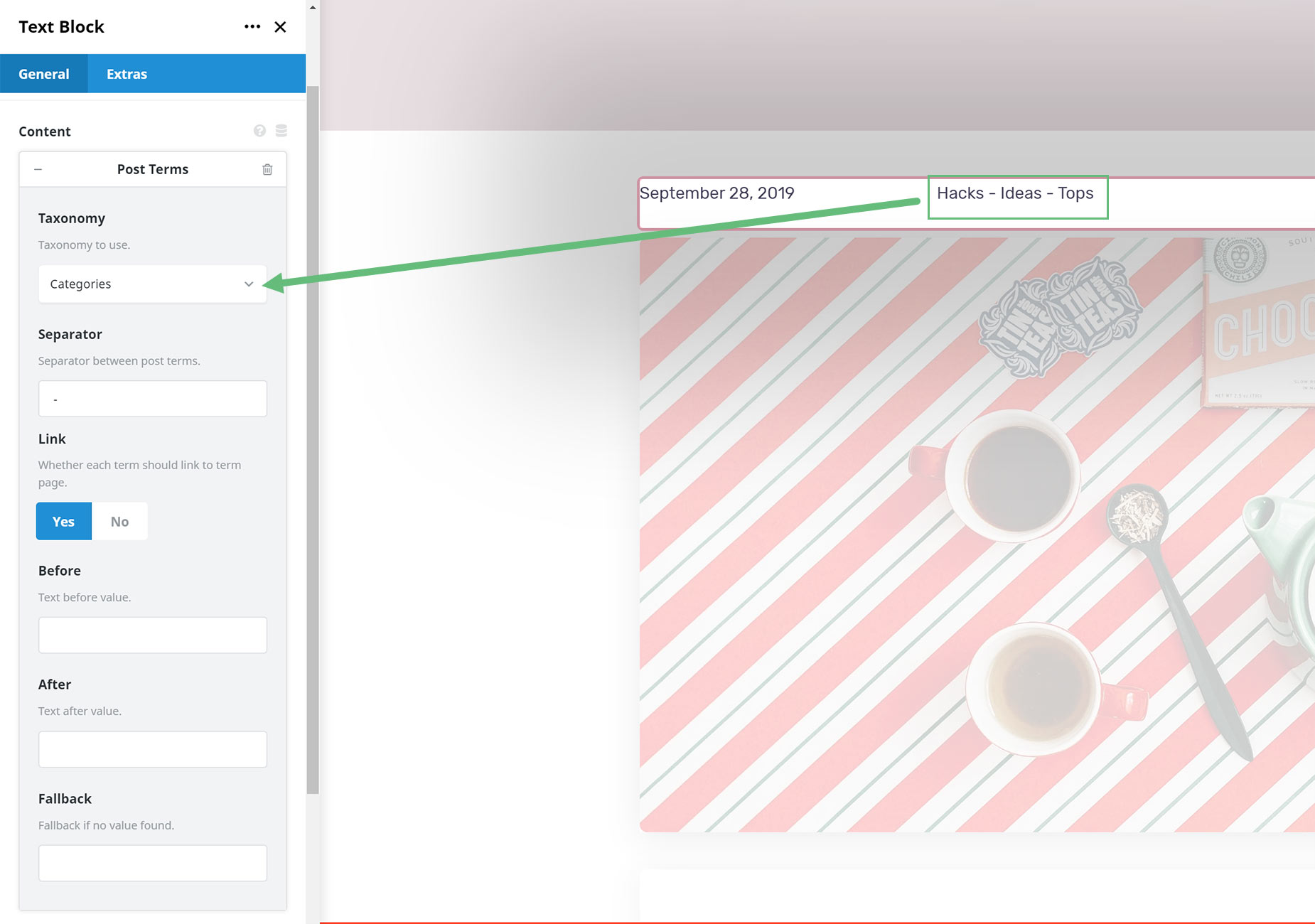
For the second area of dynamic content, another Text Block Element was added, and the “Post Terms” Dynamic Data Type was selected, with the taxonomy set to “Categories”. The Separator field was also populated to control how the categories are separated on the post.
Note that there is an option for categories to link to a term page, as well as fields for Before and After text. This would be static text displayed before or after the dynamically generated content.
The Post Featured Image
For the post image, the “Featured Image” dynamic data option type was selected. There are no other Dynamic Data Types for the image field here, but as mentioned earlier, if you have the ACF Pro plugin installed and an image type is registered, it would also appear here.
The beauty of this setup, aside from the fact that the content will automatically update if the featured image is changed or, for instance, additional categories are added, is that this post’s content could also be replicated in another post. Then, only the post content below the featured image would need to be edited, because the Post Title is pulled automatically from the Page Titlebar, and the date, categories, and featured image are pulled directly from the new post.

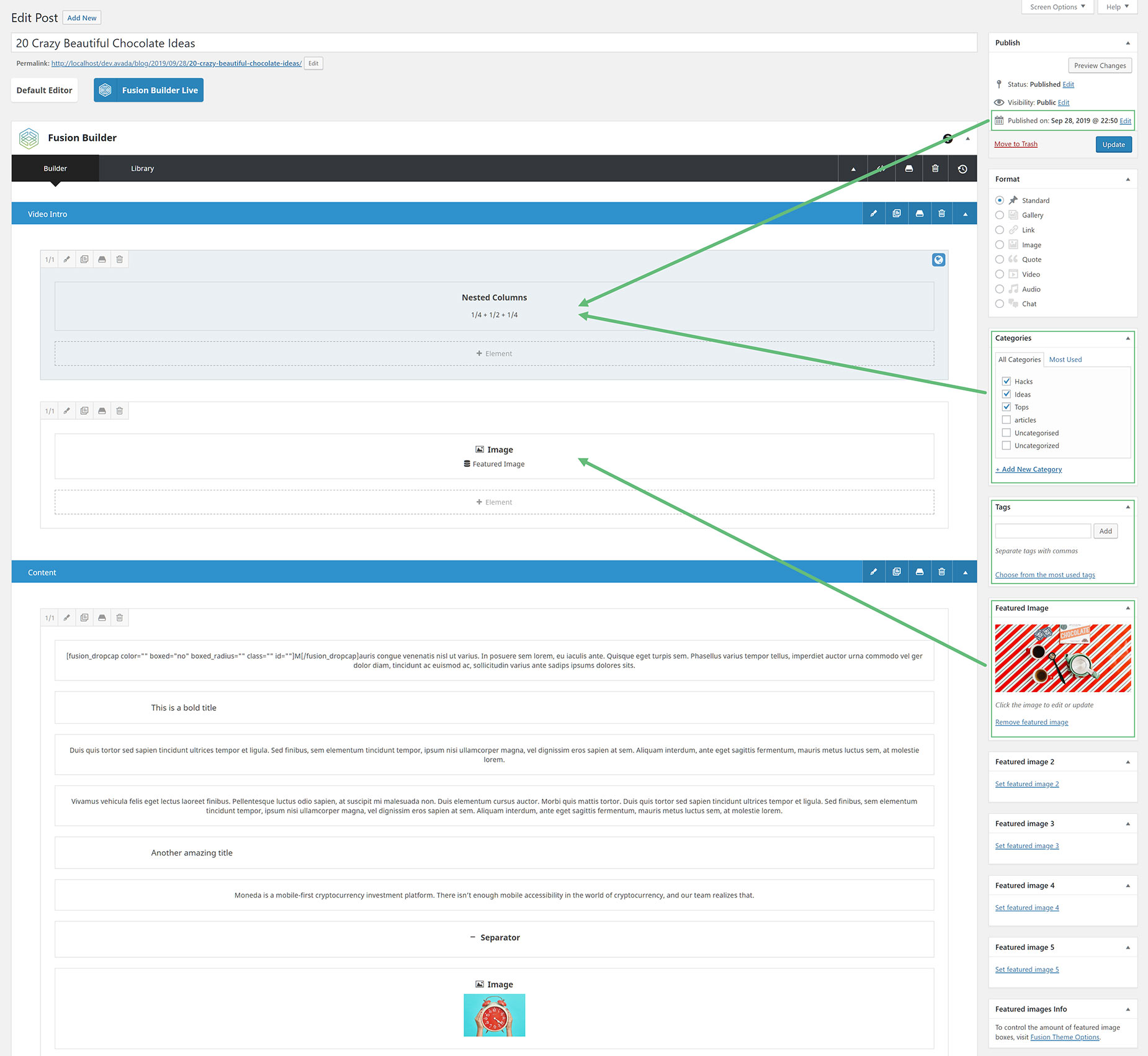
If we look at the back end of the post, we can easily see where this dynamic data originates. The post date and time section, categories, and featured image set here will automatically appear on the page if edited. Also, the tags section, while not used in this post, could also be a dynamic data area.
Use Case Example 2
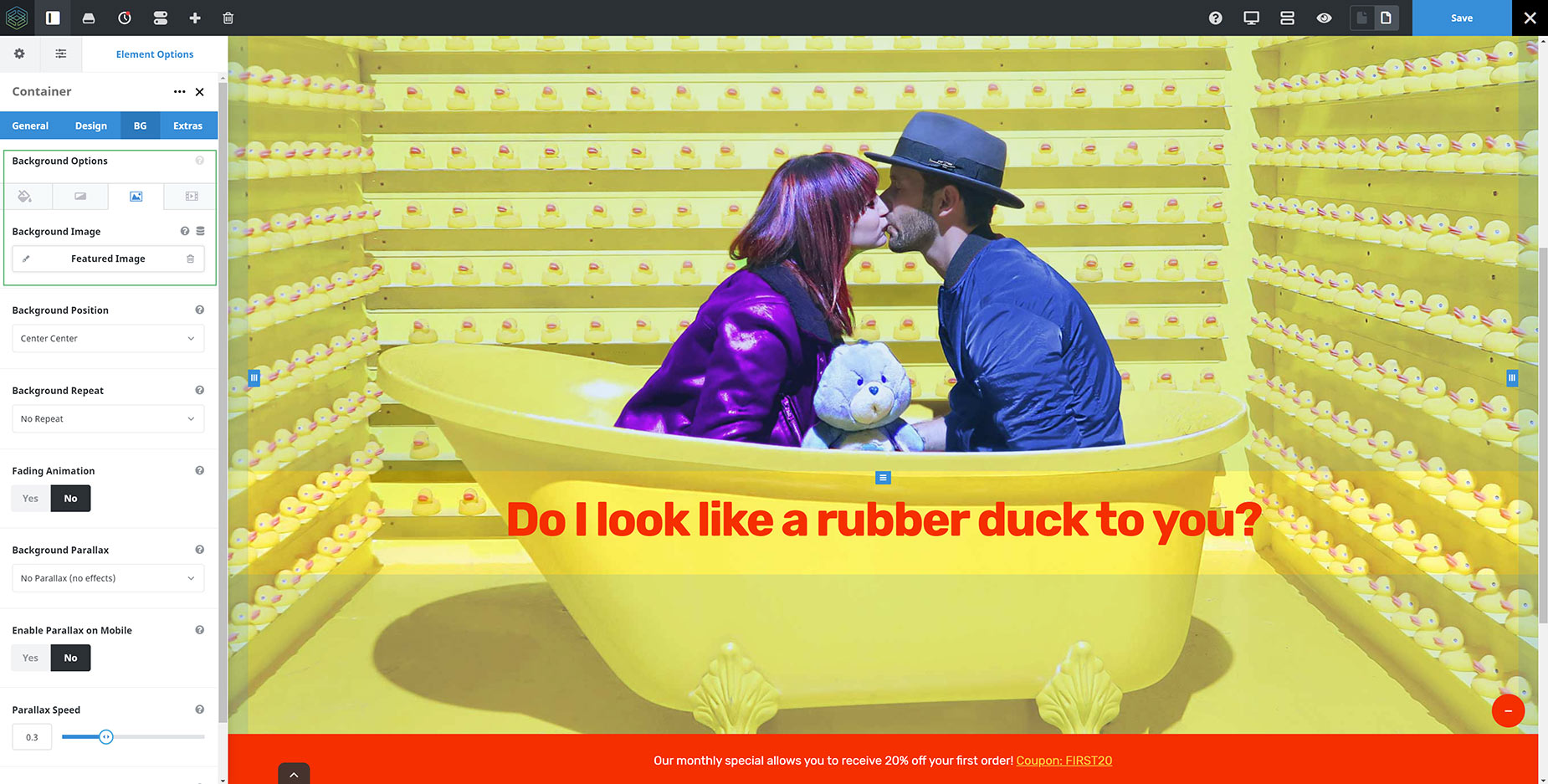
Another simple example of using dynamic data is shown below, where the “Featured Image” dynamic data type is used as the Avada Container Element background image. This was added in the BG tab of the Container Element, and under the Image tab, the Background Image option was populated with the dynamic data.