
How To Use AI Write in Avada AI

Last Update: October 13, 2026

AI Write helps you create, refine, and adapt website copy directly within Avada AI. It is most useful when you have a clear message or rough draft and want to turn it into polished, audience-focused content without leaving your website workflow.

Where to access AI Write

There are two ways to open AI Write, depending on the task you want to complete:

  • From the Avada Dashboard: Open the Avada dashboard in WordPress and choose the AI tools area. This is a convenient starting point when you want to work with AI before entering a specific page or builder screen.
  • From Avada Live Chat: Open Avada Live Chat > Tools > Write. This route gives you direct access to the writing tool while you are working in the live editing environment.

Use the dashboard when you are exploring or starting a broader content task. Use Avada Live Chat > Tools > Write when you are already editing and want to generate or improve copy as part of that workflow.
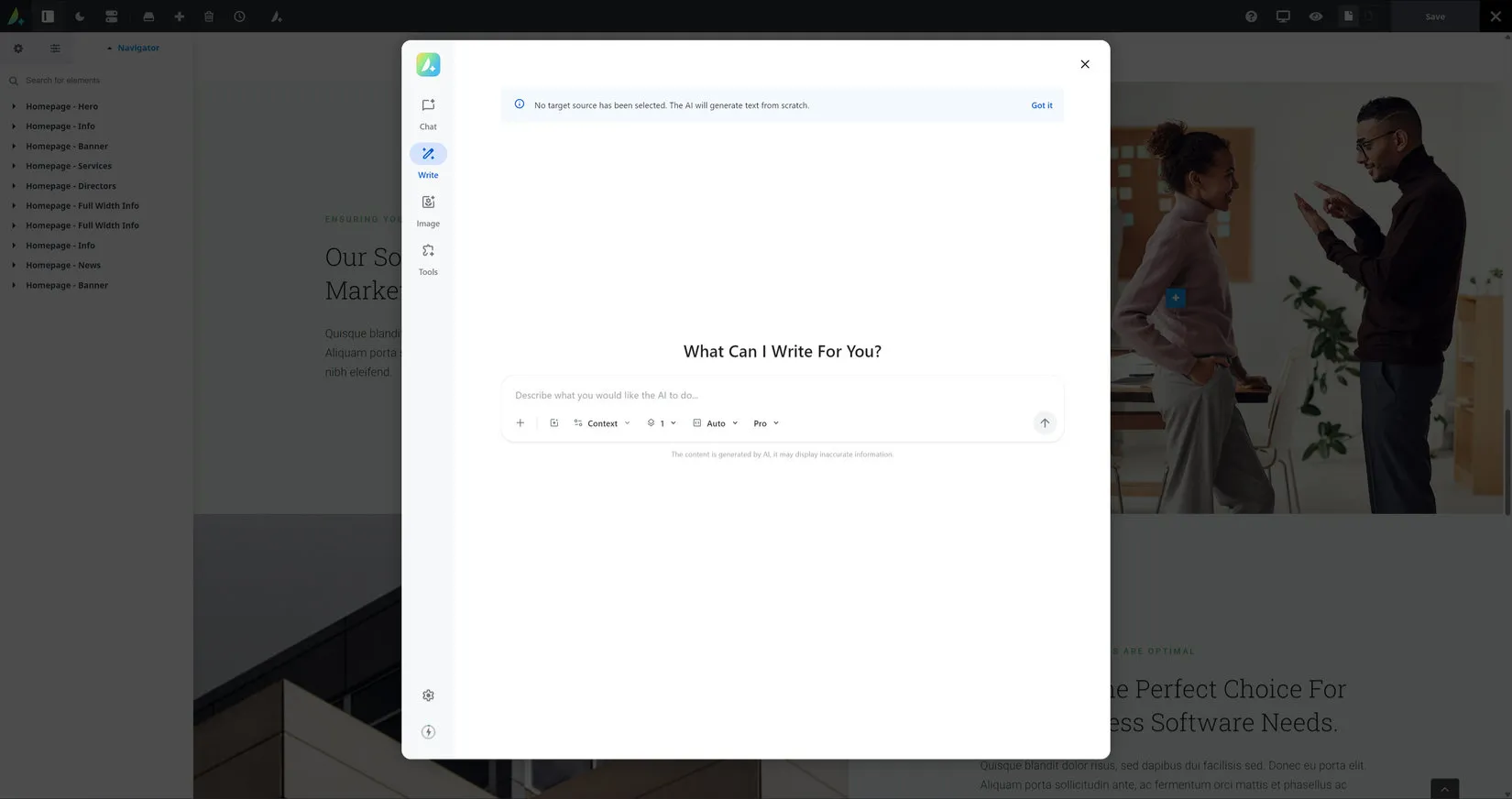
Avada AI - Write

Prompt Options

When writing your prompt, there are a range of options you can choose which affect the output.
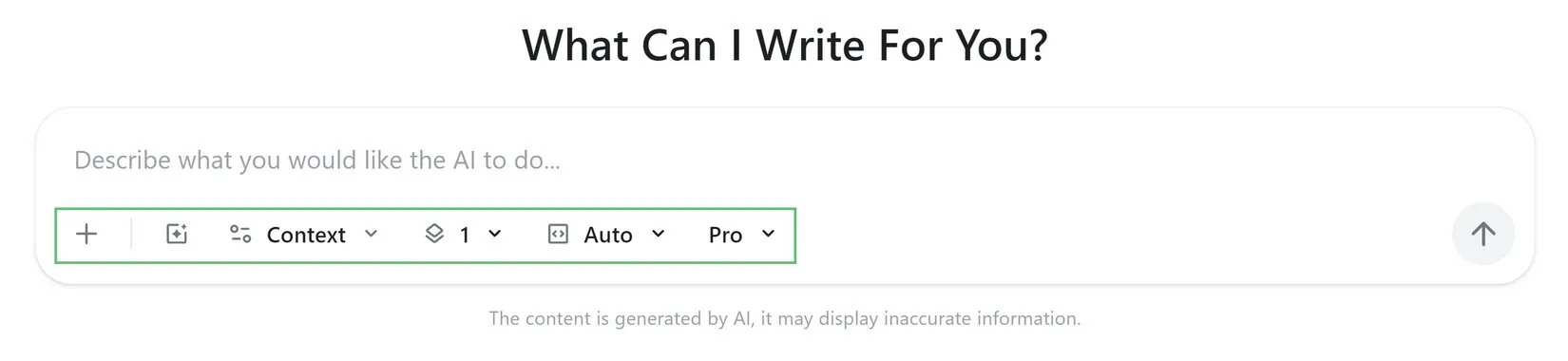
Avada AI - Write
  • Add Images: Attach reference images from your media library so AI Write can use them as visual context when creating or refining related content.
  • Presets: Apply a saved Writer Preset containing reusable instructions, context, variation settings, return type, and insert mode.
  • Additional Context: Add reusable context snippets—such as brand guidance, page content, or other site information—to make the response more relevant.
  • Variations: Generate between one and four alternative versions so you can compare different wording and choose the strongest result.
  • Return Type: Choose Auto, CSS, HTML, JavaScript, or Markdown to control the format of the generated response. Auto detects the format from the field you are editing.
  • Insert Mode: When AI Write is opened for an existing field, choose Replace to overwrite its content or Append to add the generated result after it.

What AI Write is best used for

AI Write works especially well for focused writing tasks with a defined goal, audience, and tone. You can use it to:

  • Draft page introductions, service descriptions, calls to action, and short marketing sections.
  • Rewrite existing copy to make it clearer, more concise, more engaging, or better suited to a specific audience.
  • Change the tone of content, such as making it more professional, friendly, confident, or conversational.
  • Expand a short idea into a structured paragraph, or summarize longer copy for use in a smaller space.
  • Correct grammar, improve readability, and create variations so you can compare different approaches.
  • Adapt content for specific formats, such as a hero section, feature list, button label, or product description.

It is not a replacement for your brand strategy or subject-matter expertise. The strongest results come from giving AI Write useful context and then reviewing the output for accuracy, voice, and relevance.


A practical way to use AI Write

  • Start with the purpose. Explain what the content needs to achieve, who it is for, and where it will appear on the page.


  • Provide the source material. Include your rough draft, key points, product details, or required message instead of asking for generic copy.
  • Specify the style. Mention the preferred tone, approximate length, reading level, and any words or claims that must be included or avoided.


  • Generate or rewrite the content. Ask AI Write to create a first draft, improve your text, or produce several alternatives.
  • Edit the result. Check names, facts, links, terminology, accessibility, and alignment with your brand voice before adding the copy to the page.

Tips for better results

  • Give one clear task at a time instead of combining unrelated requests.
  • Include the intended audience and the action you want visitors to take.
  • Set practical limits, such as “write 60 words” or “give me three button label options.”
  • Ask for alternatives when the first result is close but not quite right.
  • Treat generated copy as a draft: verify factual claims and make the final wording sound like your organization.

In this article

Go to Top












































































































