
How To Use AI Chat in Avada AI
Last Update: October 19, 2026
AI Chat in Avada gives you a conversational way to work with your website. You can ask questions in everyday language, request explanations, create or improve website copy, and – when you are working in the builder – even ask Avada AI to help build content directly on the page. For more information on that, see How To Create Page Content in Avada AI. This guide explains where to find AI Chat, what each workspace is best for, and how to turn a good conversation into accurate, publish-ready content.
At a glance
Where to find AI Chat
From the Avada Dashboard
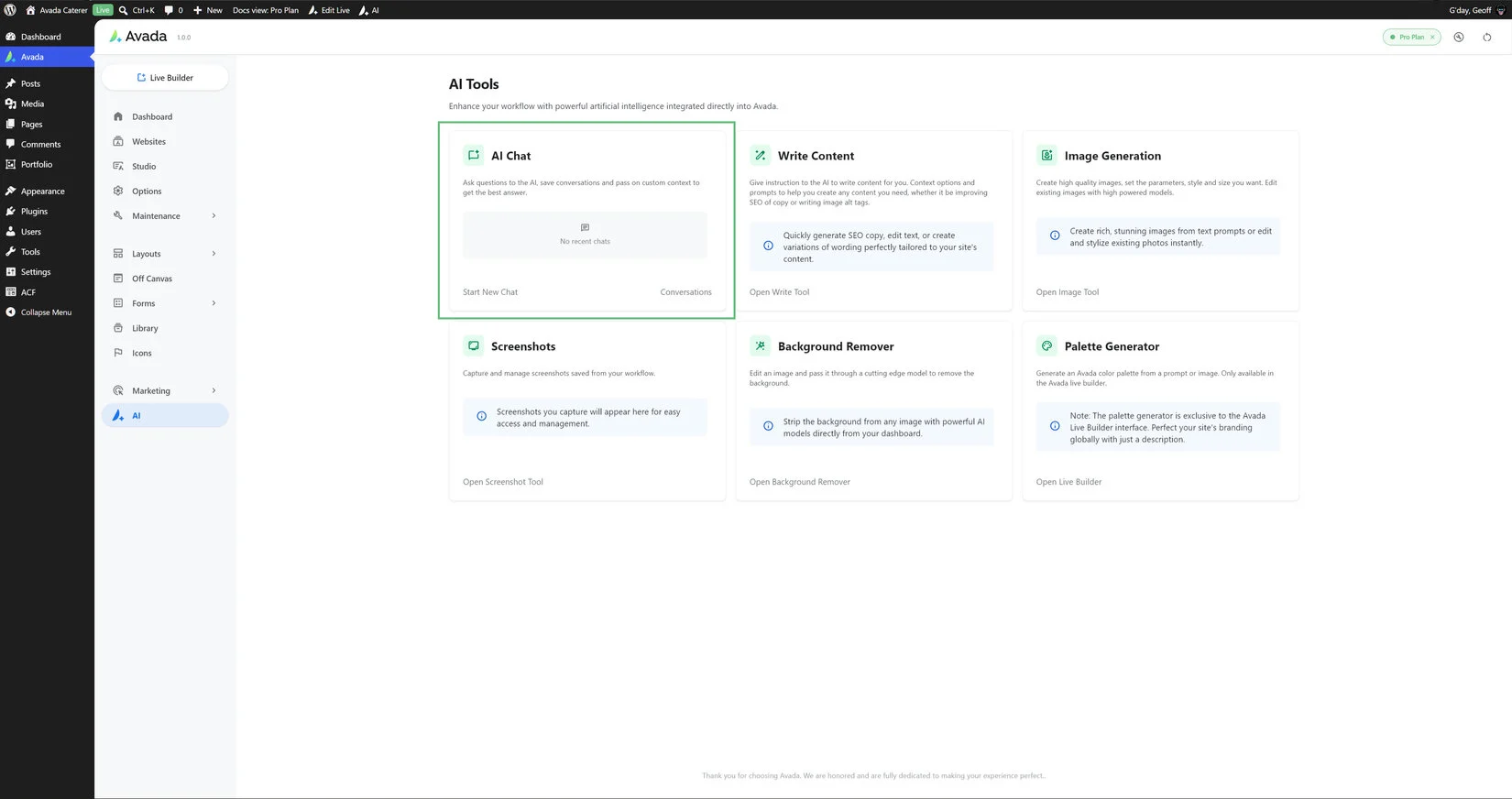
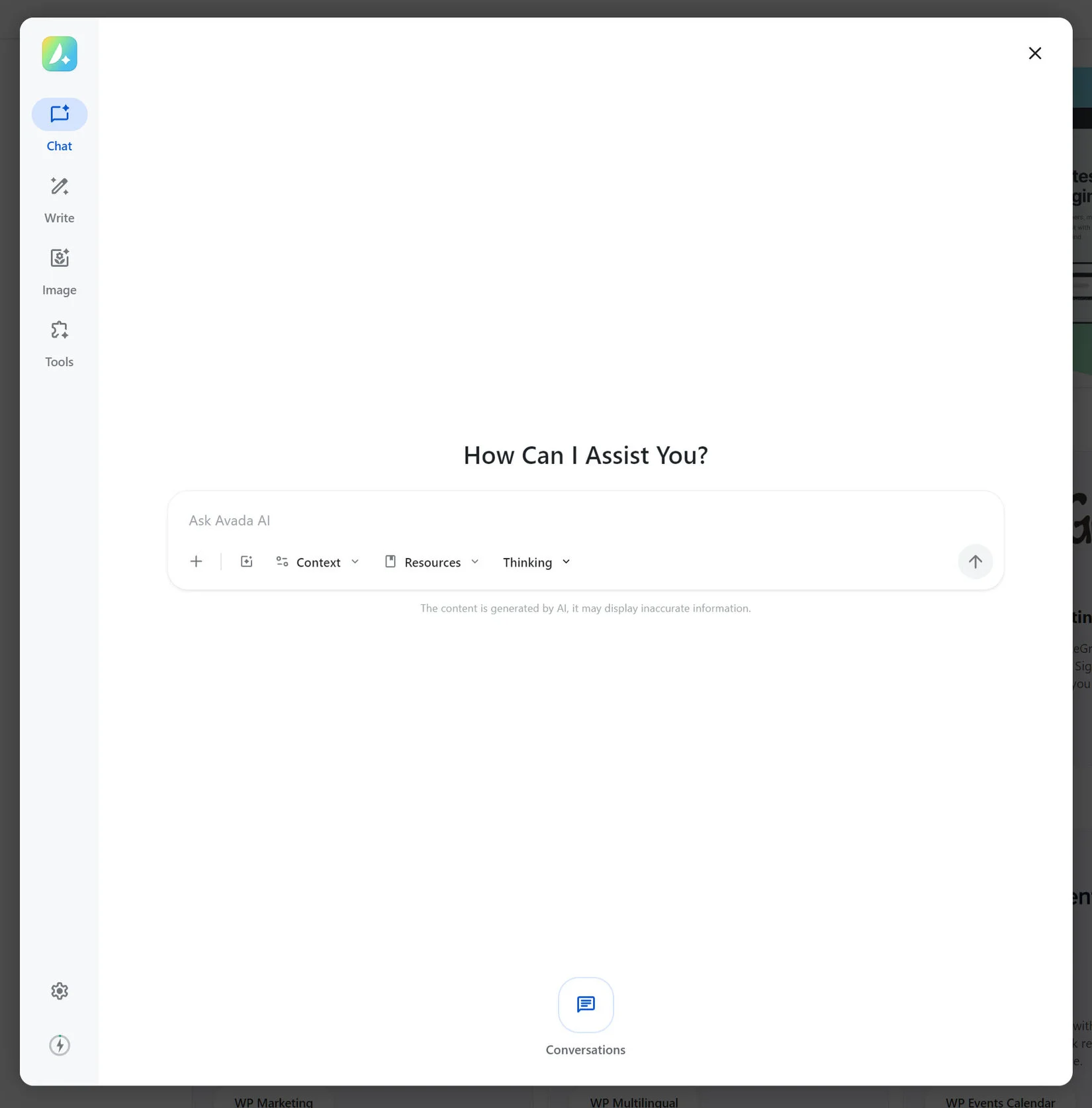
From the Avada Dashboard, click on the AI icon in the toolbar. Alternatively, you can click on AI in the Dashboard menu and choose AI Chat.
This is the best starting point when you want to have a conversation without first opening a specific page in the builder. The Dashboard workspace is useful for exploring an idea, asking how an Avada feature works, drafting content, or turning a rough brief into a structured plan before you place anything on a page.
From Avada Live
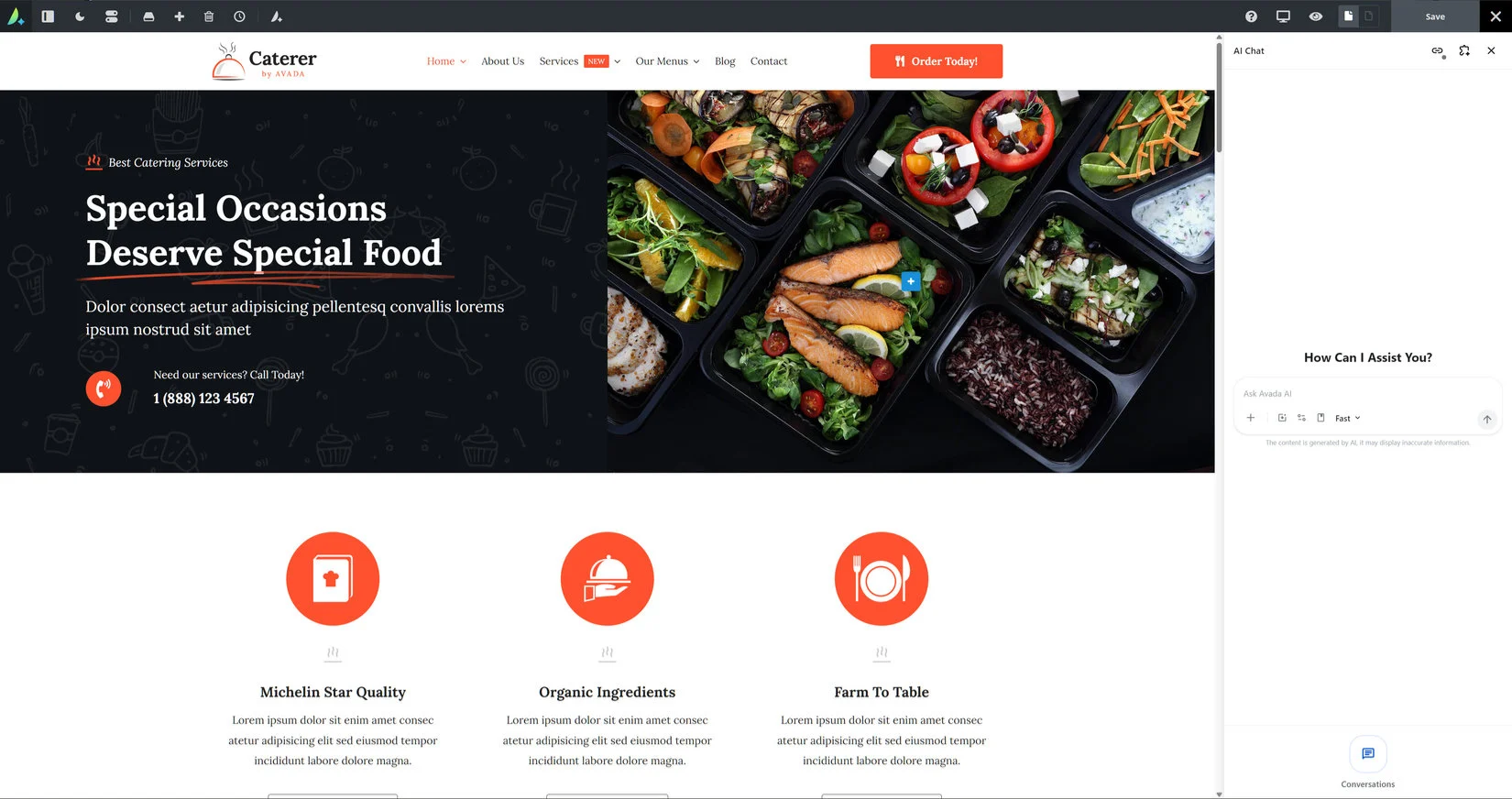
Open a page in Avada Live and launch the AI Chat interface from within the builder. AI Chat is then available alongside the page-editing experience, so your request can be connected to the content and design context of the page. This makes Avada Live the better choice when you want to create, revise, or extend content while looking at the actual layout.
Dialog or Panel
In Avada Live, AI Chat opens by deault in a sidebar panel. This is so you can still see and access full Builder controls. If you prefer, there is a Builder Preference called AI Chat Mode to change it back to a dialog.

Dashboard AI Chat and Avada Live AI Chat: what is different?
The two entry points use the same conversational approach, but they support different kinds of work. Choose the workspace based on whether you are planning and learning or actively editing a page.
Using AI Chat from the Avada Dashboard
Ask a question
Start with a direct question when you need guidance. Include the Avada feature, your goal, and the result you are trying to achieve. For example: “How can I create a two-column hero section in Avada, with text on the left, an image on the right, and buttons below the text?” You can follow up with questions such as “Which settings control the mobile layout?” or “What should I check if the image is not displaying?”
Request an explanation
Ask AI Chat to explain a feature at the level you need. You can request a quick overview, a beginner-friendly walkthrough, a parameter comparison, or troubleshooting steps. Mention what you already know so the answer does not spend time covering information you do not need.
Build content from a brief
Give AI Chat a brief instead of a vague instruction. State the page type, audience, value proposition, key points, tone, and preferred format. AI Chat can turn that information into an outline, section headings, calls to action, FAQs, feature descriptions, or a complete first draft that you can edit before publishing.
Refine the result through follow-up prompts
The first response does not have to be perfect. Ask AI Chat to make the copy shorter, clearer, more conversational, more technical, more persuasive, or more consistent with your existing wording. You can also ask it to produce alternatives, identify repetition, improve scannability, or convert paragraphs into a checklist.
Using AI Chat in Avada Live
Answer questions while you edit
In Avada Live, ask questions about the page you are working on or about the next design decision you want to make. For example, ask for a clearer section hierarchy, suggestions for improving a crowded hero, or ideas for making a call-to-action section easier to scan on mobile. Because you are working in the builder, you can compare the recommendation with the live layout as you iterate.
Create new page content
Ask AI Chat to build a section that fits the page purpose, such as an introduction, services overview, process section, testimonial area, FAQ, or closing call to action. Describe the content and the visual role of the section. A strong request includes the desired number of columns, the types of Avada Elements you want, the tone of the copy, and any existing colors or spacing that should be respected.
Rewrite or expand existing content
Use Avada Live when the page already contains content that needs improvement. Ask AI Chat to rewrite a heading, clarify a paragraph, expand a short section, create supporting FAQs, or turn a long block of text into headings and scannable lists. When possible, identify the exact content or element you want changed and explain what must remain unchanged, such as a product name, legal wording, statistic, or link.
Iterate visually
After a change is made, inspect the page at desktop, tablet, and phone widths. If the result is close but not right, give a targeted follow-up request: “Keep the copy, but reduce the visual density,” “Keep the two-column structure, but add more space above the heading,” or “Make the buttons align consistently on mobile.” Small, precise iterations usually produce better results than asking for an entirely new design each time.
What AI Chat can help you do
How to write a useful prompt
A useful prompt gives AI Chat enough context to make a specific decision. Include as many of these details as apply:
Prompt examples
For an explanation: “Explain the difference between a container, column, and element in Avada. Use a short analogy, then give one practical example.”
For content: “Write an 80-word introduction for a local architecture studio. Speak to homeowners planning a renovation. Use a confident, welcoming tone and end with a clear invitation to explore the studio’s work.”
For a page section: “Create a services section for a small accounting firm. Use a heading, a short introduction, four service items with concise descriptions, and a button leading to the contact page. Keep the tone professional and approachable.”
For refinement: “Keep the meaning and all service names, but reduce this copy by 35%, remove repeated ideas, and make each paragraph easier to scan on a phone.”
A practical workflow from idea to published page
Important review and safety checks
AI Chat can accelerate planning and production, but you remain responsible for the final website. Verify factual claims, spelling, names, links, accessibility, brand compliance, and legal or regulated content. Do not assume that an answer is correct simply because it is confidently written. For page-building requests, check that the generated structure uses the intended elements, that no important existing content was removed, and that the result works at different screen sizes. Keep sensitive information out of prompts unless you are authorized to share it and the site’s policies permit its use.


















































































































