
How To Create Page Content with Avada AI
Last Update: October 19, 2026
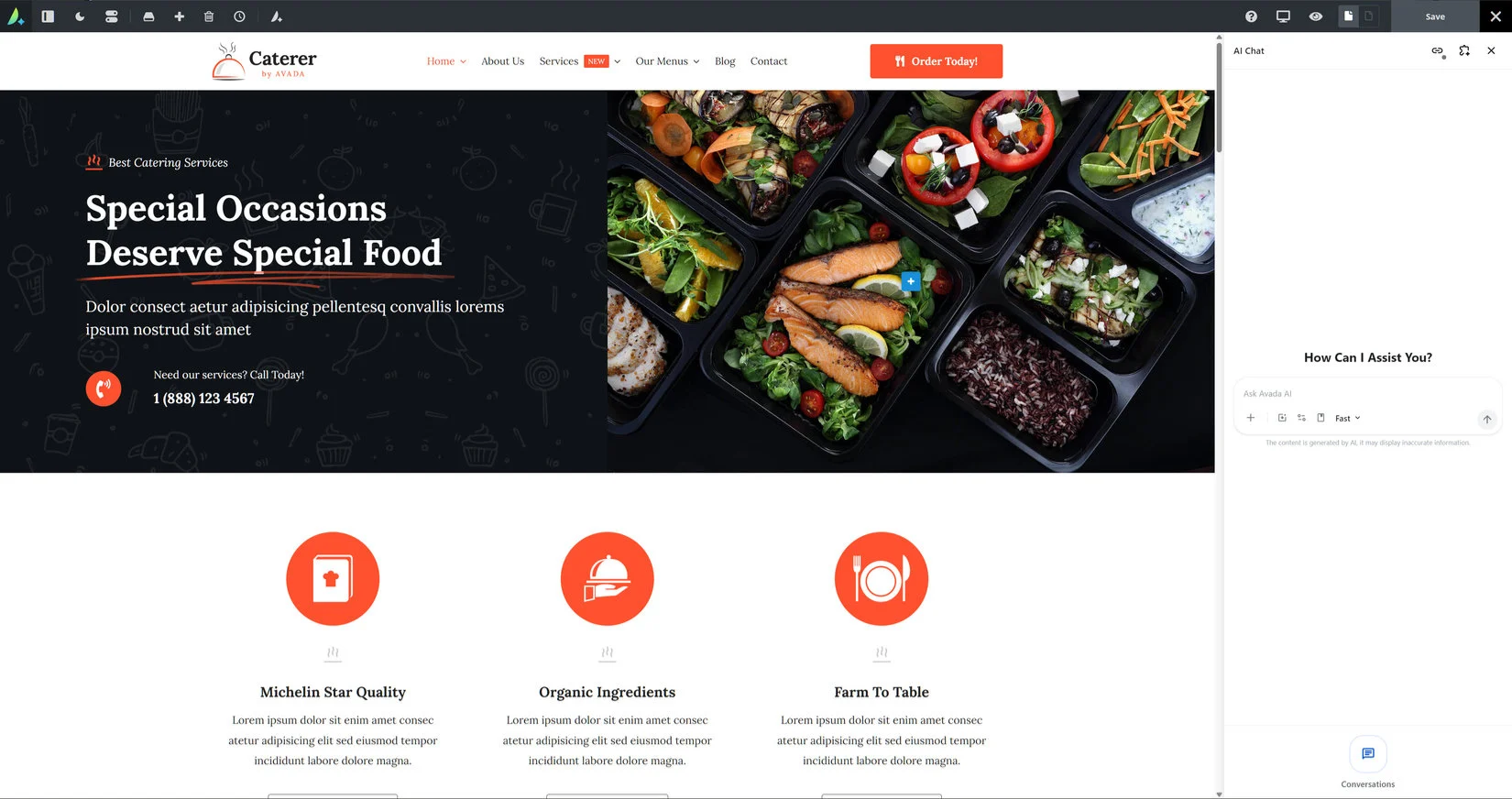
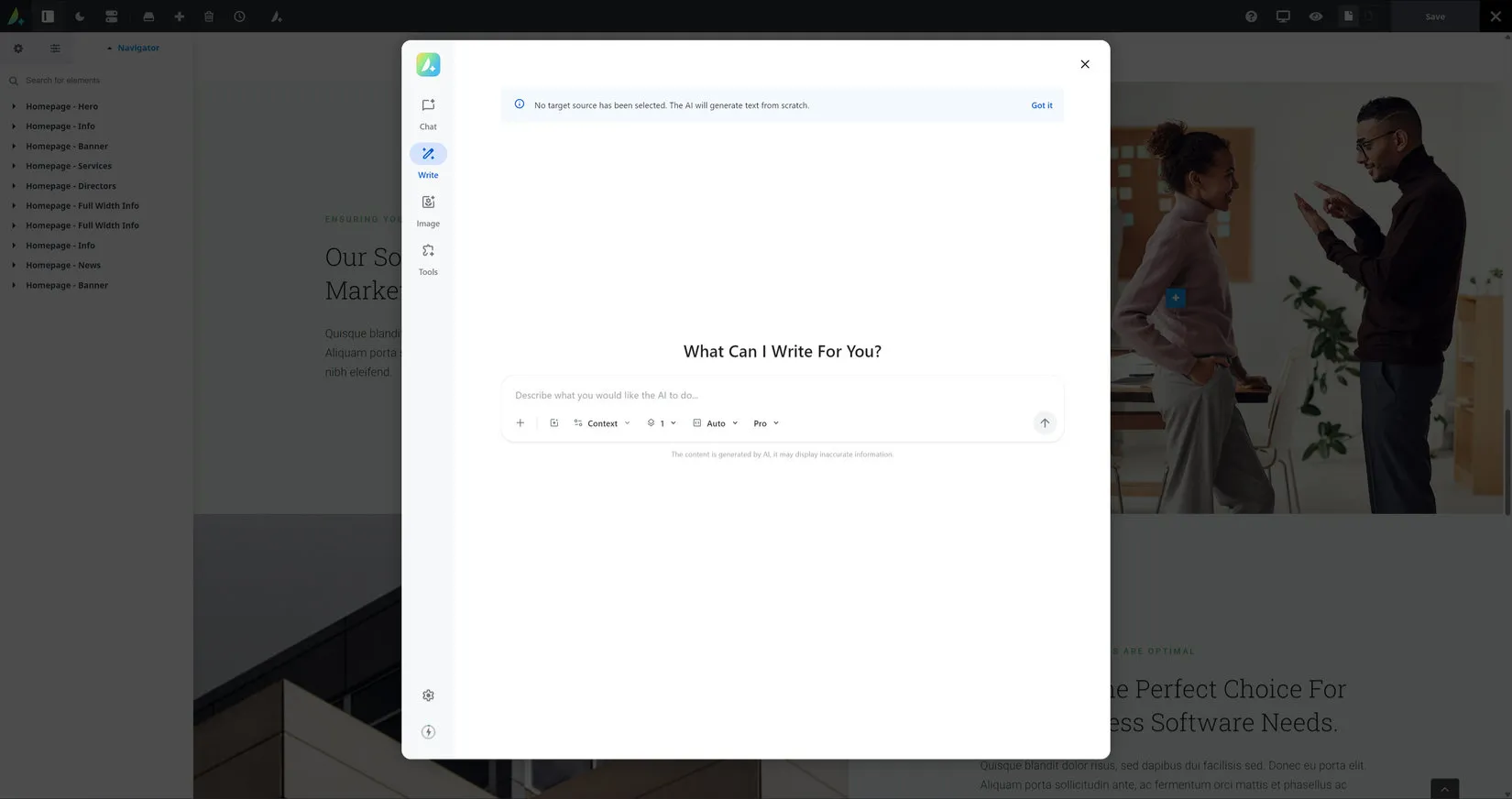
Avada AI and the Live Builder can work together to help you plan, create, edit, and refine page content directly in the Builder. You can generate complete sections, add individual elements, adjust existing layouts, work with images, and refine content without leaving the Builder.
The best results come from combining clear instructions with accurate page context. Describe what the section should accomplish, who it is for, what content it needs, and how it should fit into the existing page.
What You Can Create in the Live Builder
Avada AI can work with both complete pages, sections and individual Avada Elements. You can start with a blank area or refine content that already exists.
Complete page sections
Build hero areas, feature sections, process layouts, comparison blocks, testimonials, FAQs, calls to action, and other structured content sections.
Text and interaction
Add headings, paragraphs, labels, lists, notices, buttons, accordions, toggles, links, and other components that help visitors understand and use the page.
Visual and repeated content
Add screenshots, icons, separators, image elements, repeated cards, process steps, and template content that uses dynamic data.
Context Determines the Quality of the Result
A technically valid section is not automatically a useful section. The Live Builder needs enough context to understand how the requested content should function on the page.
Useful context to provide
Example Prompt
“Create a full-width tutorial section for beginners. Add a concise heading, three short paragraphs, a full-width image, and a button linking to the documentation. Match the spacing and typography already used on this page.”
A Reliable Live Builder Workflow
A predictable process produces better results than asking for a large number of unrelated changes at once.
Adding Images Without Breaking the Layout
Images should support the content rather than create layout instability. Use an image from the Media Library whenever an appropriate asset already exists.
Wide interface screenshots work well at 16:9. Images beside explanatory text can use 4:3. Square graphics can use 1:1, while tall mobile artwork can use 9:16. The image element can crop an asset to the selected ratio without stretching it.
Ways to Add and Shape Page Content
Choose the operation that matches the job so the page stays predictable.
Add a new section
Use a new container when the page needs a distinct block with its own spacing and content hierarchy. Keep the content in a full-width column so headings, text, images, and controls follow one clear vertical flow.
Add content to an existing section
Place the new element at the end of the existing full-width column or beside the correct sibling. This is appropriate for adding an image, inserting a separator, or adding a call to action without changing unrelated content.
Edit, duplicate, move, or delete
Edit changes only the requested attributes or visible copy. Duplicate is useful for repeated content, followed by an edit to make each copy unique. Move changes structure without rewriting content. Delete removes an item and its nested content.
Use dynamic content for templates
Post cards, archives, and custom post type designs should bind to dynamic data rather than hard-coded titles, images, terms, prices, or permalinks. Custom fields and meta keys must be supplied accurately.
Use reusable content when it belongs outside the page
Post card designs, forms, Off Canvas panels, reusable sections, columns, and elements can be stored independently and reused where appropriate.
What Avada AI Does Not Complete Automatically
Avada AI can create and modify page content, but some site-wide and administrative tasks remain separate.

Before You Save or Publish
Use this checklist as the final quality review for content created with Avada AI and the Live Builder.
Build With Intent, Then Refine Visually
Avada AI is most effective when it is used as part of a clear design process. Start with context, request a complete content unit, use the existing site system, review the result in the Live Builder, and make focused refinements before saving.


















































































































