
How To Generate Images With Avada AI

Last Update: October 19, 2026

Avada AI Image Generation helps you create new visuals from a written description or transform an image you provide. This guide explains where to find the tool, how to write effective prompts, what each control does, how image quality affects both results and credit usage, and what to check before publishing an AI-generated image.

Use the tool for concept images, editorial illustrations, campaign artwork, background visuals, product mood boards, and other original creative assets. Treat every result as a draft to review: inspect faces, hands, lettering, logos, fine details, cropping, and whether the image is appropriate for the page.

Accessing Avada AI Image Generation

Avada AI uses one shared AI panel with tabs such as Home, Chat, Write, Image, and Tools. Open the Image tab to generate a new image. You can also open image generation from the Media Library by selecting Generate with Avada AI next to Add Media File.
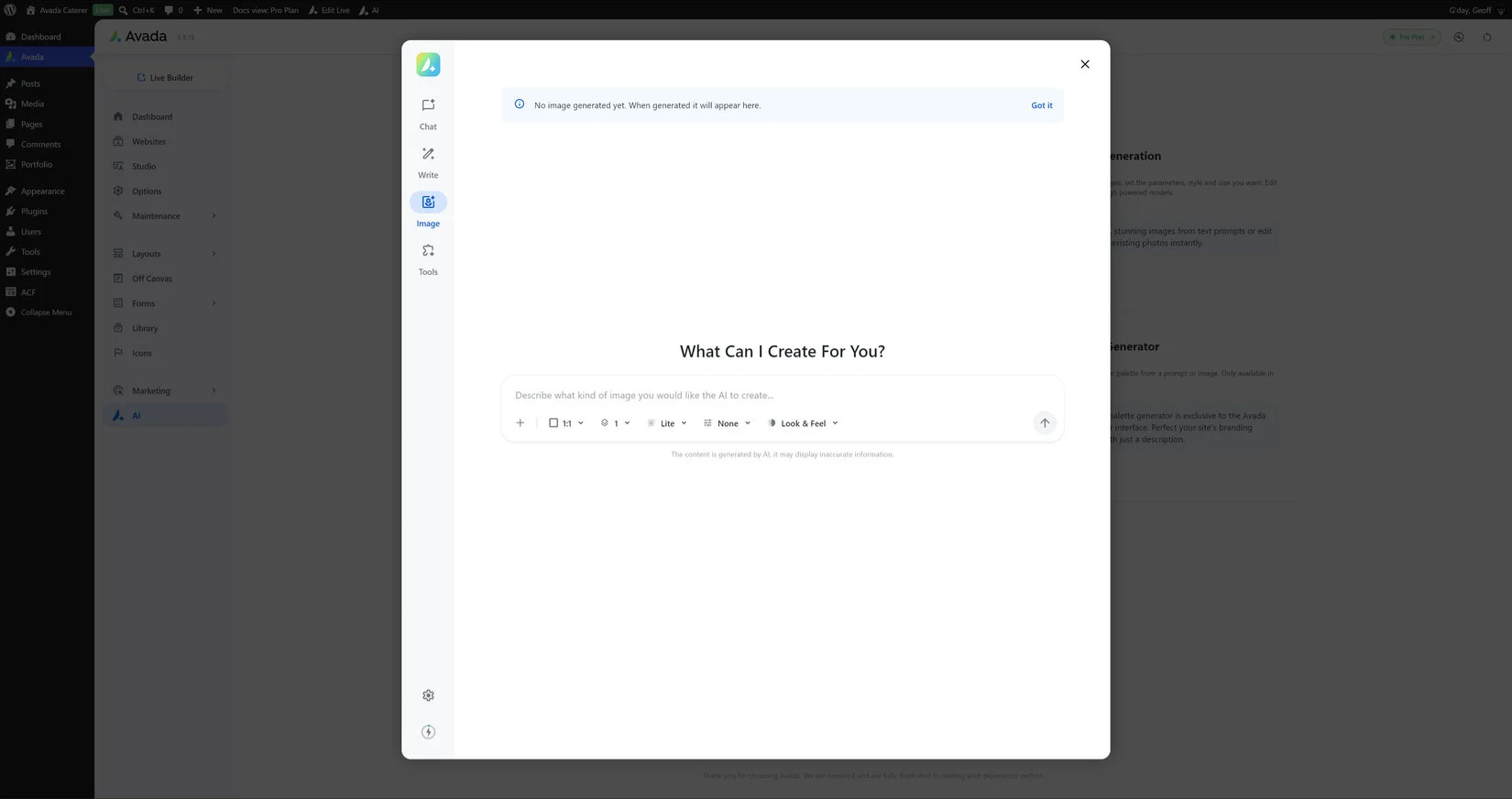
Write the Prompt

The prompt is the written instruction that describes the image you want. Be specific about the subject, setting, composition, lighting, mood, color direction, materials, camera viewpoint, and intended use. A useful prompt normally answers five questions:

  • What: the main subject, object, person, place, or scene.
  • Where: the environment, background, season, or time of day.
  • How: the composition, viewpoint, lens feel, distance, and arrangement.
  • What mood: calm, energetic, premium, playful, dramatic, editorial, or documentary.
  • What finish: photorealistic, product photography, digital painting, watercolor, collage, 3D render, or another visual treatment.

For a website hero, also describe the layout requirement: for example, ask for the subject on the right with clean negative space on the left for a heading. For a card image, request a simple focal point and a composition that remains legible when cropped.

Prefer concrete descriptions over vague requests. “A quiet coastal cabin at sunrise, viewed from the water, warm window light, muted blue and sand palette, editorial travel photography, generous sky above the roofline” gives the model more useful direction than “a beautiful beach house.”

  • Describe one primary subject before adding secondary details.
  • State the aspect and composition you need for the page.
  • Name a visual style instead of relying on a broad adjective such as “nice.”
  • Request clean, readable space when text will be placed over the image.

Prompt Options and Controls

Below the prompt dialog, there are a range of options you can set with the prompt.
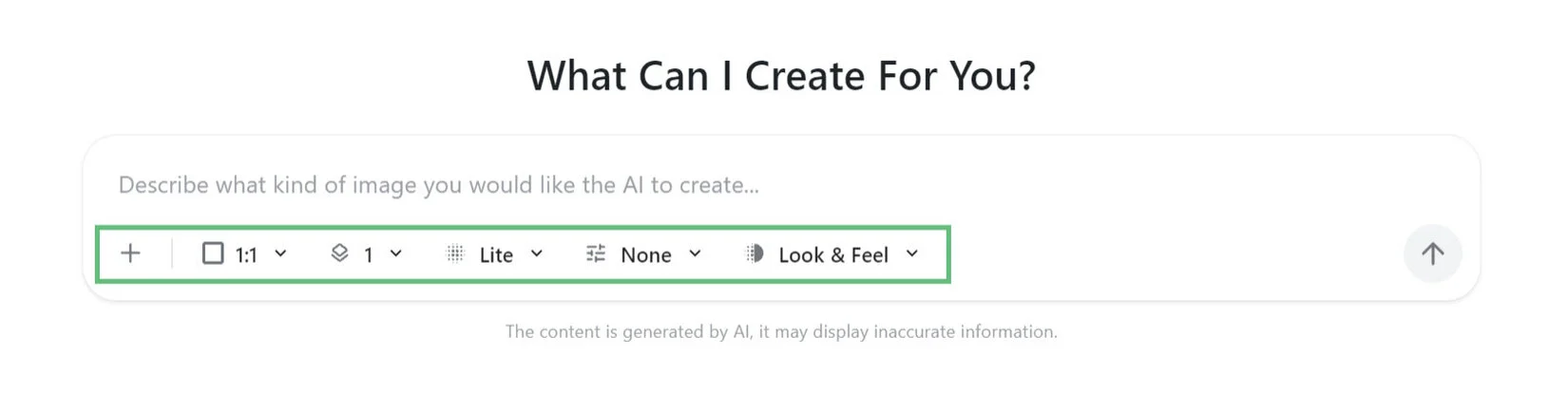
  • Add images: Attach an image from your device or select one from the Media Library. Use that mode for controlled transformations such as changing the setting, adjusting the visual style, or creating a variation while preserving the source image.

  • Aspect Ratio: Choose the proportions of the output. The default is 1:1, which suits square thumbnails, social tiles, and profile-style graphics. Use a wide ratio for hero sections and banners, a portrait ratio for posters or mobile artwork, and a more moderate landscape ratio for content placed beside text. Choose the ratio that matches the page slot so the important subject is not lost during cropping.
  • Variations: Choose from 1 to 4 images per request. One variation uses the fewest credits and is useful when the prompt is already precise. Multiple variations are useful when you want to compare compositions or select the strongest result, but each generated image is charged separately at the selected quality tier.
  • Quality: Select the rendering tier based on the purpose of the image. Quality is charged per image, so the total request cost is the selected tier multiplied by the number of variations.
  • Artistic Presets: Apply a predefined visual treatment such as Digital Painting, Watercolor, Sketch, Comic Book, Cyberpunk, Anime, Pixel Art, and other available styles. When Vector is selected in Quality, the options are Logo, Icon & Illustration. Choose None when you want the prompt to control the look without an additional preset.
  • Look & Feel: Apply a predefined visual treatment such as Digital Painting, Watercolor, Sketch, Comic Book, Cyberpunk, Anime, Pixel Art, and other available styles. Choose None when you want the prompt to control the look without an additional preset.

After generation, you can revise the prompt and generate again. Treat each revision as a new request and check the credit estimate before confirming.

Quality Levels and Credit Cost

Avada AI provides four quality tiers. The tiers differ in rendering detail, consistency, and cost per generated image. The exact visual improvement depends on the subject and prompt, but the general trade-off is speed and economy versus refinement and photorealistic detail.

Quality Credits per image Best suited to Expected result
Lite 2 Ideas, drafts, quick layout testing, simple illustrations Fastest and most economical; good for exploring direction, but fine details and complex subjects may be less consistent.
Standard 19 Everyday website imagery, editorial graphics, and polished concepts A stronger balance of detail, composition, and consistency for most general-purpose content.
High 39 Important campaign artwork, detailed scenes, and images needing stronger refinement More developed detail and a better chance of coherent complex elements, textures, and lighting.
Ultra 79 High-priority photorealistic work where realism is critical The highest-cost photo option, intended for the most demanding realistic results and fine visual fidelity.
Vector 99 High quality logo generation The highest cost option, generating svg files for quality logo output.

For multiple variations, multiply the tier cost by the number of images. For example, four Lite images cost 8 credits, four Standard images cost 76 credits, four High images cost 156 credits, and four Ultra images cost 316 credits. Start with Lite or Standard while refining the prompt, then use High or Ultra only when the concept is approved and the extra fidelity is justified.

Prompt and Image Example

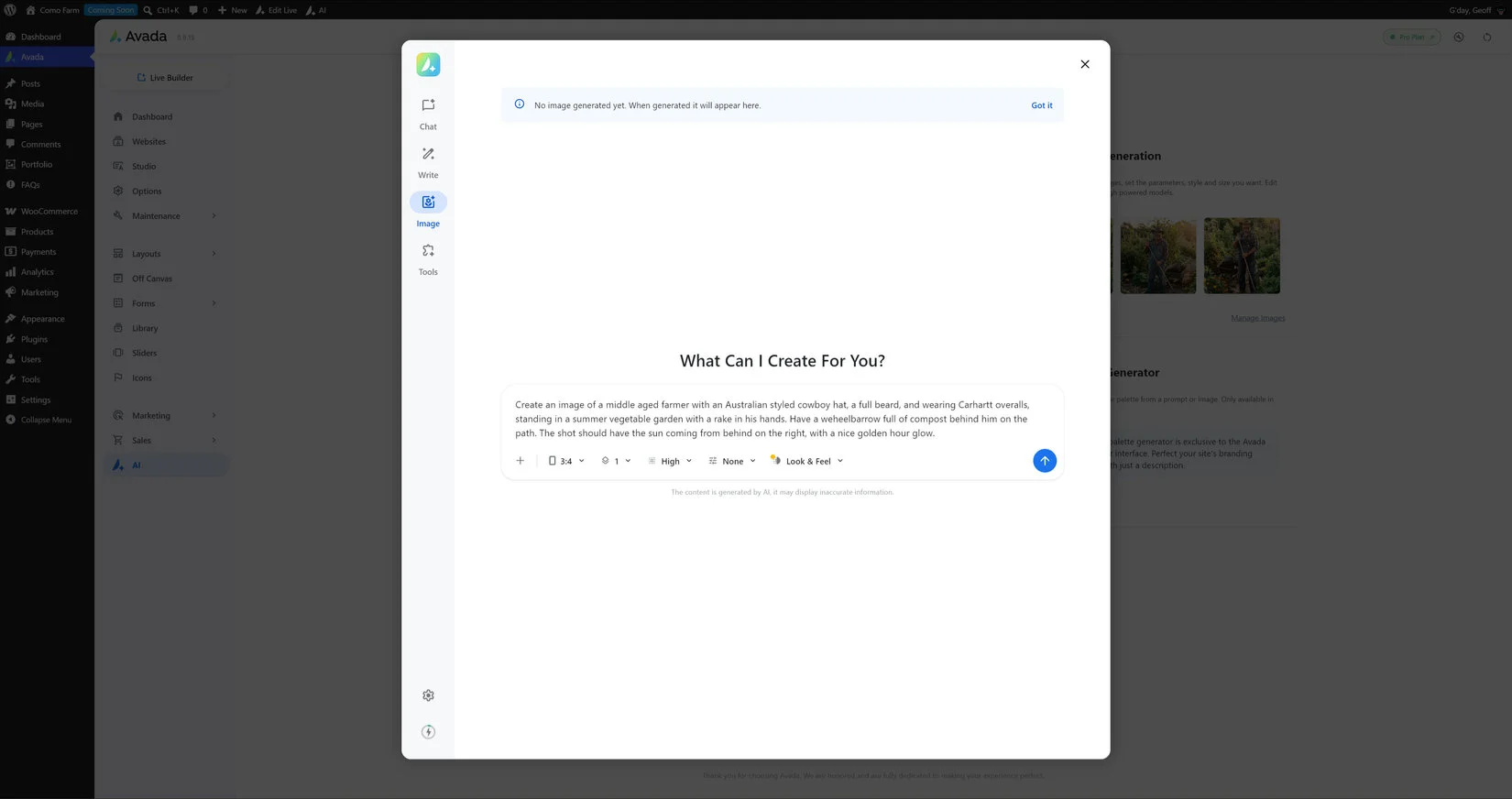
Below is an example of a specific prompt and the result achived.

The prompt was:
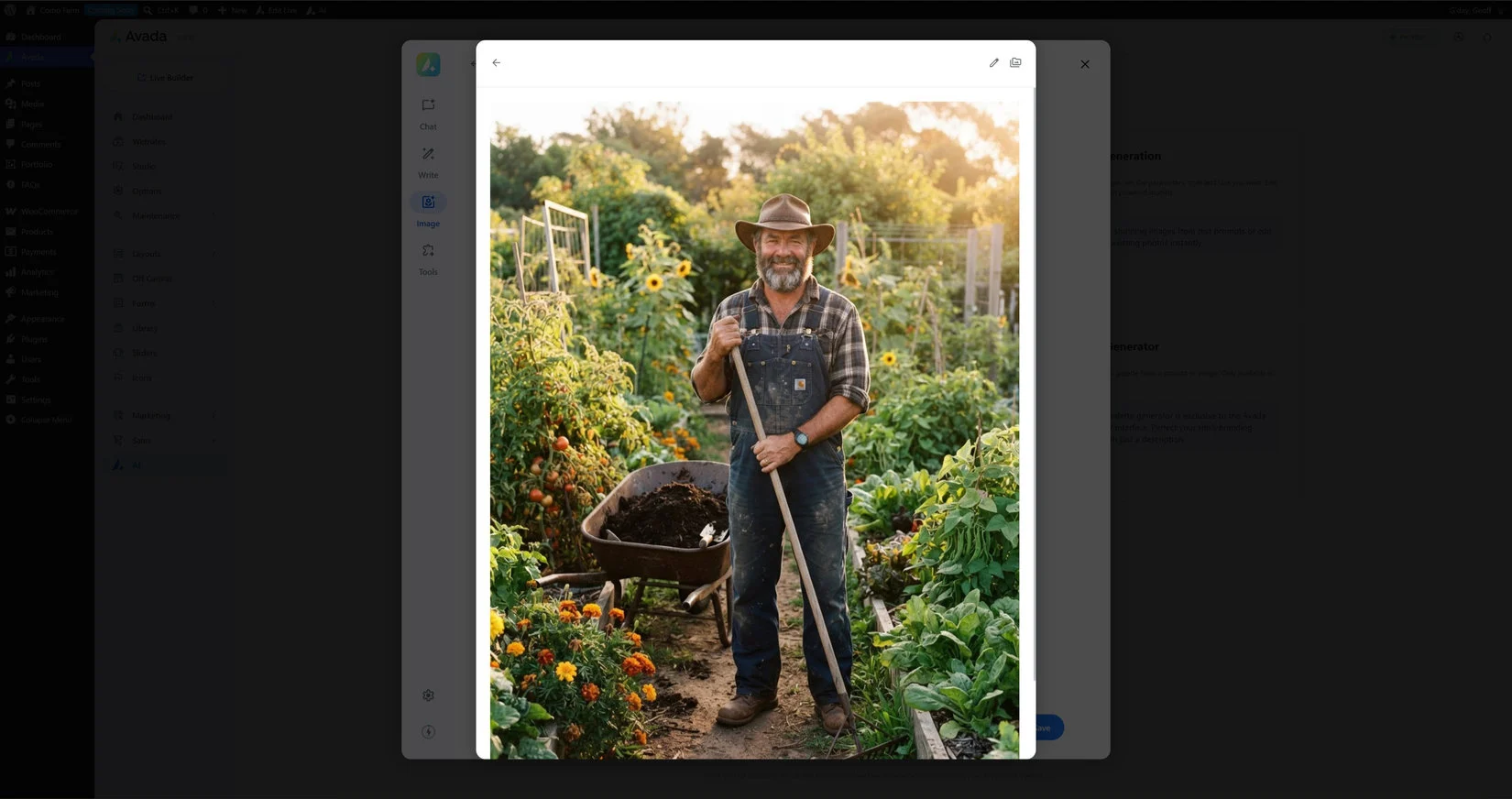
Create an image of a middle aged farmer with an Australian styled cowboy hat, a full beard, wearing Carhartt overalls, and standing in a summer vegetable garden with a rake in his hands. Have a wheelbarrow full of compost behind him on the path. The shot should have the sun coming from behind on the right, with a nice golden hour glow.
Below is an example of the result achived.
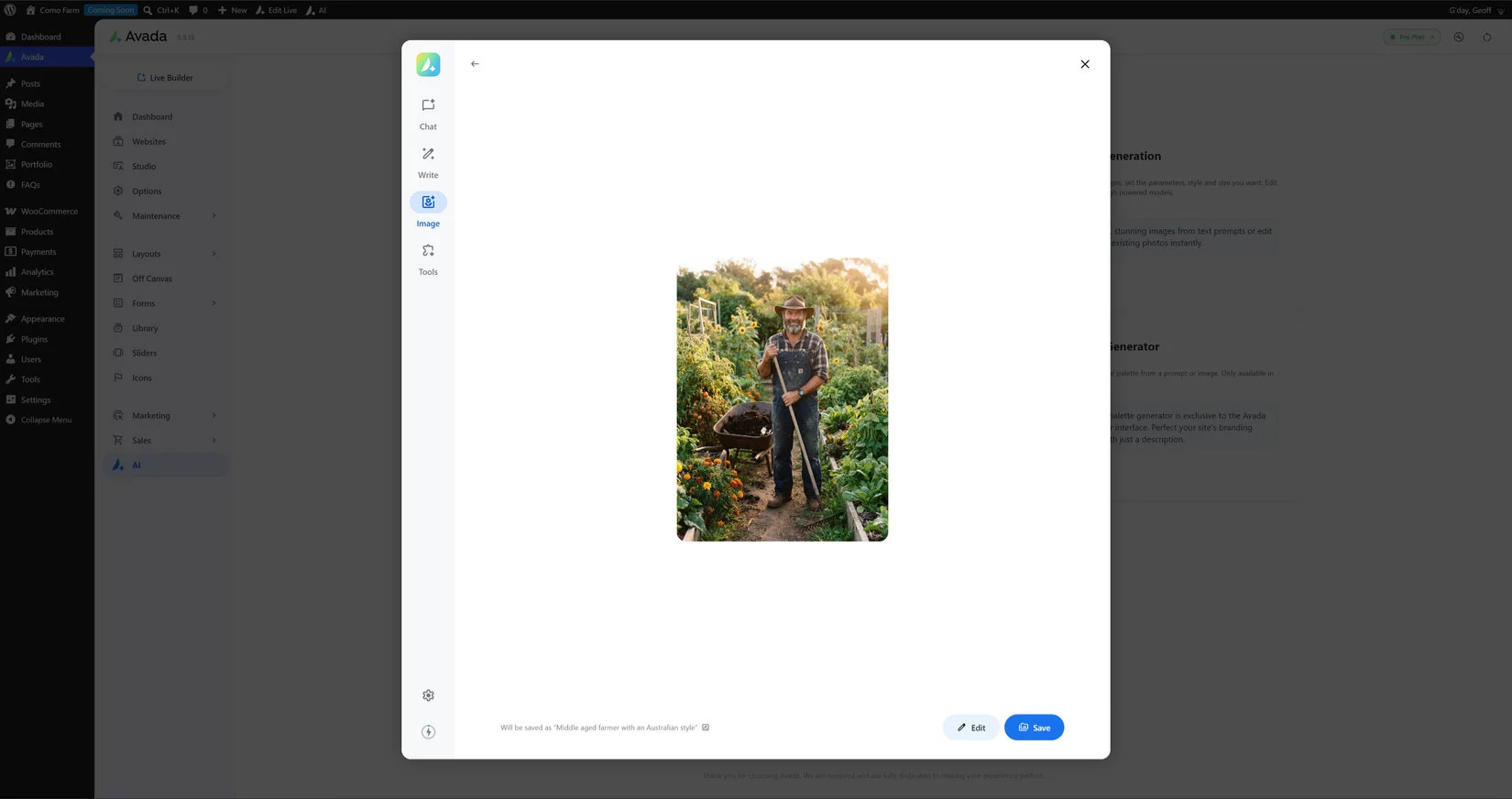
When you mouse over the result, you can see a Large View, and here you can also edit the title and alt tags of the image.
Basing Image Generation on Other Image

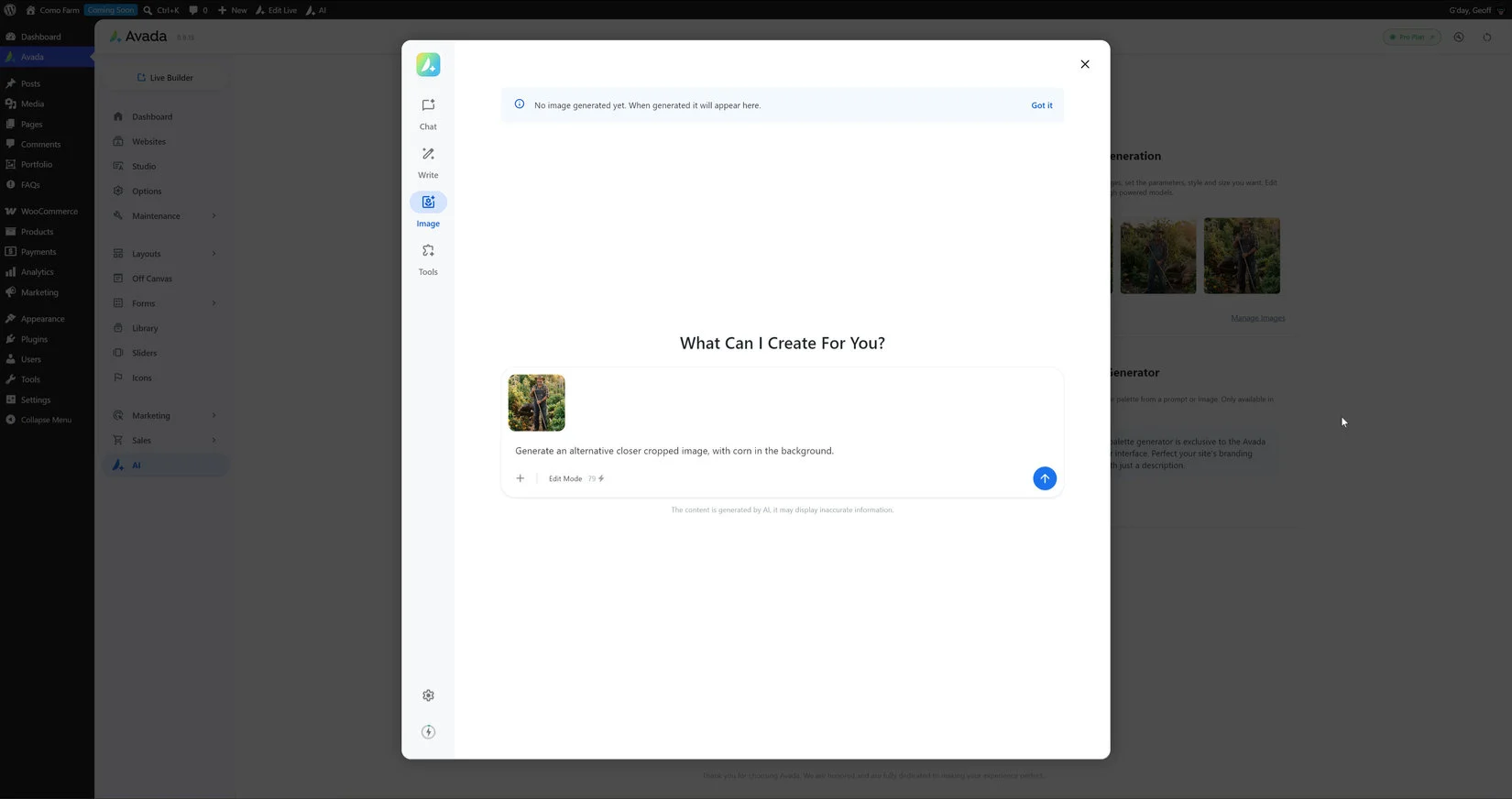
You can also base the image generation on another attached image, as well as a prompt. When you attach an existing image, the workflow changes from generating a new image to editing the supplied image. Use that mode for controlled transformations such as changing the setting, adjusting the visual style, or creating a variation while preserving the source image.

For example here, I used the generated image and asked AI to ceate an alternative image with corn in the background.
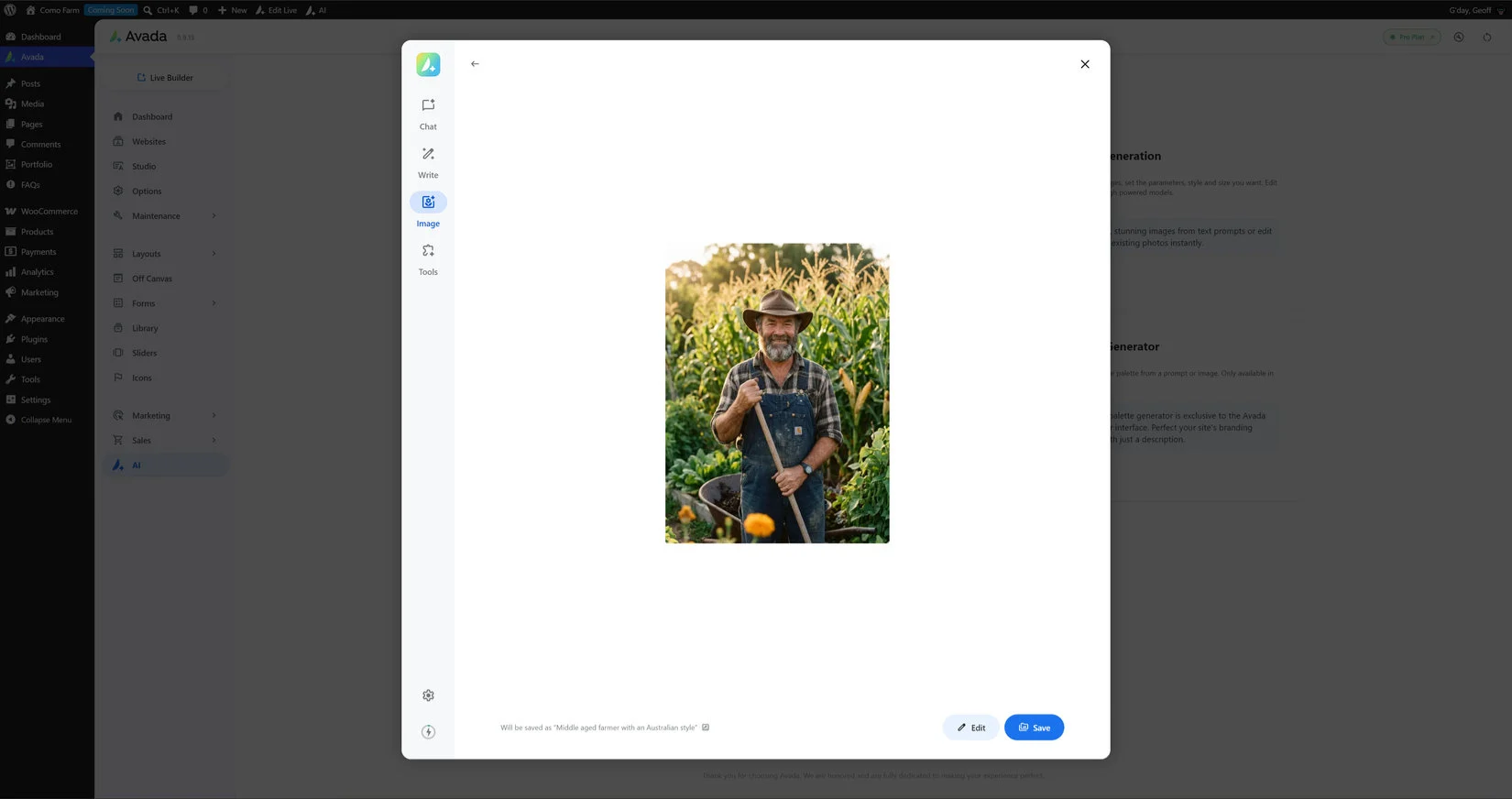
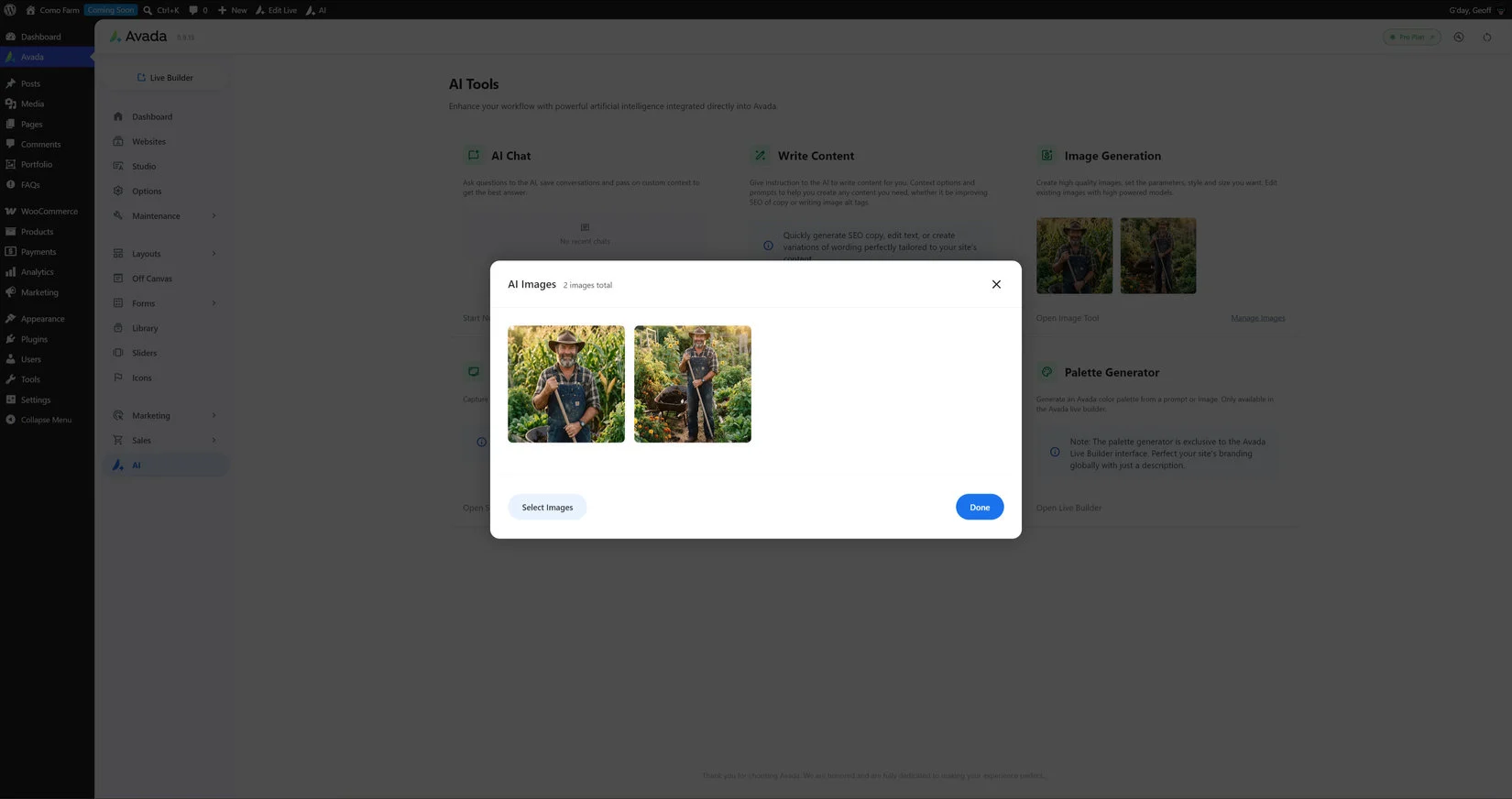
Generated images are saved to the media library, and also appear in a results grid, under Image Generation on the Dashboard. From there, you can manage the images, editing name and alt text, deleting images, and viewing them full size.
A Practical Workflow

  • Identify the page slot. Decide whether the image is a hero, card, background, inline illustration, thumbnail, or social graphic.
  • Choose the aspect ratio first. Match the output to the slot instead of generating a square image and relying on aggressive cropping.
  • Write a focused prompt. Start with the subject and setting, then add composition, lighting, mood, and finish.
  • Select an artistic preset. Use None for a prompt-led result or choose a preset when a recognizable style is required.
  • Start economically. Use Lite or Standard for exploration and one or two variations when the direction is uncertain.

  • Review the results. Look for distorted anatomy, unwanted text, accidental logos, repeated objects, awkward edges, and details that do not fit the brief.
  • Refine deliberately. Change one or two prompt details at a time so you can tell which instruction improved or weakened the result.
  • Increase quality only at the end. When the composition is right, use High or Ultra for work that needs additional realism or detail.

  • Save and manage the result. Insert the selected image into the page or save it to the Media Library for later use.

Copyright, Permissions, and Responsible Use

AI generation does not remove the need to check rights. Before publishing an image, consider both the input and the output.

  • Input images: Only upload or edit images you have permission to use. Do not use a client photograph, stock image, artwork, brand asset, or person’s likeness unless the relevant licence, consent, and usage terms allow the AI workflow and the intended publication.
  • People and likenesses: Avoid generating or editing a recognizable person in a way that implies endorsement, misrepresents them, or violates privacy. Obtain appropriate permission for real people and be especially careful with minors.
  • Brands and protected works: Do not reproduce logos, characters, artwork, product designs, or distinctive creative work unless you have the necessary rights. A prompt that asks for a living artist’s exact style, a protected character, or a brand-identical advertisement can create legal and ethical risk.
  • Output ownership: Review the terms that apply to your Avada AI service, account, and jurisdiction. The availability of copyright protection for AI-generated material varies by country and may depend on the amount of human creative contribution. Do not assume that generation automatically gives exclusive copyright ownership.
  • Similarity and clearance: Search for accidental similarity to existing artwork, stock photography, trademarks, or recognizable people before using an image commercially. For important campaigns, obtain a professional legal review.
  • Accuracy: Do not present a generated image as documentary evidence or a real photograph when that would mislead visitors. Label synthetic or illustrative imagery when the context calls for disclosure.
  • Records: Keep the prompt, source-image permissions, approvals, and final-use decision with the project records when the image is used for a client, campaign, publication, or regulated subject.

Avada AI can help create an original starting point, but the site owner remains responsible for verifying that the final image is lawful, suitable, accurate for its context, and consistent with the licences governing any inputs or third-party references.


Troubleshooting and Review Checklist

  • The image is cropped incorrectly: return to the generation settings and select an aspect ratio that matches the destination slot. Do not rely on a narrow crop to repair a composition designed for a different shape.
  • The result is too generic: add concrete details about location, materials, time of day, viewpoint, lighting, and the subject’s position in the frame.
  • The image contains unwanted lettering: remove references to signs or text unless they are essential, and plan to add website typography in Avada rather than asking the image model to render exact copy.
  • Complex details look inconsistent: simplify the scene, reduce the number of subjects, describe the key object more clearly, or move to Pro or Ultra Photorealism when the use case justifies the additional credits.

  • The result is not on brand: use a consistent prompt vocabulary for lighting, palette, mood, and composition. Artistic presets can help create a repeatable direction, but review every output rather than assuming a preset guarantees brand consistency.


  • The request costs more than expected: remember that credits are charged per image. Reduce variations, use a lower tier while exploring, and multiply the quality cost by the number of requested images before generating.

In this article

Go to Top













































































































