
How To Use the Background Remover in Avada AI
Last Update: October 8, 2026
Avada AI includes a Background Remover that isolates the main subject of an image and removes its existing background. It is useful for product photos, profile images, illustrations, promotional graphics, and any design that needs a cleaner subject without the original surroundings.
Accessing the background remover
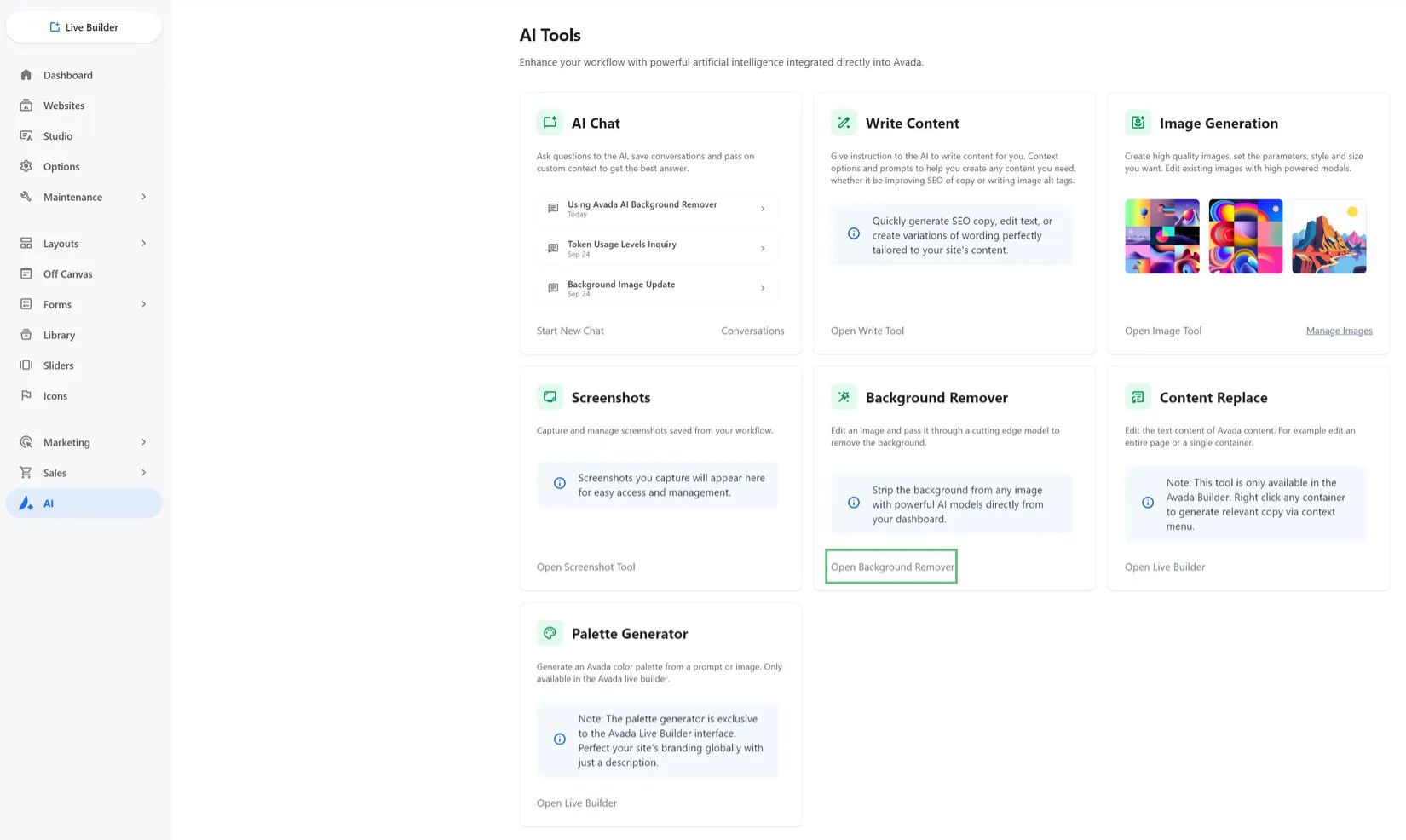
From the Avada Dashboard, head to AI > Background Remover > Open Background Remover.
Remove the background
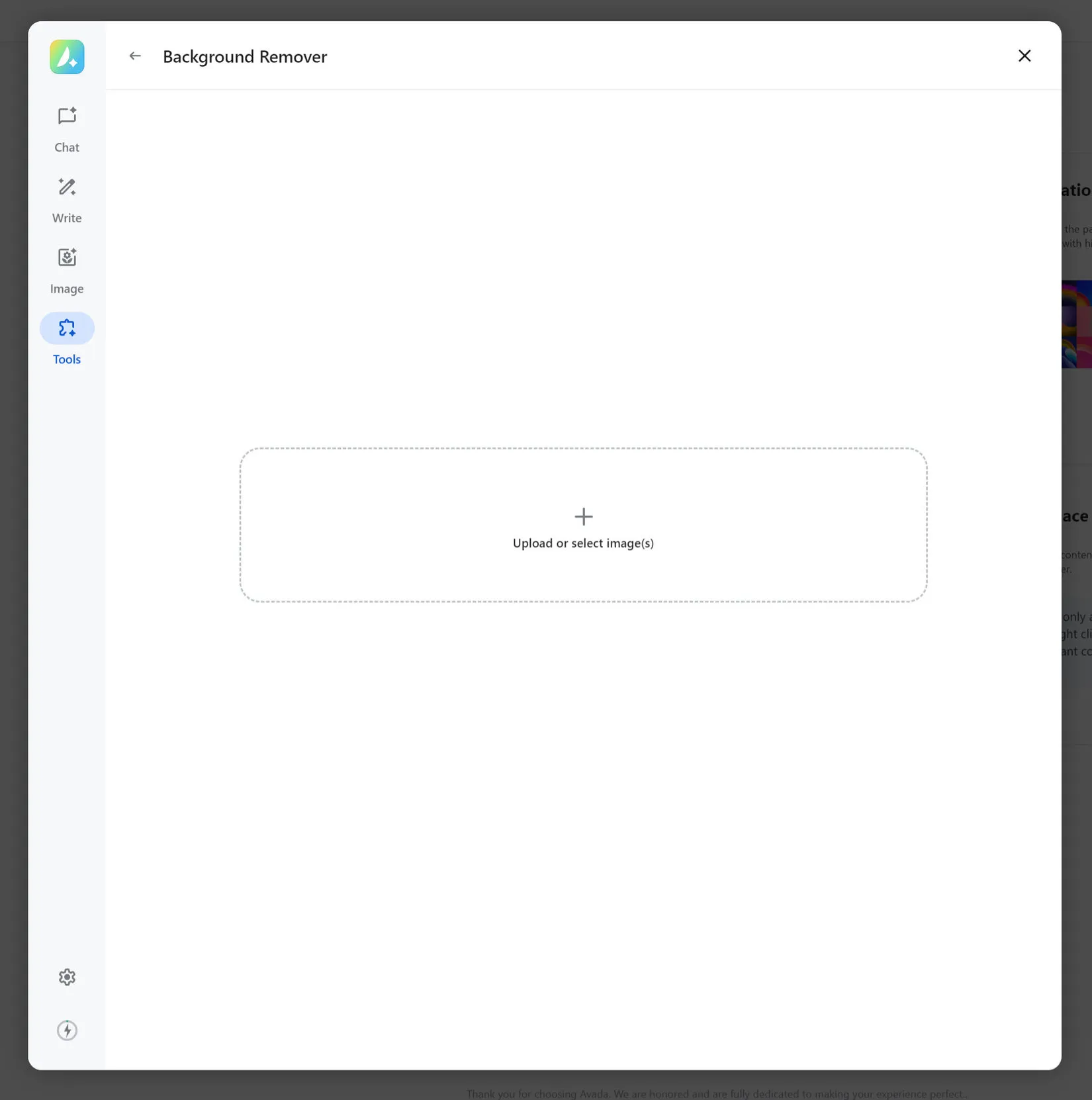
From here, you can upload or select the image you want to work on (including the size), and start the process by clicking on Remove Background. Avada AI identifies the main subject and removes the surrounding background. Images with a clearly defined subject and strong contrast generally produce the best results.

Review the result & Save
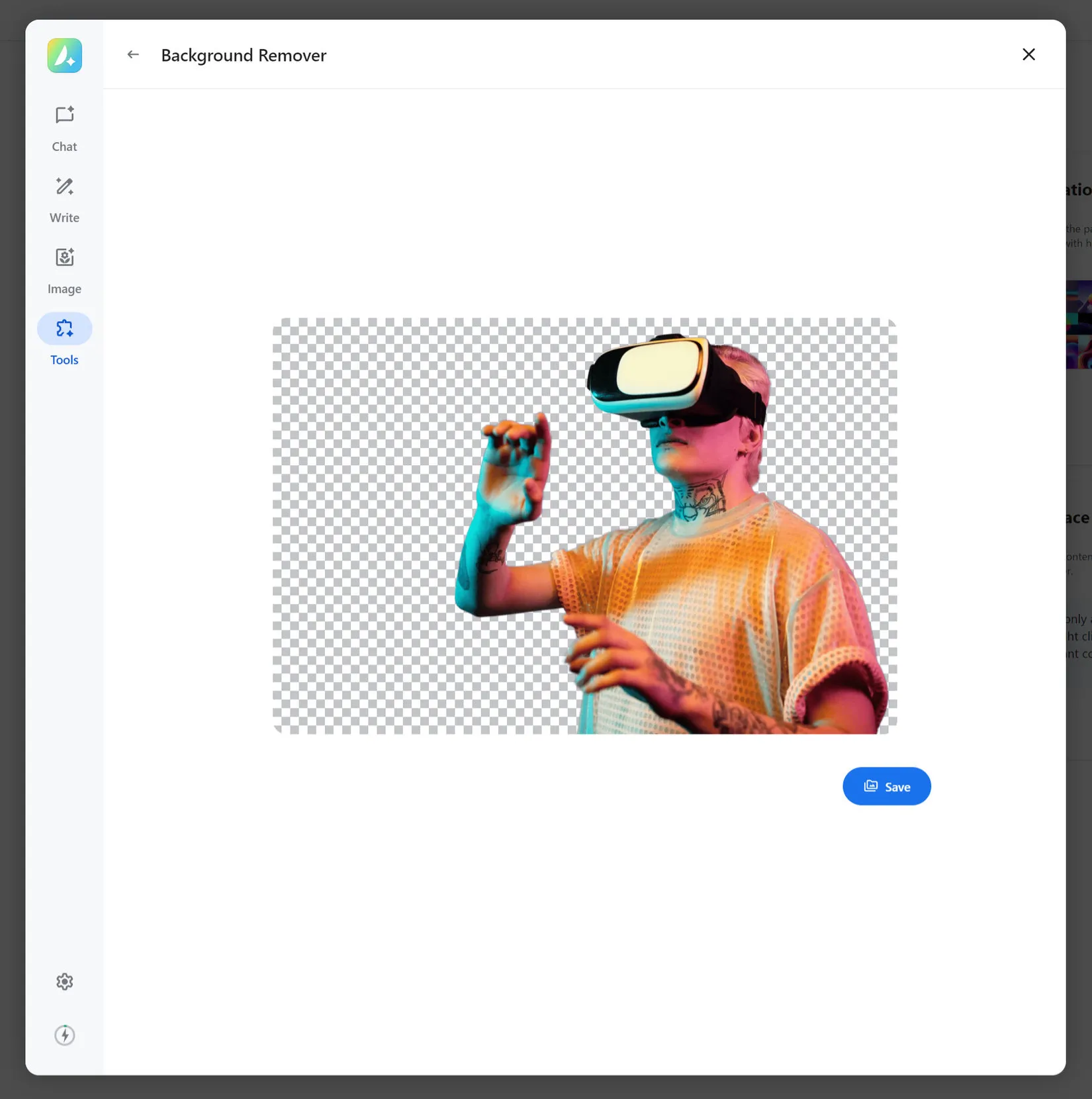
Inspect the edges around hair, clothing, products, shadows, and other detailed areas. Look for unwanted background fragments and confirm that important parts of the subject were not removed. If the result is not suitable, try a higher-quality source image with better lighting, stronger contrast, or a simpler background.
If you are satisfied with the result, save the generated image using the Save option. The image is saved into the Media Library, and if you inspect it, you can see it is saved as a .webp file with a transparent background at the original size selected.
You can then use it anywhere you can add images. As transparency is preserved, the subject can be placed over a colored section or background image without displaying the original background.
Add the image to a page
Add or select an Image element, choose the processed image from the Media Library, set its alignment and size, and add a link or lightbox effect if needed. Preview the page on desktop, tablet, and mobile, then save the page. For product or post layouts, confirm that the image is being used in the correct dynamic-content element and that its aspect ratio suits the design. Use an image with a clearly visible subject, good contrast, even lighting, minimal overlap, sufficient resolution, and clean edges. Crowded backgrounds, overlapping subjects, low-resolution files, motion blur, and similar colors between the subject and background can make removal less accurate. For product photography, a plain background usually produces the cleanest result.
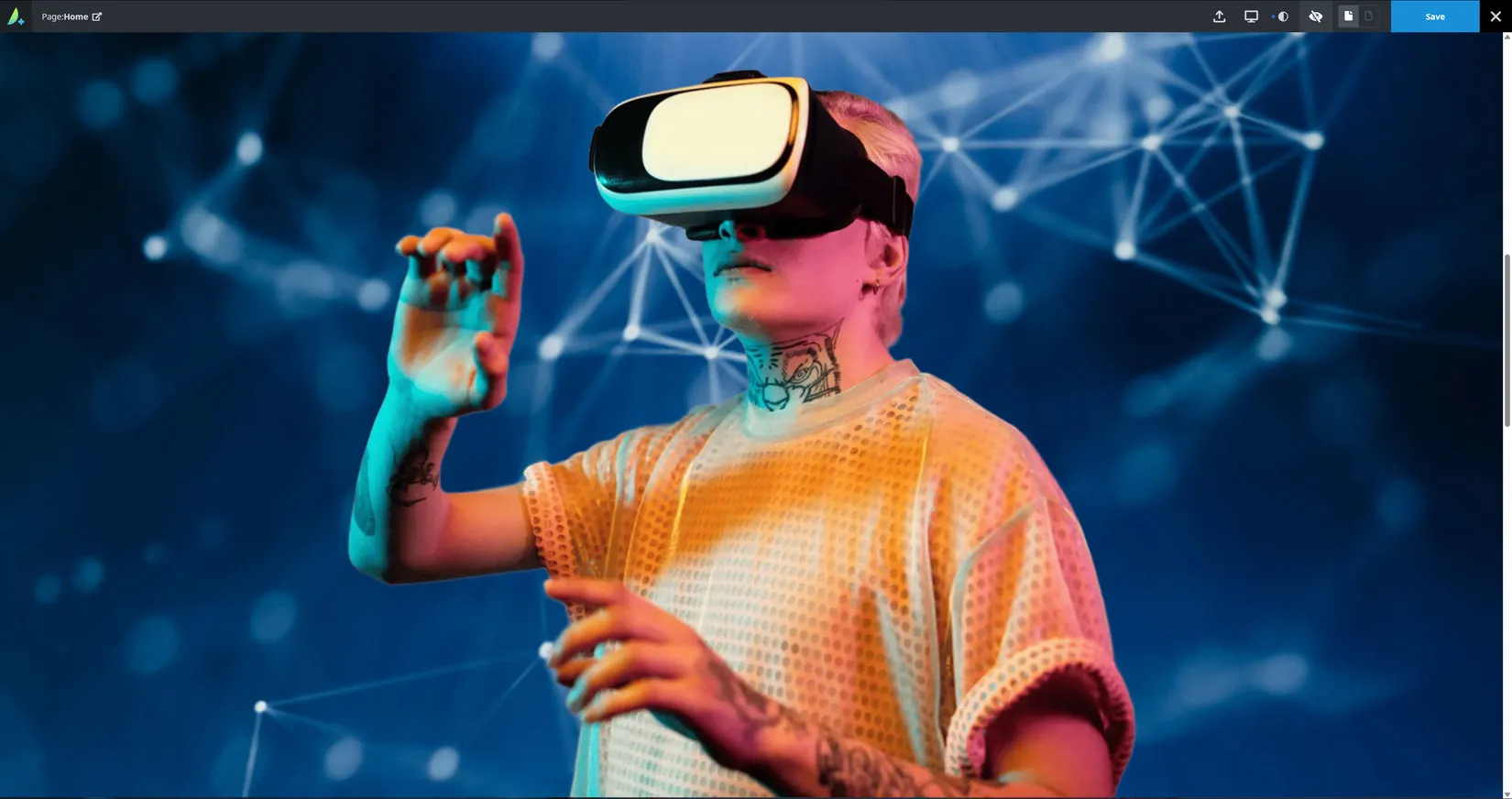
In the example below, the image was added to a container with a background image, thereby replacing the background of the original image.
Troubleshooting
If the wrong part of the image was removed, try a simpler or higher-contrast source. If edges look rough, process the original image instead of a compressed copy. If the image is not visible in the Media Library, allow the operation to finish and refresh the Media Library or reopen the image selector.
Best practices
Keep the original image in the Media Library so it can be restored if necessary. Use a descriptive filename and meaningful alternative text for the processed version. Finally, preview the image in its actual design context; a subject that looks good on a transparent preview may need an outline, shadow, or contrasting background to remain clear on the finished page.


















































































































