
AI Tools in Avada Pro
Last Update: October 19, 2026
Avada Pro includes a full suite of AI tools built directly into the website builder – for creating page content, writing copy, generating and editing images, answering questions about your site or Avada itself, capturing screenshots, removing image backgrounds, and generating color palettes.
This guide explains where to find the AI tools in Avada, looks at each specific tool, at AI settings, and how AI credits work with an Avada Pro Subscription, and how they are managed. More detailed documents on the specific AI tools are available in the AI documentation category.
Requirements
To use any of the AI tools, all of the following must be true:
If any of these aren’t met, opening an AI tool shows an explanation instead of the tool itself — for example a prompt to connect your account, a link to manage your subscription, or an upgrade prompt if you’re on the Essential plan.
Where to find the AI tools
| Location | What it does |
|---|---|
| Avada → AI (admin menu) | A dashboard page listing every AI tool as a card, with a button to open each one directly. |
| AI icon in the WordPress admin toolbar | Available on every wp-admin screen. Opens the AI panel straight to the Home tab. |
| Live Builder main menu | The Live Builder’s menu (History / Preferences / Add New / Clear Layout etc) includes an “Avada AI” link. By default, this opens AI Chat in a panel. |
| Right-click a container in the Live Builder | Opens a context menu with an AI Edit option, which opens AI Chat with the container selected for context. |
| The “Avada AI” icon on Custom CSS / Custom JS fields | Appears next to code fields in Page Options. Opens the Write tool pre-loaded with that field’s current content, and writes the result straight back into the field when you save. |
| The “Avada AI” icon on media item fields | Appears in the Media Library. Opens the Write tool for that specific field, with a matching starter prompt and the image itself already attached — see Media Library below. |
| “Generate with Avada AI” button on the Media Library screen | Sits next to “Add Media File” at the top of the Media Library. Opens the Image Generation tool so you can create a new image to add to your library. |
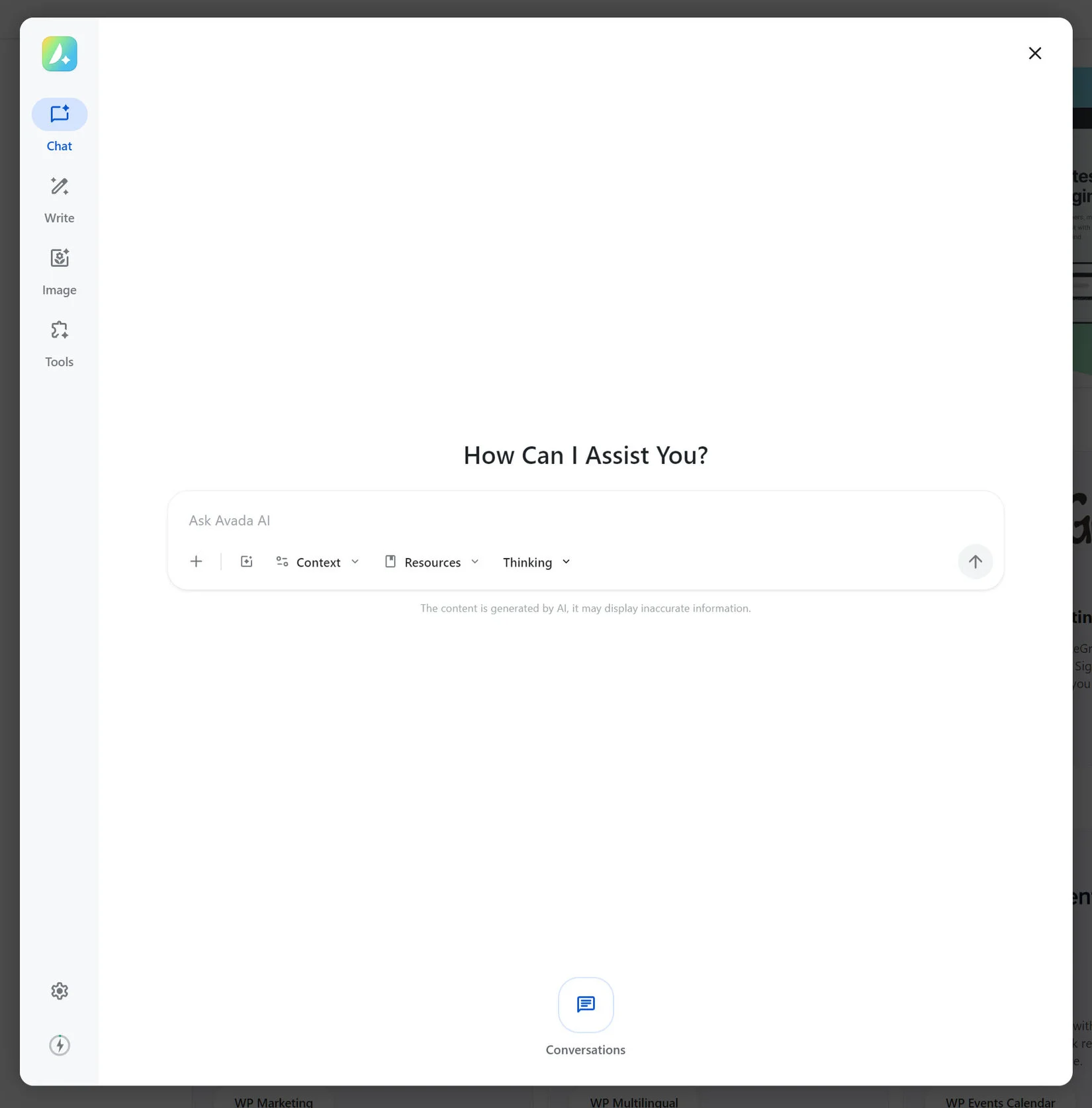
The AI panel is a single overlay with a sidebar of tabs: Home, Chat, Write, Image, Tools, plus a gear icon for Settings and a usage icon showing your current credit usage. Whichever entry point you use, you land in this same panel.
Media Library
At the top of the Media Library, next to “Add Media File”, a “Generate with Avada AI” button opens the Image Generation tool so you can create a new image directly.
Click into any image to open its Attachment Details, and hover over the Alternative Text, Title, Image Caption, or Description field: a small round AI icon appears inside the field. Clicking it opens the Write tool with:
You can edit the prompt before generating, and the result is written back into that same field.
Beyond this, any tool that accepts an image (Write, Image, Background Remover) also lets you pick one from your existing media library via its “Add images” button instead of uploading a new file, and images you generate or clean up with AI can be saved back into your media library from within the tool (via “Manage Screenshots” / “Manage Images” on the AI dashboard, or a save action in the tool itself).
Specific AI Tools
Chat
A question-and-answer assistant for anything related to building your site or using Avada — how a feature works, why something looks a certain way, where to find a setting, etc.
Every answer is saved to a conversation you can return to later via the Conversations list (unless you’ve turned off “Save Conversations” in Settings). Conversations are automatically given a short title based on their content. As with any AI tool, a note under the input reminds you the content is AI-generated and may be inaccurate.
Write
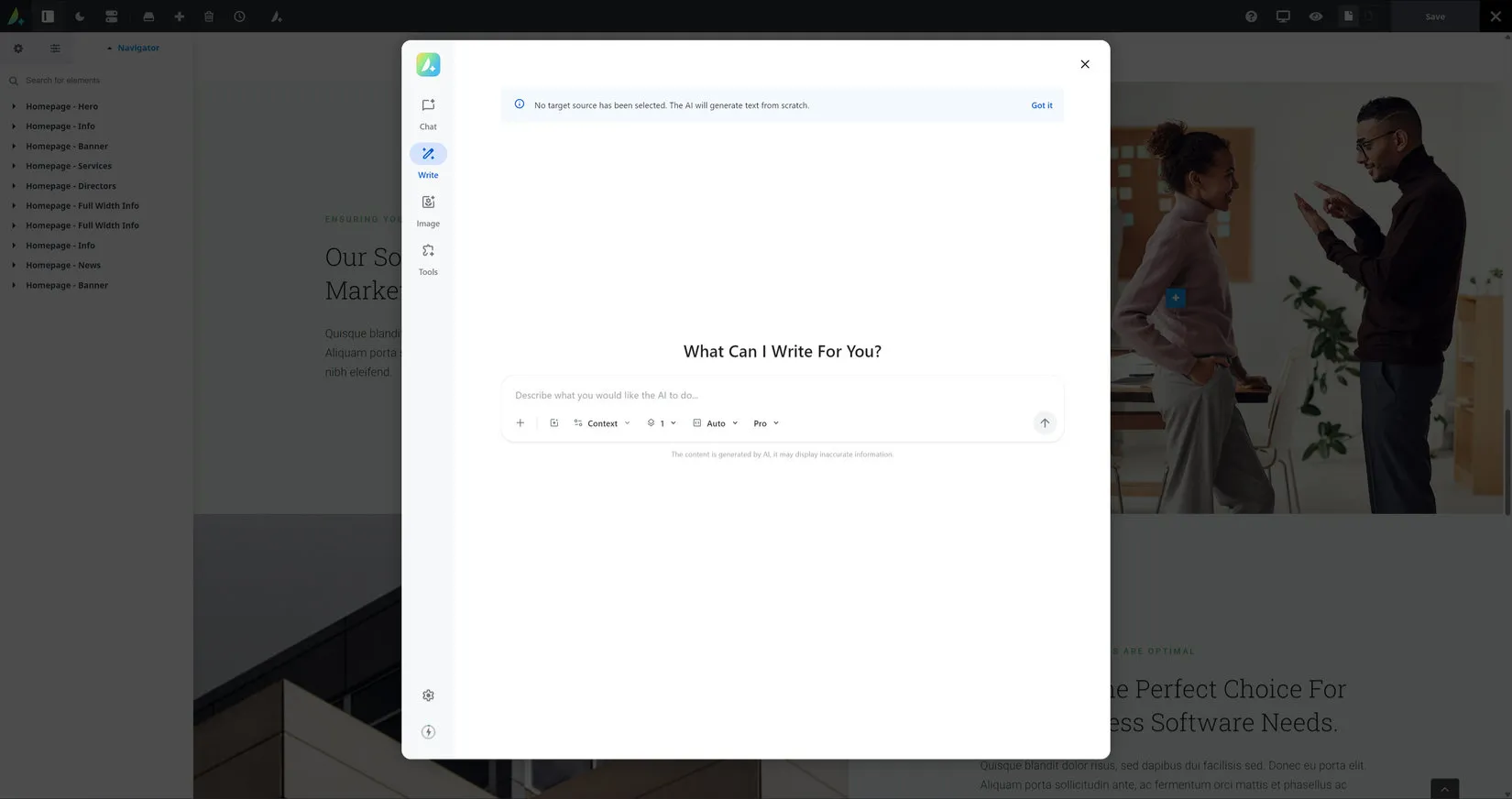
Generates or rewrites written content — page copy, SEO text, image alt text, CSS/HTML/JS in a code field, and more.
Image
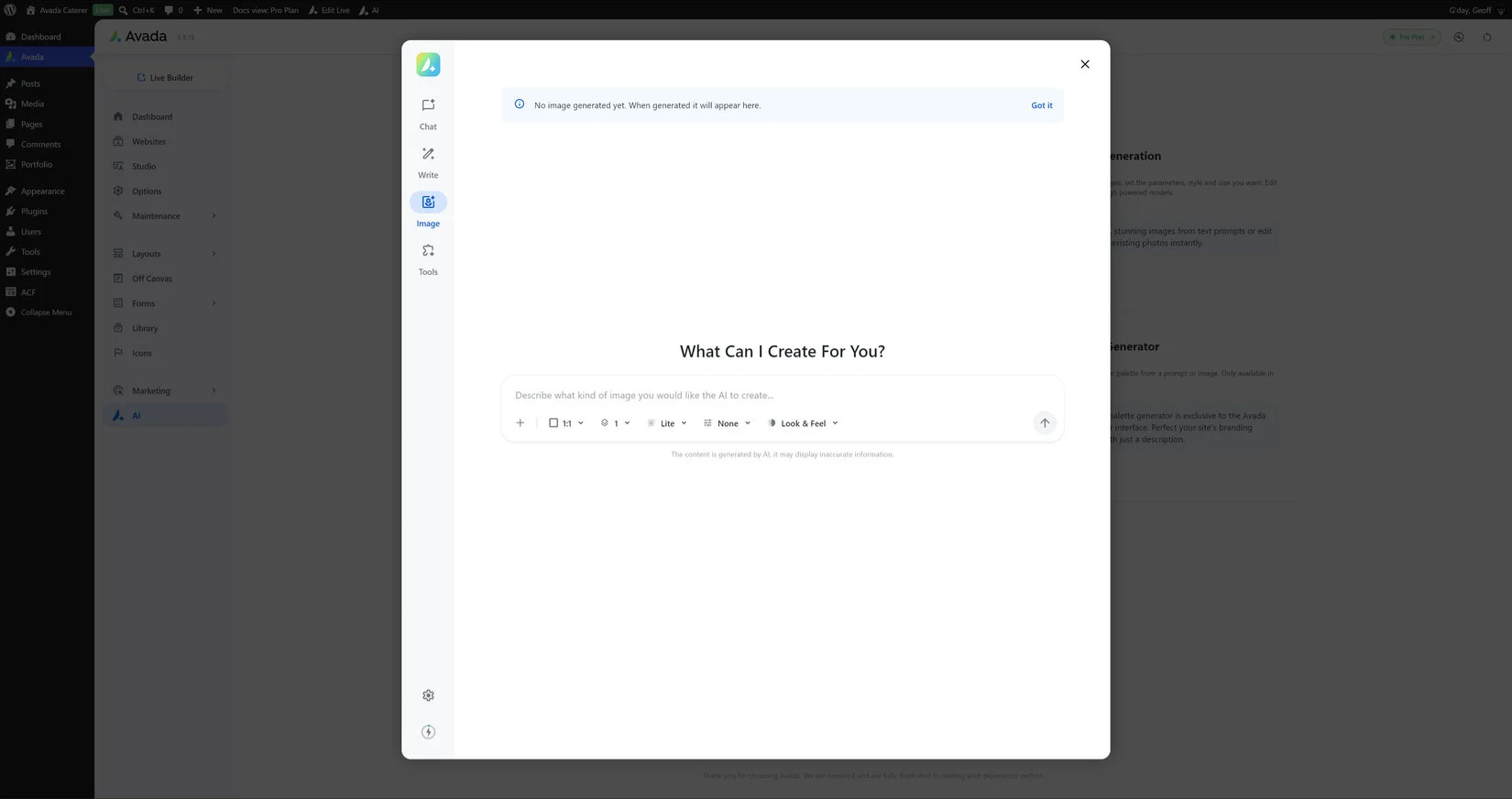
Creates new images from a text description, or edits an existing image you upload.
| Tier | Credits Per Image |
|---|---|
| Lite | 2 |
| Standard | 19 |
| High | 39 |
| Ultra | 79 |
| Vector | 99 |
Generated images appear in a grid inside the panel, where you can manage it further.
Tools
Screenshots
See the How To Use the Screenshot Tool in Avada AI doc for full details. This tool captures a screenshot of any existing, published page by URL — useful for pulling in reference imagery or documenting a page’s current state.
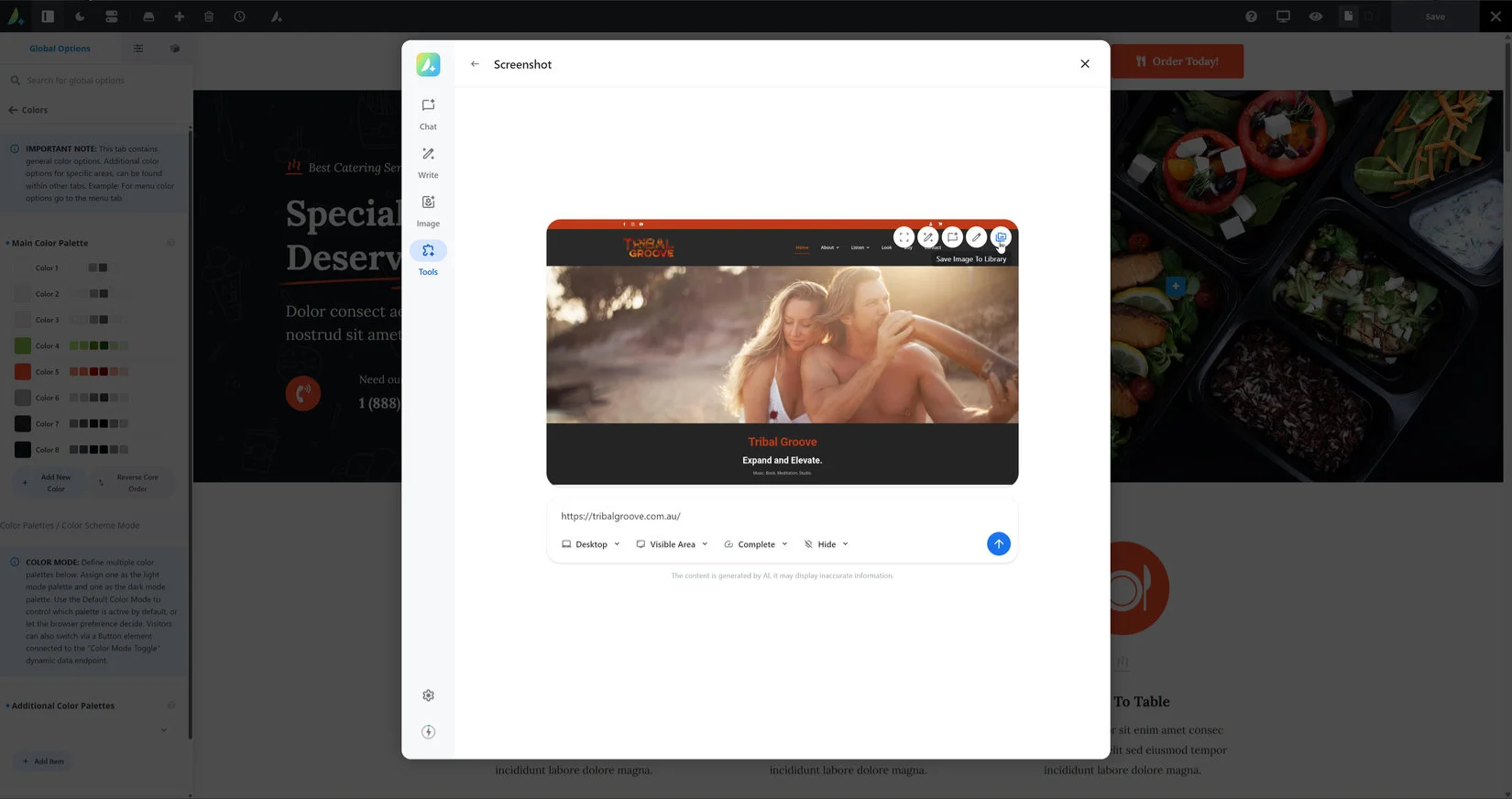
From the AI dashboard, Manage Screenshots lets you review and reuse screenshots you’ve already captured.
Background Remover
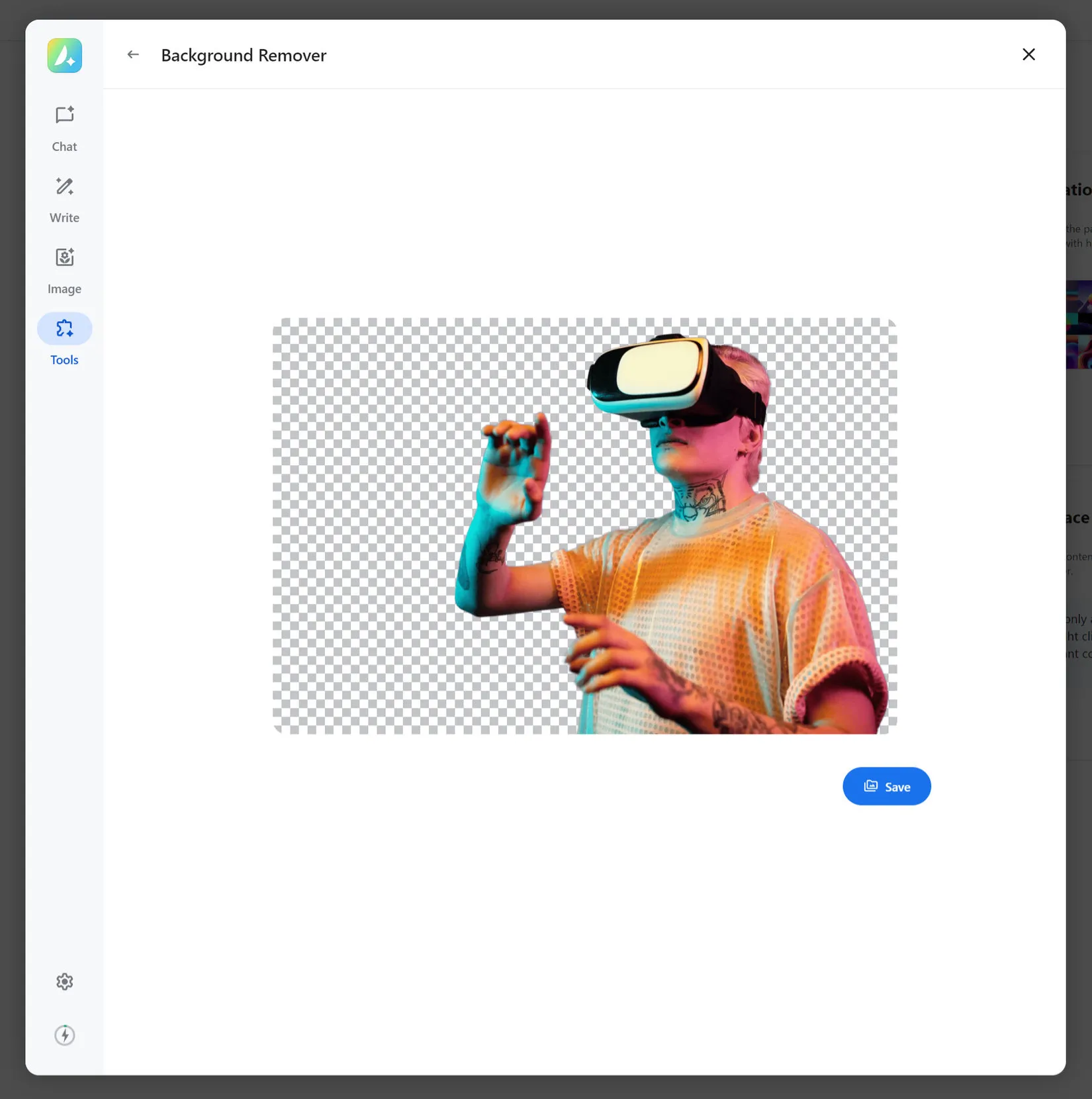
See the How To Use The Background Remover in Avada AI doc for full details. This tool removes the background from an uploaded or selected image, producing a transparent cut-out ready to use elsewhere on your site. Upload or pick an image, and the tool returns the background-removed version, which you can then save. From the AI dashboard, Manage Images lets you review background-removed images you’ve already created.
Palette Generator
See the How To Use the Palette Generator in Avada AI doc for more information about this. This tool only works inside the Live Builder. Describe the color palette you want (or supply a reference image), and it generates a full color palette for your site’s global colors — useful when adjusting the branding of a prebuilt design or giving your site a new look from a short description.
AI Settings
Open the gear icon inside the AI panel to configure:
Credits and usage limits
Every AI action — a question, a piece of written content, an image, a screenshot, a background removal — consumes credits from a shared monthly allowance tied to your My Avada subscription. These credits reset on the first of each month.
You can check your current usage at any time from the usage icon inside the AI panel, which shows a running total (e.g. “1 / 1000”) broken down by category — AI Texts, AI Images, Tools, and Moderation — along with the note: “Usage is tied to the subscription on your My Avada account.”
Different actions cost different amounts of credit — image generation in particular varies a lot by quality tier (see the Image Generation section above: 2 credits for Lite and up to 99 credits for Vector). Asking a question, writing text, capturing a screenshot, and removing a background all cost modest, mostly fixed amounts of credit.
If you run out of credit, or a per-site cap is reached, the tool you’re using shows an error explaining that your credit limit has been reached rather than attempting the request. If AI has been disabled for your site by the account owner, every AI tool shows that explanation instead of opening. If your subscription isn’t Pro or isn’t active, you’ll see an upgrade or subscription-management prompt instead.


















































































































