
Black Friday

Up to 30% off Avada One

Ends in

0
0
0
0
Days
0
0
Hrs
0
0
Min
0
0
Sec

See the deal →

How To Trigger An Off Canvas

Last Update: February 25, 2026

There are various methods to trigger Off-Canvas Elements in Avada, including both pop-ups and sliding bars. Triggers can be set based on page load, time spent on the page, scroll actions, click events, exit intent, and after inactivity, with additional options available for WooCommerce sites. Let’s have a look.

For privacy reasons YouTube needs your permission to be loaded.

Setting Triggers

To control how your Off Canvas triggers, head to the Off Canvas Options tab (where the page options normally are) and choose the Triggers tab. A number of options are dependant on other options being selected.
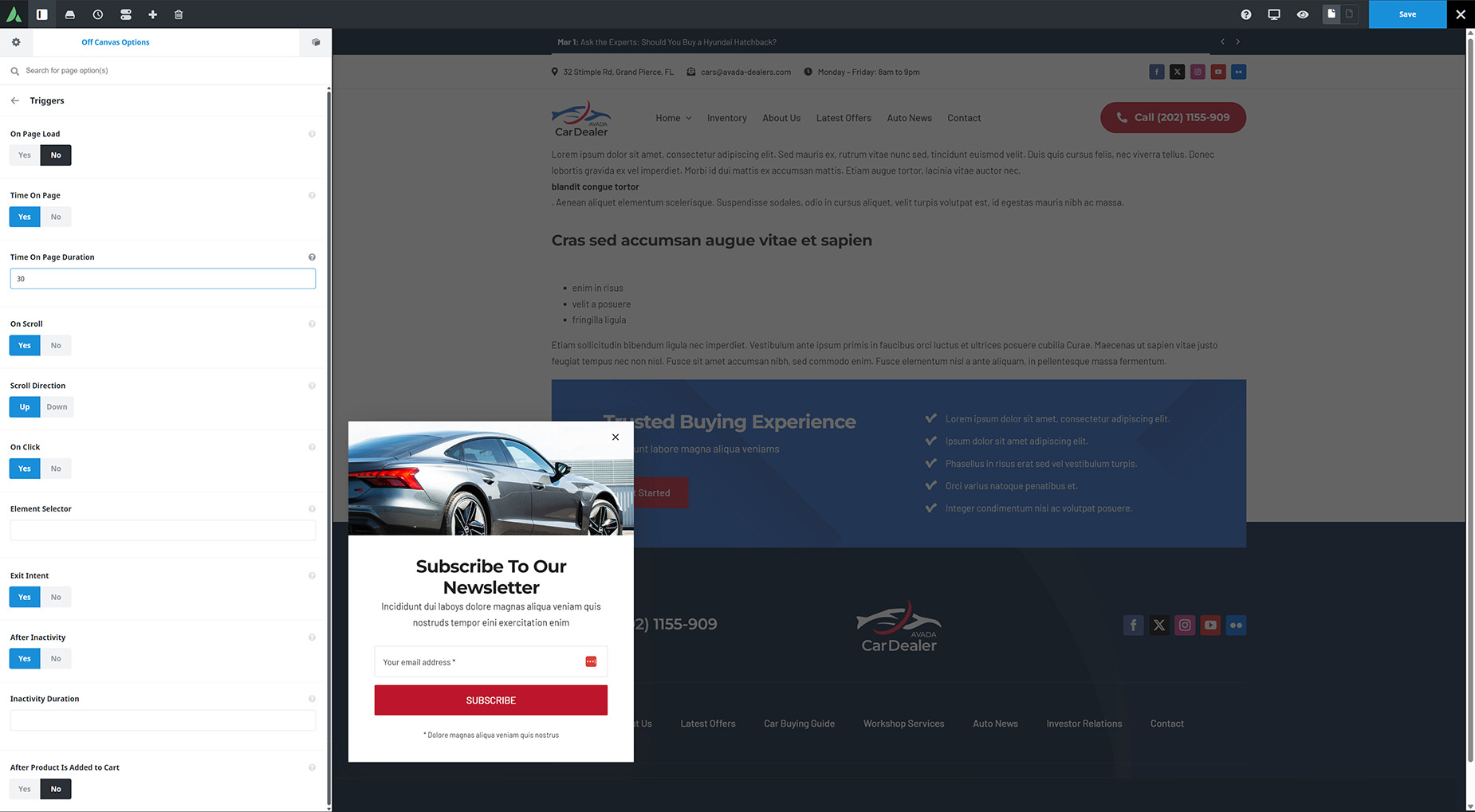
Off Canvas > Triggers

Off Canvas Trigger Options

Here are the individual trigger options for an Avada off Canvas. * denotes a dependant option.

  • On Page Load – Display Off Canvas on page load.

  • Time On Page – Display Off Canvas after visitor has spent a specific amount of time on the page.

  • Time On Page Duration* – If Time on Page is set to Yes, you will see this option, with which you can set the time that needs to pass before the Off Canvas will be displayed. In seconds, ex: 5.

  • On Scroll – Display Off Canvas when the visitor has scrolled up or down to a specific position or element.

  • Scroll Direction* – If On Scroll is set to Yes, you will see this option, with which you can set a scroll direction for triggering the Off Canvas.

  • Scroll To* – Choose whether the scroll trigger should be relative to position or element on the page. (Only when On Scroll option is set to Yes and Scroll Direction is set to Down)

  • Scroll Position* – Set the scroll position. Enter value including any valid CSS unit, ex: 300px. (Only when On Scroll option is set to Yes and Scroll Direction is set to Down)

  • Scroll Element* – Insert element CSS selector like class or ID, ex: .element-class, #element-ID. (Only when On Scroll option is set to Yes)

  • On Click – Display Off Canvas when visitor clicks on the element.

  • Element Selector* – If On Click is set to Yes, you will see this option, where you can insert an element CSS selector like class or ID, ex: .element-class, #element-ID.

  • Exit Intent – Display Off Canvas when visitor intends to close or leave the page.

  • After Inactivity – Display Off Canvas if visitor is inactive for a specific amount of time.

  • Inactivity Duration* – If After inactivity is set to Yes, you will see this option, which allows you to set the time of visitor inactivity that needs to pass before the Off Canvas will be displayed. In seconds, ex: 30.

  • After Product Is Added to Cart* – Display Off Canvas after WooCommerce product is added to cart. (Only dusplays if WooCommerce is active).

In this article

Prebuilts
Buy Now
Buy Avada Now!
We use essential cookies to run our site, and optional ones for analytics, advertising, and personalization. You can manage your choices at any time. See our Privacy Policy.

  • Embeds from this vendor are blocked and replaced with a placeholder until consent is given.
  • Embeds from this vendor are blocked and replaced with a placeholder until consent is given.

  • Embeds from this vendor are blocked and replaced with a placeholder until consent is given.

  • Embeds from this vendor are blocked and replaced with a placeholder until consent is given.

  • Enables Google Analytics to store data about your visit, such as pages viewed, time spent, and interactions, to help us understand and improve website performance.

  • Enables HubSpot to track your activity on this site, power the live chat widget, and manage marketing interactions, such as form submissions.

  • Used to store your authentication details.

  • Used to store your authentication details.

  • Used to check if your browser has cookies enabled.

  • Used to persist your user configuration in the admin dashboard.

  • The time at which wp-settings-[user_id] was set.

  • Remembers the state of Switch elements you have toggled.

  • Stores your privacy and consent choices so they are respected on future visits.

  • Set by Cloudflare to tell real visitors apart from bots and protect our Websites from automated attacks. It does not track you across websites and is not used for analytics or advertising.

  • Set by Cloudflare after you pass a security check, so you are not asked to complete it again on every page.

Go to Top