
Controlling Where and When An Off Canvas Displays
Last Update: May 12, 2026
By default, an Off Canvas can only be displayed using the Off Canvas Toggle on the Avada Special Menu Items. This is because, by default, the Enable Conditions option is set to No. This is found under Conditions on the Off Canvas Options tab, and is key to determining where an off canvas is displayed. When it displays is largely determined by the options set on the Triggers tab. Read on for specific information on conditions and triggers, or watch the video below for a visual overview of the Off Canvas Builder as a whole.
Conditions: Where
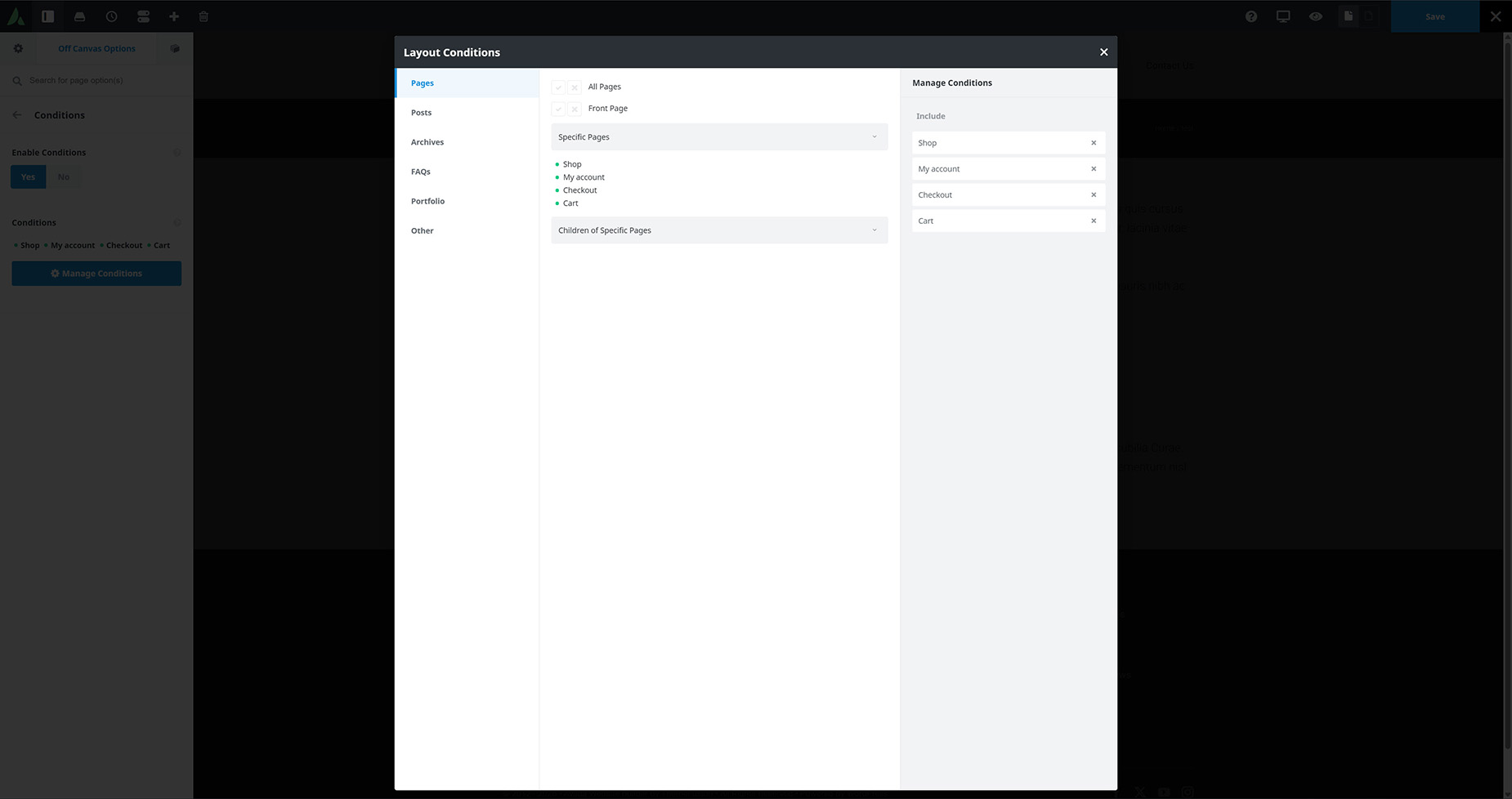
When Conditions are enabled (Off Canvas Options > Conditions > Enable Conditions) the default behavor is that the Off Canvas is displayed on the entire site. So if you want your off canvas to be enabled on all pages, this is all you need to do.
However, if you want to control precisely where the Off Canvas is allowed to load, there is the Manage Conditions option. Clicking on this opens a dialog identical to the Conditions dialog from Avada Layouts. With this, you can choose precisely where the Off Canvas will be allowed to open – on a specific page, or set of pages, or on a particular post type, or post category etc.
Triggers: When
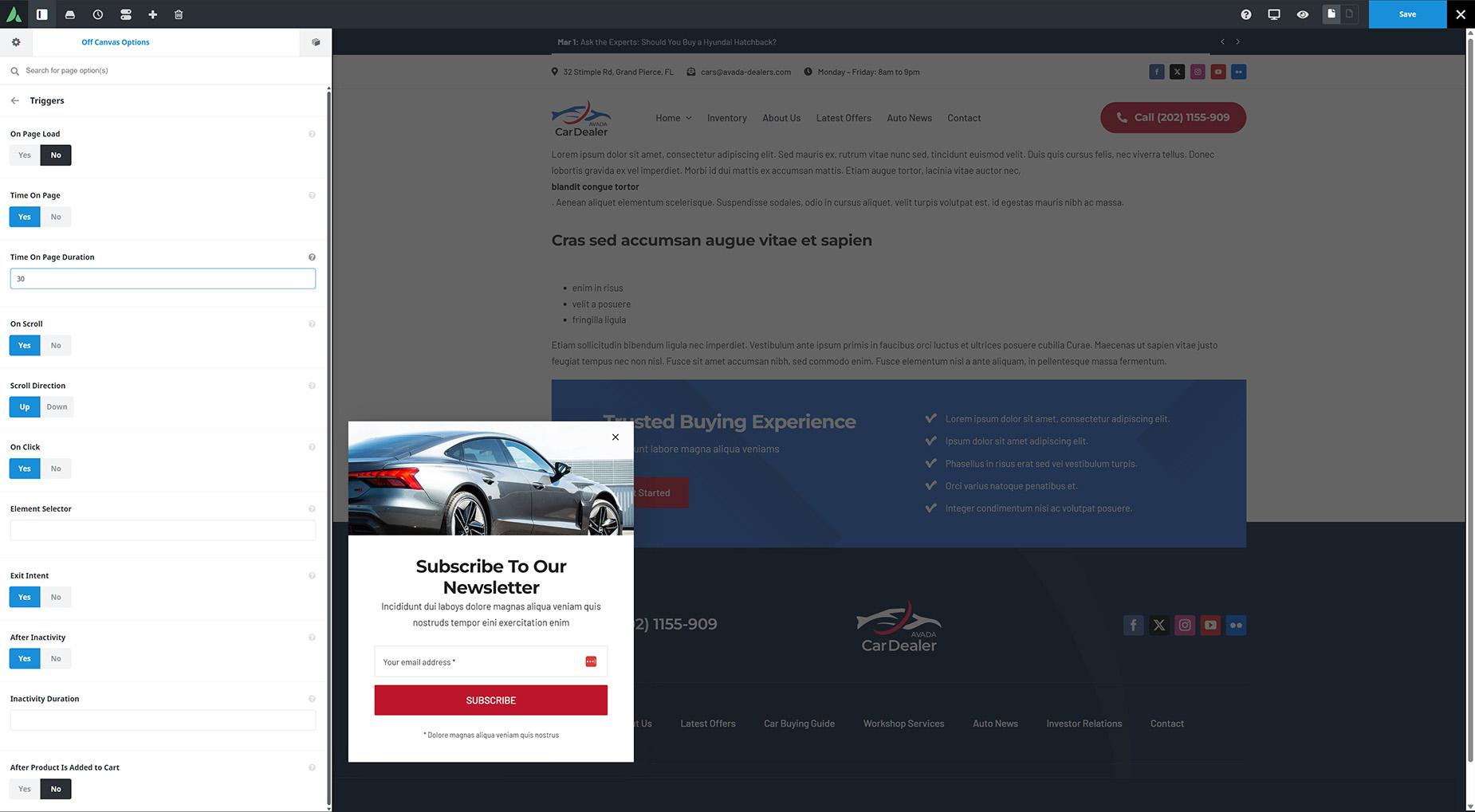
It is the Triggers and the Rules tab options that primarily control when an Off Canvas is opened. You can of course, also set a dynamic link on a button or Menu item so a user can open an Off Canvas manually. But here, let’s focus on the main opions in the Triiger & Rules tabs.
For a more detailed rundown of Trigger options, see the How To Trigger An Off Canvas doc, but in short, there are a range of options here that when set, will automatically trigger the opening of an Off Canvas on any of its allowed pages. This can be anything from immediately on page load, toa certain amount of time on the page, on scroll, on click, on exit intent, or after a certain period of inactivity. The options allow virtually any scenario, and they can also be combined.
Rules: Exceptions
Here, we should also mention the impact Rules can have. They can override the Triggers set, by determining a set of conditions that must be met for the triggers to be active. For example, you can set that an Off Canvas if only triggered after a certain number of page views, only for logged in users, only when a user arrives from a search engine, or perhaps only on a certain type of device. The possibilities are considerable.

Troubleshooting
If your Off Canvas does not appear, it will be because certain conditions have not been met, such as:
Best Practices
Common Pitfalls to Avoid


















































































































