
How To Trigger An Off Canvas

Last Update: February 25, 2026

There are various methods to trigger Off-Canvas Elements in Avada, including both pop-ups and sliding bars. Triggers can be set based on page load, time spent on the page, scroll actions, click events, exit intent, and after inactivity, with additional options available for WooCommerce sites. Let’s have a look.

For privacy reasons YouTube needs your permission to be loaded.

Setting Triggers

To control how your Off Canvas triggers, head to the Off Canvas Options tab (where the page options normally are) and choose the Triggers tab. A number of options are dependant on other options being selected.
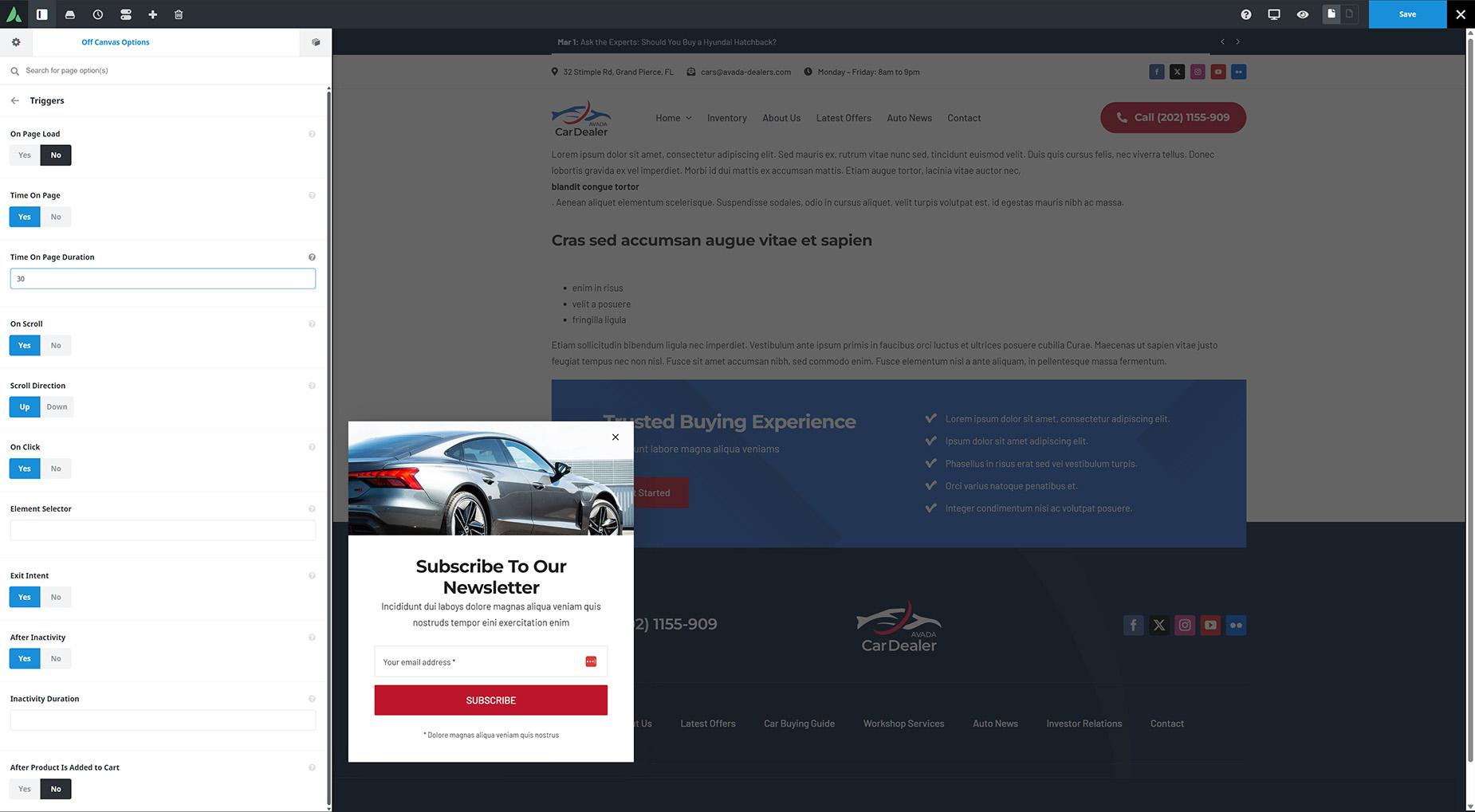
Off Canvas > Triggers

Off Canvas Trigger Options

Here are the individual trigger options for an Avada off Canvas. * denotes a dependant option.

  • On Page LoadDisplay Off Canvas on page load.

  • Time On PageDisplay Off Canvas after visitor has spent a specific amount of time on the page.

  • Time On Page Duration* – If Time on Page is set to Yes, you will see this option, with which you can set the time that needs to pass before the Off Canvas will be displayed. In seconds, ex: 5.

  • On Scroll – Display Off Canvas when the visitor has scrolled up or down to a specific position or element.

  • Scroll Direction* – If On Scroll is set to Yes, you will see this option, with which you can set a scroll direction for triggering the Off Canvas.

  • Scroll To* – Choose whether the scroll trigger should be relative to position or element on the page. (Only when On Scroll option is set to Yes and Scroll Direction is set to Down)

  • Scroll Position* – Set the scroll position. Enter value including any valid CSS unit, ex: 300px. (Only when On Scroll option is set to Yes and Scroll Direction is set to Down)


  • Scroll Element* – Insert element CSS selector like class or ID, ex: .element-class, #element-ID. (Only when On Scroll option is set to Yes)

  • On Click Display Off Canvas when visitor clicks on the element.

  • Element Selector* – If On Click is set to Yes, you will see this option, where you can insert an element CSS selector like class or ID, ex: .element-class, #element-ID.

  • Exit IntentDisplay Off Canvas when visitor intends to close or leave the page.

  • After InactivityDisplay Off Canvas if visitor is inactive for a specific amount of time.

  • Inactivity Duration* – If After inactivity is set to Yes, you will see this option, which allows you to set the time of visitor inactivity that needs to pass before the Off Canvas will be displayed. In seconds, ex: 30.

  • After Product Is Added to Cart*Display Off Canvas after WooCommerce product is added to cart. (Only dusplays if WooCommerce is active).

In this article











































































































