Share
Motion in the background of a page or post has long been a trade-off for WordPress site builders. Video backgrounds add weight to a page, custom CSS animations take time to write and maintain, and third-party plugins introduce another dependency. The Aurora background in Avada offers a lighter route: an animated gradient of soft color blobs that sits behind a section’s content and is configured entirely from the Container or Column settings.
This article explains what the Aurora background is, how the three animation styles differ, what each setting controls, and how the effect works alongside existing background colors, images, and masks. Let’s get started!
Overview
How the Aurora Background Works
Aurora is an additional background type available on Containers and Columns, including Avada Nested Columns. As the name suggests, the effect loosely mimics the Northern Lights (Aurora Borealis). Areas of color move slowly behind the content, blending into one another and into any existing background layers.
This feature can be applied to an empty Container, but it is most effective when combined with other background content. On its own, it produces a pleasant moving gradient. Layered over a background color and image, it adds depth and movement without competing with the content in front of it.
Accessibility is handled automatically. Visitors whose devices are set to reduce motion see the aurora colors statically, so the section still benefits from the color treatment without animation.
How to Set It Up
The Aurora options sit in the Background tab of a Container or Column, as the third tab alongside the existing background options. Selecting an animation style activates the effect, and you can see the result in the editor right away, making it easy to adjust settings by eye.
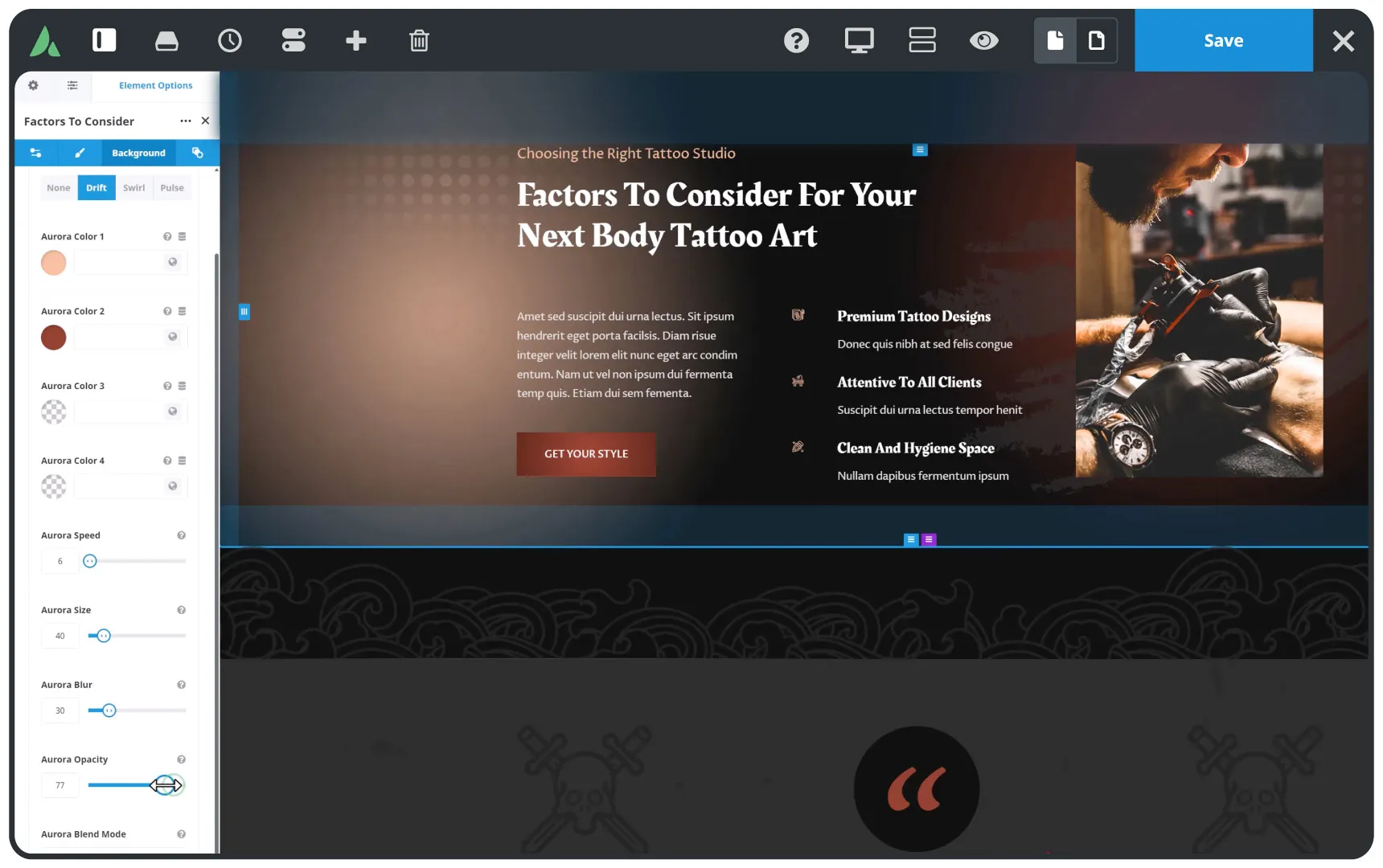
In the video in this post, we demonstrate the use of the “Factors to Consider” Container from the Avada Tattoo prebuilt website. That Container already has a background color, a background image, and a mask applied, so it shows how the aurora behaves on a fully styled section rather than a blank one.
There Are Three Animation Styles
This stylish feature provides three aurora styles: Drift, Swirl, and Pulse. All three share the same options, so the settings described later in this article apply regardless of which style you choose.
1: Drift
Drift moves the color blobs gradually across the Container. It is the most general-purpose of the three and suits hero sections, feature areas, and calls to action where a little movement helps without drawing focus.
2: Swirl
Swirl rotates the colors in a circular motion. At faster speeds, the result can look dramatic, closer to sweeping stage lighting than a gentle gradient. At slower speeds, it becomes calm and atmospheric, which makes speed the main factor in whether Swirl feels energetic or relaxed.
3: Pulse
Pulse is the subtlest option. Color radiates outward from the Container’s center in a repeating cycle. Because the movement is restrained, Pulse generally works better at a lower speed value, so the animation still registers as quick.
Aurora Settings Explained
→ Colors
By default, the aurora uses Color 4 and Color 5 from the global color palette, so it stays consistent with the site’s existing branding unless you change it. You can replace either color with any value, including opaque colors. Add more colors beneath the defaults to create a multicolor aurora. Two colors give a restrained, clean result. Three or four produce a more varied effect, as shown in the full-width example at the end of the video.
→ Aurora Speed
Speed sets the duration of the movement cycle, measured in seconds. Higher values produce slower movement, which may surprise some users. For example, setting the value to 6 makes the colors move noticeably faster than the default.
→ Aurora Size
Size controls each color blob’s dimensions as a percentage of the Container width. The default is 55. Larger values create a broad wash of color across the section, while smaller values, such as 40, produce more defined areas of color that move around one another.
→ Aurora Blur
Blur determines how soft the color-blob edges are, measured in pixels. Higher values give a diffused glow with no visible edges. Lower values, around 30 for example, keep the shapes slightly more defined while still blending smoothly.
→ Aurora Opacity
By default, the aurora blends with other background layers, but the opacity setting controls the effect’s overall strength. Lowering it fades the aurora back, letting the underlying image or color carry more weight. The demonstration settles on 85, which keeps the effect visible without obscuring the image beneath it.
→ Blend Mode
The blend mode setting determines how the aurora mixes with the background elements, as blend modes do in image editing software. It is an advanced option, and the differences between modes are best judged by testing them against the specific image and colors in use. For designers who want precise control over how the effect sits within a section, it offers an extra level of refinement.
Combining Aurora With Background Layers
Because the aurora interacts with background colors, images, and masks, the final result depends heavily on what else is applied to the Container. A setting that looks right on one section can look busy on another.
In the Avada Tattoo website example, the mask and the aurora were competing for attention. Switching the style to Drift and turning off the mask produced a cleaner, more cohesive result. Removing an existing layer is often more effective than changing the aurora settings.
The video closes with a second example: a full-width Container saved in the Avada Library that combines a background image, a background color, and a Drift aurora using four colors. It shows how the feature can bring movement to a large section while keeping the content readable.
Practical Considerations
Summary
The Aurora background gives Avada users a built-in way to add motion to Containers and Columns without video files or custom code. Three styles cover a range of moods, and the settings for color, speed, size, blur, opacity, and blend mode let you tune the effect closely to each section. Combined thoughtfully with existing background layers, and with reduced-motion preferences respected automatically, it is a practical way to make key sections of a site more engaging.