How To Use the Palette Generator in Avada AI
Last Update: October 19, 2026
You can use Avada AI’s Palette Generator to create a global color palette from a prompt or reference image. This guide explains how to generate a new main palette, refine the result, and add additional palettes for alternate brand directions, light and dark modes, or specific page sections.
Where to Find It
The Palette Generator works inside the Avada Live Builder. Open the AI panel, and head to All AI Tools and choose the Palette Generator, and prepare either a short description of the desired mood and brand colors, or you can add a reference image that represents the look you want. Because the generated colors become global options, review the result against your existing content before applying it site-wide.
Scenario 1: Change the main color palette
1. Describe the visual direction
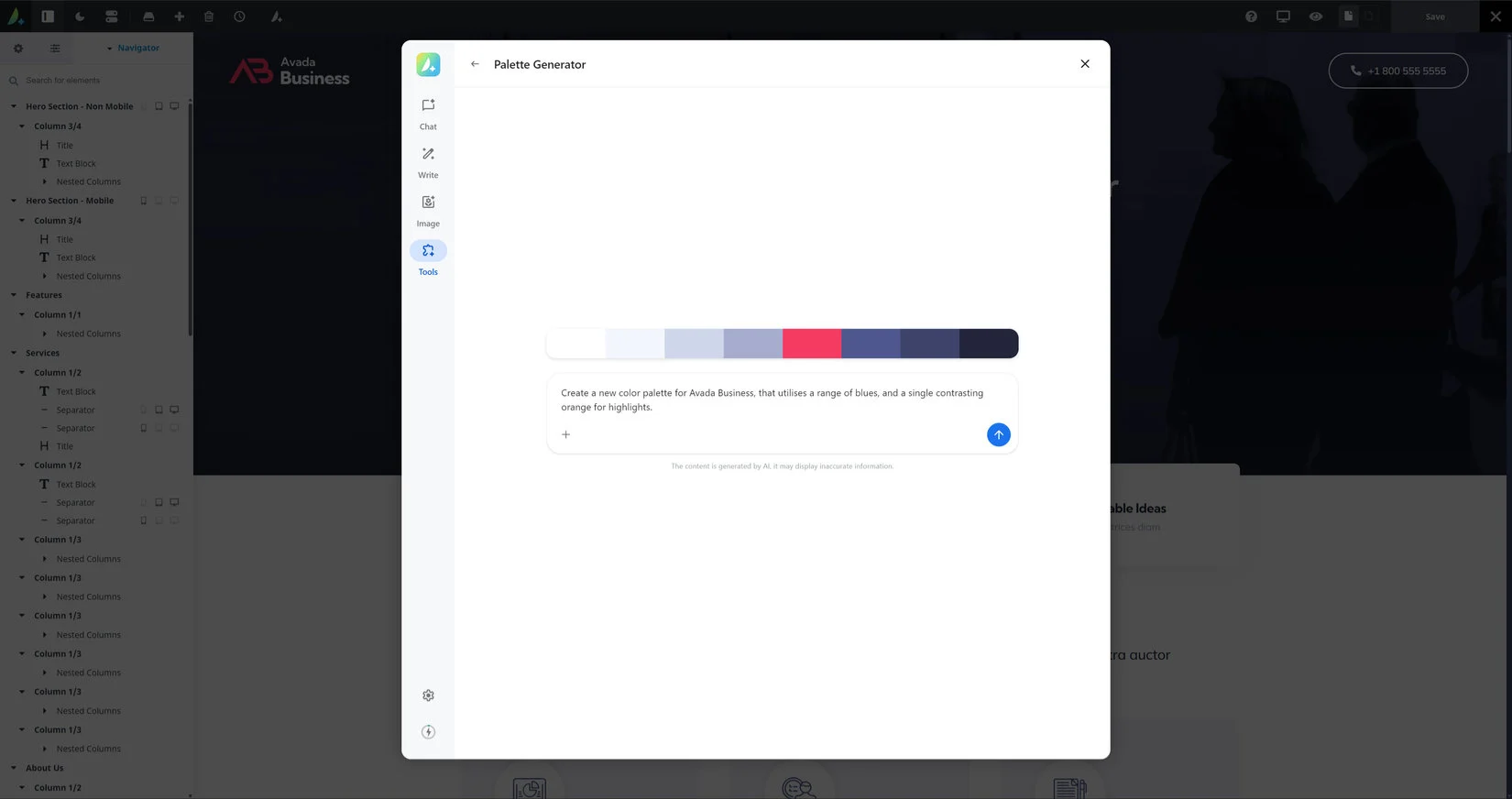
Be specific about the role, mood, and contrast you need. For example: “Create a new color palette for Avada Business that utilises a range of blues, and a single contrasting orange for highlights.” Mention colors you want to preserve when the site already has established branding. You can also upload reference images for Avada AI to use.
2. Generate and review the palette
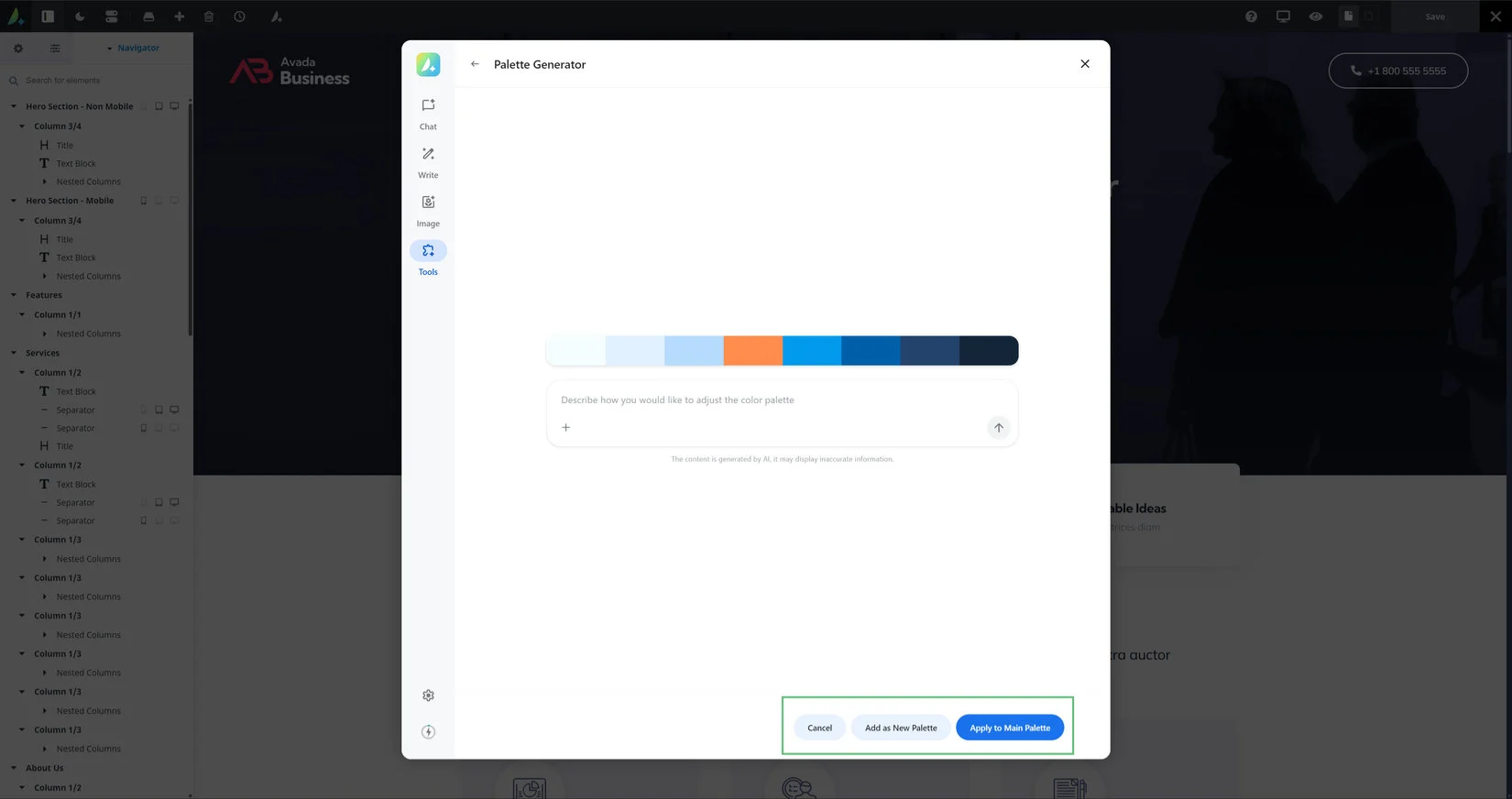
Let Avada AI propose the palette, then check the swatches in the Live Builder. Look for clear roles: light backgrounds, readable text tones, a primary brand color, and an accent for calls to action. The initial palette contains eight core colors, so keeping them ordered from lightest to darkest helps maintain predictable contrast across the site.
3. Apply the result and inspect Content
Once you are happy with the result, you can apply the generated palette. You can Apply To Main Palette, or you can Add as New Palette.
If you Apply to Main Palette, the site will update immediately with the new colors. Review the content. At this point, the new color palette is applied but not saved. If you like it, click Save. Otherwise, simply refresh the page, and the old color paltte will still be in place.
Scenario 2: Add an additional palette
Additional palettes are useful when one color system cannot cover every context. You might create a seasonal campaign palette, a client-approved alternative, or a palette reserved for a landing page section. Each additional palette mirrors the structure of the main palette, so define the same color roles instead of creating an unrelated collection of swatches.
1. Generate the alternate direction
Use the Palette Generator to describe how the alternate palette should differ while keeping the brand recognizable. For a dark palette, ask for a deep background, softened light text, a visible primary color, and an accent that remains legible on dark surfaces. Alternatively, a dark palette can often easily be generated by reversing the color order of the main palette. See How To Use Avada Color Palette Schemes for more information.
2. Name and add the palette
In Avada Options, open the Colors settings and add an additional color palette. Give it a clear name such as “Dark Mode,” “Campaign Summer,” or “Editorial Accent.” Enter the generated colors in the matching palette positions so global color references remain consistent when the palette is selected.
3. Choose where it is used
Use the additional palette as the source for Light Mode or Dark Mode, or assign a specific palette to a container when only one section needs a different visual identity. Preview the page in its actual context and verify that headings, body copy, buttons, links, borders, and form controls still have sufficient contrast.
Common scenarios and recommended approach
Tips for a reliable result
Keep prompts focused on color, mood, contrast, and use case. Avoid asking the generator to reproduce text or logos inside a reference image. After applying a palette, test interactive states such as button hover colors, links, alerts, navigation, and form fields. Remember that palette changes can affect every element that uses global color variables, so save only after you are satisfied with the site-wide preview.