How To Connect an External AI to Avada AI

Last Update: October 19, 2026

Avada AI can work with an external AI provider, such as Anthropic’s Claude. This guide explains how to connect a provider, use it with the page you are editing, and safely disconnect it when the task is complete.

Connecting an External AI in Avada

To connect a page to an external AI, you need to be in the Live Builder.
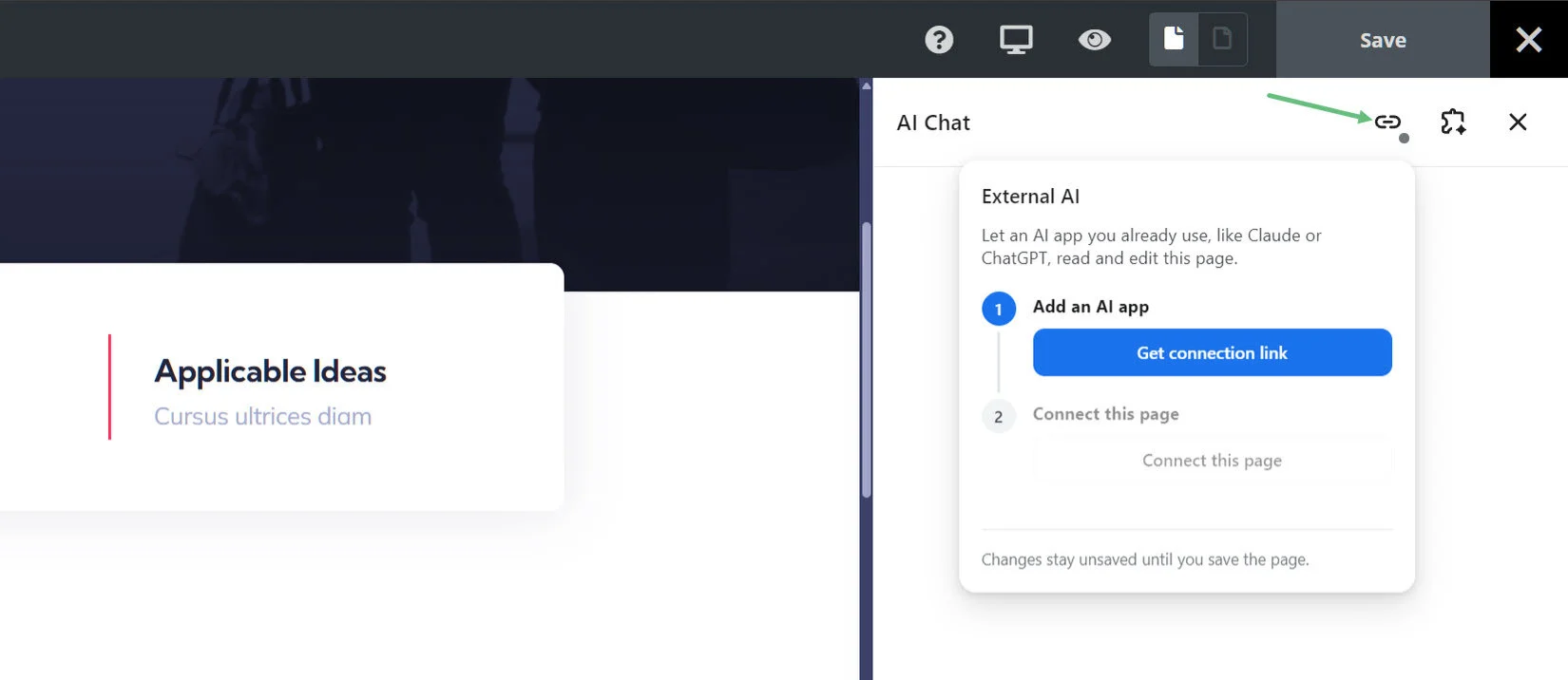
  • Open the AI Chat, from the AI icon in the top toolbar.

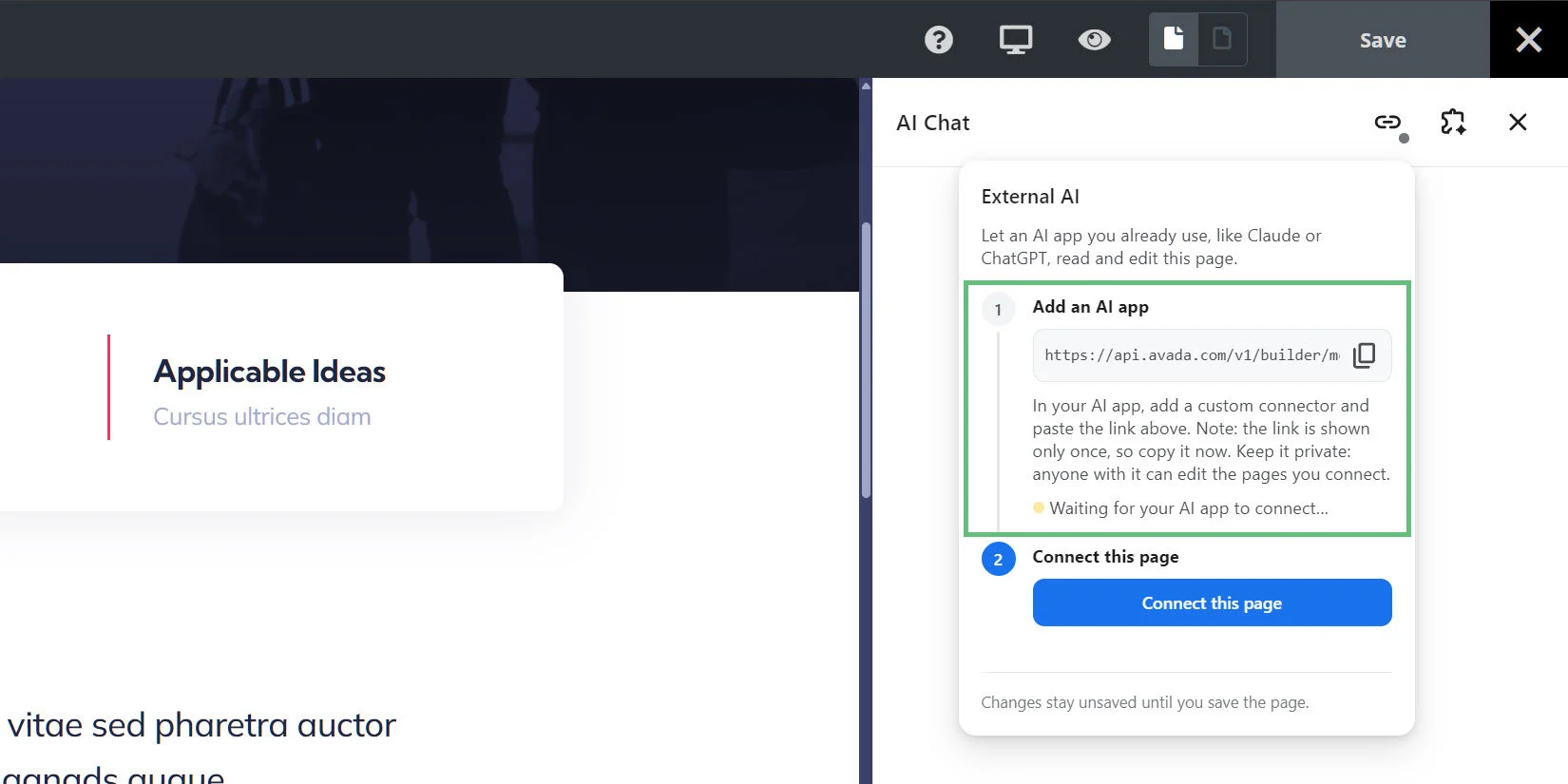
  • Click on the External AI link, as seen below. A dialog will appear, allowing you to get a connection link.

  • Clicking Get connection link provides the neccesary link to connect. Read the description carefully, and copy the connection link. As you can see at the bottom of the description, at this point, it is waiting for your AI App to connect.

Connect Anthropic’s Claude

From here, it depends what AI app and plan you want to connect. As an example, let’s walk through connecting the free version of Claude, by Anthropic.
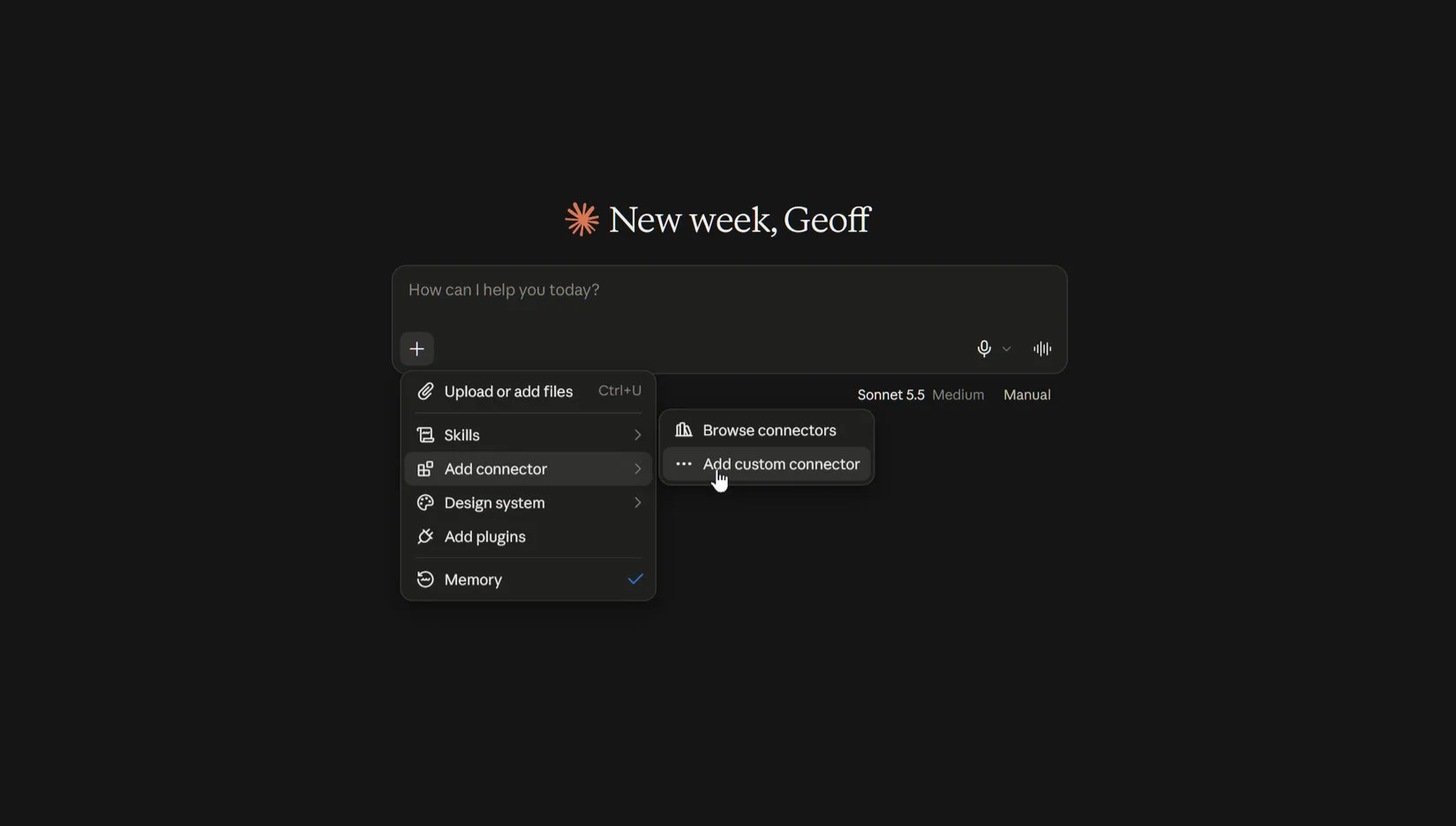
  • In Claude, head to the + button, then Add Connector, and Add Custom Connector.

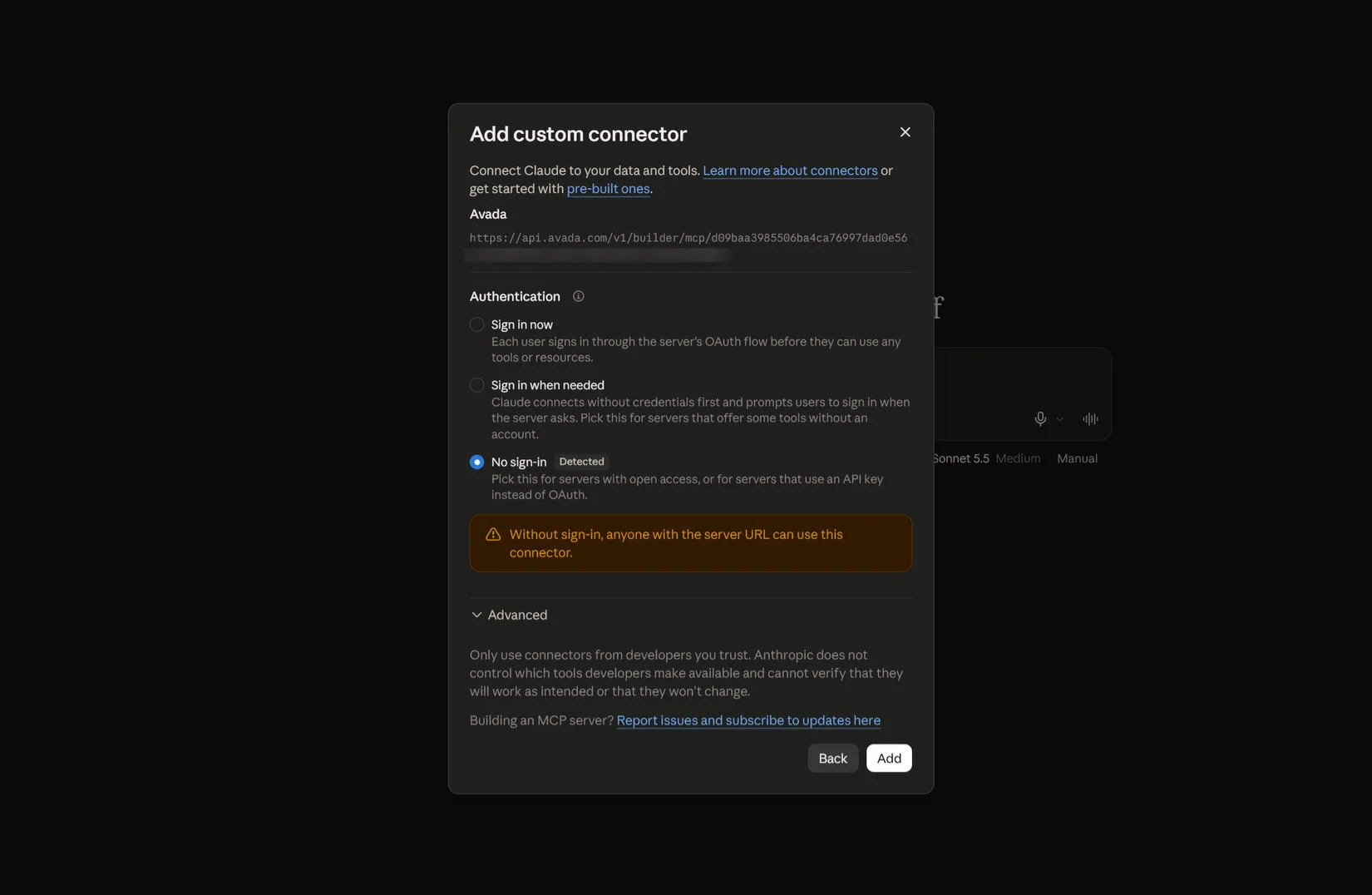
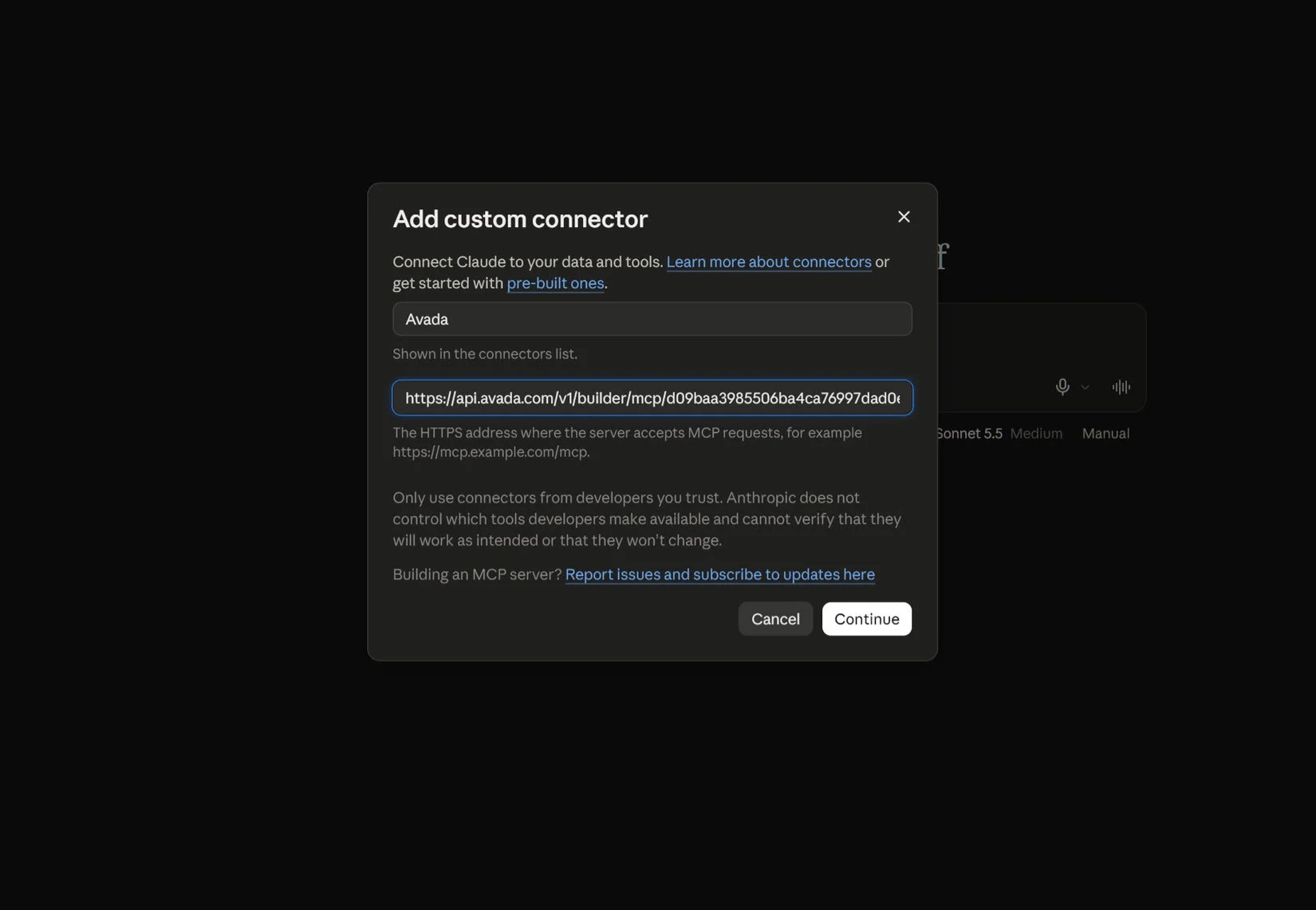
  • An Add Custom Connector dialog appears, where you can add a name for your connection, and it is here you add the copied connection link. Once, you have done that. click Continue.

  • A final dialog appears, with Authentication options. Leave it on No Sign in, as detected by Claude. Note how it warns about the server URL, which you should never share. From here, just click on Add, and the connection is made.

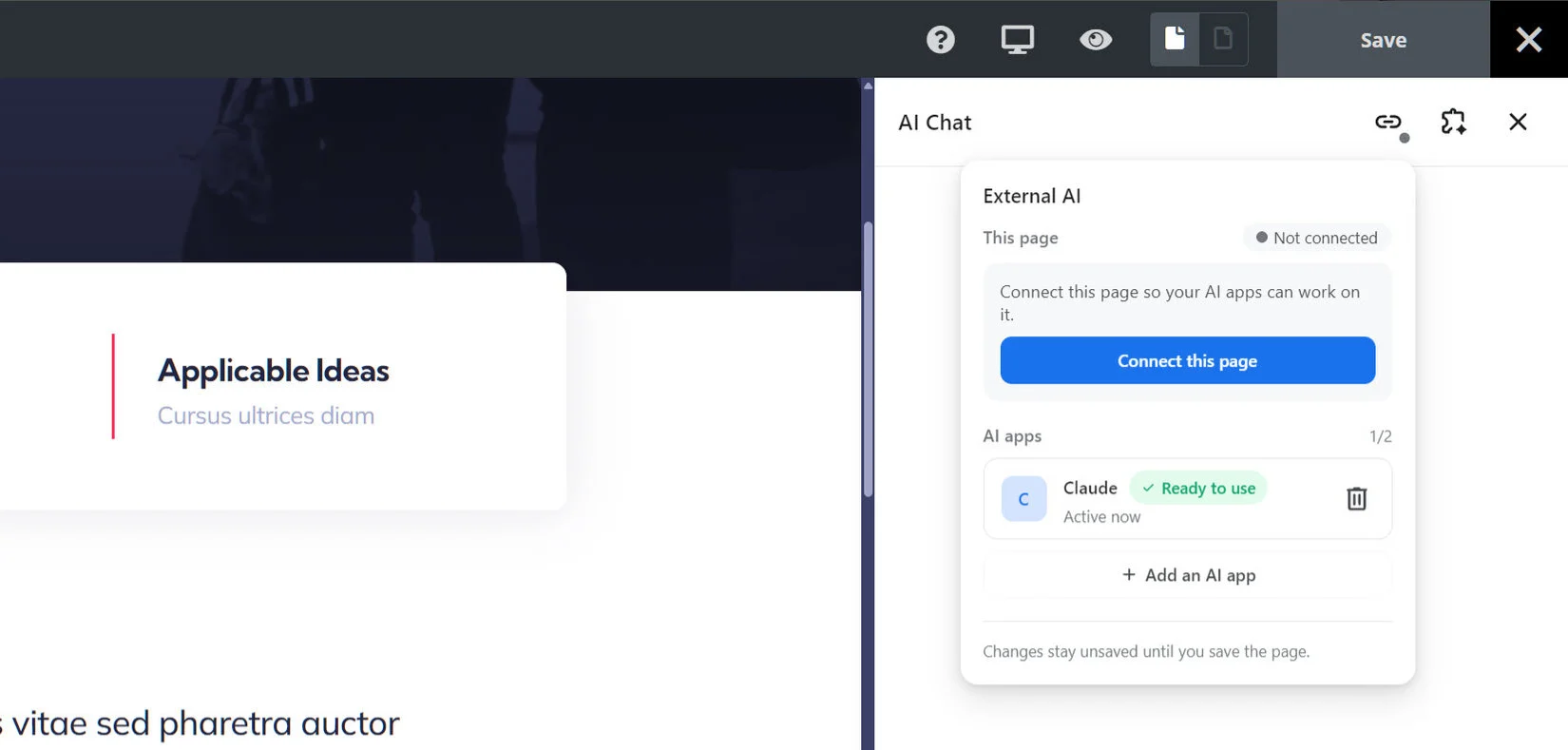
  • Back in Avada, you can now see that there is an AI App in the list, which is active and ready to use. As you can see by the + Add an AI App, you can add multiple apps, and choose which one connects to your page. For Claude, we can now just click on Connect this page.

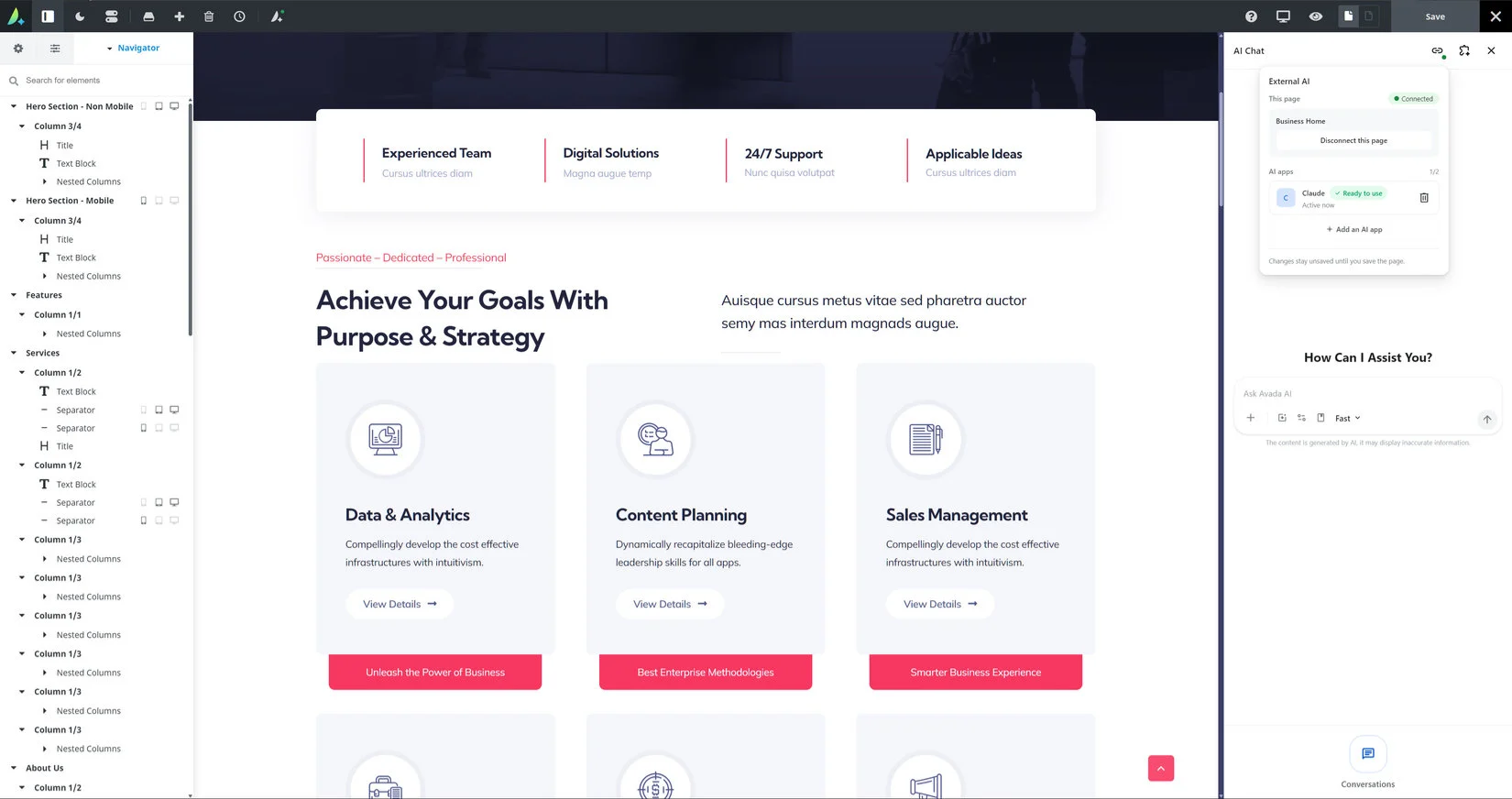
  • Once the connection has been made, you can begin using Claude in the Builder. In the dialog, it shows as Connected, and there is a link to Disconnect this page.

Why the Connection Applies to One Page

The external AI connection is intentionally associated with the page and editing context where it is enabled. It is not automatically a site-wide connection to every WordPress page, template, or Global Option.

  • The model receives only the page content or selection that Avada sends for the specific request.
  • Other pages, drafts, media, forms, headers, footers, and Global Options are not automatically shared.
  • Page-level scope reduces accidental exposure of unrelated website content.
  • The external model cannot automatically rewrite the entire website or change site-wide settings.
  • The editor can control which content is submitted and review the response before applying it.

Disconnect the Provider and Revoke Access

Disconnect the provider when the task is complete, when switching accounts, or whenever an API key may have been exposed.

  • Open the same page in the Avada Live Builder.
  • Open Avada AI and go to the external connection area.

  • Find the connected provider and select Disconnect.

  • Confirm the action and refresh the Live Builder if the provider still appears.
  • For API-key connections, revoke or delete the old key in the Anthropic account.

  • Create and connect a replacement key only when continued access is required.

Troubleshooting Connection Problems

If the connection does not work, check the account, credential, browser, and server conditions before trying the request again.

  • Update Avada and Avada Builder if the provider option is missing.
  • Confirm that your WordPress account has the required permissions.
  • Check that the API key was copied without spaces or quotation marks.
  • Allow browser pop-ups if authorization opens a separate window.
  • Test with a short request and check provider usage information for errors.

Security and Privacy Checklist

Use the following safeguards whenever an external AI provider is connected to Avada AI:

  • Never place an API key in visible page content, a button URL, custom CSS, or a shortcode.
  • Send confidential or regulated information only when your organization has approved the provider and account configuration.
  • Use separate credentials for separate websites or environments where practical.
  • Set provider usage limits and rotate credentials periodically.
  • Revoke a key immediately if it has been shared or exposed.
  • Review every AI response for accuracy, tone, privacy, and unintended claims before saving or publishing.

In this article

Go to Top