
Programmer Deconstruction – ACF Repeaters & Relationships
Last Update: February 8, 2026
In this document, we are going to look at the bundled ACF Pro plugin, and two features which we have recently added support for in Avada – ACF Repeaters & Relationships.
To do this, we will be using the Avada Programmer Prebuilt site as an example, which has been built to take advanage of these additions to Avada. Specifically, we will be looking at the individual Projects on the prebuilt site, how they are structured, what Avada features they take advantage of, as well as how they are set up to use ACF Pro Custom Fields.
Overview Of Structure
Single Project
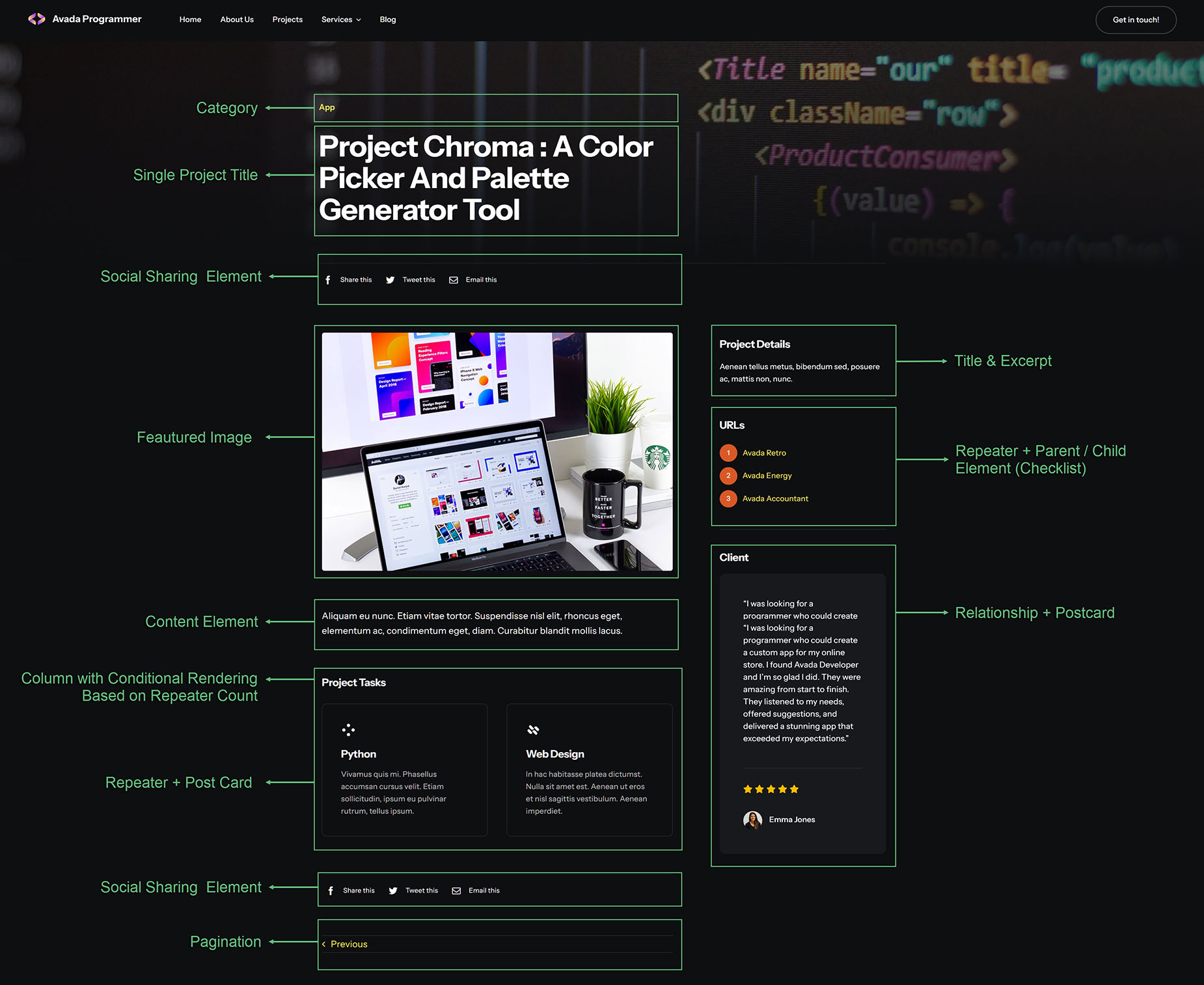
Let’s start by looking at the Project Chroma Single Project page of the Programmer prebuilt on the front end. This is not the only place on the site where ACF custom fields have been used, but this is where the majority of them are found, and so will be the main focus of this document.
To appreciate how these project pages are set up, you need to understand where the content is coming from. The page design is coming from an Avada Layout, which is using a range of Avada Elements, such as Post Cards and Checklists to dynamically pull content from the individual single project. These single projects in turn are pulling their content from ACF custom fields.
In the rest of this post, we will look in more detail at how this layout was achieved.
Layout
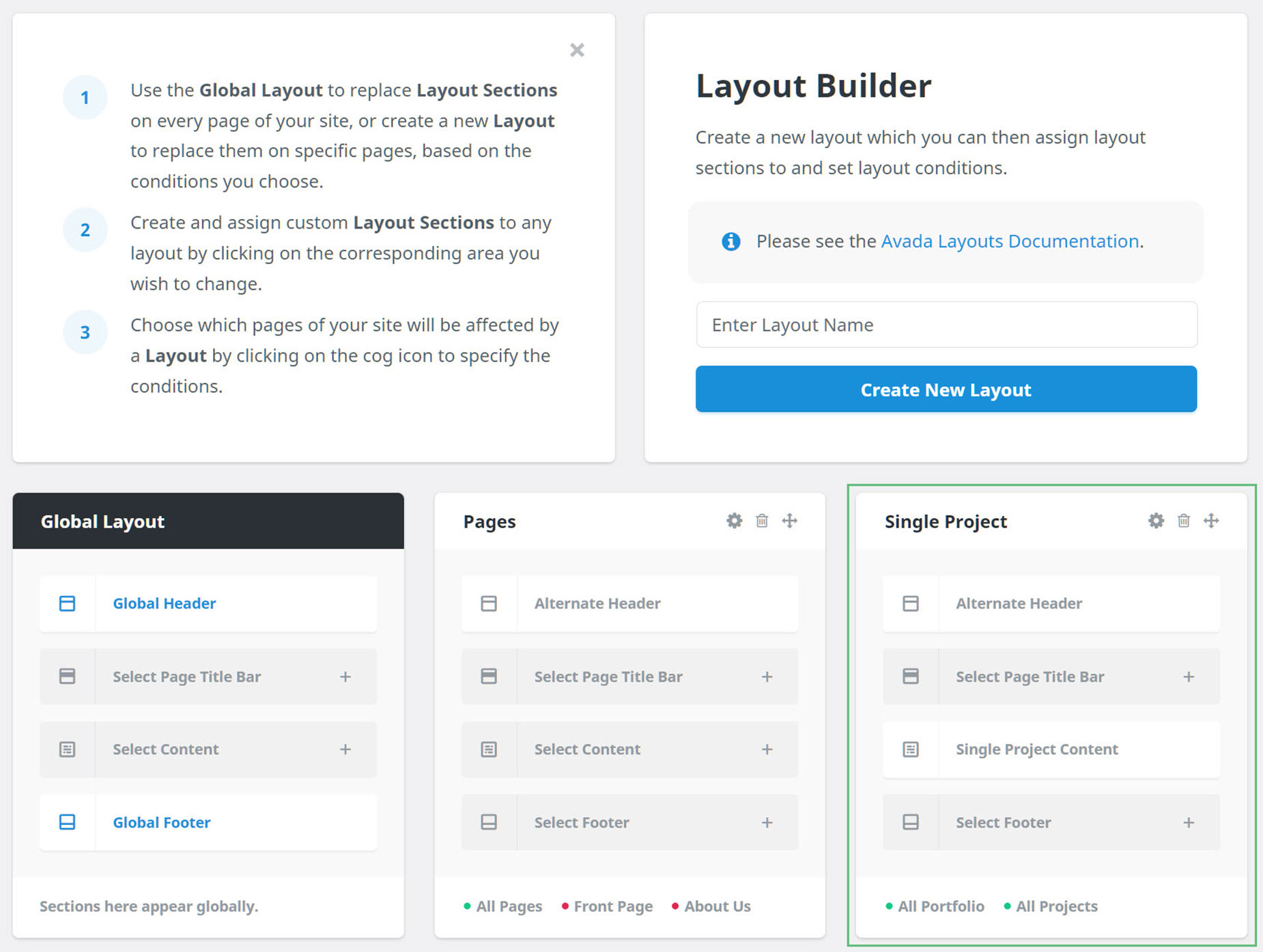
Let’s start with the design. In Avada Layouts, there is a Layout called Single Project, and this has an Alternative Header, and a Content Layout Section set conditionally to display on All Projects (WHY ALL PORTFOLIO AS WELL??). We will look further at the layout later in the document.
Single Projects Content
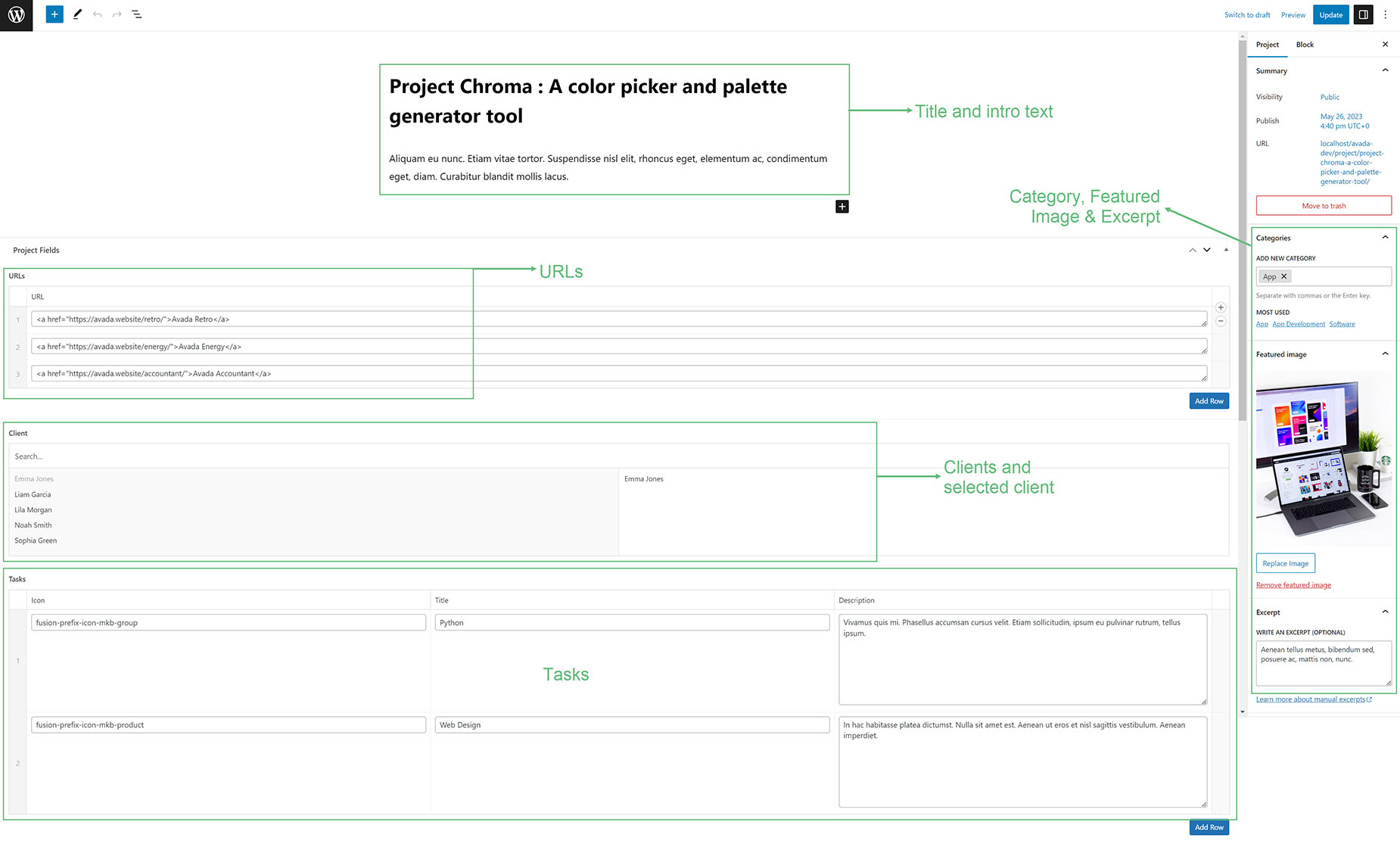
The Single Projects themselves have been created and edited in Gutenberg. You could, of course, use Avada Builder for this instead, but for a project structure like this, it would be typical that a developer would set up ACF, as well as the Avada Layout, and then an Editor would add the content only, using Gutenberg to eliminate any design input.
ACF Setup
The initial step in ACF was to set up the Field Groups, Fields and Sub Fields. For the Programmer prebuilt, three field groups were created – Project Fields, Service Fields, and Testimonial Fields. Apart from naming the Field Group, there are two sections on the Add New Field Group page – Fields, and Settings. In the Fields section, you add the individual custom fields. And in the Settings section you set the rules for the display of the Field Group.
Project Fields
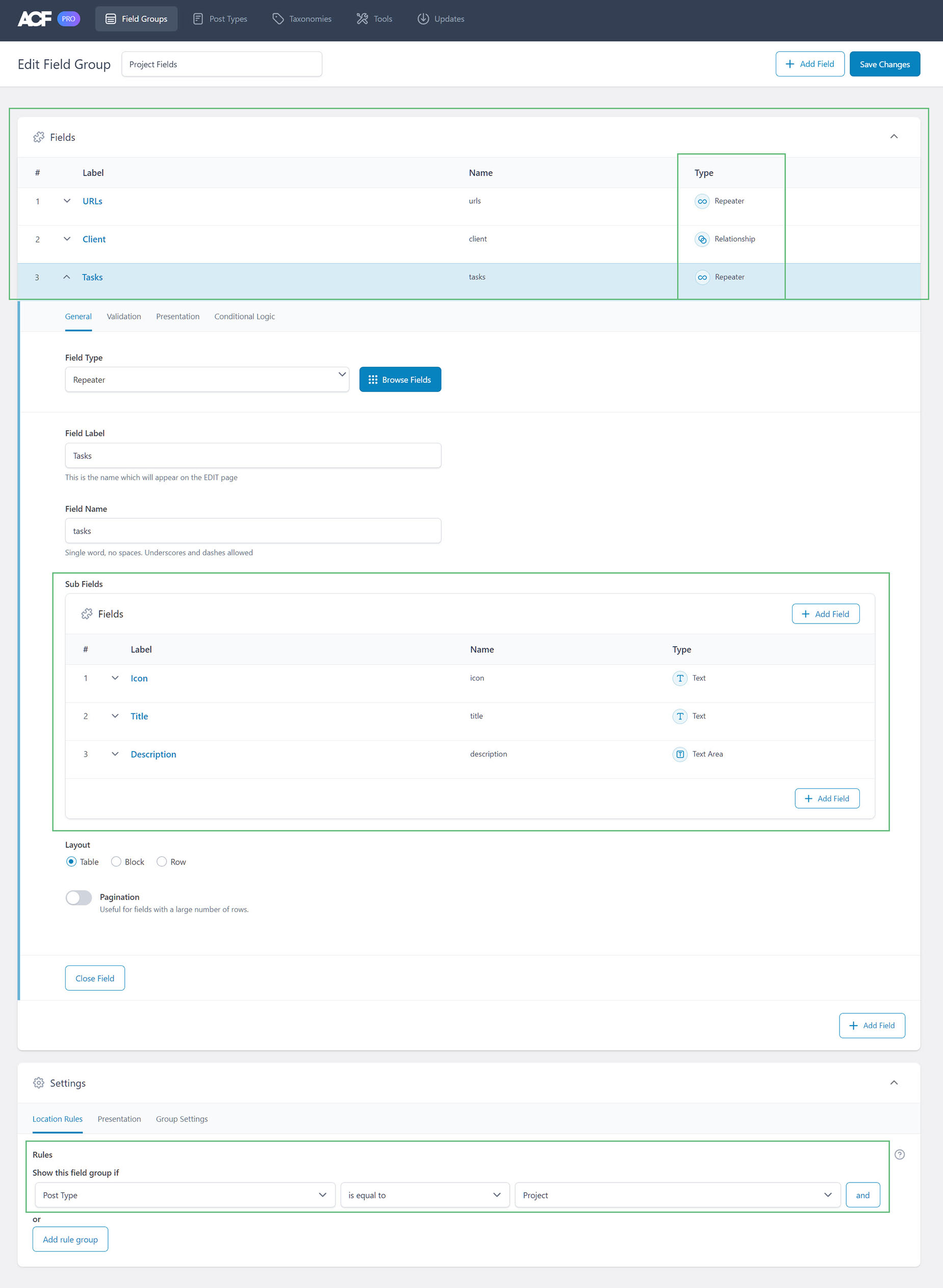
In the example of our first Field Group, Project Fields, three fields were created – URLs, Client, and Tasks. URLs and Tasks are Repeater fields, and Client is a Relationship field.
For the two Repeater Fields, Sub Fields were added. URL for URLs, and for Tasks, Sub Fields called Icon, Title and Description were added. In the screenshot below, you can see the three fields and their type at the top, and in the expanded Tasks Field, you can see the added Sub Fields. At the bottom of the screenshot, you can see the Settings.
Here, the rules were set to show the field group if the post type is equal to Project. So that means that this field group, and its fields and sub fields, will only appear when editing the Project post type. You can see these Fields and Sub Fields on the screenshot immediately above this section, showing the Single Projects page in the Gutenberg Builder.
Service Fields
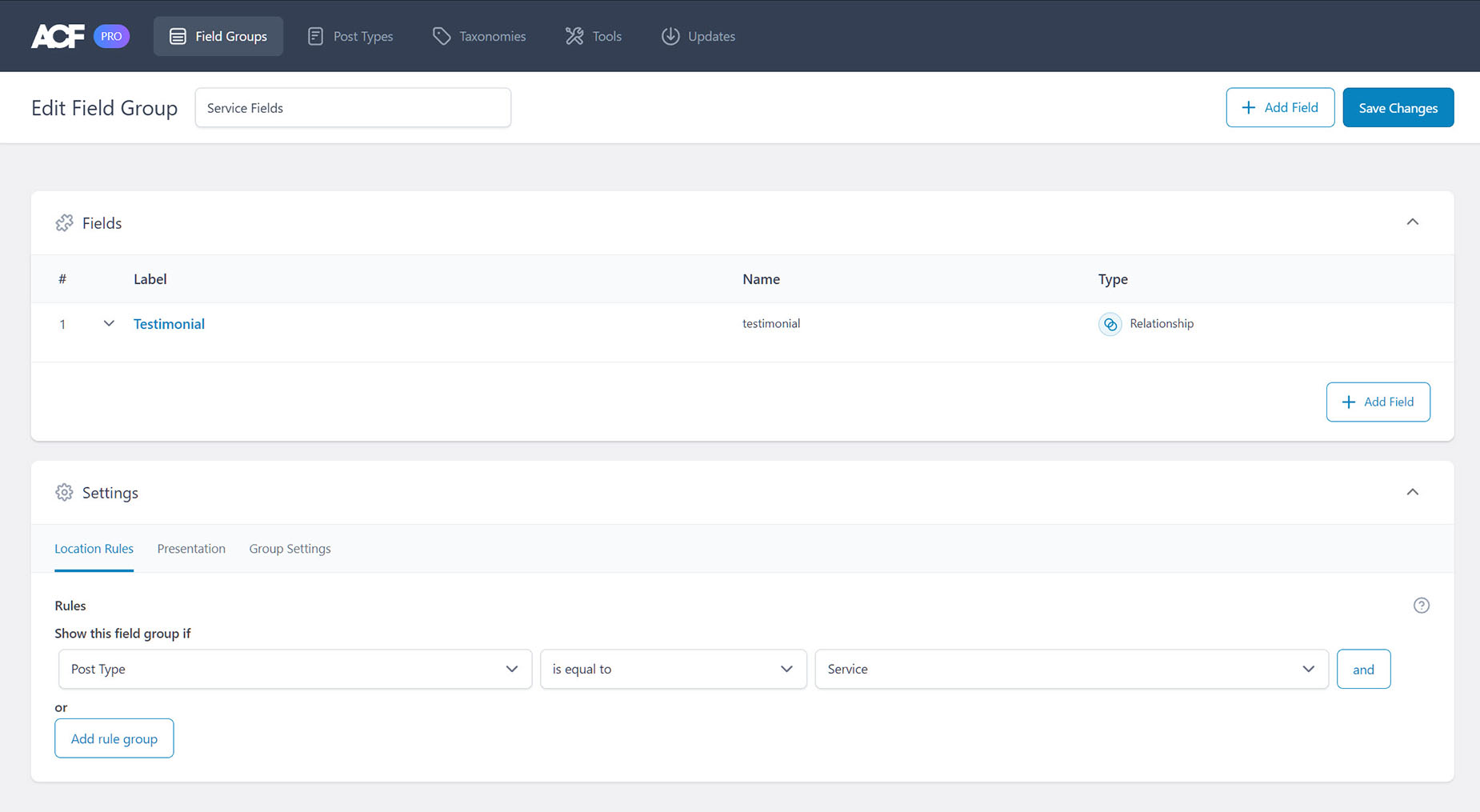
For the second Field Group, Service Fields, only one field was created – Testimonials, with a type of Relationship.
Under Settings, the rules were set to show the field group if the post type is equal to Service, so it will only display on the Service post type.
Testimonial Fields
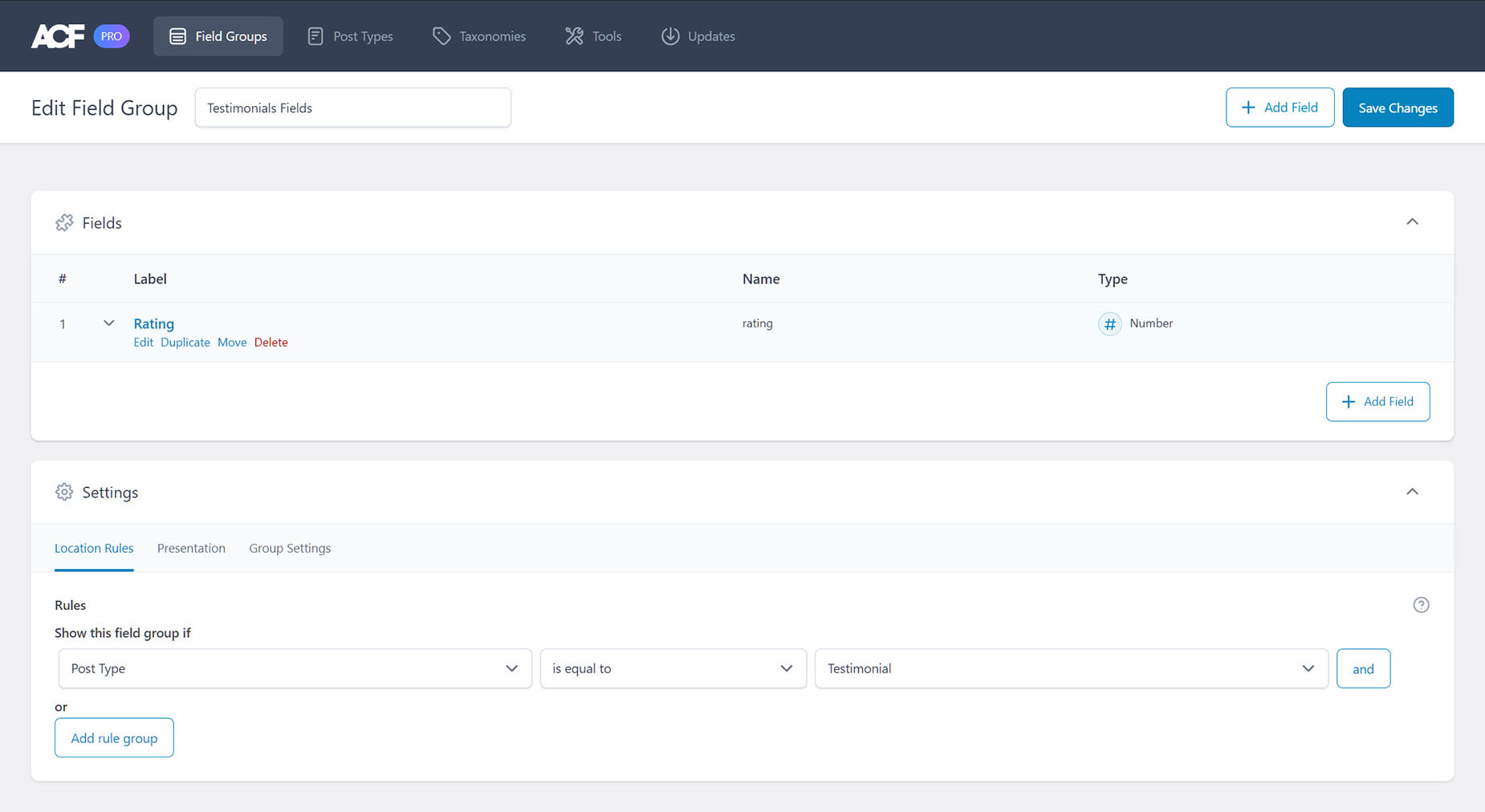
For the final Field Group, Service Fields, again, only one field was created – Ratings, with Number being the type.
Under Settings, the rules were set to show the field group if the post type is equal to Testimonal, so it will only display on the Testimonial post type.
Entering Data Into Individual Posts
So at this point, we can enter the ACF data into our individual posts. If we look again at a single project in the builder as we saw before, we can see the ACF Fields and Sub Fields at the bottom of the page.
Adding ACF Fields To The Layout Section Using Dynamic Content
Once the content has been inputted into the new Custom Fields, it needs to be displayed on the page. This is done in Avada, through Dynamic Content options, added specifically for ACF. Let’s have a look at the various ways the content has been brought in to the Content Layout Section for the Single Project pages.
As we can see in the overview image below, the content in the Single Portfolio Content Layout section has been pulled using a combination of conditional rendering and dynamic data.
Let’s look at a few specific examples.
Project Category
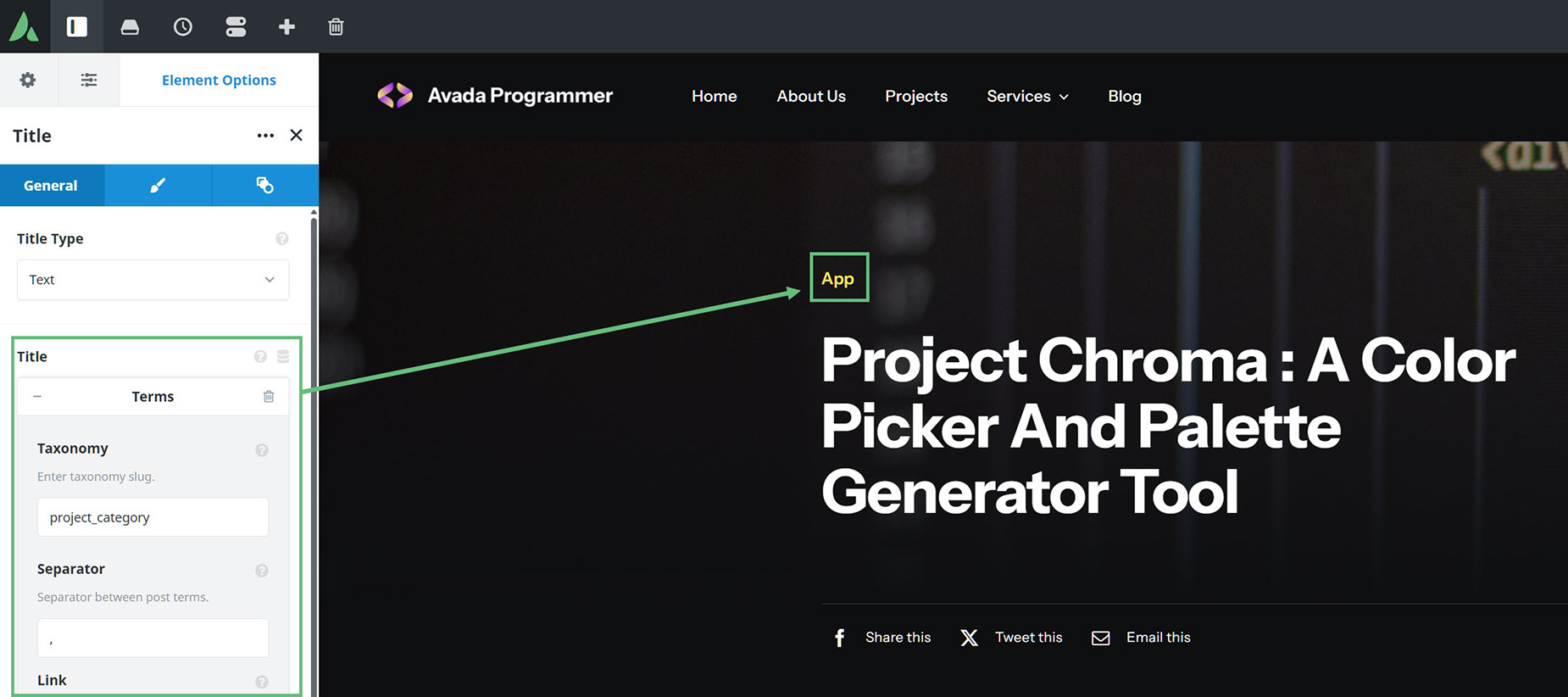
The Project Category is simply a Title Element, using Dynamic Data to pull from Terms, displaying the Taxonomy, which in this case is project_category.
Title
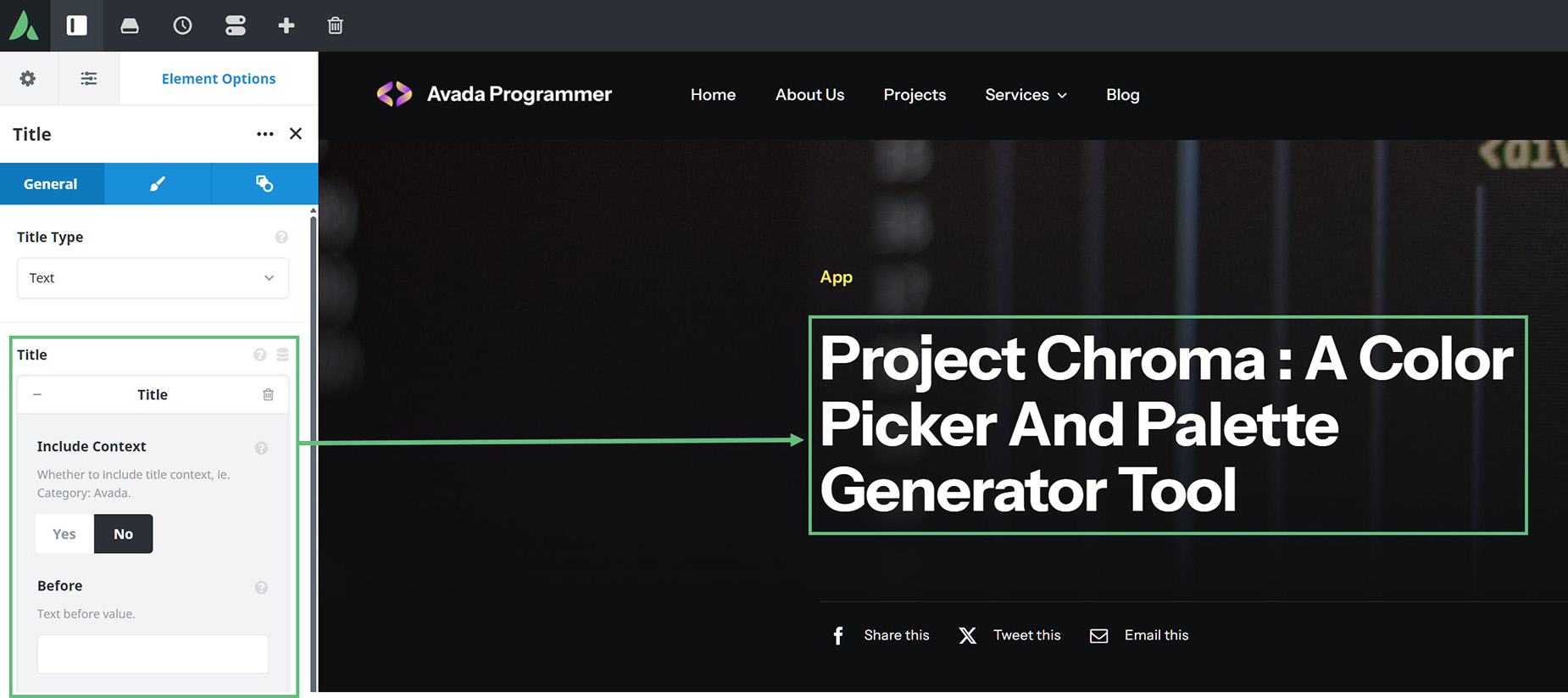
The Project Title is again a Title Element, simply pulling the Title via Dynamic Data.
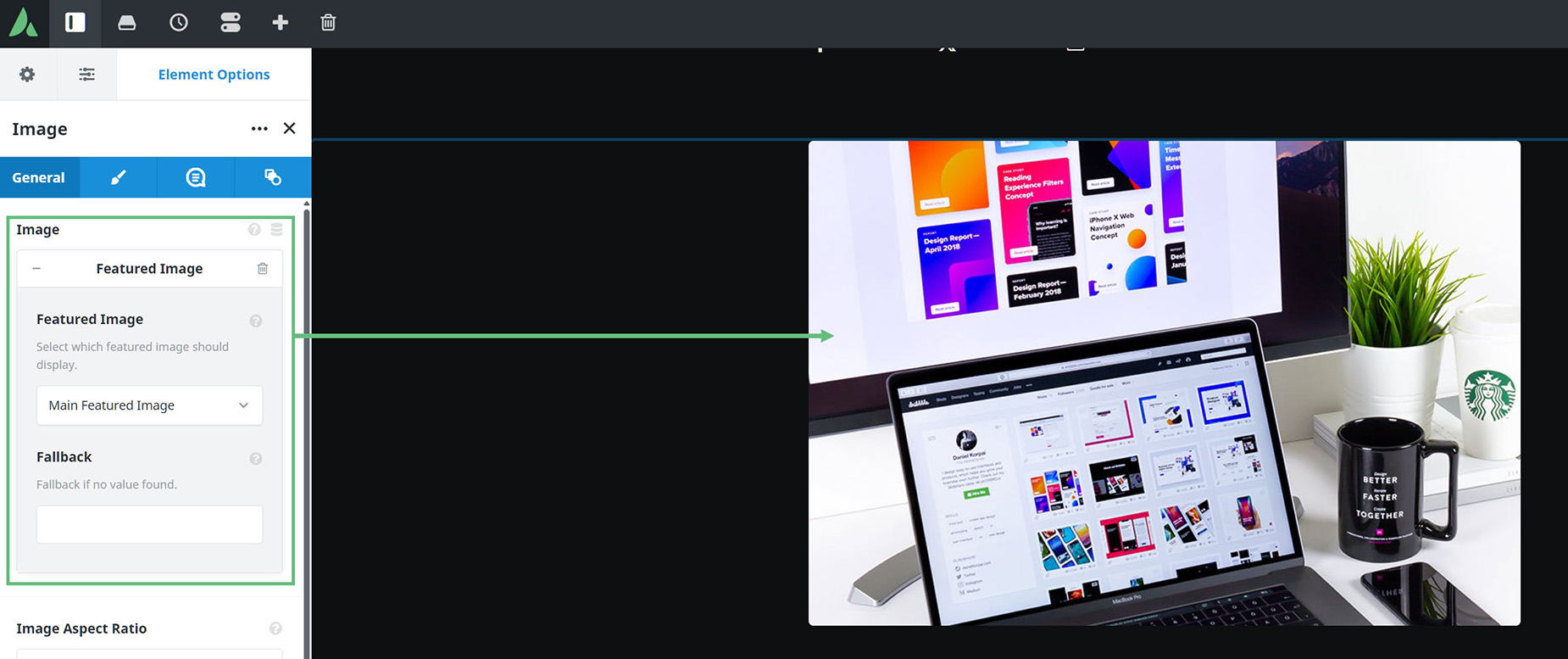
Featured Image
The Featured Image is of course an Image Element, dynamically pulling the Featured image.
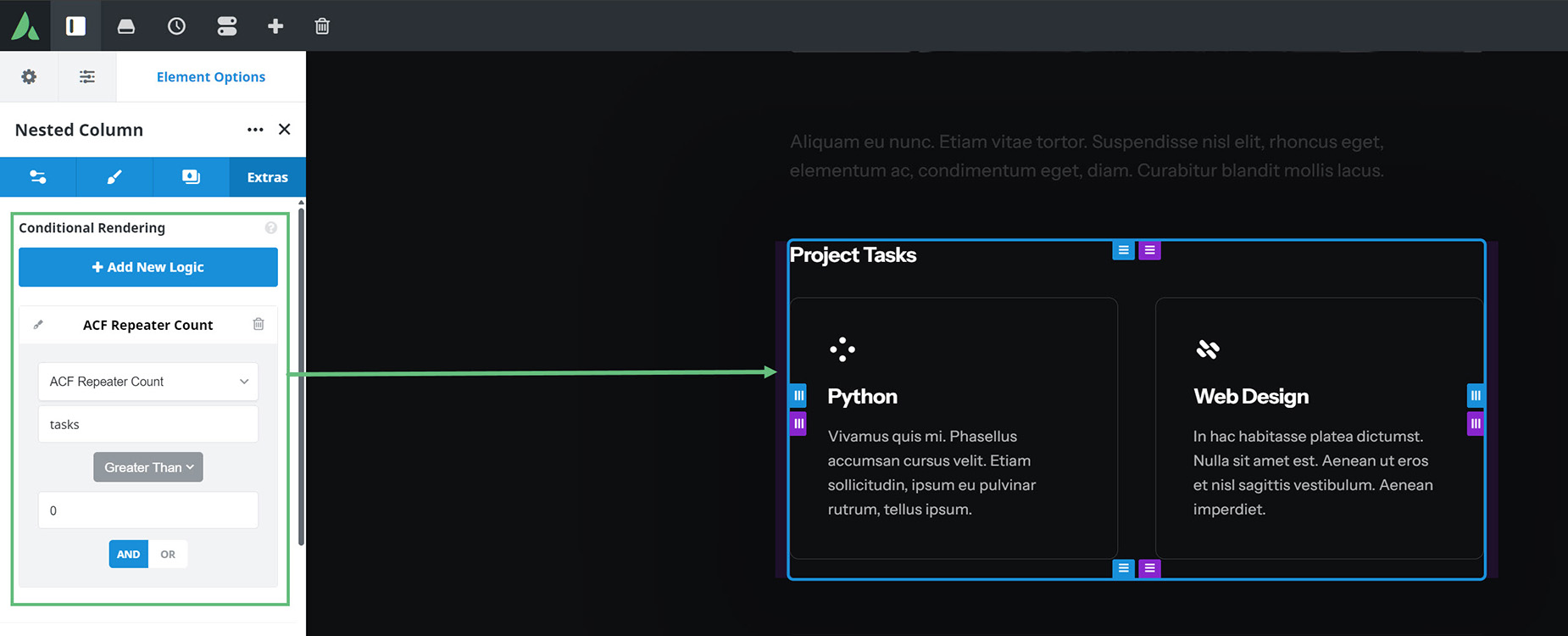
Project Tasks
The Project Tasks is an interesting one. For a start, it has Conditional Rendering on the Column, using an ACF Repeater Count for the tasks field, getting it to render, only is there are more than xero tasks.
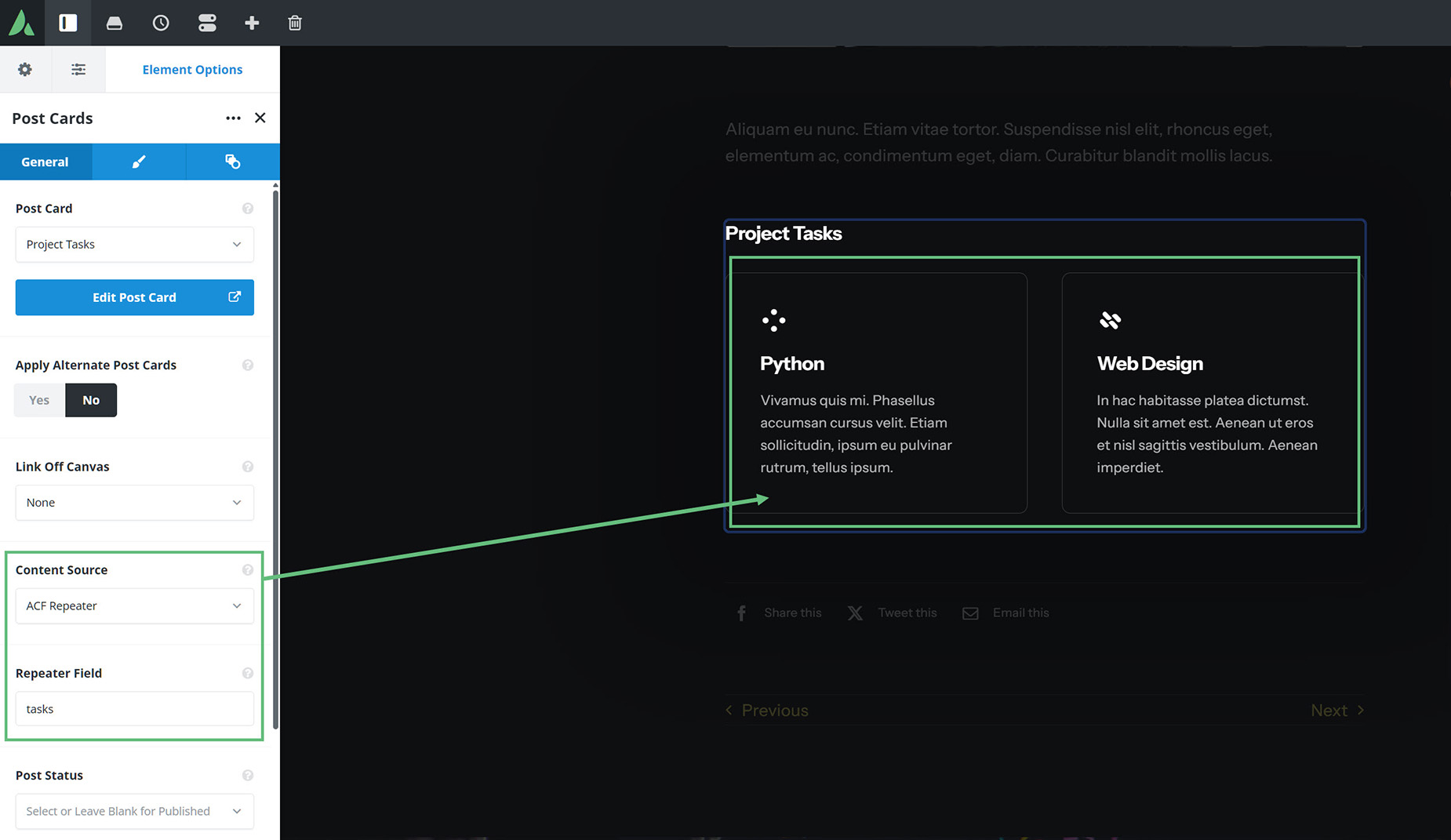
Then, there is a Post Card displaying the individual tasks. This is pulling the tasks via the ACF Repeater as the Content Source, using the tasks repeater field. In this way, the entire layout was populated using various combinations of dynamic data, and conditional rendering when required.
The easiest way to examine and understand how a layout such as this can be used in conjunction with ACF Pro using ACF Repeaters and Relationships to display custom portfolio items is to import the prebuilt and explore. This is most easily done by installing a Local WordPress installation. See the Staging Sites vs Local Development Environments documentation for more details on how to do this.


















































































































