
Inline Dynamic Data

Last Update: December 11, 2025

Avada Dynamic Data is an integral part of inline editing, allowing one or more dynamic data endpoints within a single Avada Text Block Element, for example. There is a dedicated Dynamic Data Element for easy inline dynamic data management, and an easy-to-use syntax, allowing you to write dynamic data directly into Avada Design Elements and SEO post options. Read on to see how this works, and watch the video below for a broader look at adding dynamic content in Avada.

For privacy reasons YouTube needs your permission to be loaded.

Avada Dynamic Data Element

The Avada Dynamic Data Element is an Inline Element that lets you add dynamic data via the Inline Editor. See the Avada Dynamic Data Element documentation and video for full details; it works similarly to other inline elements. The main difference, though, is that it doesn’t format the selected text, but replaces it with your chosen dynamic data endpoint.

You can use this in one of two ways: either you can add a placeholder word in your text and select that, so that it is replaced with the dynamic data endpoint, or you can place your cursor where you want your dynamic data in your text and type the left curly bracket. This will autocomplete and add the dynamic data element into your text, ready for endpoint selection. ​

Below, we see an example of multiple Dynamic Data endpoints placed inside of an Avada Text Block Element within a Content Layout section, and below that, how they appear on the front end.
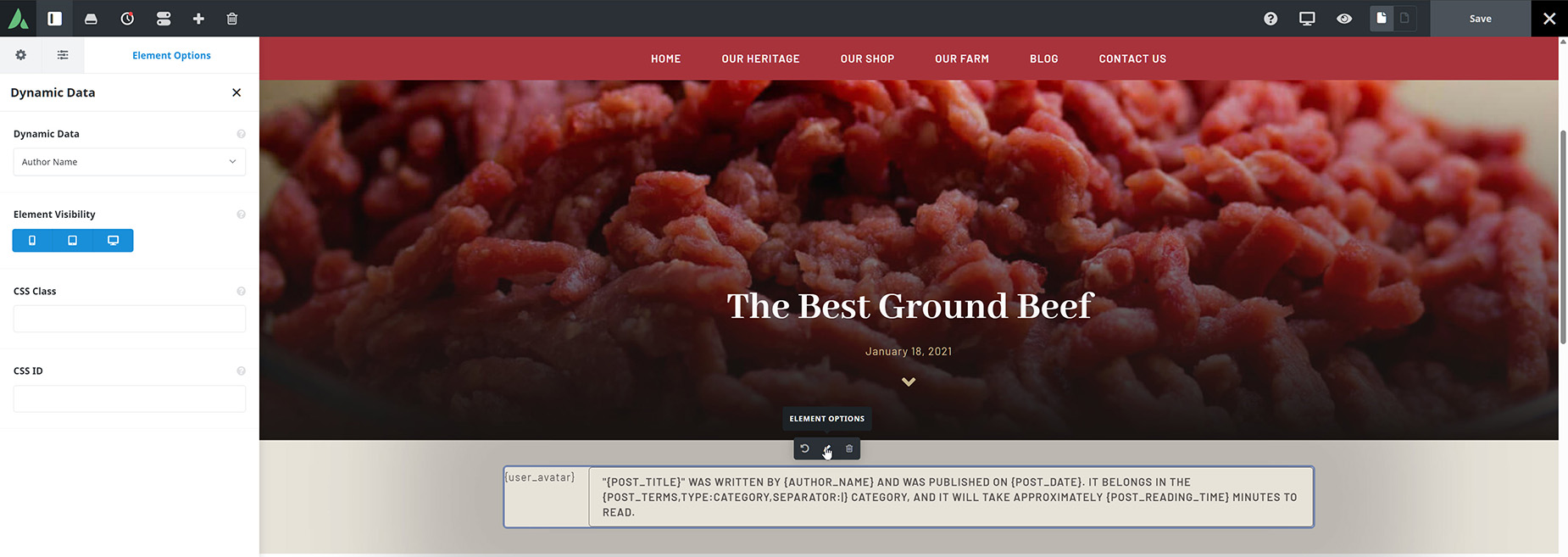
Avada Dynamic Data Element

The Dynamic Data Element In The Avada Live Visual Builder

Avada Dynamic Data Element Frontend

The Dynamic Data Element on the front end

Avada Dynamic Data Builder Preferences

There is also an “Enable Preview” option in the builder preferences that lets you choose whether and when a preview of inline dynamic data is displayed. “Never” is the default; you can set it to Editing so the dynamic data endpoints preview when you edit the containing Element, or to “Always”, which shows the preview as soon as you enter the endpoint.
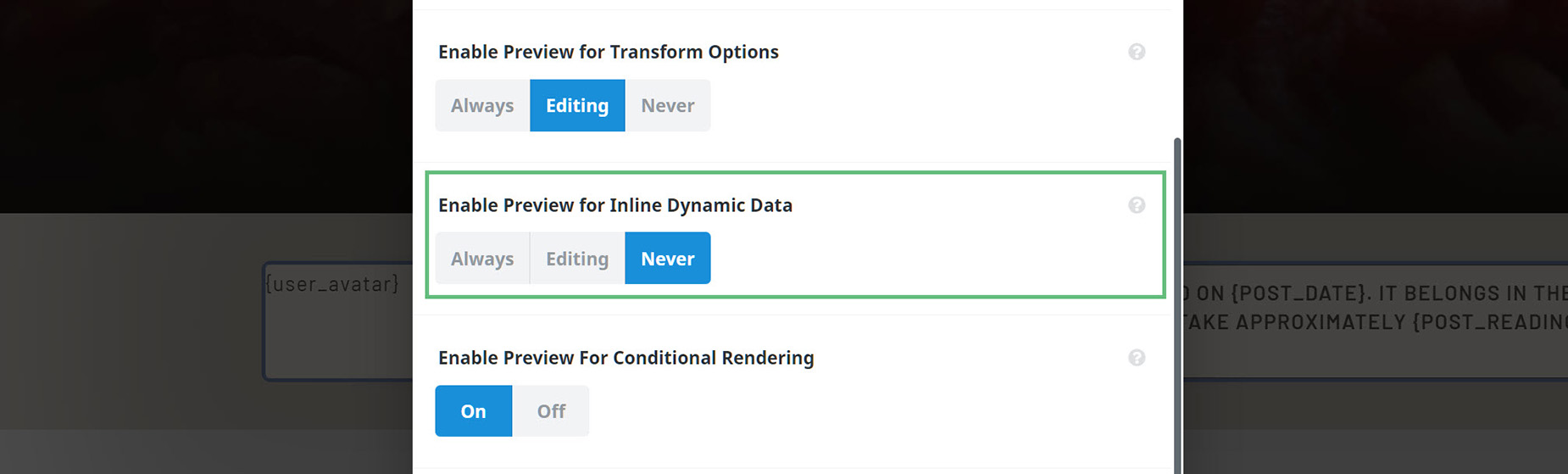
Dynamic Data Element Preference

Avada Dynamic Data Syntax

You can also add dynamic data directly into text in any editor or in SEO (Search Engine Optimization) post options using the correct syntax. If you know the syntax for the dynamic data endpoint, you can enter it. For example:

Copy to Clipboard

This will display the title of the Post, while:

Copy to Clipboard

Will add the Category/s and use the | symbol as a separator if the post was in multiple categories. It’s important to note that using the dynamic data syntax directly in text does not add the Inline Element. A full list of all dynamic data endpoints and their options can be found below.


Post

NameDescription
{post_title}Title
{post_excerpt}Excerpt / Archive Description
{post_terms}Terms
typeChoose Taxonomy to use.

separatorSeparator between post terms.

linkWhether each term should link to term page.
{post_id}ID
{post_time}Time
formatTime format to use. Formatting Date and Time
{post_date}Post Date
{post_current_visitor_count}Current Visitors
{post_reading_time}Reading Time
reading_speedAverage words read per minute. Reading time will be displayed in minutes based on this value.
use_decimal_precisionWhether to use decimal precision(ex 2.3 min) or not(2 min).
{post_type}Post Type
{post_custom_field}Custom Field
keyCustom field ID key.
{form_next_step}Next Step
{form_previous_step}Previous Step
typeSelect which featured image should display.
{term_count}Term Count
include_child_termsChoose if child terms should be included in the count.
display_zero_termsChoose if the count should be displayed even when there are zero terms.
singular_textDefault singular text.
plural_textDefault plural text.
singular_textDefault singular text.
plural_textDefault plural text.
include_mainWhether to include the main featured image as well.

Site

NameDescription
{site_title}Site Title
{site_tagline}Site Tagline
{site_url}Site URL
typeSelect logo type to display. All can be used in image element for header layout section.

Other

NameDescription
{date}Date
formatDate format to use. Formatting Date and Time
{user_avatar}Display User Avatar
sizeSet the size of the Avatar in pixels. Ex. 96px. Leave empty for default value of 96px.
{user}Logged in Display Name
{user_meta}User Meta
meta_keyChoose a meta data key.
meta_key_customSet a custom meta data key, overriding the select value.
user_idLeave empty to use current user ID.
{request_parameter}Request Parameter
type
name
{shortcode}Shortcode
shortcode
{action_hook}Action
action_name

FileBird

NameDescription
{filebird_folder_parent}FileBird Folder
folderEnter the folder name or ID.

Off Canvas

NameDescription
{toggle_off_canvas}Toggle Off Canvas
off_canvas_idSelect off canvas.
{open_off_canvas}Open Off Canvas
off_canvas_idSelect off canvas.
{close_off_canvas}Close Off Canvas
off_canvas_idSelect off canvas.

Advanced Custom Fields

NameDescription
{acf_text}ACF Text
fieldEnter field name you want to use.
{acf_select}ACF Select
fieldEnter field name you want to use.
separatorEnter a separator to use between values.
{acf_color}ACF Color
fieldEnter field name you want to use.
{acf_repeater_single}ACF Repeater Single Value
fieldEnter repeater field name.
keyEnter repeater sub field name.
indexEnter repeater item index eg. 1, 2, etc. Use "all" or "-1" to select all indices (e.g. in Title element for rotation or marquee effects).
separatorEnter a separator which will be used between the individual items, if you used "all" or "-1" in the Index option above. For Title element rotation effect use "|".
separator_at_endSet to yes, if the separator should be added after the last item as well. Useful e.g. for Title element marquee effect.
{acf_repeater_parent}ACF Repeater
fieldEnter repeater field name you want to use.
{acf_repeater_sub}ACF Repeater Sub Field
sub_fieldEnter repeater sub field name you want to use.
{acf_relationship}ACF Relationship
fieldEnter field name.
separatorSeparator between post terms.
{acf_image}ACF Image
fieldEnter field name you want to use.
{acf_iconpicker}ACF Icon Picker
fieldEnter field name you want to use.
{acf_file}ACF File
fieldEnter field name you want to use.

WooCommerce

NameDescription
{woo_update_cart}Update Cart
{product_last_purchased}Product Last Purchased
limit_to_userDecide if the purchase check should be limited to the currently visiting user.
date_formatDate format to use. Formatting Date and Time
{woo_price}Product Price
formatFormat of price to display.
{woo_rating}Product Rating
formatFormat of rating to display.
{woo_sku}Product SKU
{woo_stock}Product Stock
{woo_product_total_sales}Product Total Sales
{woo_add_to_cart}Add To Cart
{woo_buy_now}Buy Now
{woo_quick_view}Quick View
{woo_category_thumbnail}Category Thumbnail
{woo_shop_page_url}Shop Page URL
{woo_cart_page_url}Cart Page URL
{woo_checkout_page_url}Checkout Page URL
{woo_tnc_page_url}Terms & Conditions URL
{woo_sale_date}Sale Date
sale_dateSale Date to display.
product_idProduct Sale Date to display. Leave empty to use the current product ID.
{woo_cart_count}Cart Count
singular_textDefault singular text.
plural_textDefault plural text.
{woo_cart_total}Cart Totals
totals_baseChoose if sub-totals (with or without discounts) or totals should be displayed.
include_taxAdds additional tax info when using "Totals" above, if actiavted in WooCommerce settings.
{woo_free_shipping_min_amount}Free Shipping Min. Amount
display_typeSet to "Full" to display the minimum order amount, set to "Missing" to display the amount missing until free shipping, and set to "Percentage" to display the percentage already reached.
{woo_order_number}Order Number
{woo_order_date}Order Date
{woo_order_total}Order Total
{woo_order_payment_method}Order Payment Method
{woo_order_status}Order Status

HubSpot

NameDescription
{hubspot_chat}Open Live Chat

Page Title Bar

NameDescription
{page_title_custom_text}Heading
include_contextWhether to include title context, ie. Category: Avada.
{page_title_custom_subheader}Subheading
{page_title_bg}Background Image
{page_title_bg_retina}Retina Background Image

Author

NameDescription
{author_name}Author Name
{author_description}Author Description
{author_avatar}Author Avatar
{author_url}Author Page URL
typeSelect which social platform link to use.

Element

NameDescription
{page_option}Page Options
keyCustom field ID key.
post_idID of the post to get the page option from.
post_urlURL of the post to get the page option from.

Avada

NameDescription
{avada_sales}Sales
in_kiloFormat in kilo.
roundRound the value.
{avada_version}Version
show_last_updateShow last update.
date_format
{avada_rating}Rating
in_kiloFormat in kilo.
{avada_price}Price
{avada_years}Years
{avada_demos}Demos Count
{avada_demo_url}Demo URL
prebuilt_websiteChoose the prebuilt website, the link should go to.
{avada_studio_count}Studio Count

In this article












































































































