How To Use The Aurora Background Feature In Avada
Last Update: October 6, 2026
The Aurora background feature is found on the background tab in Containers and Columns, including Nested Columns. It enables you to create an aurora effect (a bit like the Northern Lights) on the backgrounds of columns and containers. Read on to find out about all the options or watch the video below for a visual overview.
Background Tab > Aurora
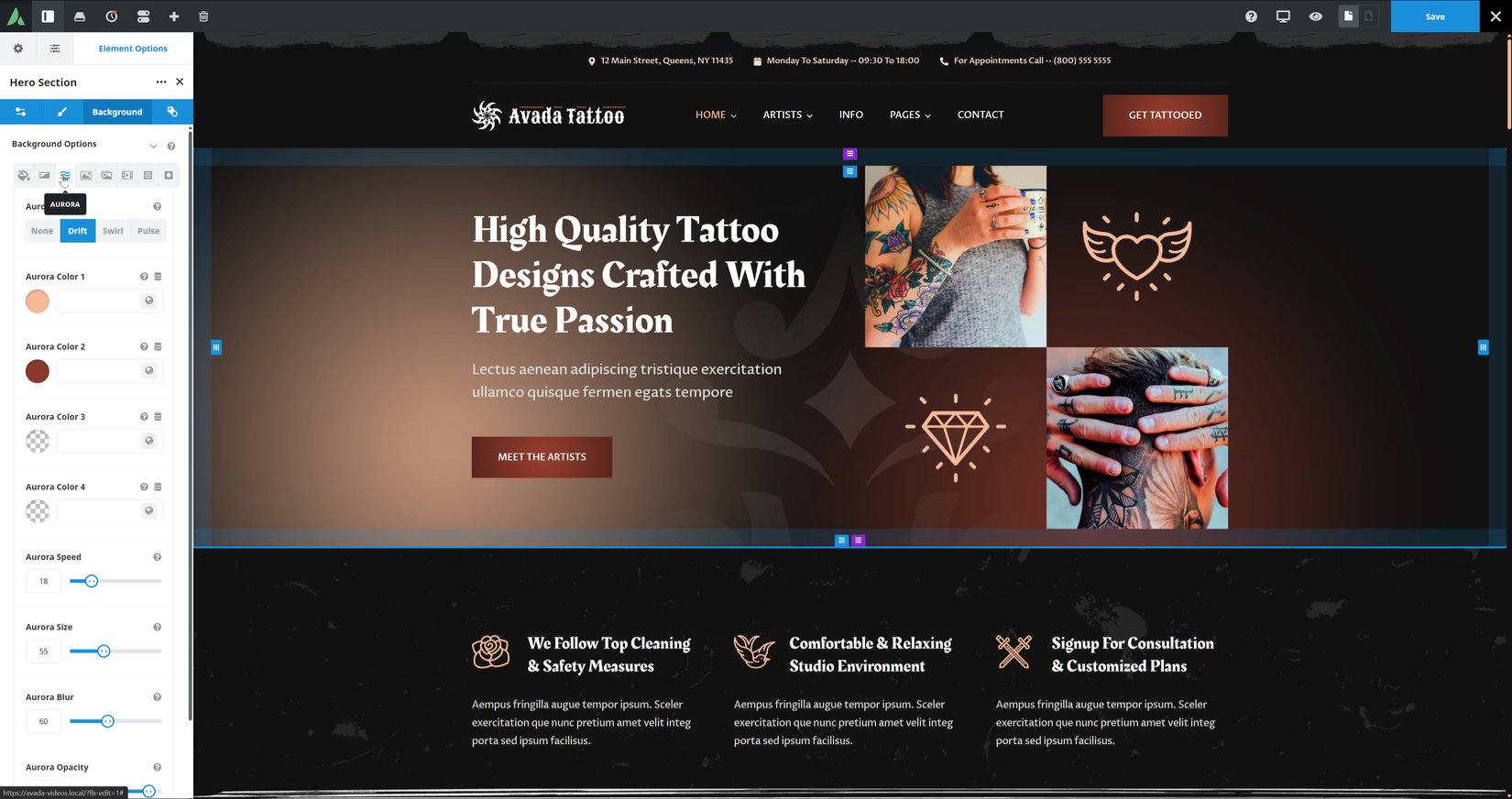
To use this feature, simply edit the container or column you want to add it to. Head to the Background tab, and the third tab along is now Aurora.
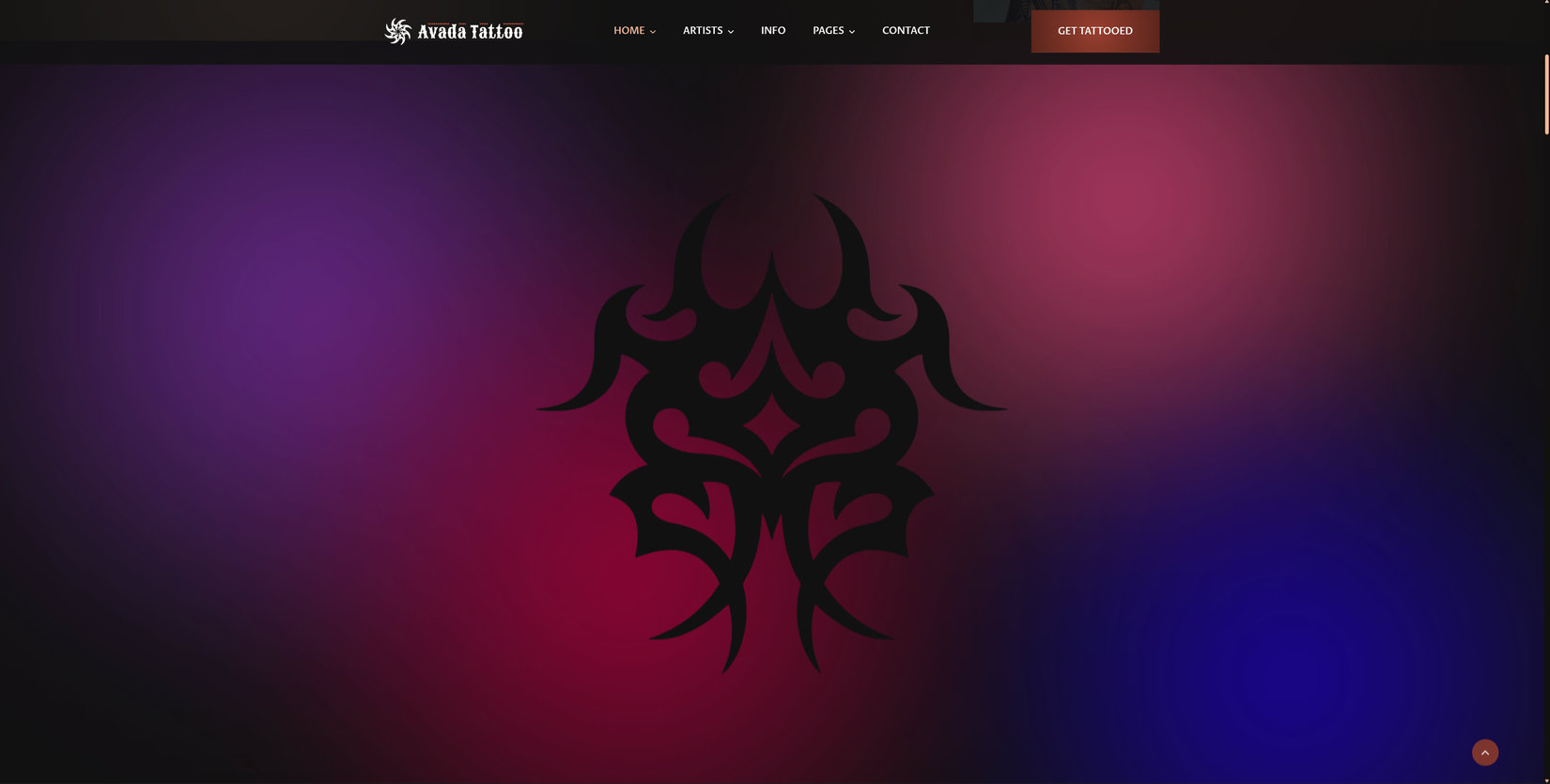
You can add the effect to an empty container, but it works best in conjunction with other background content, such as color, images or masks. Below is an example of it being added to the Hero Container of the Avada Tattoo prebuilt, a container that already has a gradient and an image as the container background.
How To Set Aurora Effects
The three available aurora effects are Drift, Swirl and Pulse. All effects have the same options. There is a possibility of four distinct aurora colors, with two being the default, using Color 4 and Color 5 of the Global Palette. The colors you choose can be any colors at all, including colors wih opacity.
There are also options for Aurora Speed, Size, Blur, Opacity, and Blend Mode. With these simple options and a touch of creativity, you can create all sorts of Aurora effects for your Columns or Containers.
See below for an example of a full height Container, with an image, a background color, and an Aurora effect set to Drift with four colors.