
Copying Content from Avada Prebuilt Websites
Last Update: September 13, 2026
Summary: Have you seen a section you love while browsing an Avada prebuilt website? You no longer have to import the whole page or prebuilt, or rebuild it from scratch. Just hit the Copy button that now floats on every prebuilt page. Every section on the page lights up — click one, and it’s on your clipboard. Then just paste it into your Avada Builder, using the right-click context menu.
A new feature added to our Prebuilt Websites is the ability to copy sections or the whole page directly from the Avada Prebuilt webites. Not only can you copy the content and paste it into another page using the right click contextual menu in the builder, but any Post Cards associated with the copied content is also copied across into your library. Mix and match from any prebuilt, and build your own page out of the parts you actually want. Go try it — browse any prebuilt site and look for the Copy button.
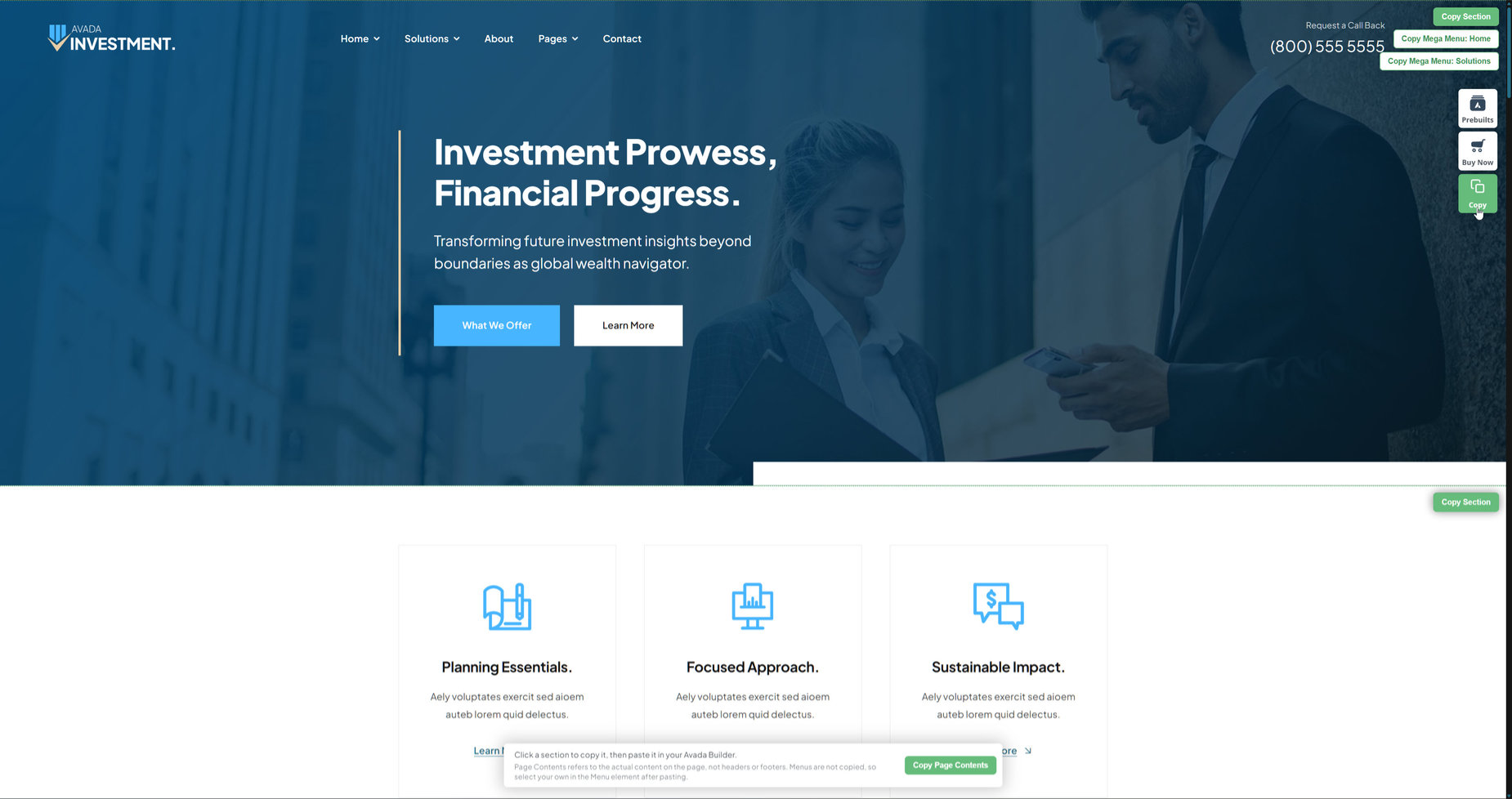
Watch the video below for a visual demonstration of copying content from various Avada Prebuilt Websites.
Process
So, on any of the Avada prebuilts, found at https://avada.website/, you will find a Copy Button with the other floating buttons at the top right. When you click on this, you get a number of buttons and dialogues display over the content. You can copy individual containers (Copy Section) or the entire Page contents (Copy Page Contents). Header and footer content can be copied as well. Just set a local menu in the imported Menu elements. There are even buttons to copy the contents of Mega Menu sections.
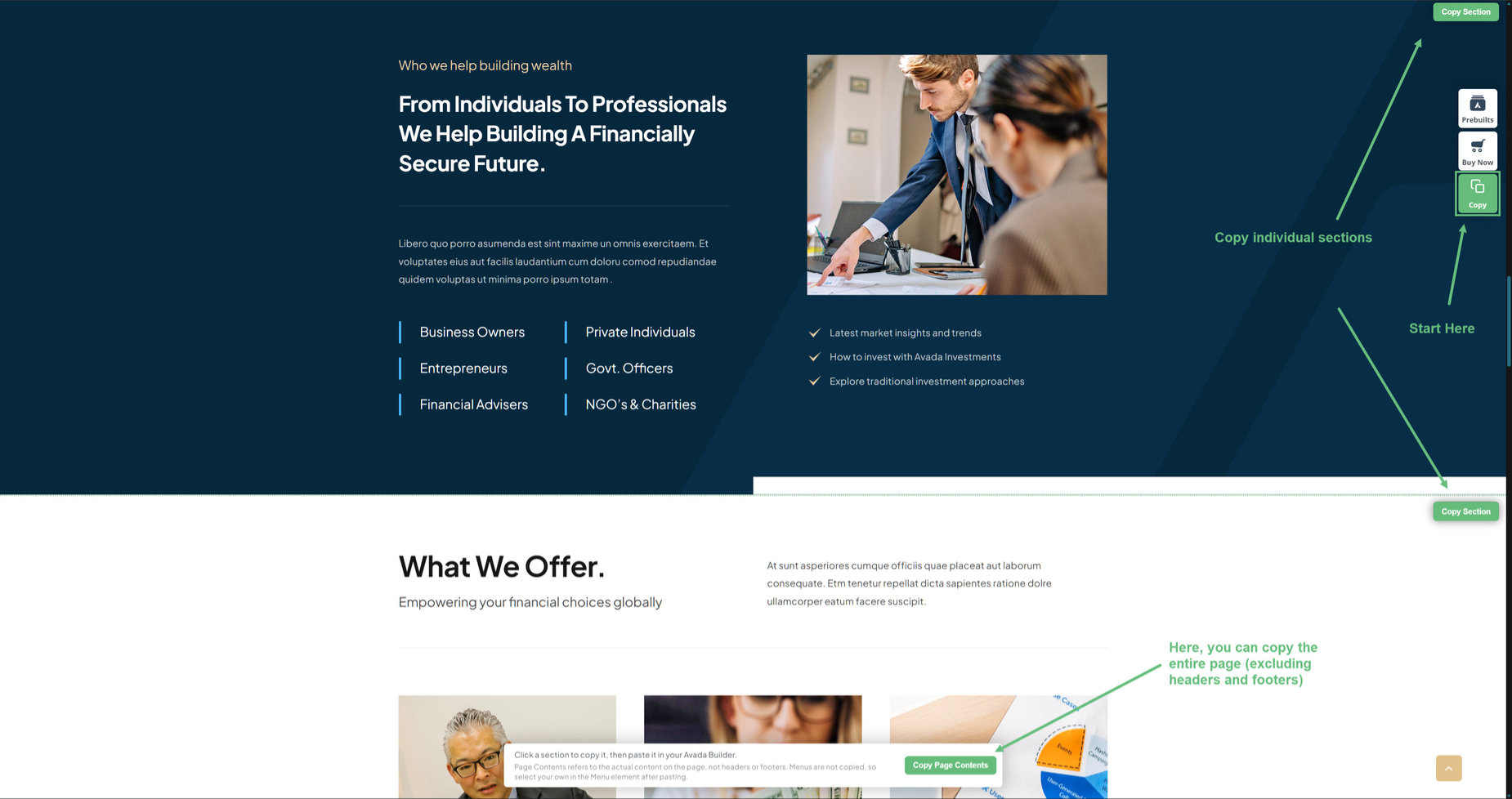
Example of Copying Content
As an example, I will copy the section below, which is a container with a Title, a Button, and the Post Cards Element displaying some recent blog posts.

Example of Pasting Content
Now, just head to your website, in the Avada Builder. You can use the Live Builder, or the Backend Builder. It could be on a new page or an existing page. Here, I’m on an import of the Factory Prebuilt site, and if I right click in a container, the contextual menu appears. The second screenshot is the same process in the Backend Builder.
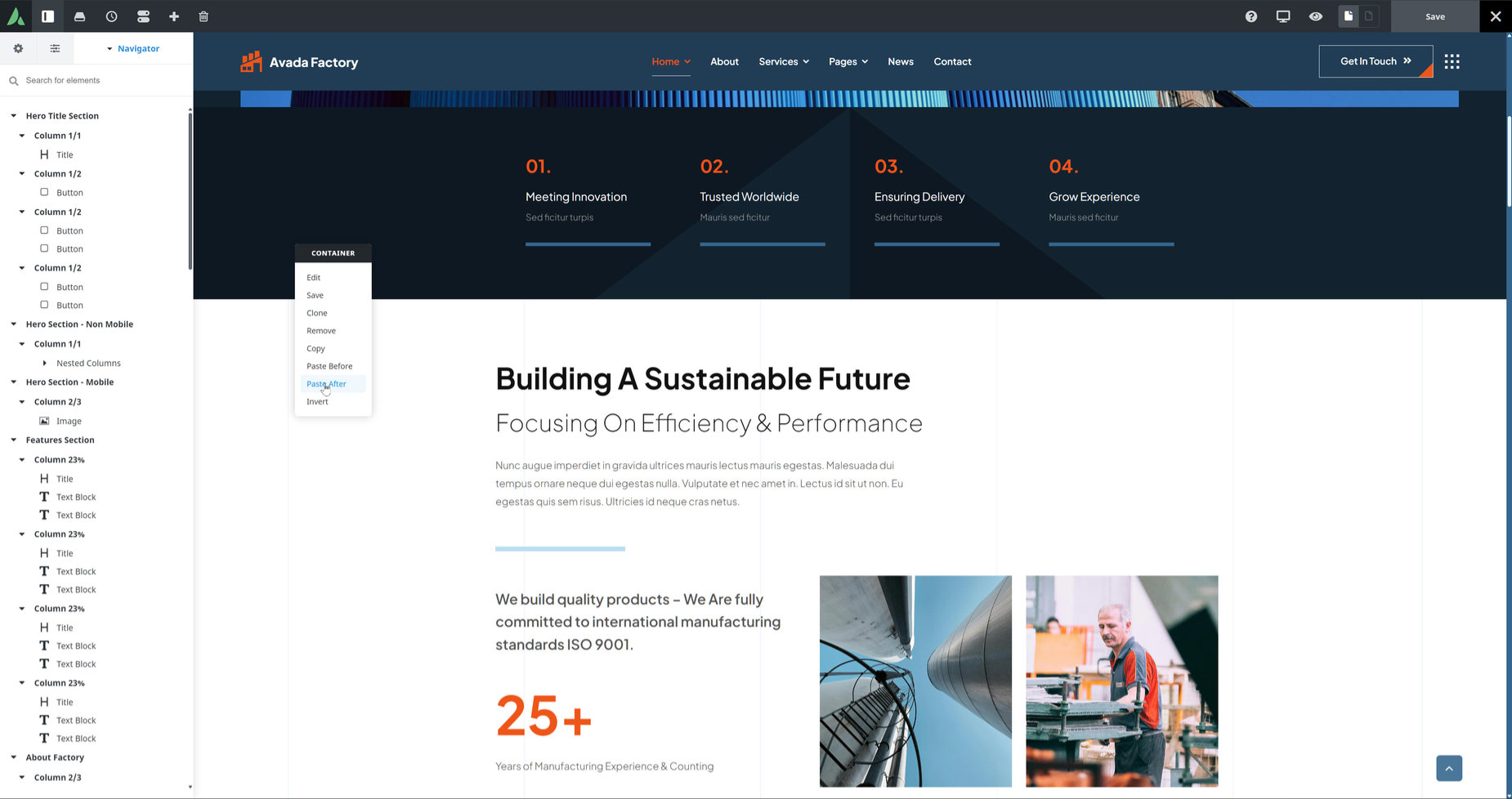
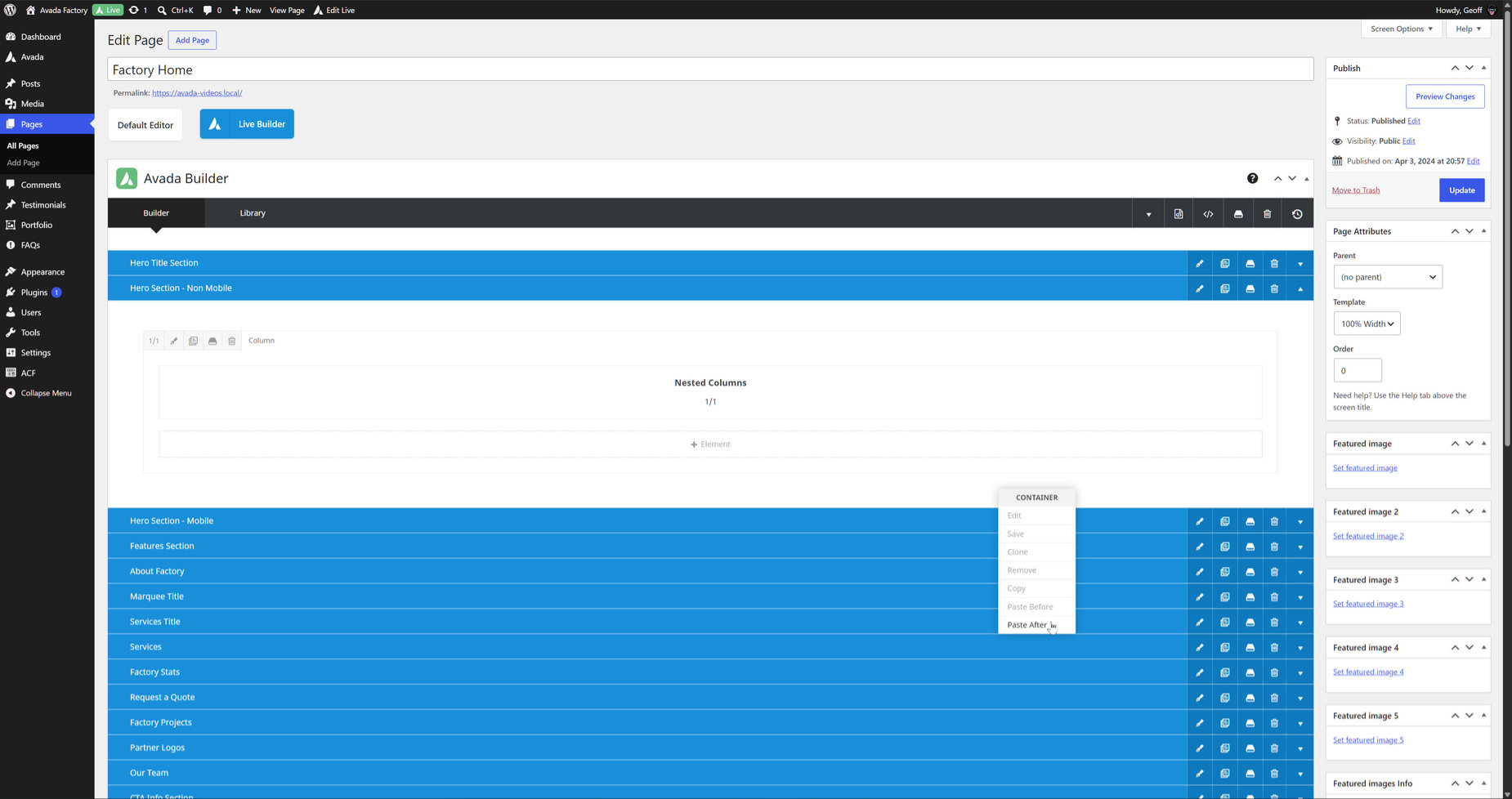
When I choose to paste the content in, in this situation, I get a dialog appear asking if I want to import the existing Post Card Design/s. The options are Cancel, Paste Without, & Import & Paste. If there is no Post Card in the content, the container is just pasted in.
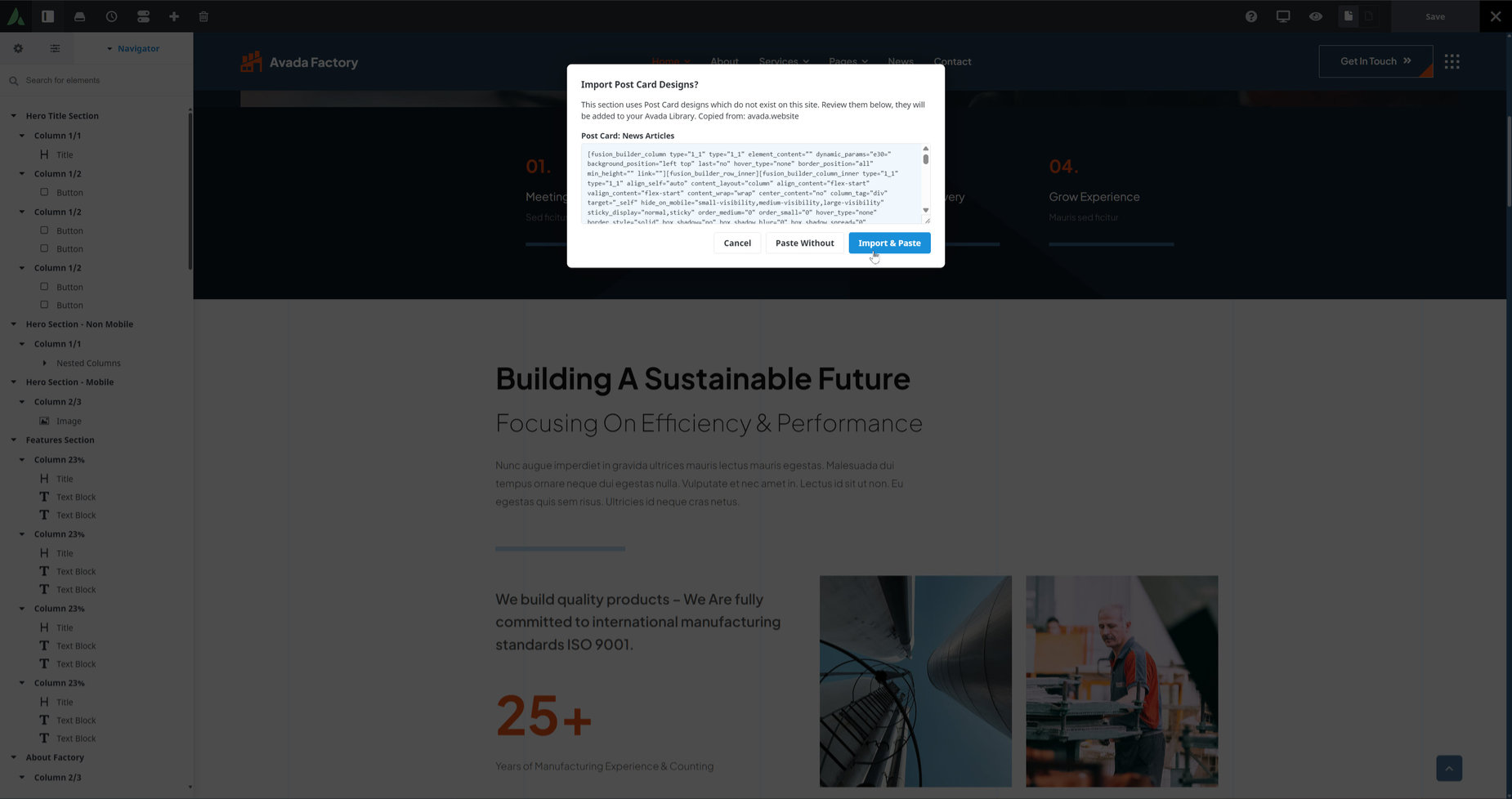
If I choose Import & Paste it saves the Post Card design into the Avada Library and then it pastes the container content into the page. The copied container appears and pulls the posts from the new site, using the Post Card design from the prebuilt. Note that it uses the corresponding colors from the new site, as these are typically global colors.
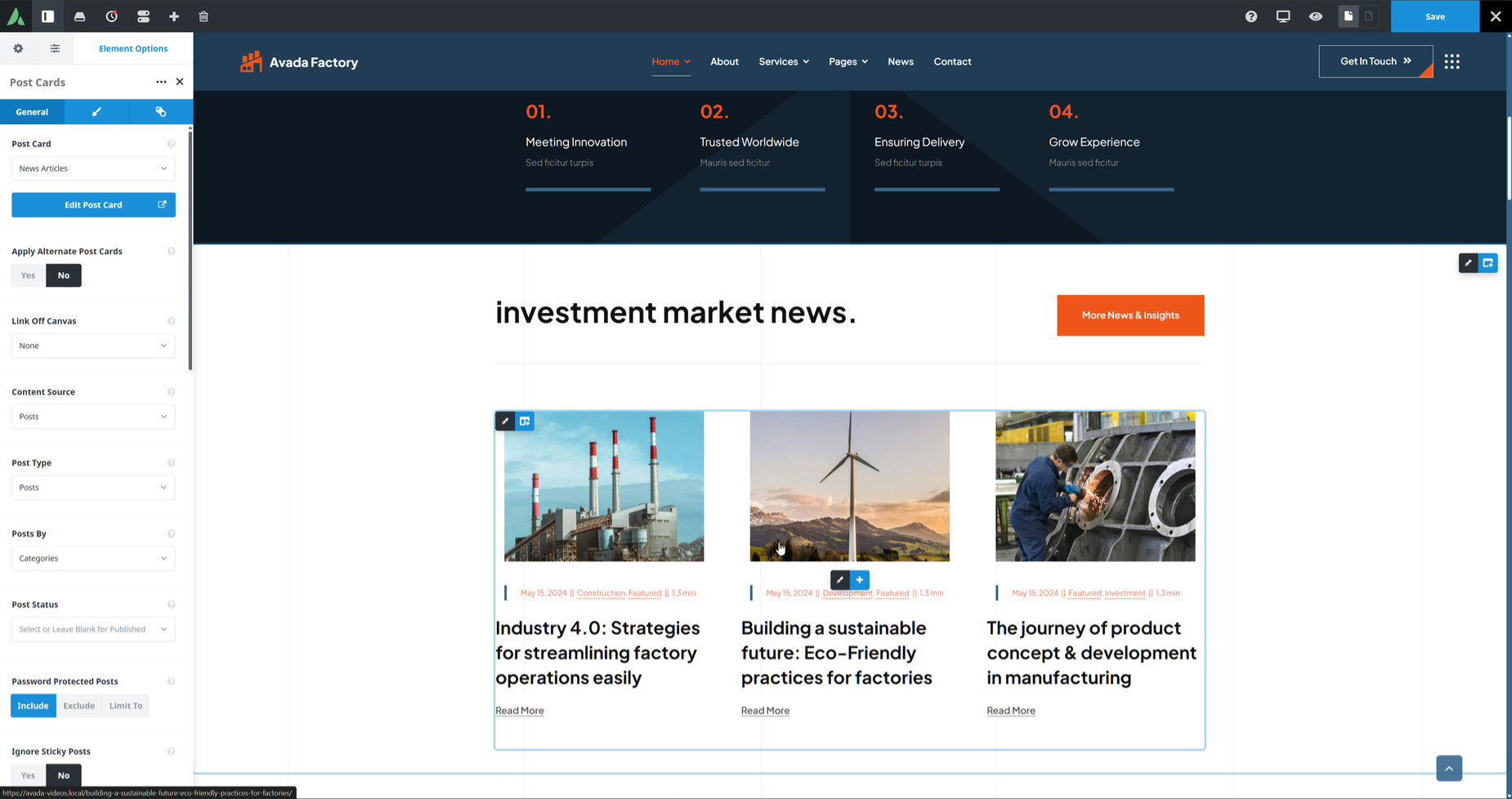
This simple yet powerful feature allows you to take any content from the Avada prebuilts and import them easily into your own sites, for reuse or reverse engineering.


















































































































