Backing up your WordPress site is important because it protects your content, design, and data from unexpected problems. Websites can be affected by failed updates, plugin conflicts, hacking attempts, server errors, or even accidental deletions. Without a backup, recovering from these issues can be time-consuming, expensive, or, in some cases, impossible.
Why are Backups Essential?
Protection Against Data Loss: Whether due to human error, hacking, or server failure, data loss can be devastating. Backups ensure you can recover your site quickly.
Customizations: Safely update your site, knowing you can revert to a previous state if something goes wrong.
Updates and Maintenance: It is recommended to back up your website before updating plugins, WordPress, or your theme if and when updates are released. This help file contains essential information related to Avada updates.
Peace of Mind: Knowing your website’s data is safely backed up provides peace of mind and allows you to focus on growing your site without worrying about potential data loss.
Backing Up Your Avada Site
A secure WordPress and Avada website backup creates a restore point that lets you quickly restore your site to a working state if something goes wrong. This protects not only your files and database, but also your business continuity, search rankings, and user trust.
Whether you run a blog, portfolio, or online store, regular backups give you peace of mind and ensure that your hard work is never at risk of being permanently lost. To learn more, please read this article. We’ve listed some backup plugins/services below to get you started.
Backing Up The Avada Global Options
The plugins mentioned in this help file will back up your entire site, but if you’d like to separately export and back up just your Avada Global Options, located in the Avada > Global Options page, then please follow the steps below. You can also fetch your Global Options’ Export URL on one site and use it to import the same Avada Global Options settings on another site.
For privacy reasons YouTube needs your permission to be loaded.
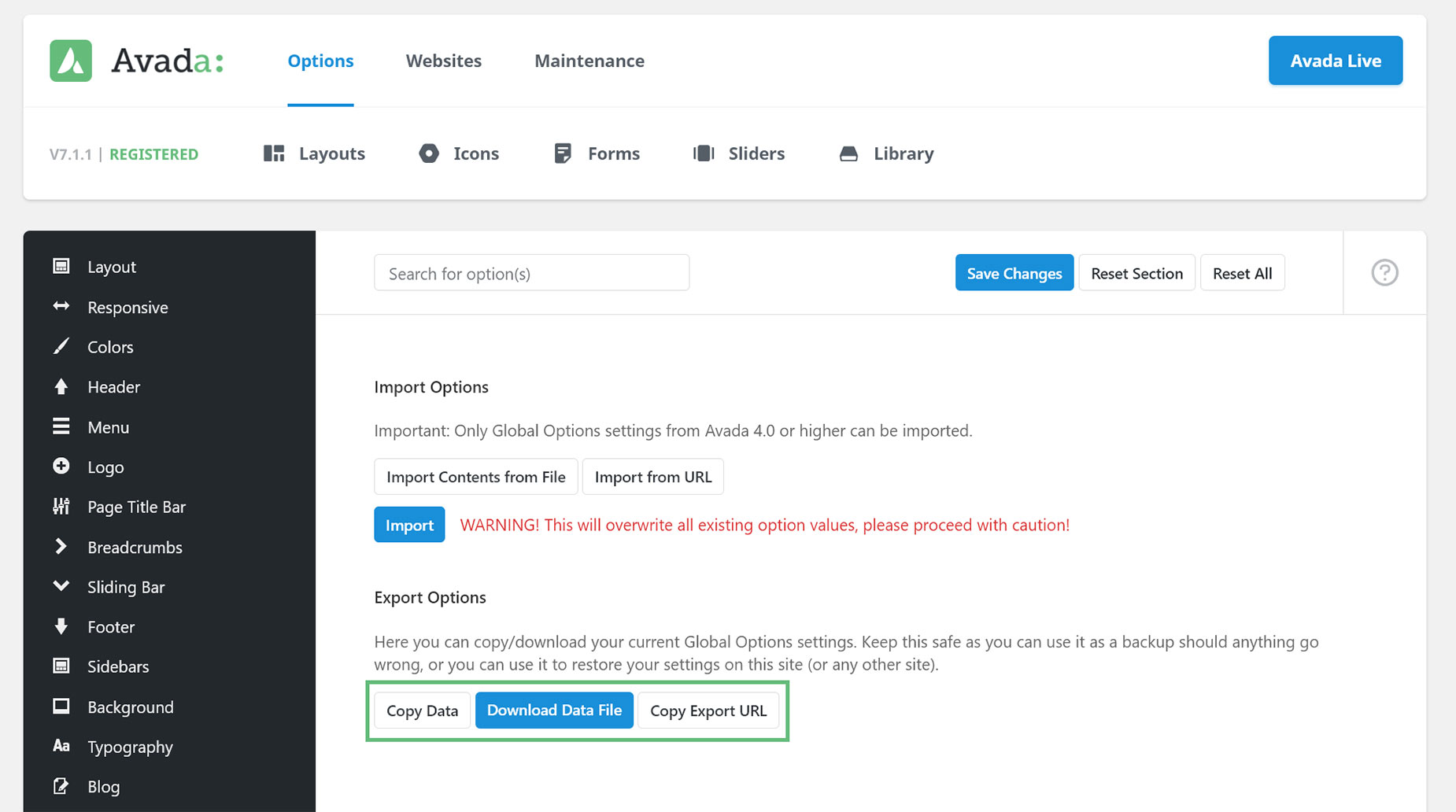
Step 1 – Navigate to Avada > Global Options > Import/Export.
Step 2 – Find the “Export Options” section, and choose one of the three available options. Click the “Copy Data” button to copy the Global Options data directly. Click the “Download Data File” button to download the .JSON file. Finally, click the “Copy Export URL” button to copy and paste the website’s Export URL.
Step 3 – To import your backup Global Options, find the “Import Options” section and click the “Import Contents From File” button and paste the contents of the .JSON file you’ve exported. Alternatively, you can also click the “Import From URL” button and paste the Export URL of another site to copy those Global Option settings.
Recommended Backup Plugins/Services
Consider frequency, storage, and restoration capabilities when selecting a backup solution for your WordPress site. A good backup solution should offer automated backups, secure off-site storage, and easy restoration processes.
VaultPress – A monthly subscription based service developed by Automattic, the company behind WordPress.com.
UpdraftPlus – One of the most trusted backup solutions for WordPress with a free and a premium version.