Avada Builder Library Global Elements
Last Update: October 7, 2026
The Avada Builder Library gives you the ability to save Elements, Columns and Containers as Global Elements. This allows you to set up one instance that in turn can be deployed across your site, wherever you choose. Edit the Global Element once and see the changes populated across the entire site.
Setting Up Elements, Columns or Containers As Global Elements
Note: After editing/creating the Global Element, Column or Container remember to save the page/post if you want to retain the position of that Global item within that page/post. If you don’t save he page/post, you can always come back later and add the Global Element back into the page/post

Adding Global Elements To Pages and Posts
Note: For Columns and Containers, just click the Add Column or Add Container buttons, and click the Library Columns or Library Containers. Then, select the Global Column or Global Container you want to use.


How To Edit Global Elements
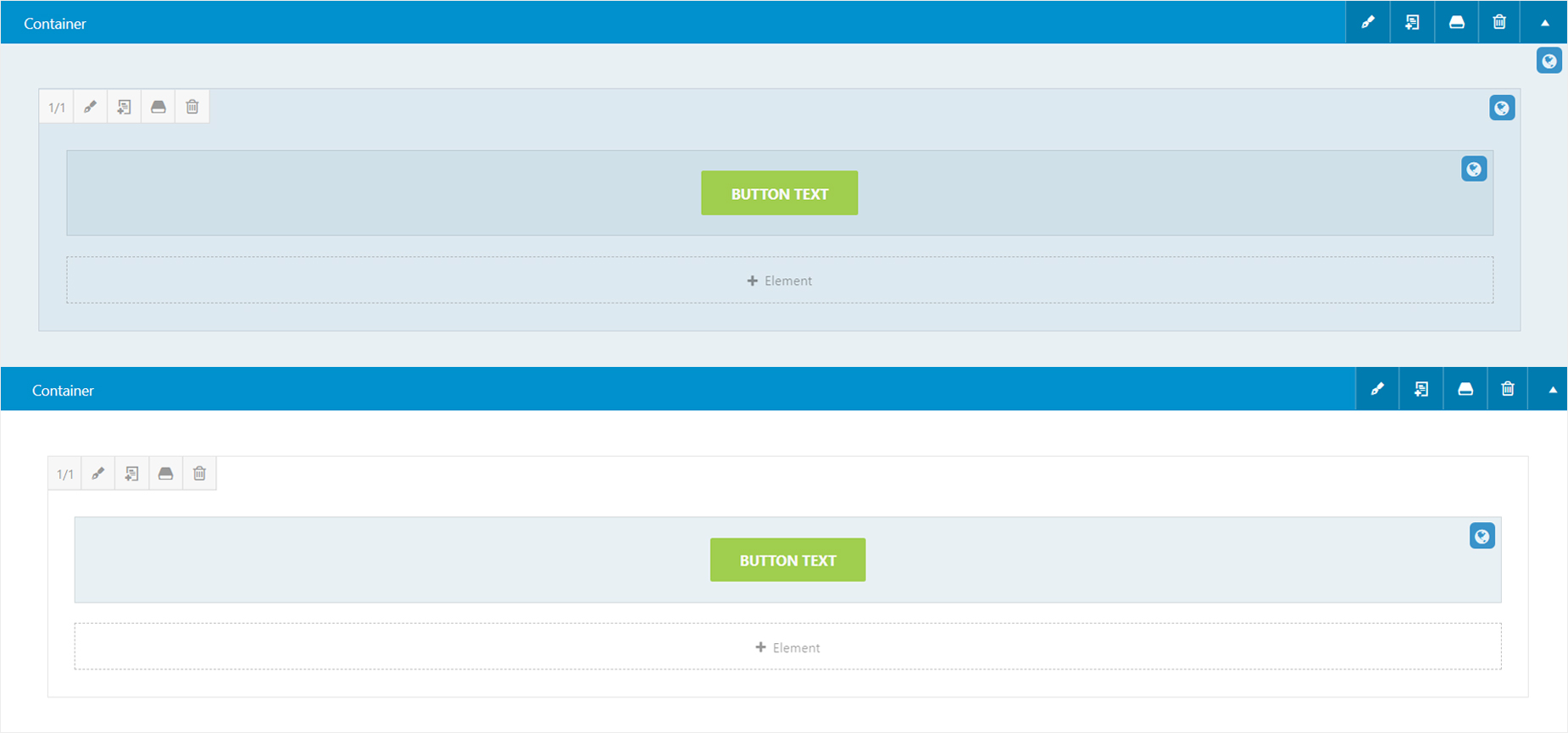
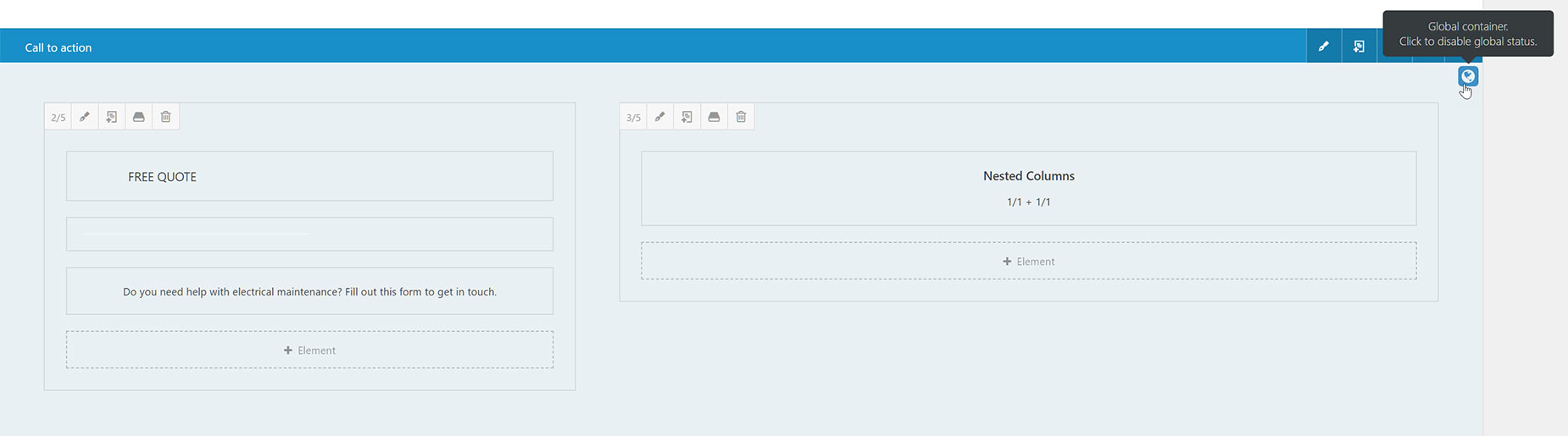
Global items will have a globe icon and a different blue background color than normal Elements, Columns, and Containers, which have a white background color.
Note: To ensure that edits to a Global Item are deployed to all instances, wherever used within the site, remember to save the page/post.
How To Delete Global Elements
Note: Deleting a single Global Element will remove all instances of the same Global Element across all pages and posts.


How to Unassign An Item As Global
Note: This will only unassign the global status on the specific element, column, or container, and will not delete the saved global element, column, or container. If you wish to assign global status again, you may do so by saving it as global elements. See “Setting Up Elements, Columns or Containers As Global Elements” section above.
Adding Global Elements To Widgets
Global Avada Builder Items (Containers, Columns, and Elements) can very easily be added to widgets, by simply copying and then pasting the Global Element Shortcode into the widget, as described below.

Translating Avada Builder Global Elements, Columns and Containers
If you are using the translation plugin, WPML, you can now translate Global Elements, Columns and Containers.
Translation support for Global elements is supported by:
- WPML Multilingual CMS (4.0.6 or above)
- WPML String Translation (2.8.6 or above)
- WPML Translation Management (2.6.6 or above)
For more details on how to use this feature, please see WPML’s specific Avada documentation.
Frequently Asked Questions
Where do I edit my saved global elements?
Currently global elements are edited anywhere they are located directly within the page or post. There is no centralized edit area for them. Find a page that uses the global element, edit it using the Avada Builder and then save the page. It will update all instances of the global element across the site.
Will saving an Element as a Global Element update it on all pages it has been used on?
Unfortunately that is not possible. You can take any content you have already made and save it as a global element. However, only that first instance will allow it to start being a global element that populates wherever else you use it. If you have a saved element in your Avada Builder Library that is used on several pages, saving that element as a Global element will not update it on all those pages. You would have to reinsert the saved global element.
Can I save an entire page layout as a Global Element?
Unfortunately, that is not possible and functionally, it is simply not necessary. Only Elements, columns, and containers can be saved as Global Elements. With an entire page though, you can save it into the Avada Builder Library as a Template, which allows you to reuse the page anywhere you want.
What will happen if I click 'Save Element', 'Save Column' or 'Save Container' when selecting Global, but I do not Update the page/post?
Nothing bad will happen, nothing breaks and the Global item is not lost. Saving for use in situ is a two step process. Selecting to set up an Element, Column or Container as Global and clicking ‘Save Element’, ‘Save Column’ or ‘Save Container’ saves it to the Avada Library at first, however, to retain the position of this global item within the page/post, you need to ‘Update’ the page/post.