Share
WordPress is a Content Management System (CMS) that has evolved from its humble beginnings (in 2003) as a blogging tool into the multi-functional online publishing platform it is today, powering 42.4% of all websites on the internet (as of 2026).
For anyone new to WordPress, the Dashboard and vast array of tools and settings can feel overwhelming at first. There are menus, settings, tools, shortcuts, and options that may not make much sense until they are explained in context. The good news is that once a beginner understands what each area of the WordPress Dashboard does, it becomes much easier to navigate and far less intimidating.
At its core, the WordPress Dashboard is the control center of a website. It is where content is created, pages are managed, images are uploaded, plugins are installed, users are added, and site settings are configured. Whether someone is running a blog, a business website, a portfolio, or an online store, the Dashboard is where most day-to-day website management takes place.
This guide walks through the main areas of the WordPress Dashboard in a simple, practical way, so beginners can understand not just what each section is called but also what it is actually used for.
Overview
The WordPress Dashboard Toolbar

At the very top of the WordPress admin area is the Dashboard Toolbar, sometimes called the admin bar. This horizontal bar gives quick access to commonly used actions and helpful shortcuts. It is designed to save time, especially when moving between the website’s front end and WordPress’s back end.
Visit Site
The Visit Site link takes the user from the Dashboard to the website’s front end. In other words, it shows the public-facing version of the site that visitors see. This is helpful when checking how content looks after making edits, publishing a page, or changing site settings. It creates a quick bridge between building the website and previewing the result.
Comments
The Comments shortcut lets you quickly view recent comments on blog posts or pages. For websites that allow discussion, this can be very useful for moderation. From here, a user can approve, reply to, mark as spam, or delete comments. For beginner bloggers, this is often one of the first places they visit to manage audience interaction.
New
This toolbar section serves as a shortcut for users to create new posts, upload media, create new pages, and add new WordPress users.
→ Post
The New Post option lets users quickly create a blog post without first opening the main Posts menu. This is a shortcut designed for speed and convenience. If a site owner regularly publishes articles, announcements, or news updates, this link lets you jump straight into writing.
→ Media
The New Media option takes the user to the media upload area, where they can upload images, PDFs, videos, and other supported file types. Media is a big part of most websites, and this shortcut makes it easier to upload assets without navigating the full Media menu first.
→ Page
The New Page shortcut lets you add a new page quickly. Unlike posts, pages are generally used for more permanent parts of a website, such as the Home page, About page, Services page, or Contact page. This shortcut is useful when building out the main structure of a site.
→ User
The New User option allows administrators to add another person to the website quickly. This might be an editor, author, contributor, shop manager, or another administrator, depending on the site setup. For sites with multiple team members, this shortcut streamlines user management.
What is the WordPress Dashboard?
The WordPress Dashboard is the main admin area of a WordPress website. It is the control panel where website owners log in to create posts and pages, upload media, moderate comments, install plugins, manage users, change settings, and control the site’s overall operation.
In simple terms, it is the backend of WordPress, meaning the private area that visitors do not see. While the front end is the public website people browse, the Dashboard is where all the building, editing, and management happen.
The WordPress Dashboard: Overview
The easiest way to think of the WordPress Dashboard is as the website’s command center. It brings all the important tools and settings into one place, allowing the user to manage content, design, functionality, and site administration from a single interface.
Dashboard
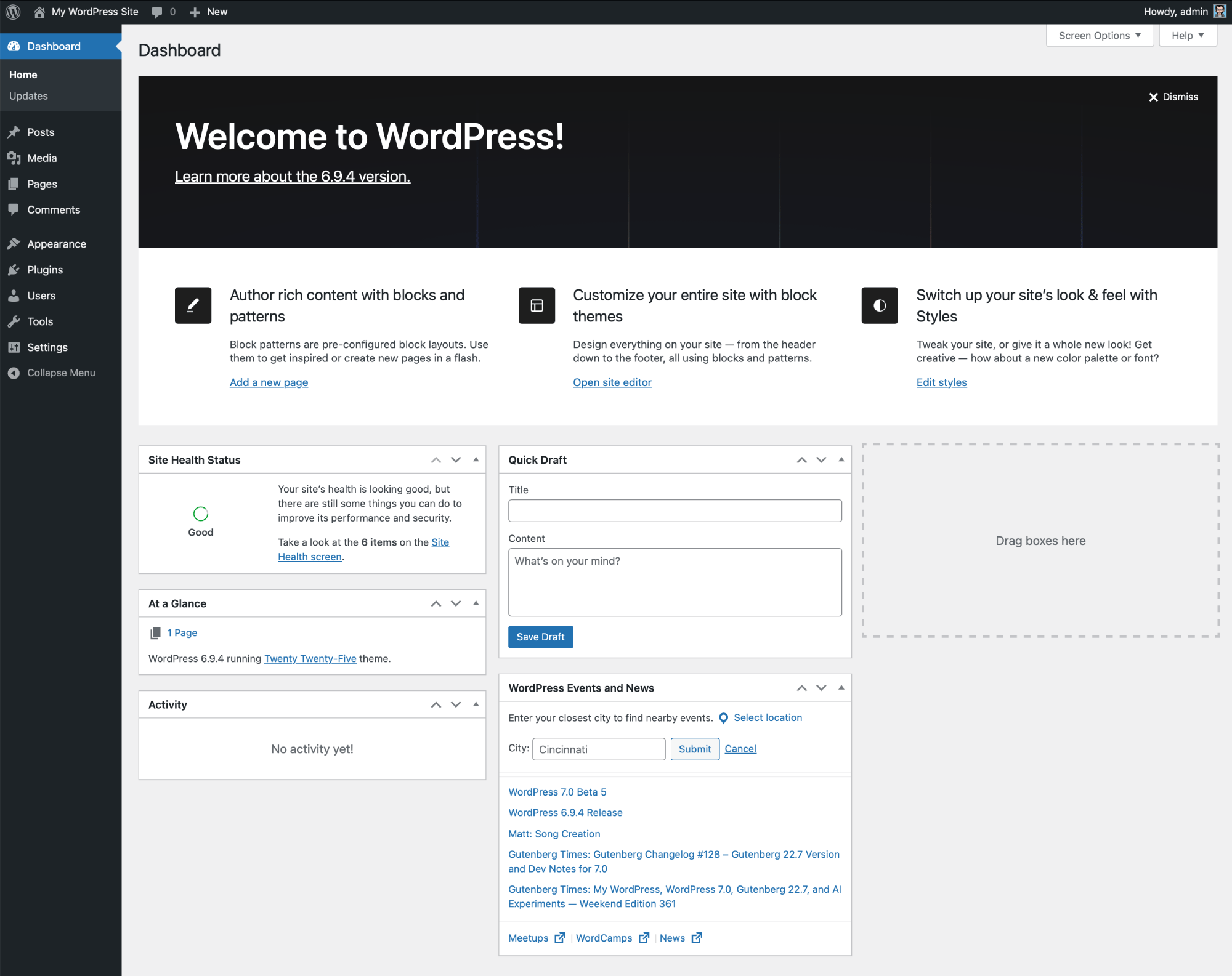
The Dashboard section is usually the first screen a user sees after logging in. It serves as the admin area’s homepage and provides an overview of what is happening on the site.
→ Home
The Home screen is the main landing area inside the Dashboard. It usually displays widgets that provide useful information, such as site activity, a quick draft tool, recent comments, WordPress news, and an overview of content. Depending on the theme, plugins, or hosting setup, this area may also include custom widgets. For beginners, this page offers a snapshot of the website.
→ Updates
The Updates page shows whether WordPress core, themes, or plugins need updating. Keeping a site updated is one of the most important parts of site maintenance, because updates often include security improvements, bug fixes, and new features. Beginners should get into the habit of checking this page regularly and backing up their site before major updates.
Posts
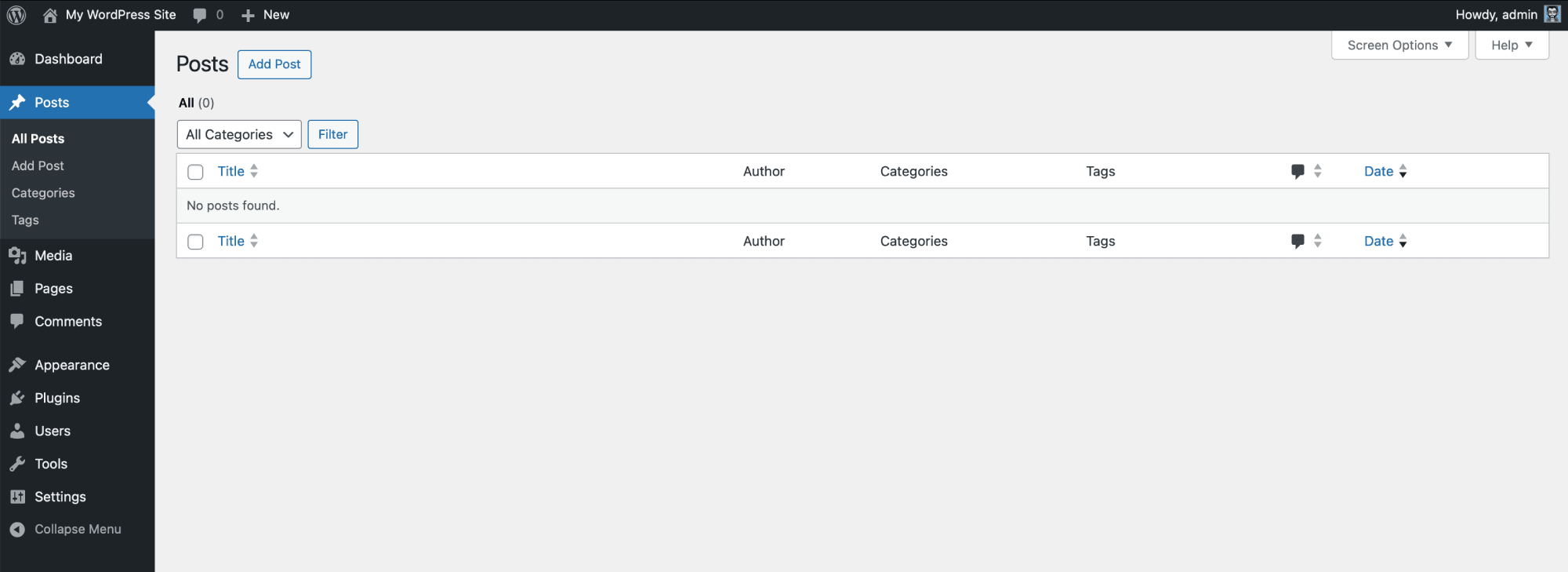
The Posts section is where blog content is managed. If the website includes a blog, news section, or article archive, this is one of the most important parts of the Dashboard.
→ All Posts
The All Posts screen lists every blog post on the website. From here, users can view published posts, drafts, scheduled posts, and posts in the trash. It also allows editing, deleting, and sorting posts. For beginners, this section becomes the main place to organize and manage written content over time.
→ Add Post
The Add Post page opens the editor for creating a new blog post. This is where the title, main content, categories, tags, featured image, excerpt, and publishing options are added. It is the starting point for writing blog content for a site.
→ Categories
Categories are used to organize blog posts into broader topic groups. For example, a website about digital marketing might have categories like SEO, Social Media, and Content Strategy. Categories help both site owners and visitors organize content. For beginners, it helps to think of categories as the main folders for blog content.
→ Tags
Tags are similar to categories, but they are usually more specific. Instead of grouping posts into broad topics, tags highlight smaller details or keywords related to the content. Using the same example, a post in the SEO category might have tags such as backlinks, keyword research, and on-page SEO. Tags can help connect related content, but they are generally more flexible and detailed than categories.
Media
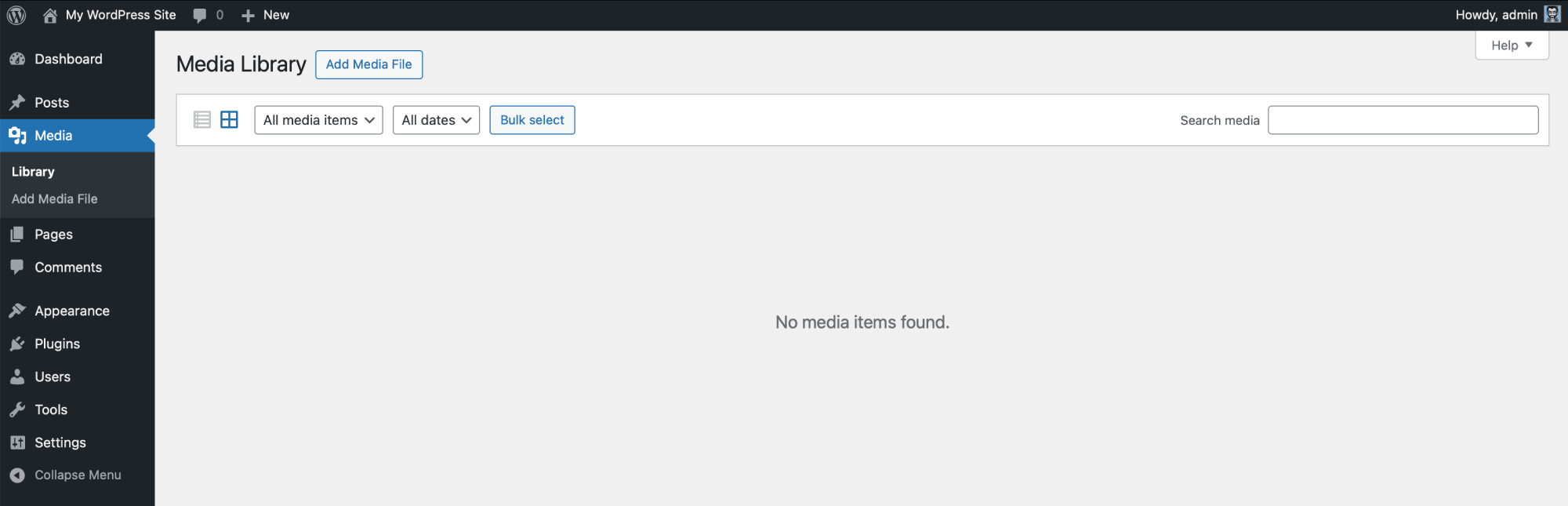
The Media section stores and manages all uploaded files. This includes images, PDFs, videos, documents, and other supported assets used throughout the site.
→ Library
The Media Library shows all uploaded media files in one place. Users can browse, search, edit, and reuse files across posts and pages. For beginners, this is an important area because it serves as a central storage facility for site assets. Instead of uploading the same image repeatedly, files can be uploaded once and reused as needed.
→ Add Media File
The Add Media File page is where new files are uploaded into the Media Library. This is commonly used to add images to blog posts, downloadable documents, logos, or banners. Once uploaded, the files become available for use throughout the site.
Pages
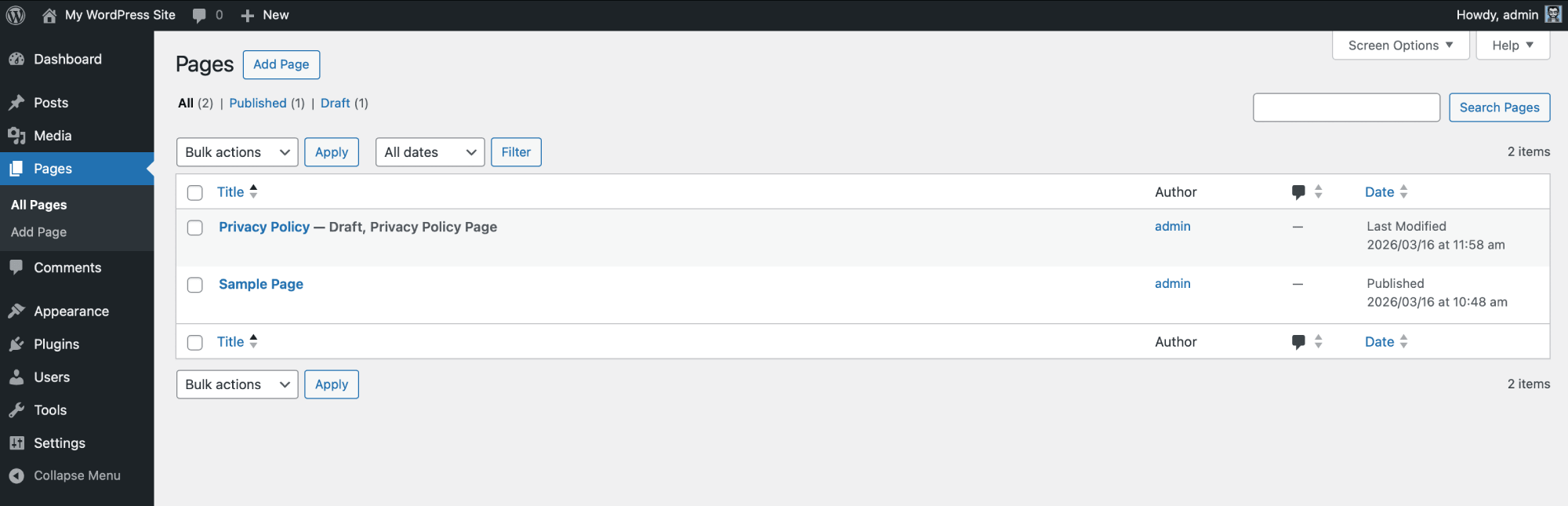
The Pages section is used for static or evergreen content. While posts are generally time-based and appear in blog archives, pages are typically used for core website content.
→ All Pages
The All Pages screen displays every page on the website, such as the homepage, about page, services page, and contact page. From here, users can edit, delete, duplicate, or review page statuses. Beginners often spend a lot of time here when first building a site’s main navigation and structure.
→ Add Page
The Add Page screen is where new pages are created. This is used when expanding the site’s structure or adding permanent sections. A beginner might use this to build an About page, FAQ page, Pricing page, or any other standalone page that is not part of the blog.
Comments
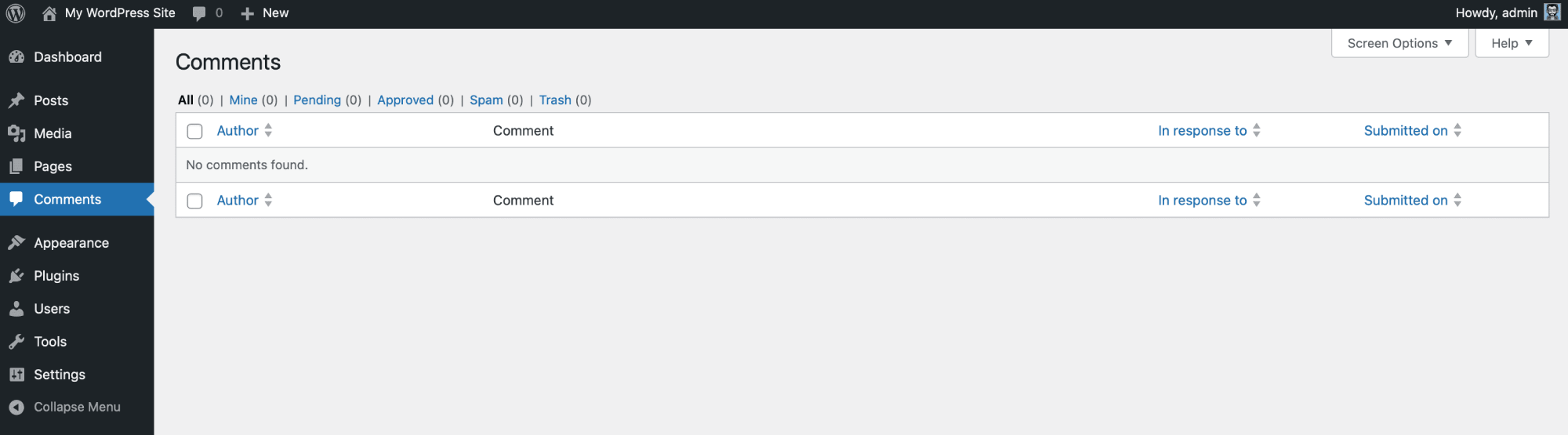
The Comments section is the main management area for visitor comments. If commenting is enabled on the website, this page is where all comments can be reviewed. Users can approve, reply, edit, mark as spam, or move comments to the trash.
For site owners who regularly publish blog content, this section can become an important part of community management.
Appearance
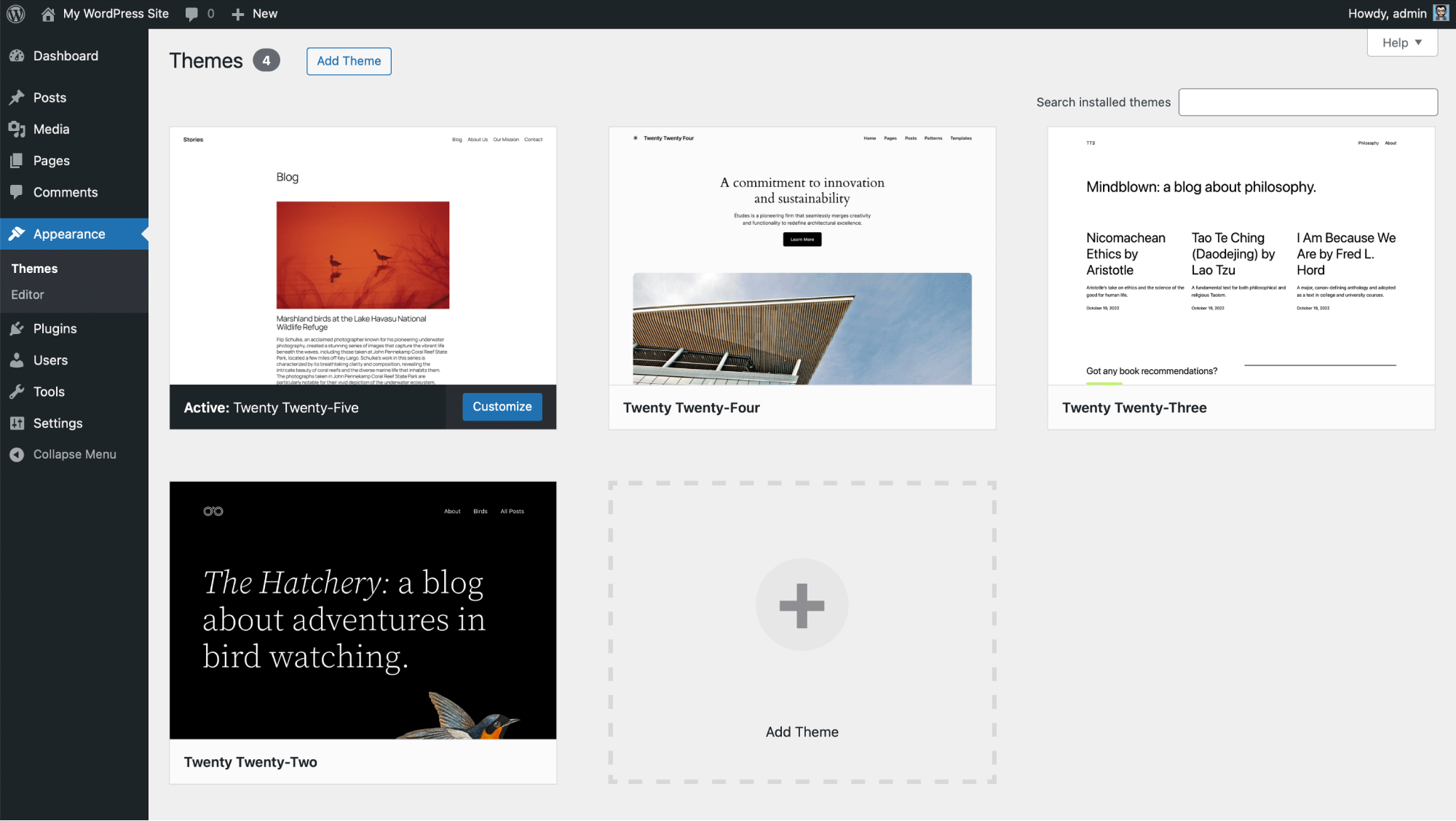
The Appearance section controls how the website looks and, depending on the theme, may also include layout and design customization options.
→ Themes
The Themes page shows which WordPress theme is currently active and which other themes are installed. From here, users can activate a different theme, add a new theme such as Avada, preview one, or delete themes they no longer need.
A theme controls the overall design and presentation of a WordPress site, making it a key area for changing the website’s visual identity.
→ Editor
The Editor in Appearance can mean different things depending on the type of theme being used. In block themes, this usually refers to the Site Editor, which allows users to visually edit templates, template parts, and global style settings.
In older or classic themes, the experience may differ or be more limited. For beginners, this section is best approached carefully, since it affects how the website is displayed.
Plugins
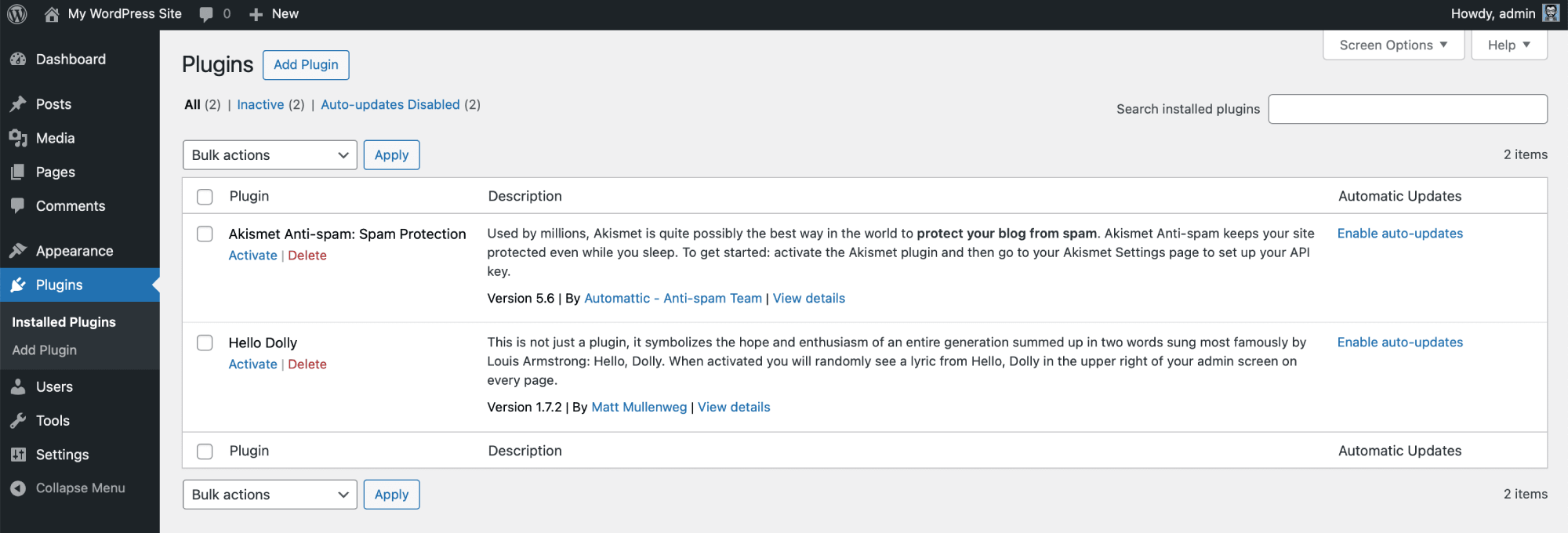
Plugins extend the functionality of WordPress. They allow users to add features without building them from scratch, such as contact forms, SEO tools, security tools, backups, galleries, or eCommerce functionality.
→ Installed Plugins
The Installed Plugins page lists all plugins installed on the website. From here, a user can activate, deactivate, update, or delete plugins. This section is central to managing site features. Beginners should understand that plugins are powerful, but adding too many can make a site harder to manage or affect performance.
→ Add Plugin
The Add Plugin page is where new plugins can be searched for and installed from the WordPress plugin repository, or uploaded manually if a premium plugin file is available. This is where beginners often go when they want to add a new feature to their site, such as a form builder, caching plugin, or SEO plugin.
Users
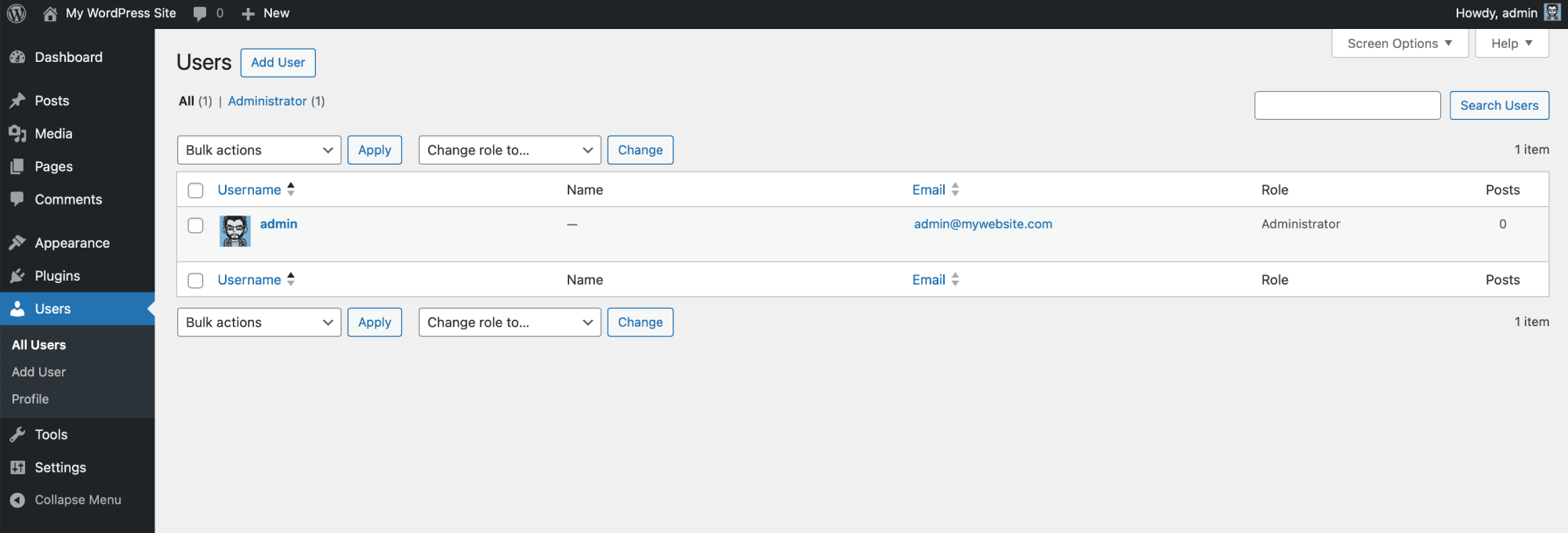
The Users section is where all people with access to the website are managed.
→ All Users
The All Users page lists everyone who has a login on the website. This may include administrators, editors, authors, contributors, subscribers, or other custom roles, depending on the setup. From here, user accounts can be edited, deleted, or reviewed. This is especially useful for websites with multiple team members.
→ Add User
The Add User page is where a new account can be created. This includes entering a username, email address, password, and user role. Assigning the correct role is important because each role comes with different permissions. For example, an administrator has full control, while an author can only manage their own posts.
→ Profile
The Profile page allows each user to manage their own personal settings. This can include display name, email address, password, profile image tools, language preferences, and editor preferences. It is also the place where a user can update how their name appears publicly on posts and pages.
Tools
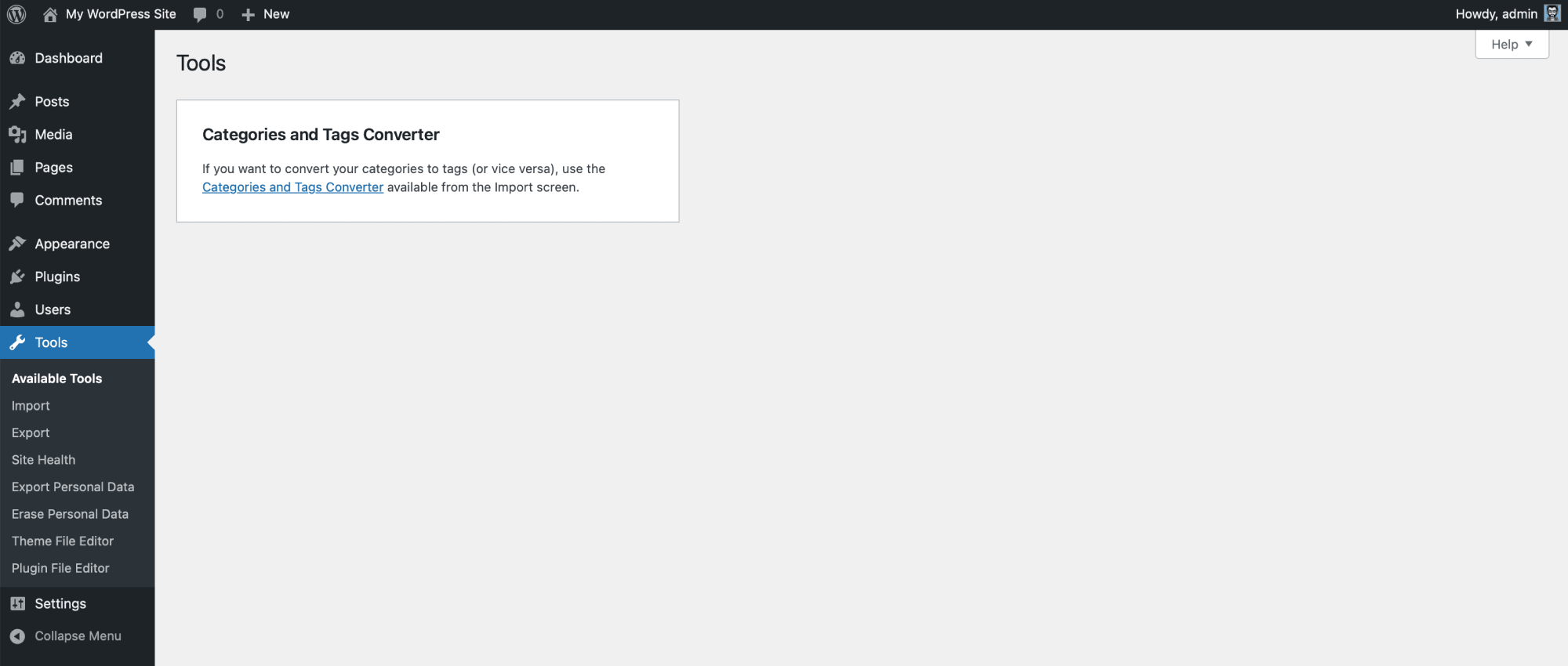
The Tools section includes a mix of utility features, maintenance options, and data-handling tools. Some of these are used occasionally, while others are very important for site administration and compliance.
→ Available Tools
Available Tools is a general utility area that may include special tools provided by WordPress or added by plugins. Depending on the site, this section may sometimes be quite minimal. Its purpose is to house one-off maintenance or support-related utilities that do not fit neatly elsewhere.
→ Import
The Import tool is used for bringing content into WordPress from another platform or another WordPress site. For example, it can help import posts, pages, comments, categories, and media from supported sources. This can be especially useful when moving from another blogging platform or migrating an older website.
→ Export
The Export tool allows content to be downloaded from the website in a WordPress export file. This can include posts, pages, comments, custom fields, categories, and tags. Exporting content is often useful for migrations, backups of written content, or moving content to another WordPress installation.
→ Site Health
Site Health provides users with an overview of the website’s technical health. It checks for important issues such as outdated software, PHP version compatibility, performance recommendations, security suggestions, and configuration improvements. For beginners, this section can be helpful because it identifies common technical issues in a more understandable format.
→ Export Personal Data
This tool is part of WordPress’s privacy features. It allows a site owner to export the personal data associated with a specific user or email address. This may include comments, account details, or other stored personal information, depending on how the site is set up. It helps site owners respond to privacy-related requests.
→ Erase Personal Data
The Erase Personal Data tool is used to remove a user’s personal data from the site when appropriate. This is another privacy-focused feature and can be relevant for websites that need to comply with data protection requirements. It gives site owners a more structured way to manage user data responsibly.
→ Theme File Editor
The Theme File Editor provides direct access to editable theme files from within the WordPress Dashboard. While this may sound convenient, it is generally not recommended for beginners because even a small coding mistake can cause serious problems on the site. Most users are better off making code changes through safer methods such as child themes, theme settings, or professional development workflows.
→ Plugin File Editor
The Plugin File Editor works similarly, but for plugin files rather than theme files. It allows code to be edited directly inside the Dashboard. Like the Theme File Editor, this tool should be approached with caution. For beginners in particular, it is usually best avoided unless there is a clear understanding of what the code does and a backup is available.
Settings
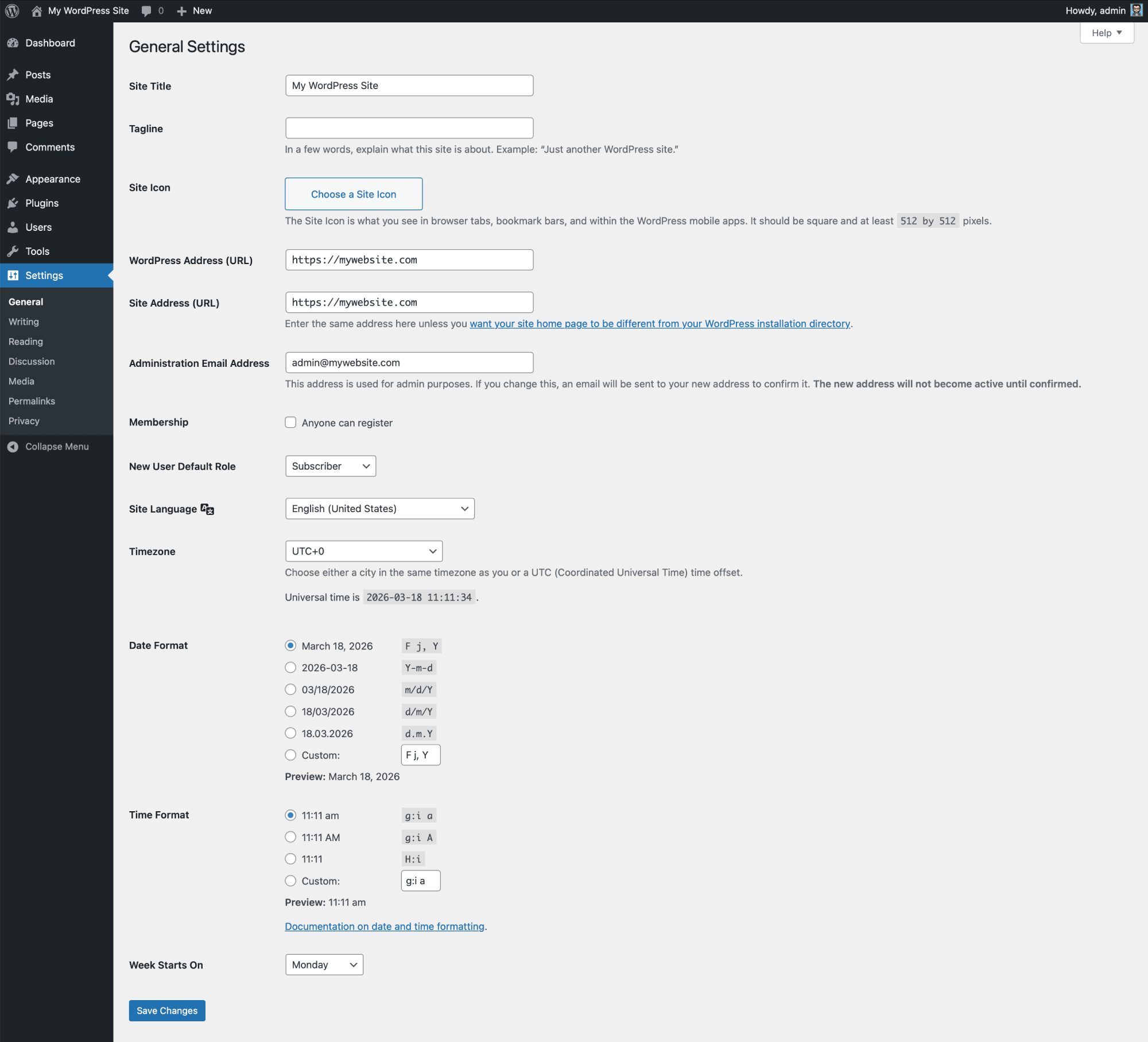
The Settings section contains the website’s main configuration options. These settings affect how the site behaves, how content is displayed, how comments are handled, and how URLs are structured.
→ General
The General settings page includes some of the most basic site-wide details, such as the site title, tagline, WordPress address, site address, admin email, time zone, date format, and time format. These settings help define the website’s identity and basic operation. Beginners often set these up early when first launching a site.
→ Writing
The Writing settings page controls certain default writing and publishing options. Depending on the site setup, this may include the default post category, the default post format, and options for posting by email. On many modern WordPress sites, this section is not used heavily day to day, but it still includes useful defaults for publishing content.
→ Reading
The Reading settings page controls how content is displayed on the site’s front end. This includes whether the homepage shows the latest blog posts or a static page, how many blog posts appear at once, and whether search engines are discouraged from indexing the site. For beginners, this is a very important section because it affects how visitors experience the website.
→ Discussion
The Discussion settings page controls how comments work across the website. This includes whether comments are allowed, whether users must be logged in to comment, how comment moderation works, and how notifications are handled.
For blogs and content-heavy websites, these settings are especially important for managing discussion and reducing spam.
→ Media
The Media settings page controls the default image sizes WordPress creates when images are uploaded. WordPress automatically generates several versions of an image, such as thumbnail, medium, and large sizes. This section allows those defaults to be adjusted, which can affect how images are displayed throughout the site.
→ Permalinks
Permalinks control the structure of website URLs. This affects how links to posts and pages appear in the browser. For example, a permalink can be simple and readable, such as a domain followed by a post name, or more complex and less user-friendly. For SEO and usability, most websites prefer clean, descriptive URLs.
Beginners should know that this setting is more important than it first appears, because it affects both visitors and search engines.
→ Privacy
The Privacy settings page is used to choose or create a privacy policy page. This helps site owners communicate how user data is collected, used, and protected. It is particularly important for websites that collect information through forms, analytics, eCommerce, memberships, or comments. Even beginners should understand that privacy is not just a legal formality, but an important part of building trust.
Summary
The WordPress Dashboard offers a comprehensive set of tools and options that give users a lot of control. Every area has a purpose, and together they give website owners full control over content, design, functionality, users, and settings.
For users new to WordPress, the most helpful approach is to explore the Dashboard section by section. Learning where posts are managed, where pages are created, where plugins are installed, and where settings are configured builds confidence quickly. Over time, what first feels complex becomes familiar.