Black Friday

Up to 30% off Avada One

Ends in

0
0
0
0
Days
0
0
Hrs
0
0
Min
0
0
Sec

See the deal →

How To Use The Aurora Background Feature In Avada

Last Update: October 6, 2026

The Aurora background feature is found on the background tab in Containers and Columns, including Nested Columns. It enables you to create an aurora effect (a bit like the Northern Lights) on the backgrounds of columns and containers. Read on to find out about all the options or watch the video below for a visual overview.

For privacy reasons YouTube needs your permission to be loaded.

Background Tab > Aurora

To use this feature, simply edit the container or column you want to add it to. Head to the Background tab, and the third tab along is now Aurora.

You can add the effect to an empty container, but it works best in conjunction with other background content, such as color, images or masks. Below is an example of it being added to the Hero Container of the Avada Tattoo prebuilt, a container that already has a gradient and an image as the container background.
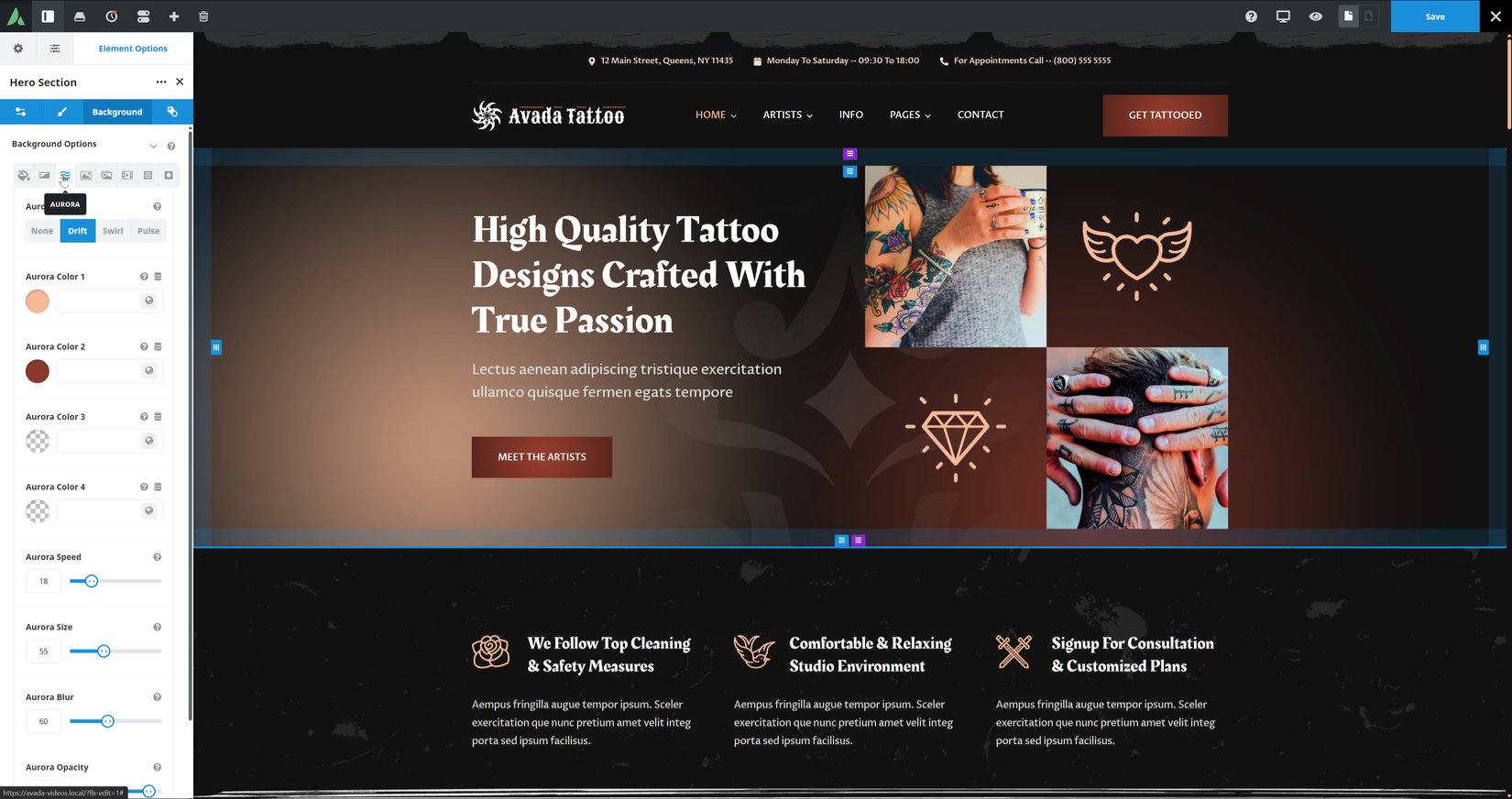
Background > Aurora

How To Set Aurora Effects

The three available aurora effects are Drift, Swirl and Pulse. All effects have the same options. There is a possibility of four distinct aurora colors, with two being the default, using Color 4 and Color 5 of the Global Palette. The colors you choose can be any colors at all, including colors wih opacity.

There are also options for Aurora Speed, Size, Blur, Opacity, and Blend Mode. With these simple options and a touch of creativity, you can create all sorts of Aurora effects for your Columns or Containers.

See below for an example of a full height Container, with an image, a background color, and an Aurora effect set to Drift with four colors.
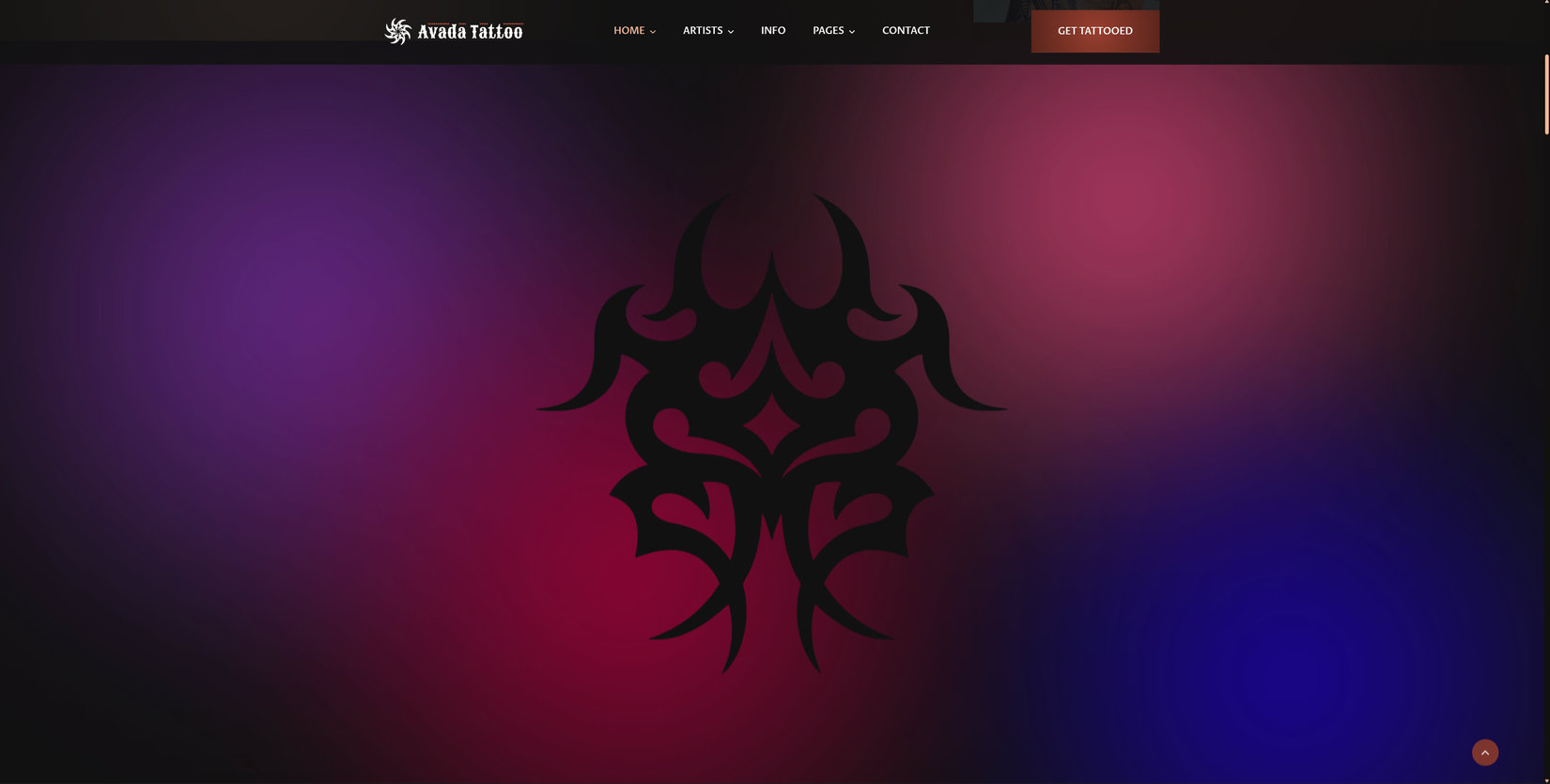
Aurora Example

In this article

Prebuilts
Buy Now
Buy Avada Now!
We use essential cookies to run our site, and optional ones for analytics, advertising, and personalization. You can manage your choices at any time. See our Privacy Policy.
  • Embeds from this vendor are blocked and replaced with a placeholder until consent is given.

  • Embeds from this vendor are blocked and replaced with a placeholder until consent is given.

  • Embeds from this vendor are blocked and replaced with a placeholder until consent is given.

  • Embeds from this vendor are blocked and replaced with a placeholder until consent is given.

  • Enables Google Analytics to store data about your visit, such as pages viewed, time spent, and interactions, to help us understand and improve website performance.

  • Enables HubSpot to track your activity on this site, power the live chat widget, and manage marketing interactions, such as form submissions.

  • Used to store your authentication details.

  • Used to store your authentication details.

  • Used to check if your browser has cookies enabled.

  • Used to persist your user configuration in the admin dashboard.

  • The time at which wp-settings-[user_id] was set.

  • Remembers the state of Switch elements you have toggled.

  • Stores your privacy and consent choices so they are respected on future visits.

  • Set by Cloudflare to tell real visitors apart from bots and protect our Websites from automated attacks. It does not track you across websites and is not used for analytics or advertising.

  • Set by Cloudflare after you pass a security check, so you are not asked to complete it again on every page.

Go to Top