Backdrop Filters on Containers and Columns
Last Update: July 12, 2026
Backdrop Filters are a useful way to apply visual effects to containers and columns, such as the Liquid Glass look. They can be found on all Containers and Column Elements, including Nested Columns.
The basic requirement for these filters to work is that the Element they are applied to needs to have a transparent or semi-transparent background, so that the effect is visible, and there needs to be something visible behind the element, as that’s what gets affected by the filters.
So for example, with a column, we need the column itself to have a transparent or semi-transparent background and the container behind it would need to have a background image or gradient, or something visible for the effect to apply to.
When applying the effects on a container, the page itself would, for example, need a background image to see the effect. Read on to find our more about Backdrop Filters, and watch the video below for a visual overview of the topic.
Column Example – Liquid Glass
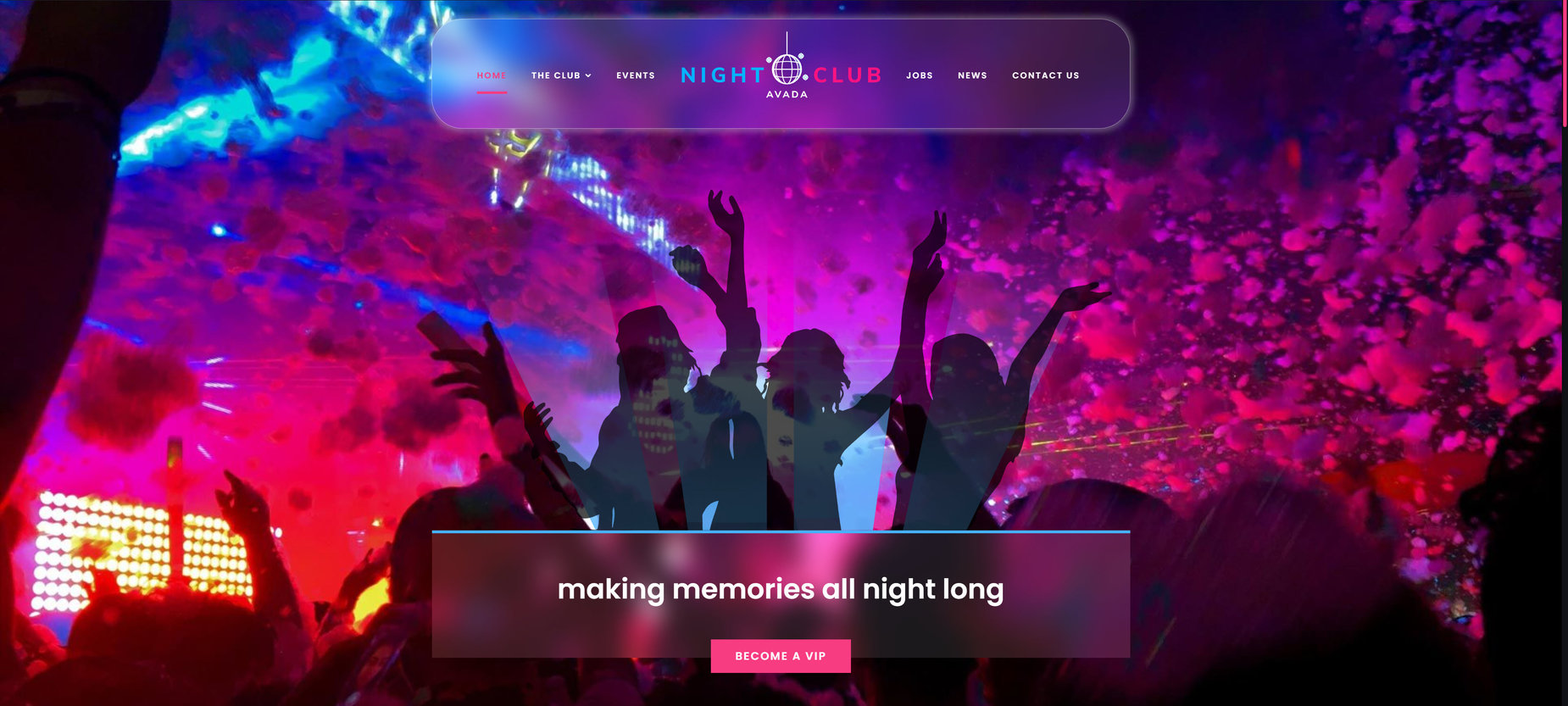
Let’s look at the specific example of a liquid glass effect on a column, in this case the header column of the Nightclub prebuilt, as well as a column in the page content.
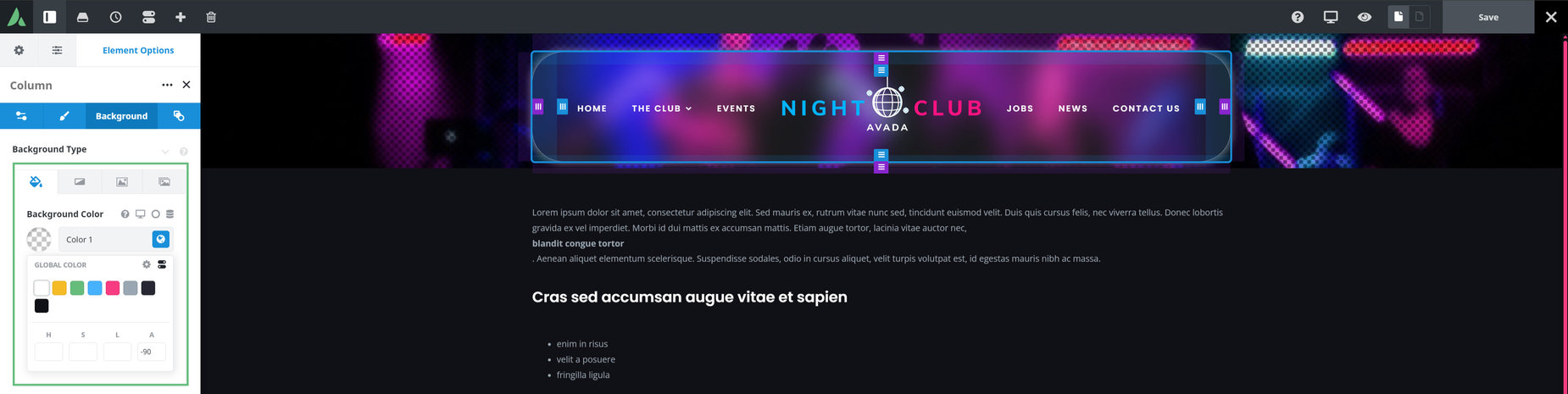
Let’s start with the Column itself. On the background tab, the column has a background color, whose opacity has been reduced to -90. This is all that’s required on the column, but in this case, a border, border radius and a box shadow was also added to the column.
Then we move to the Backdrop Filters, found under the Filter Types, on the Extras tab. You can adjust these as you want for various effects, but for a Liquid Glass look, the most important setting is Backdrop Blur. Here, 20px of blur has been applied to the normal state. In this example, a small amount of Backdrop Brightness was also added.
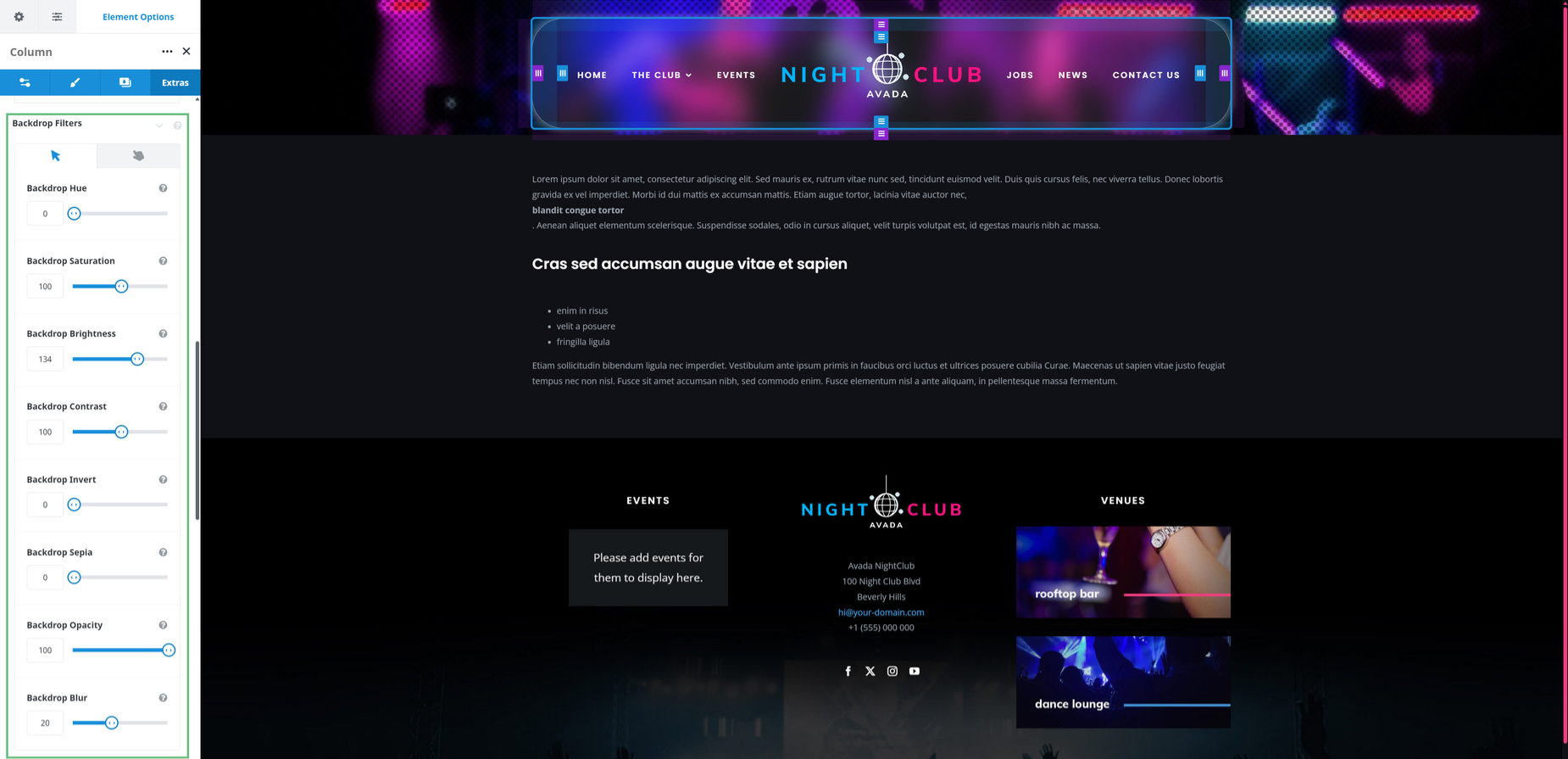
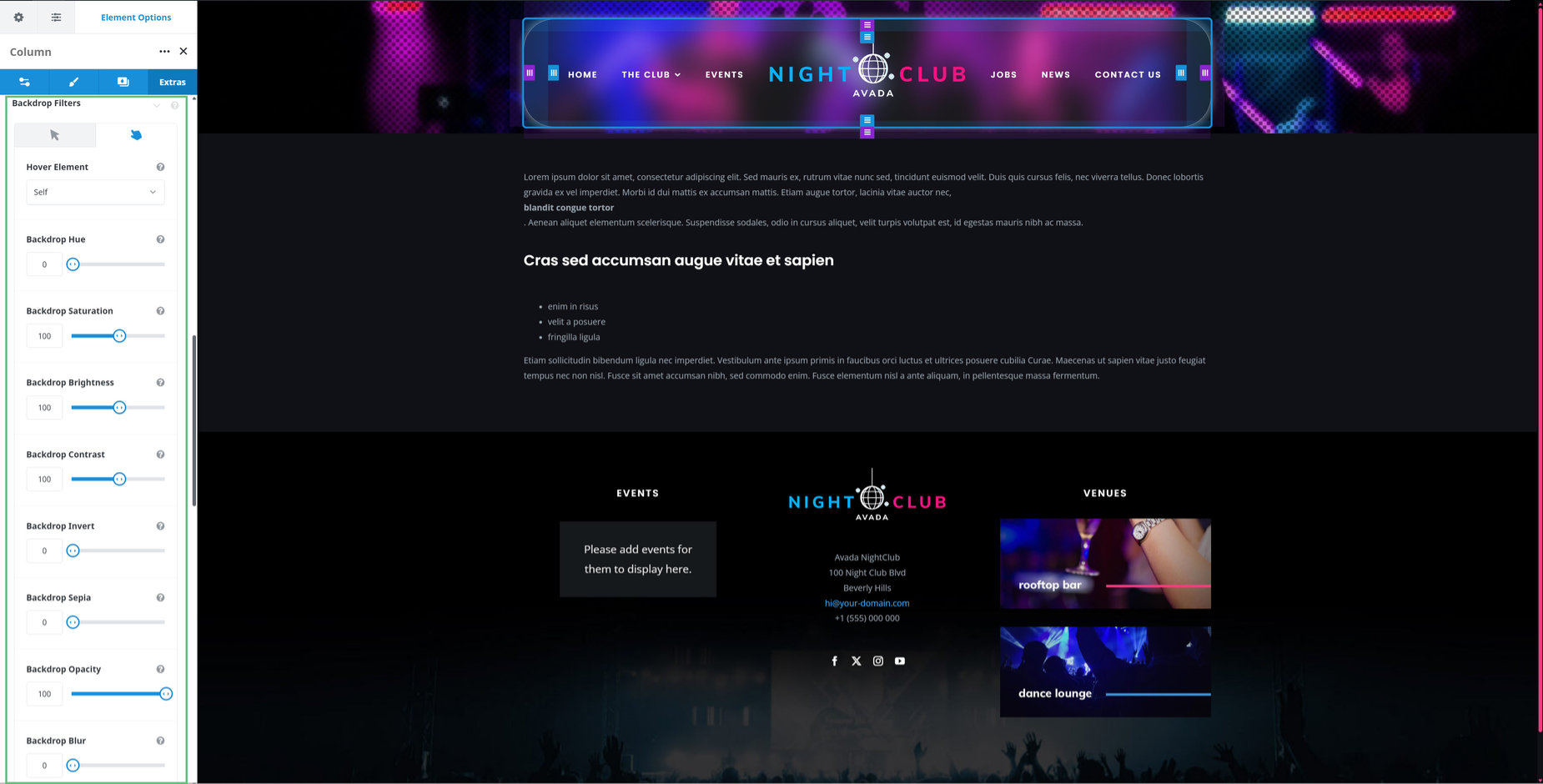
On the Hover State, both the Blur and the Brightness were left at their defaults, so when hovering over the column, the blur and the extra brightness disappear.
Finally, on the Container behind the column, which is this prebuilt would be the top container on any page as this prebuilt uses a global header, it’s important that there is a background image, or at the very least some sort of visible detail such as a hard gradient, so that the effect can be seen.
Container Example
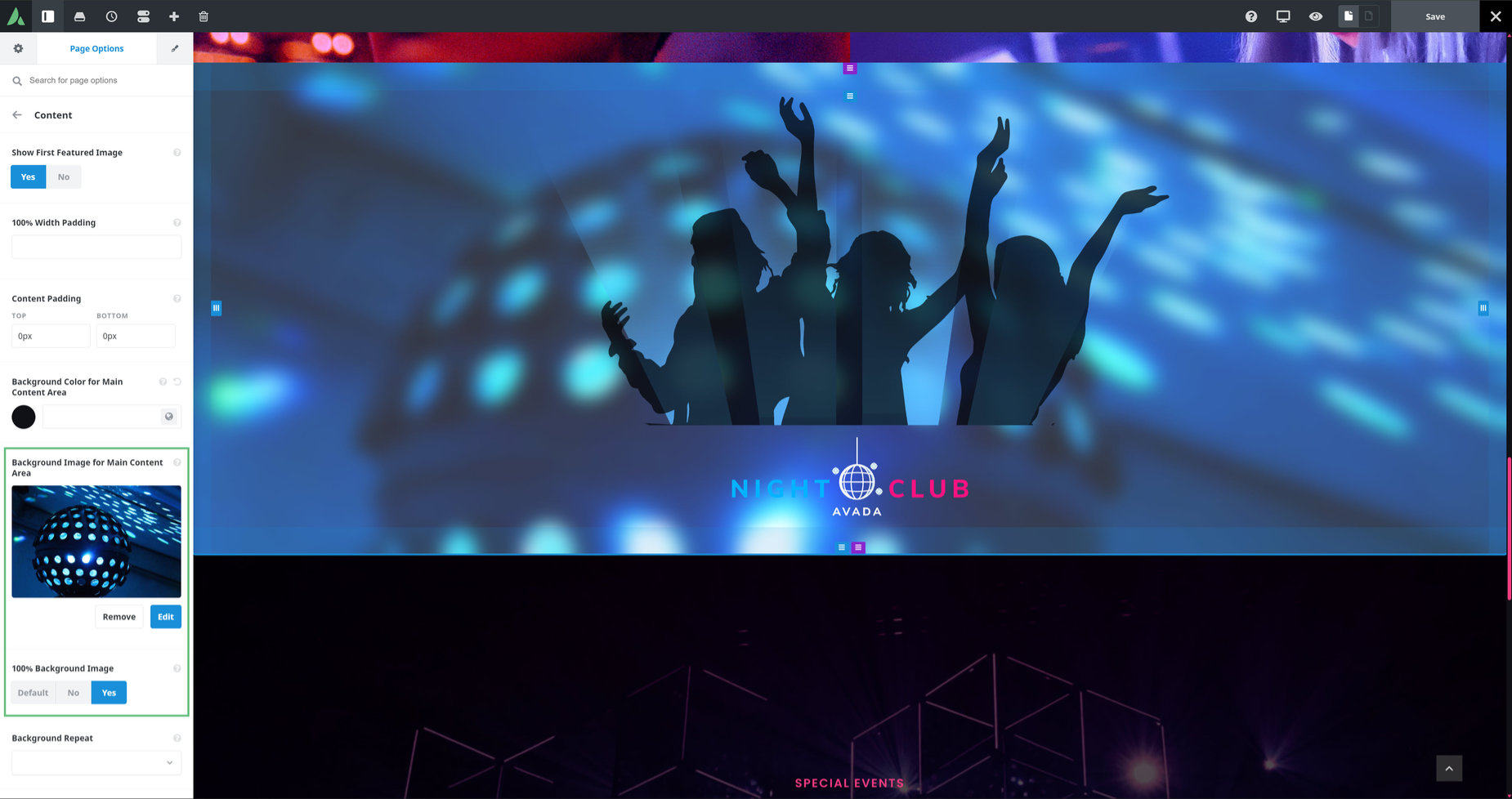
Applying these effects to a container is slightly different, mostly in what is affected. With this effect, you must remember that what is affected is what is behind the element the effect is applied to. With the case of a container, that would be the page background. It is not a common practice to apply a global page background, and so this is most likely done on a page by page basis, using the Page Options > Content tab. Here you can add a Background Image for the Main Content Area, as well as optionally setting it to be a 100% background image, and possibly even repeat options.
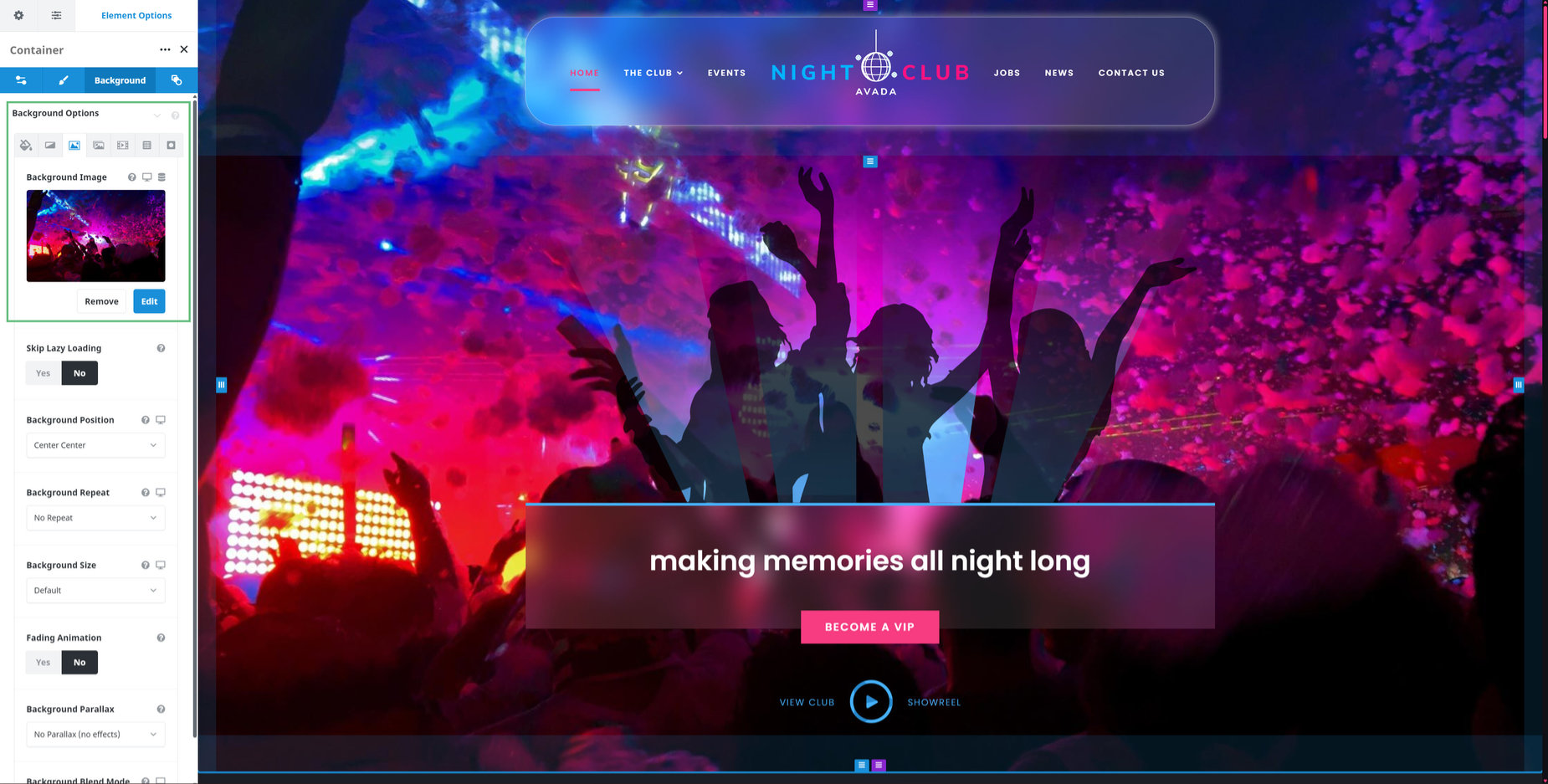
The Container itself is treated just like the column. In this example from the video above, the container has had two images added to it, as well as a background color with some transparency.
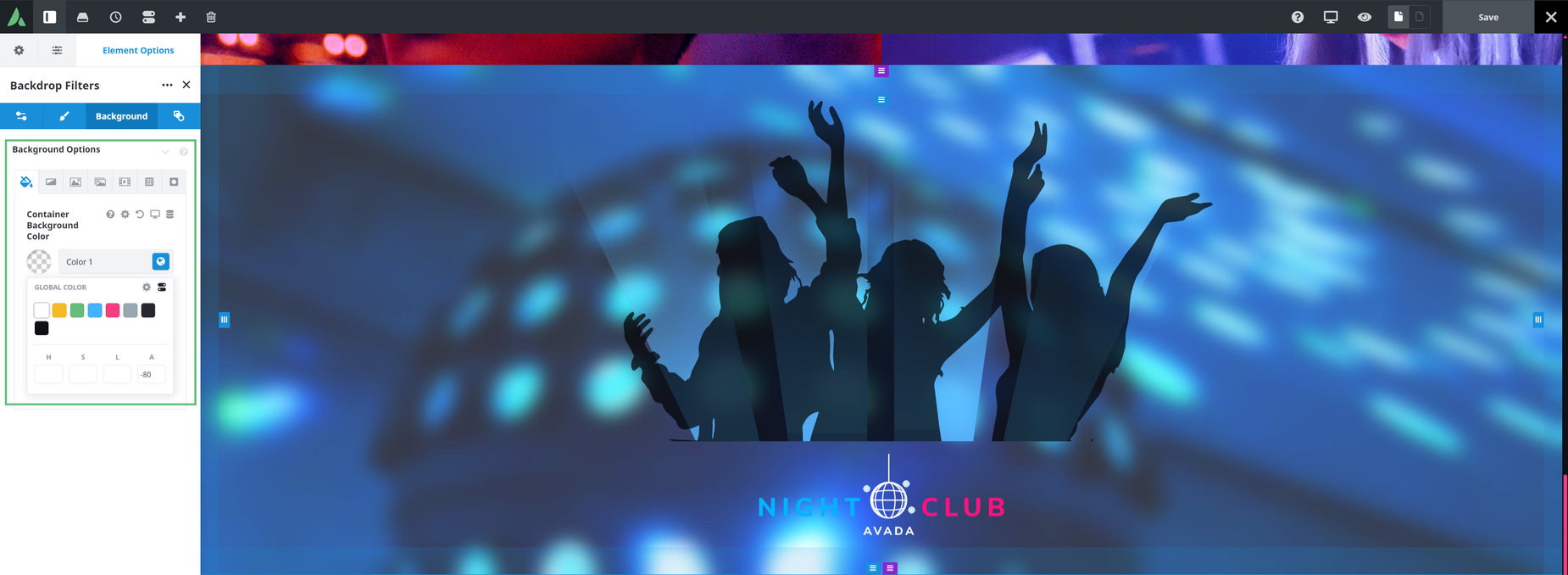
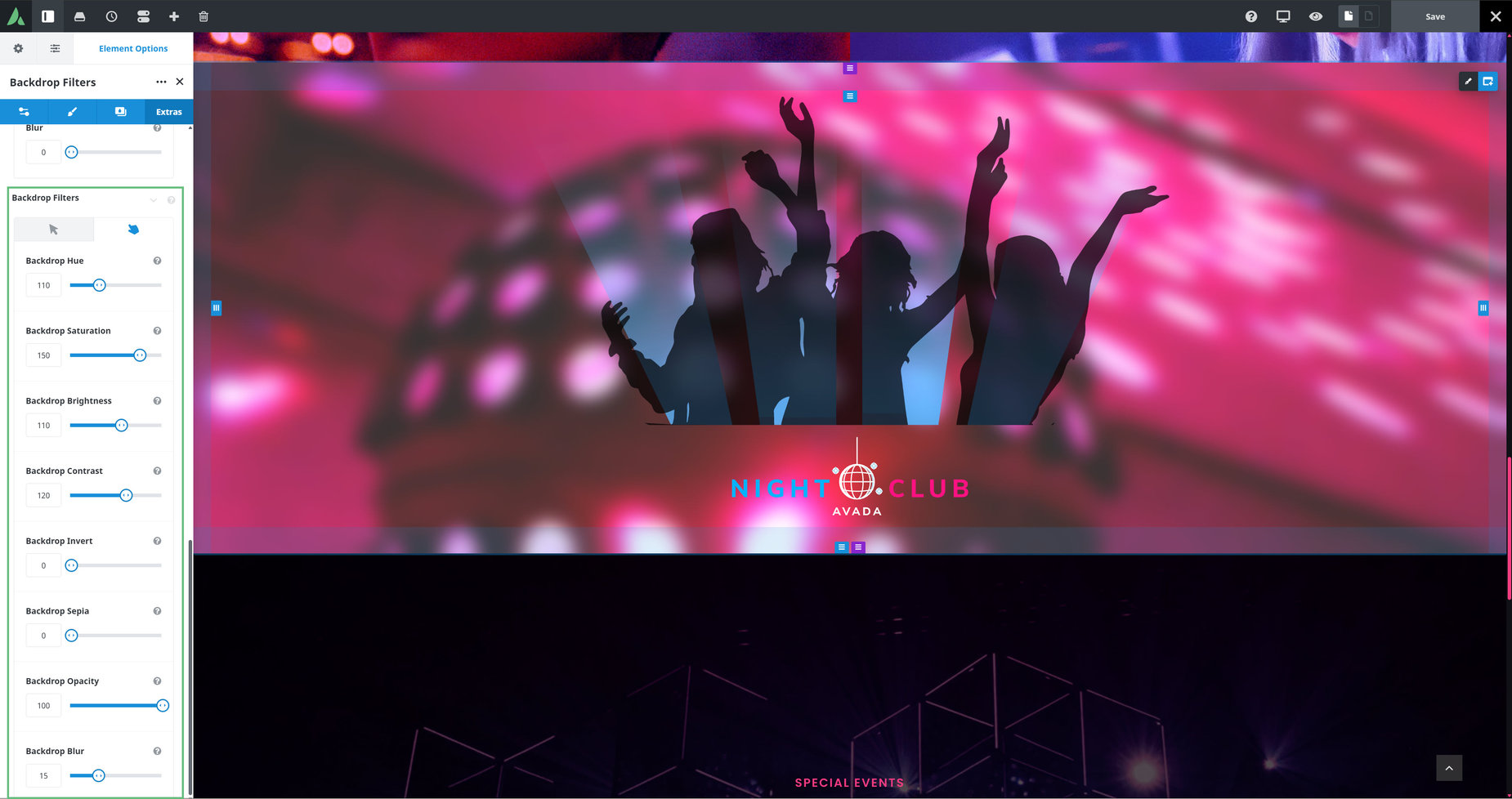
Then in the Backdrop Effects on the Extras tab, the Normal and Hover State Effects have been set. In this example, somewhat differently from the Liquid Glass effect, amounts of Saturation, Brightness, and Blur were added to the Normal State.
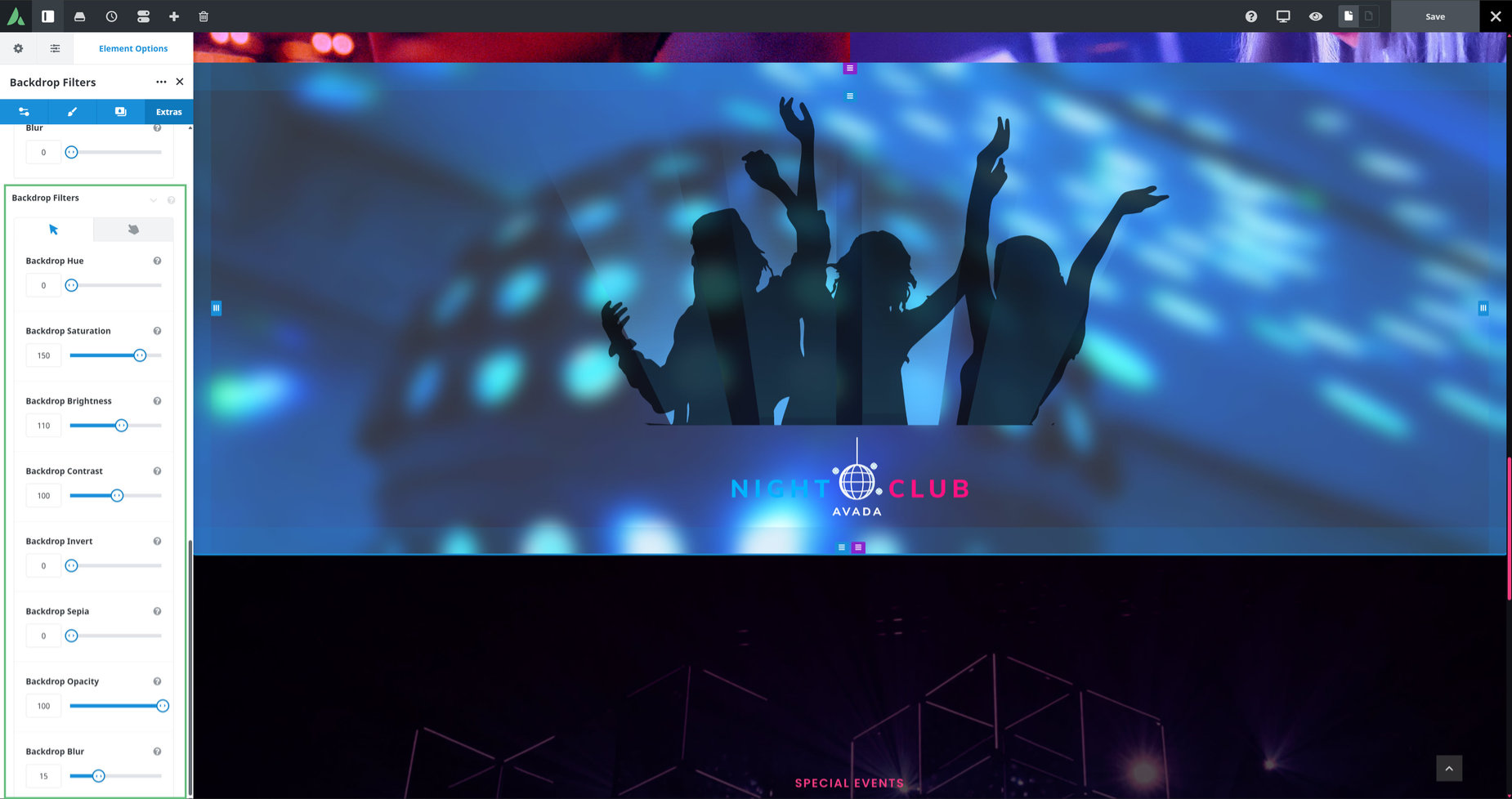
While on the Hover State, a Hue shift was applied, as well as the same Saturation, Brightness, and Blur values, as well as some extra Contrast. So in effect, when we mouse over the container, the image shifts hue and gets a bit more contrast, which both states have extra saturation, brightness and blur.
This illustrates that Backdrop Filters are not only about the Liquid Glass effect. You can apply any combination of backdrop effects you like, and many effexts are possible.