
How To Adjust WooCommerce Product Image Size Settings

Last Update: February 19, 2026

WooCommerce includes settings to change the size of product images for Catalog images and Single Product images. There are specific Avada settings that work in conjunction with the WooCommerce image sizes. When configuring these image size settings, it’s important to consider the Avada Global Options settings as well.
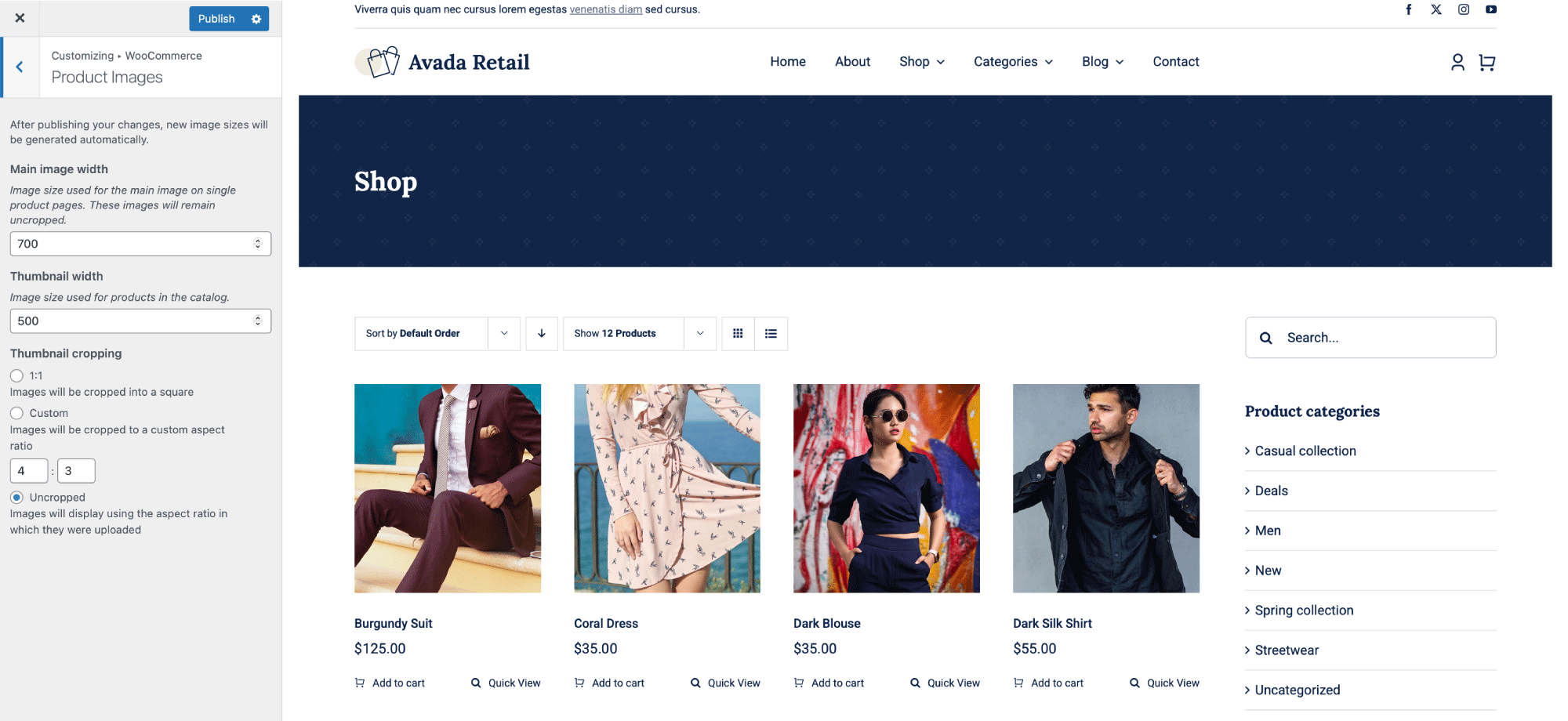
WooCommerce Product Image Size Settings

When setting up a shop, be sure to consider both WooCommerce’s image size settings and the actual size of your images. In summary, your images should be at least as large as your WooCommerce image size settings.

After changing the Woo product image sizes, you’ll need to regenerate your thumbnails for the changes to apply to previously uploaded images on your site. We recommend using the Regenerate Thumbnails plugin to regenerate the image sizes. Please see the steps below for details on changing WooCommerce image sizes.

  • Step 1​ – Click on the “Appearance” tab on your admin sidebar, and select the “Customize” tab.

  • Step 2​​ – Click on the “WooCommerce” tab of the page.

  • Step 3​​ – Under the “Product Images” tab, you will find the Images setting for Single Product Images.

  • Step 4​​ – Main image width option is for your images on the single product pages. Thumbnail width is for your products in the catalog. Enter your desired width value. (Note: Your image height is automatically scaled with the image’s aspect ratio.) If you’re using the Single Product Gallery Image zoom effect, the Special Notes section below provides details on image sizes and setup.
  • Step 5​​ – When you make changes to the image sizes and save it, you must regenerate thumbnails using the Regenerate Thumbnails plugin. Install the Regenerate Thumbnails plugin, then go to the “WordPress Dashboard > Tools” tab to regenerate your image thumbnails so the new image sizes are created.

Regenerating The Thumbnails

When you change the WooCommerce product image sizes in WordPress, those new dimensions only apply to images uploaded from that point forward. Any product images uploaded before the change will continue to use the old cropped versions, which can lead to inconsistent sizing, blurry thumbnails, or layout issues on your shop and product pages.

Regenerating thumbnails solves this by recreating all existing image sizes based on your updated settings. This process traverses your media library and generates new versions of each image based on the current WooCommerce and theme image dimensions. Once complete, your shop grids, product galleries, and thumbnails will display correctly in the new sizes, ensuring a consistent, professional appearance across your online store.


Special Notes on the Image Zoom Effect

  • To set up the Single Product Gallery Zoom effect, you’ll need to be sure it’s enabled in Avada > Options > WooCommerce > General WooCommerce; WooCommerce Product Gallery Zoom
  • WooCommerce Product Gallery Size – The Single Product Image size will need to be larger than your setting for WooCommerce Product Gallery Size in Avada > Options > WooCommerce > General WooCommerce. That setting determines the width of the single-product gallery’s container column. Once you’ve set that as needed, you’ll be ready to set your WooCommerce single product Image size.



  • WooCommerce Single Product Image Size – The WooCommerce Single Product Image size setting will control the actual size of the image used in the gallery. The larger your image size is set to, the stronger and more detailed your zoom effect will be. Note: If your image size in WooCommerce settings is equal to your WooCommerce Product Gallery Size in Avada’s global options, no zoom will be noticed on hover. Additionally, the image you upload must be at least as large as your Single Product Image size setting.

  • Regenerate Thumbnails – After making changes to the WooCommerce Image sizes, be sure to regenerate your thumbnails. Doing so will apply your changed image sizes to images already uploaded on your site. You can use this plugin: Regenerate Thumbnails

In this article











































































































