
How To Use the Avada Builder Command Palette
Last Update: May 14, 2026
The Avada Command Palette is an efficiency tool that allows you to quickly access commands, options, and Design Elements, to speed up your workflow. Let’s have a look.
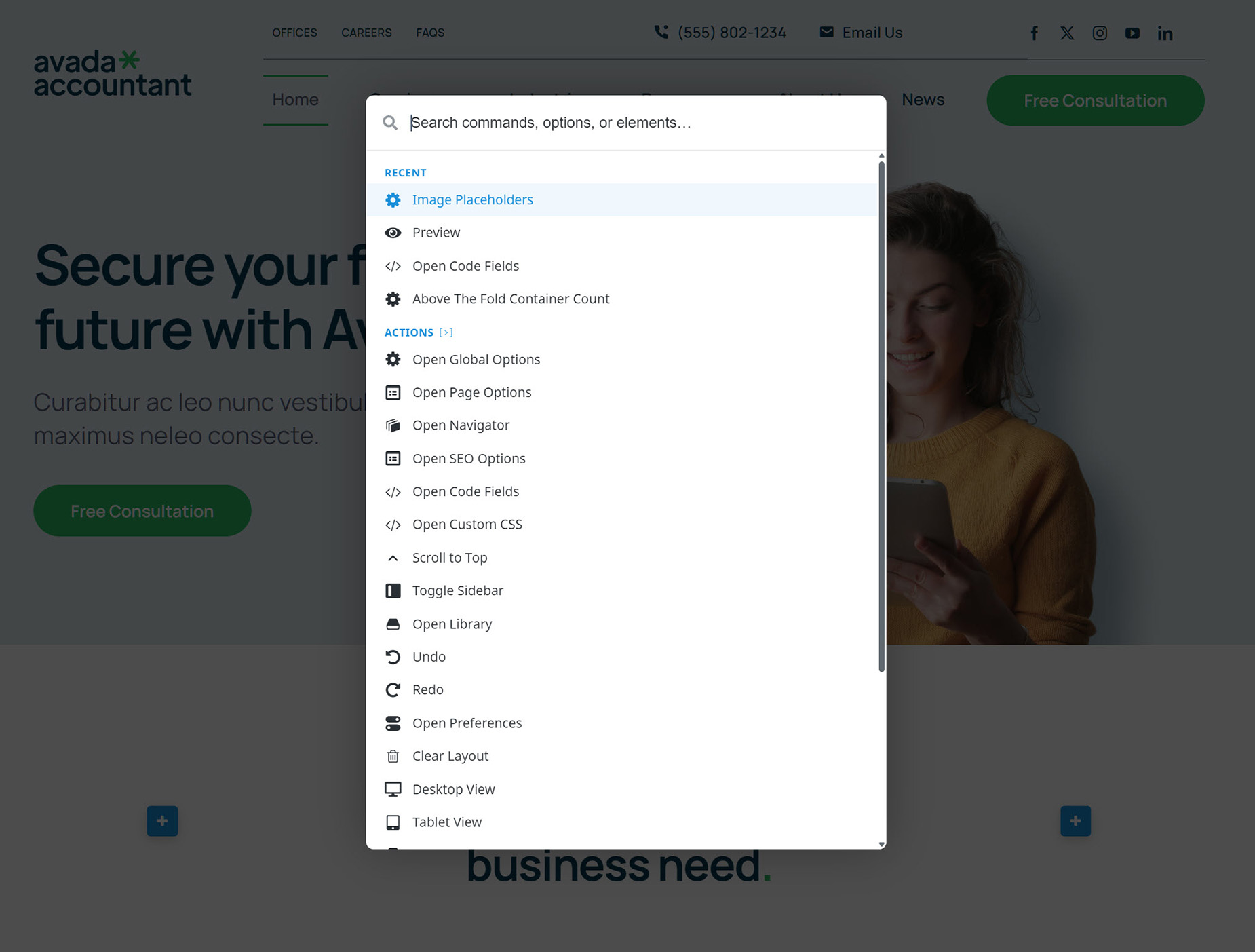
How To Use The Command Palette
When in the Live Builder, the keyboard combination of F1 or Ctrl + K, (or Cmd + K on Mac) will open the Command Palette, as seen in the above screenshot.
At the very top is the search / input bar. It is active by default when the Command Palette opens. Here you can enter any of the keyboard shortcuts to quickly access what it is you are wanting. As can be seen in the table below, there are a range of prefixes that will filter or search to further refine your possible selections.
For example, / or + will bring up a list of Elements you can insert into the page. @ will allow you to search the page for existing navigator content. There are also prefixes to limit your search to the Page options or Global options. With these, you might type PO: image, and all page options with that string in it would display.
The ? symbol will bring up a list of all possible palette prefixes, as well as the already existing Avada keyboard Shortcuts. Under the Search / Input Bar, the five most recent comands are displayed.
And in conjunction with the Avada Shortcuts, the Command Palette can pay great dividends in saved time, by streamlining the access to particular actions, comands and tools that you use every day. Check it out. And wacth the video below for a visual overview of the tool.
| Prefix | Category |
|---|---|
| / or + | Insert Element |
| # | Insert Library Element |
| @ | Find On Page |
| > | Actions / Commands |
| PO: | Page Options |
| GO: | Global Options |
| ? | Shortcut Reference (read-only) |


















































































































